What should you look for when choosing?
First consider reflections and your workspace set-up, then the space you need for code and diffs. Finally, check that the operating system and configuration are compatible with the software you use.
| What to consider |
What should you check? |
Who should give this more weight? |
| Readability in daylight |
Check the screen finish and what the quoted brightness means for the exact configuration. Don’t compare a standard brightness figure with a separate HDR peak figure. |
If window reflections make it difficult to read code, keeping text clearly visible is your main concern. Around 36% of consumers prioritise reducing reflections above all else. |
| Space for code and diffs |
Compare the screen size and resolution of the configuration you’re considering. If you’ll use an external monitor, also check that the laptop has the connection you need. |
If you want to view changes and the surrounding code at the same time, available screen space matters. Around 29% of consumers prioritise having room to compare code. |
| Software and workflow |
Check that the programmes you use are available for your chosen operating system. Also check the configuration’s memory, not just the model name. |
If review tools or project software determine your choice, you’ll want to use them in the way you’re used to. Around 21% of consumers prioritise a software set-up that suits their workflow. |
| Taking it with you and charging |
Compare the size and check which power adapter is included and what wattage is required. |
If you often move between workspaces, portability and charging will also factor into your choice. Around 14% of consumers prioritise mobile use and charging. |
Joybuy laptops for code review
These Joybuy product picks are aimed at reading and comparing code. If you’ll use one next to a bright window, check the screen finish of the exact configuration.
 No image available
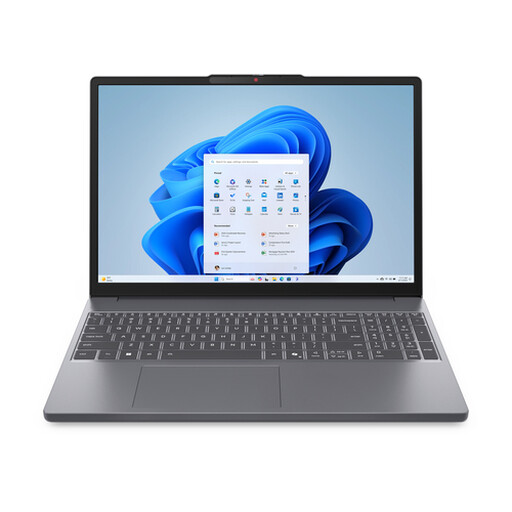
Lenovo IdeaPad Slim 3 15AHP10, Ryzen 7 8840HS, 16 GB, 512 GB SSD, QWERTY
The 15.3-inch configuration may suit you if you want to view code on a larger built-in screen; check the screen finish before using it by a window.
The product name lists Ryzen 7 8840HS, 16 GB of memory, a 512 GB SSD and a QWERTY keyboard. You’ll need to source a power adapter separately for this configuration.
View at Joybuy
 No image available
ASUS Vivobook S16 S3607QA-SH109W, WUXGA OLED, Snapdragon X, 16 GB, 512 GB SSD
This 16-inch configuration may suit you if you want a spacious built-in screen for reviewing changes; check the screen finish if you’ll be working next to a bright window.
The product name lists WUXGA OLED, Snapdragon X, 16 GB LPDDR5X, a 512 GB SSD and Windows 11 Home.
View at Joybuy
 No image available
Samsung Galaxy Book4 NP750XGK-KG3NL, Intel Core 7 150U, 16 GB, 512 GB SSD, Full HD
The 15.6-inch configuration may suit you if you’re looking for a built-in screen for everyday code reading; check the screen finish for your workspace.
The product name lists Intel Core 7 150U, 16 GB RAM, a 512 GB SSD and Windows 11 Home. The Full HD resolution has a 16:9 aspect ratio.
View at Joybuy
 No image available
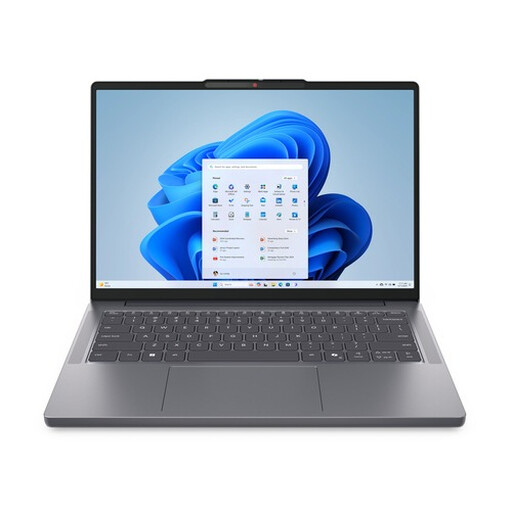
Lenovo IdeaPad Slim 3 14AHP10 R7, 16 GB, 512 GB, Windows 11, QWERTY
This IdeaPad configuration may suit you if you’re looking for a compact laptop for reading code; compare the available screen space with what you need to view a diff.
The product name lists R7, 16 GB, 512 GB, Windows 11 and a QWERTY keyboard.
View at Joybuy
 No image available
MSI Modern 14 F1MG-867NL, Intel Core 7 150U, 16 GB, 512 GB SSD, Full HD
This 14-inch configuration may suit you if you want a laptop you can take with you and a more compact screen for viewing code; consider how much space you need to see code and diffs side by side.
The product name lists Intel Core 7 150U, 16 GB DDR4, a 512 GB SSD, a backlit keyboard and Windows 11 Home.
View at Joybuy
Frequently asked questions
Is the highest quoted brightness automatically the best choice next to a window?
No. Don’t compare standard screen brightness with a separate HDR peak figure, and check the finish of the exact configuration. Arboportaal recommends positioning your line of sight parallel to the window; this doesn’t guarantee that every screen will be easy to read in all lighting conditions.
What can you change about your workspace if text is hard to read?
Where possible, position your line of sight parallel to the window and use suitable blinds or shading if light is falling on the screen. This advice from Arboportaal doesn’t replace assessing the screen finish and the light in your workspace.
Does a laptop always come with a power adapter?
No, it can vary by configuration. For the ASUS Zenbook S14 UX5406AA reviewed, ASUS states that no adapter is included and that a 100 W adapter is required. Check what’s in the box and the charging requirements for the model you choose.
Does one model name always mean the same screen configuration?
No, check the full model code and chosen configuration. The screen features listed by Lenovo Netherlands apply to the ThinkPad X1 Carbon Gen 13 with part number 21NSCTO1WWNL2; Dell offers different configurations of the XPS 13 9350.
What should you look for if you want to view code and a diff at the same time?
Compare the screen size and resolution of the exact configuration, and consider how much space you need for your windows. If you use an external monitor, also check that the laptop has the connection you need.


