
Nature sound editor
You mainly create audio recordings and don’t want to buy video hardware that your audio software doesn’t require.


If you’re only editing audio, you don’t need a dedicated graphics card: Audacity doesn’t specify any particular CPU or GPU requirements. For HD or 4K video, the right choice depends on your editing software and source footage. Adobe recommends 16 GB RAM for HD in Premiere, and 32 GB or more for 4K. Compare storage, ports and portability too, and don’t pay for video hardware your workflow doesn’t need.
You mainly create audio recordings and don’t want to buy video hardware that your audio software doesn’t require.
You combine coastal footage and sound, and want a laptop suited to your project’s resolution and software.
You edit larger video files and need to assess memory, graphics and storage for each configuration.
First decide whether you’ll be editing audio only, HD video or 4K video. This helps you avoid choosing a lightweight workflow to meet more demanding video system requirements unnecessarily.
Choose this option: if your presentation consists of nature sounds and you won’t be editing video.
Keep in mind: check that your audio software, recording equipment and plug-ins are compatible.
Choose this option: if you’re combining footage and nature sounds, and your software and source material meet the configuration requirements.
Keep in mind: Adobe recommends 16 GB RAM for HD editing in Premiere. This recommendation doesn’t guarantee that every timeline or source format will run smoothly.
Choose this option: if you’re editing 4K footage in Premiere; Adobe recommends 32 GB RAM or more for this.
Keep in mind: a creator laptop with a dedicated GPU is an option to consider, not an automatic requirement for every project. Proxies can make editing 4K footage on less powerful hardware easier, but they’re no substitute for checking the system requirements.
| Key consideration | What should you check? | Who is it important for? |
|---|---|---|
| Audio only | Check the operating system, your recorder’s connection and plug-in compatibility. Audacity doesn’t specify any particular CPU or GPU requirement for its Windows version. | If you only edit nature sounds, you’ll want to avoid buying unnecessary video hardware and be able to open your working files reliably on your local device. Around 40% of consumers prioritise audio editing. |
| HD video | Check the source resolution, codec, software version and memory. Adobe recommends 16 GB RAM for HD editing in Premiere. | If you’re making a short video with coastal footage and sound, you’ll want a configuration suited to your software and material. Around 30% of consumers prioritise HD video editing. |
| 4K video and storage | For Premiere, Adobe recommends 32 GB RAM or more for 4K and above. Also check the available SSD space for source footage, projects and any proxies. | If you’re editing 4K files, editing capability and space for media files will matter more. Around 20% of consumers prioritise 4K editing. |
| Portability | Compare the screen size and ports you need with your equipment. Also check whether the exact configuration includes an adapter. | If you take your laptop between a recording location and a presentation, you’ll need to weigh up size and connectivity against editing capability. Around 10% of consumers put portability first. |
Requirements vary by workflow: Adobe distinguishes between HD and 4K for Premiere, while Audacity doesn’t specify any particular GPU requirement.
First decide whether you’re creating audio only, HD video or 4K video, then check the requirements of your own software.
Buying a more powerful laptop when you only edit audio could mean paying for hardware you don’t use.
Source footage, project files, cache and exports all use storage space. The SSD’s stated capacity won’t be entirely available for your projects.
Leave room for originals, project files, any proxies and exports. Adobe recommends fast SSD or NVMe storage for video production.
If your projects won’t fit on the internal drive, you may need additional fast external storage.
For the HP and ASUS configurations reviewed, the product information says that the adapter is sold separately or isn’t included, respectively.
Check what’s in the box for the exact model and which adapter is compatible.
You may also need to buy a separate power adapter.
The OmniBook X 14-ka0625nd is a compact Windows configuration to compare for lighter video workflows.
The MacBook Pro range offers a macOS option for editing. Apple lists hardware-accelerated processing for H.264, HEVC and ProRes on M5 configurations.
The ProArt P16 H7606GP is a 16-inch Windows configuration to consider for more demanding video projects.
The Yoga Pro 9i Gen 10 Aura Edition is a 16-inch range to compare if you’re considering a larger screen and dedicated graphics.
This Joybuy selection focuses on laptops for larger video projects. Check whether each model’s configuration suits your source footage and editing software.
 No image available
A configuration to consider for larger video projects. Check that the rest of the hardware and software suits your source footage.
16-inch AI workstation laptop with 64 GB RAM, 1 TB SSD and Windows 11 Pro.
 No image available
A 14-inch configuration to compare if you’re looking for editing capability in a smaller laptop.
AI workstation laptop with 128 GB RAM, 1 TB SSD and Windows 11 Pro.
 No image available
The listed 2 TB SSD gives you storage space to factor in when considering projects with lots of source files.
16-inch laptop with 128 GB RAM, 2 TB SSD, a 3K OLED touchscreen and Windows 11 Pro.
 No image available
A configuration to compare for editing video and audio. Check that it’s suitable for your software and source files.
16-inch 2-in-1 laptop with 32 GB RAM, 1 TB SSD and QWERTY keyboard.
 No image available
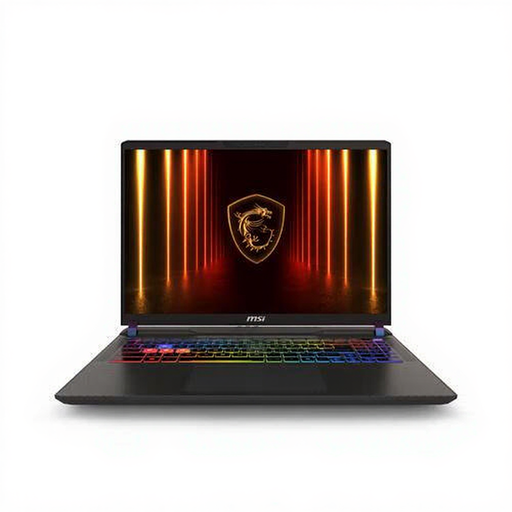
A 16-inch configuration to consider for video editing. For 4K in Premiere, the listed memory is below Adobe’s recommendation.
The product name lists a Ryzen 9 8940HX, 16 GB RAM, 1 TB SSD and NVIDIA GeForce RTX 5080. Adobe recommends 32 GB RAM or more for 4K editing in Premiere.
Not according to Audacity’s published requirements: the programme doesn’t specify any particular CPU or GPU requirement for its Windows version. Do check the requirements of your own audio software and the compatibility of any plug-ins.
Adobe describes a proxy workflow for Premiere, where you edit using lighter copies and use the original media for the final export. Also check the system requirements for your software version and make sure you have enough storage space.
Adobe recommends fast SSD or NVMe storage for video production. Audacity warns that network storage, basic external hard drives and USB sticks may be unreliable for storing active audio projects.
When you buy as a consumer, you’re entitled to a product that’s fit for purpose. According to the Dutch government, there’s no fixed term for the statutory guarantee in the Netherlands; if a product is faulty, you should generally contact the seller. For eligible online purchases from a business, you’ll usually have 14 days to change your mind, although exceptions depend on the purchase and the seller.