Start with the browsers and devices you actually need to test your checkout on. A Mac is relevant for inspecting Safari and investigating connected iOS devices, while a Windows laptop may suit a workflow focused mainly on Chrome and Edge. Then check that the exact configuration can connect to your display and peripherals. Simulating a mobile view is no substitute for testing on a real device.
Who is this choice relevant to?
Cross-browser tester
If you check checkouts in different browsers or investigate issues on a connected iPhone, first check whether your test setup supports the browsers and devices you need. Chrome for Developers and Microsoft Learn describe browser emulation as an approximation; Apple Developer explains how to inspect connected iOS and iPadOS devices from a Mac.
Regular sit-stand desk user
If you change your working position and use an external display, keyboard or mouse, the setup and ports on the exact laptop configuration matter. Check how your display and input devices can be positioned at your workstation.
Tester who moves between workspaces
If you take your laptop with you but also want to inspect a checkout and use development tools, weigh screen size against portability. Compare the specifications of the exact configuration, not just those of the product family.
What should you look for in a laptop for checkout testing?
First decide which browsers and real devices you need; then choose a screen, memory and ports to suit your test setup.
MacBook with macOS
A good fit if: you want to inspect Safari or investigate a connected iOS device from a Mac. Apple Developer describes this inspection capability.
Bear in mind: Apple says the 13-inch MacBook Air with M5 configuration reviewed here has 16 GB of memory and two Thunderbolt 4 ports. Check whether those ports are enough for your display and peripherals.
Business Windows laptop
A good fit if: you mainly use a Windows workstation for your browser workflow. According to HP, the HP ProBook 4 G2i configuration reviewed here has Windows 11 Pro, 12 GB of RAM and a 14-inch, 1920 × 1200-pixel display.
Bear in mind: a Windows laptop cannot run Safari on macOS or iOS. Also check the ports and dock compatibility of the exact configuration.
| What to consider |
What to look for when buying |
Who is this most relevant to? |
| Browsers and test devices |
List the browsers and devices you actually need to test; decide whether you need to inspect Safari or use a connected iOS device. |
If I need to check the checkout in specific browsers or on a real phone, I want a test setup that suits the task. Around 36% of consumers put browser and device coverage first. |
| Sit-stand desk setup |
Check the display output and ports for your own display, keyboard, mouse and any dock. |
If I adjust my workstation when sitting or standing, I want to be able to position the display and input devices appropriately. Around 29% of consumers put their workstation setup first. |
| Room for your testing workflow |
Compare the screen size, resolution and memory of the exact configuration, taking your usual browsers and tabs into account. |
If I want to view the checkout and development tools side by side, I need enough usable screen space. Around 21% of consumers put this workspace first. |
| Moving between workspaces |
Weigh screen size against portability, and check the battery specifications for the exact configuration if you sometimes work away from a power socket. |
If I take my laptop between test locations, I want a size that suits my workspace. Around 14% of consumers put portability first. |
Common buying mistakes when testing checkouts
-
Mistaking a simulated mobile view for a successful real-world mobile test
Browser tools can simulate a mobile view, but they do not run the checkout on real mobile hardware and in a real mobile browser. Chrome for Developers and Microsoft Learn describe this limitation in their development tools.
Use simulation for an initial check, then test important steps on the relevant devices and browsers too.
Allow extra time for testing and access to the devices you need for those checks.
-
Considering only the laptop screen and built-in input devices
A sit-stand desk does not automatically position your laptop screen and keyboard appropriately for your workspace. You may need an external display or separate input devices for the setup you want.
Before you buy, check how you want to position the laptop, display and input devices, and whether the ports on the exact configuration will work for your setup.
You may also need to make room for an external display, separate input devices or a compatible dock.
-
Assuming every configuration has the product family’s specifications
Configurations can vary within a product family. For example, the Lenovo ThinkPad E14 Gen 8 configuration reviewed here lists 8 GB of memory; that does not mean every E14 has the same specifications.
Compare the full model name or item number, and check the memory, screen and ports on the configuration you are considering.
Brands to compare
Apple
The MacBook Air is relevant if inspecting Safari or investigating connected iOS and iPadOS devices is part of your testing workflow.
- For the base 13-inch MacBook Air with M5 configuration reviewed here, Apple lists 16 GB of memory and two Thunderbolt 4 ports.
- Check whether the ports are sufficient for your display and peripherals. The stated battery life is not a measurement of your checkout workflow.
HP
The ProBook 4 G2i is a business Windows configuration worth comparing for a fixed testing workstation.
- The DZ5F0EA#ABH configuration reviewed here lists Windows 11 Pro, 12 GB of RAM and a 14-inch, 1920 × 1200-pixel display.
- Check the ports, charger and configuration of the version you are looking at; features of one model do not automatically apply to the whole product family.
Lenovo
The ThinkPad E14 family includes business laptops with configurations you can match to your workspace and preferred specifications.
- For the ThinkPad E14 Gen 8 configuration reviewed here, Lenovo lists 8 GB of memory and an anti-glare 14-inch, 1920 × 1200-pixel display.
- Check the exact memory and display configuration; the specifications of one E14 version do not automatically apply to other configurations.
Laptop options at Joybuy
These Joybuy laptop options are relevant to the topic and offer a range of built-in screen sizes and configurations to compare for your test setup.
 No image available
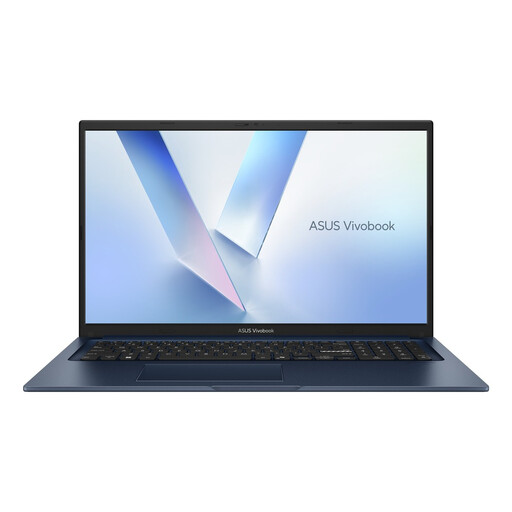
ASUS Vivobook 17 X1704MA-AU153W, 17.3-inch, 8 GB, 256 GB SSD, QWERTY
The 17.3-inch screen may suit you if you want plenty of space on the built-in display at a fixed testing workstation.
This configuration lists a Core 5 320 processor, 8 GB of RAM and a 256 GB SSD.
View at Joybuy
 No image available
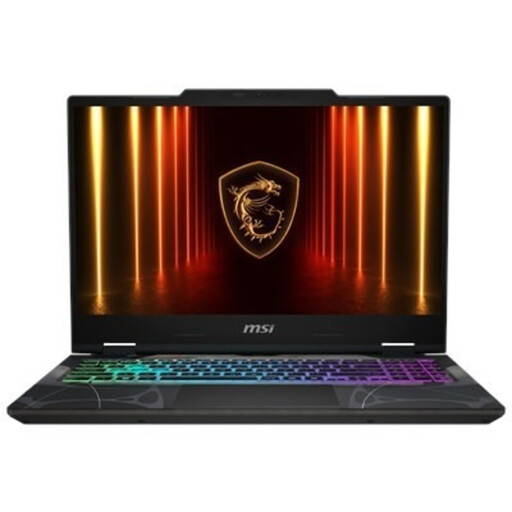
MSI Cyborg A15 AI B2HWGKG-248NL, 15.6-inch, 16 GB, 512 GB SSD
The 15.6-inch Full HD screen may suit a testing workstation where you want to view the checkout and tools on the built-in display.
This configuration lists a 144 Hz refresh rate, an AMD Ryzen 9 270 processor, RTX 5070 graphics with 8 GB GDDR7, 16 GB DDR5, a 512 GB SSD and Windows 11 Home.
View at Joybuy
 No image available
Lenovo IdeaPad Slim 5 15ARP10, 15.3-inch, 16 GB, 512 GB SSD, QWERTY
The 15.3-inch WUXGA screen with a 16:10 aspect ratio may suit you if you want to view the checkout and development tools on one screen.
This configuration lists a Ryzen 5 7535HS processor, 16 GB of memory and a 512 GB SSD. The USB-C power adapter is sold separately.
View at Joybuy
 No image available
HP OmniBook 5 Flip 14-fp0075nd C5VM5EA#ABH
This configuration may suit you if you need connections for an external display and peripherals at your testing workstation.
The description lists Windows 11 Home, 16 GB of memory, a 14-inch touchscreen and HDMI, USB-A and USB-C ports. A compatible USB-C power adapter of at least 45 W is not included and must be purchased separately.
View at Joybuy
 No image available
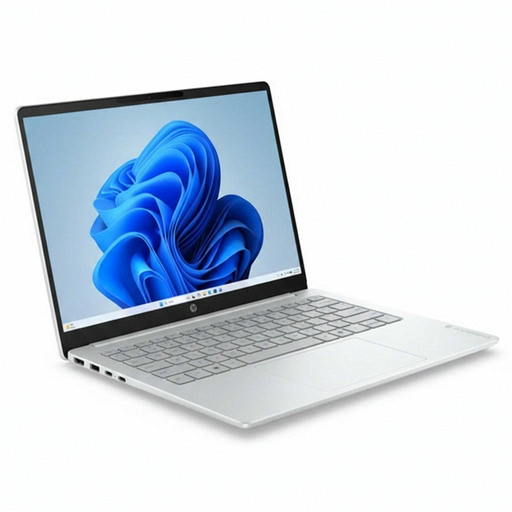
HP OmniBook 3 AI PC 14-ht0013nd, 14-inch, 8 GB, 512 GB SSD
The listed ports may come in handy if you want to connect an external display or separate input devices at your testing workstation.
This configuration lists a 14-inch, 1920 × 1200-pixel screen with a 16:10 aspect ratio, Windows 11 Home, 8 GB of memory and HDMI, USB-A and USB-C ports.
View at Joybuy
Frequently asked questions
Can you fully test a mobile checkout using only the device view in a desktop browser?
No. Chrome and Edge describe their device views as approximations, not tests on a real phone. So make sure you also check important steps on the relevant real devices and browsers.
How does your workstation setup change if you work at a sit-stand desk for long periods?
Check whether you can position your display and input devices appropriately when sitting and standing, and whether you need an external display or separate input devices to do so. Also check that the ports on your chosen configuration suit your setup.
What should you consider if a checkout test involves real customer or payment details?
Make sure your use of real data complies with your organisation’s security arrangements. The Dutch Data Protection Authority stresses that personal data must be properly secured and identifies payment details as sensitive; no particular laptop, on its own, makes a test compliant with those arrangements.


