
Layout designer working by a bright window
You work for long periods in natural light and want to keep your pages and tool panels easy to read. So pay attention to the finish of the exact screen configuration and where the window is positioned.


Start with the screen finish and typical brightness of the exact laptop configuration. An anti-glare screen may matter more next to a bright window than a high HDR peak brightness alone. Then match the memory, storage and screen space to your files and workflow. For print, you’ll still need colour management using your printer’s output profile, whichever laptop you choose.
You work for long periods in natural light and want to keep your pages and tool panels easy to read. So pay attention to the finish of the exact screen configuration and where the window is positioned.
You select art photography and supply files for a printed catalogue. Alongside a suitable screen, you’ll need a colour workflow that uses the printer’s output profile. Adobe explains that monitors and printers use different colour spaces.
You move between different workspaces and weigh screen space against portability, charging and connectivity. Check the dimensions and charging options of the specific configuration.
Start with the screen you’ll actually use beside the window. Adobe explains that monitor and printer colours differ; for print, agree the ICC profile and file requirements with your printer.
| What to consider | What to look for | Who should pay most attention? |
|---|---|---|
| Readability in window light | Check the screen finish and typical brightness of the exact configuration; don’t compare models on HDR peak brightness alone. | When I work beside a bright window, I want to keep seeing text and detail without overlooking reflections. Around 36% of consumers put readability in window light first. |
| Colour control for print | Ask your printer which ICC profile and file requirements apply to the printer and, where relevant, the paper. | When I select catalogue photos for print, I don’t want to mistake what I see on screen for the final printed result. Around 29% of consumers put colour control for the printed catalogue first. |
| Space and capacity | Check the requirements for your software version and compare memory, SSD storage and screen size for each configuration. | When I edit pages and image files at the same time, I want enough working space and a laptop that suits my software. Around 21% of consumers name layout capacity as their top purchase priority. |
| Portability and charging | Compare the screen size and connections, and check that the supplied power adapter meets your needs when working away from home. | When I move between workspaces, I want to know what I need to bring and how I can charge my laptop. Around 14% of consumers put portability first. |
Screen specifications may list different brightness figures, and the finish can vary between configurations. A high HDR peak brightness figure alone doesn’t tell you whether a screen will limit reflections during everyday catalogue layout work.
Compare the typical brightness and screen finish of the full model configuration. If possible, view the screen somewhere with similar incoming light.
A screen and a printer can display different colours. So a wide colour gamut on its own won’t tell you what the printed catalogue will look like.
Agree the profile and file requirements with your printer in advance. Don’t judge the printed result solely by the saturation on your laptop screen.
Colour management and a proof as part of the print workflow may involve extra work.
The ASUS H7606GP and Dell Pro 16 configurations reviewed are listed as not including a power adapter. What’s included may vary between configurations.
Check the box contents and charging requirements for the exact configuration before relying on an adapter you already own.
You may need to buy a suitable adapter separately and make extra preparations.
The ThinkPad P1 Gen 5 configuration 21DC006UMH is an example of a 16-inch IPS screen with an anti-glare finish, for anyone who takes reflections in window light into account.
MacBook Pro configurations are worth considering if you’re looking for a portable creative workspace and want to choose between 14 and 16 inches.
The ProArt P16 range is designed for a spacious creative workspace, but the screen finish varies between the configurations reviewed.
The ZBook X G1i range may be of interest if you also do more demanding creative work alongside catalogue layout.
The Dell Pro 16 PC16250 is a business-focused 16-inch option where screen space and the configuration you choose both matter.
These laptops have a 16-inch screen and are designed for catalogue layout or image editing. Check the screen finish, configuration and charging options for each model.
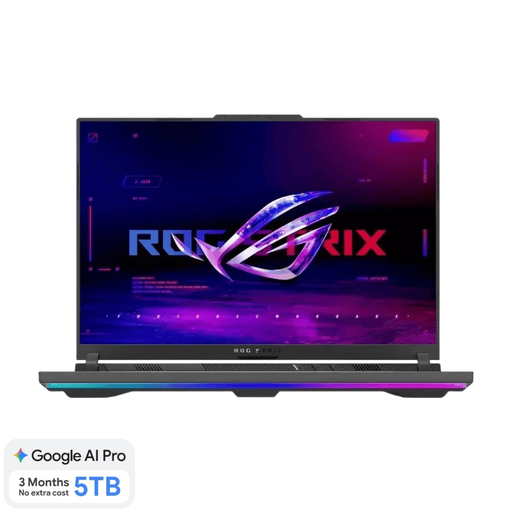
 No image available
A 16-inch option if you want to view catalogue pages and tool panels on a larger screen.
The product description lists a WQXGA screen, 32 GB DDR5 memory and a 1 TB SSD. It also states that a power adapter is included.
 No image available
A 16-inch configuration for reviewing creative files and catalogue images on an OLED screen.
The product description lists a 4K OLED screen, 100% DCI-P3, factory calibration, 64 GB memory and a 1 TB SSD. On-screen colour reproduction doesn’t replace agreeing requirements with your printer.
 No image available
The product description mentions an anti-glare screen, which may be useful when working in incoming light. Check the finish of the configuration on offer.
The description lists a 16-inch screen with 700 nits typical brightness, 1600 nits HDR peak brightness and 100% DCI-P3. It also mentions 128 GB memory, a 1 TB SSD, an SD card reader and USB4 ports. HDR peak brightness isn’t the same as typical brightness.
 No image available
A 16-inch OLED configuration for image work, balancing screen space with portability.
The product description lists an anti-glare finish, low reflectivity and 100% DCI-P3. It also mentions 16 GB RAM and a 1 TB SSD. According to the description, the charger must be purchased separately.
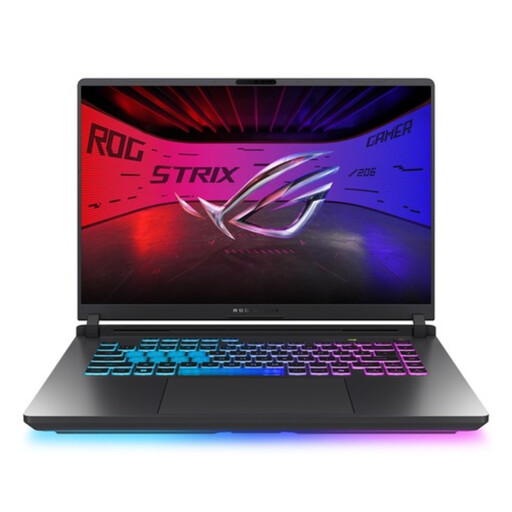
 No image available
A 16-inch WQXGA configuration for anyone looking to combine workspace for catalogue pages with features for image work.
The product description lists a 16:10 aspect ratio, an anti-glare screen and 100% DCI-P3. It also mentions 16 GB memory and a 1 TB SSD. According to the description, the charger must be purchased separately.
No. A high brightness figure alone doesn’t tell you whether a screen will be comfortable to read in window light. Compare the typical brightness and screen finish of the exact configuration; HDR peak brightness doesn’t measure reflections during everyday layout work.
Match your colour workflow to the printer and paper. Adobe explains how to use an ICC profile suited to the output; ask your printer which profile and file requirements you need.
No, it’s not a general requirement. Check the requirements for your version and workflow: for the version reviewed, Adobe lists 8 GB RAM as the minimum and 16 GB as the recommendation, as well as separate requirements for optimal GPU performance on Windows.
Check that a suitable power adapter is included and that it meets your charging needs. The ASUS H7606GP and Dell Pro 16 configurations reviewed are listed as not including an adapter.
The European Commission says that the common charger rules will also apply from 28 April 2026 to laptops newly placed on the market from that date under the relevant EU rules. Check the specific product version and when it was placed on the market; a USB-C port alone doesn’t tell you how much charging power the adapter needs to supply.