Start by considering your editing software, the resolution and codec of your footage, and how much space you need for media and cache. A compact Mac could suit editing on the go with Final Cut Pro for Mac, while a Windows laptop with a larger screen and dedicated GPU may be a better fit for a Windows workflow. Proxies can make demanding clips easier to edit, but these considerations are not a measured performance comparison between laptops.
Who is this laptop guide for?
Editor with lots of locally stored footage
You keep the original clips yourself and need plenty of fast storage for media and cache. Also plan to keep a separate copy of important source files: Adobe describes fast storage for media and cache as part of a video-editing workflow.
Editing on the go
You want to select and edit footage during or after a walk. Compare screen sizes and check whether a proxy workflow suits your footage and software; Adobe describes proxies as working copies used in an editing workflow.
Creator working with demanding footage
You work with more demanding or higher-resolution footage and want to weigh your software’s requirements against memory, GPU and screen. Adobe gives different memory recommendations for HD and 4K in Premiere Elements; these don’t automatically apply to other editing software.
What should you look for in a laptop for video editing?
Compact Mac laptop
Best suited to: anyone who wants to edit on the go with Final Cut Pro for Mac or work with local H.264, HEVC or ProRes footage. Apple specifies hardware acceleration for these formats on the 14-inch MacBook Pro with M5 Pro.
Consider: the 14.2-inch screen gives you less built-in workspace than a 16-inch model. The specifications don’t predict how long your export will take.
Windows creator laptop with dedicated GPU
Best suited to: anyone using Windows software who wants a larger built-in screen and a dedicated GPU. ASUS describes the ProArt P16 H7606GP as a 16-inch model with an RTX 5070 Laptop GPU and 32 GB RAM.
Consider: the memory in this specific ProArt model cannot be upgraded. Also check what’s included with the offer: the ASUS store page consulted states that the required 380W power adapter is not included.
Configurable mobile Windows workstation
Best suited to: anyone who values upgradeable memory and a choice of workstation configurations. Lenovo describes the ThinkPad P1 Gen 8 as a 16-inch mobile workstation range with upgradeable LPCAMM2 memory.
Consider: check the processor, GPU, memory and storage in the specific configuration. Features listed for the product range don’t necessarily apply to every model on offer.
| Consideration |
What to look for |
Who is it important to? |
| Smooth editing |
Note the codec and resolution of your clips, then compare them with your software’s requirements and the configuration you’ve chosen. |
If I want to edit my own footage without unnecessary stuttering, I’ll start with the clips and software I actually use. Around 26% of consumers prioritise smooth editing. |
| Local storage |
Compare the size of your clips and expected cache with the SSD capacity. Plan separately where to keep the originals: a working drive is not the same as a backup. |
Anyone who keeps lots of source footage locally needs to be able to store and access recordings, projects and cache in an organised way. Around 21% of consumers put local file management first. |
| Portability |
Compare the size and weight of the exact model and check which ports you need. Assess battery life for your workload separately. |
If I want to select or edit footage on the go, it matters whether the laptop fits in my bag and is practical to use in different places. Around 21% of consumers prioritise portability. |
| Reviewing footage |
Check the screen specifications for the exact model and compare them with the colour space of your finished film. A manufacturer’s claims about a panel don’t prove that the entire workflow is calibrated. |
Anyone who wants to assess colour and fine detail should focus on the screen and the conditions under which the specifications apply. Around 16% of consumers put image review first. |
| Editing software |
Choose your software and version, then check the current system requirements and support for your file formats. Final Cut Pro for Mac requires a Mac. |
If I’ve already chosen editing software, I’ll first want to know whether the laptop supports it. Around 16% of consumers prioritise compatibility with the software they already use. |
Common buying mistakes
-
Treating one memory figure as a universal requirement
Adobe recommends 16 GB of memory for HD media and 32 GB or more for 4K media in Premiere Elements. These are recommendations for that software, not a general threshold for every editor or editing workflow.
First check your software, version, resolution and laptop configuration.
-
Mistaking the internal SSD for a backup
Footage, project files and cache all use storage space, but a working drive and a backup serve different purposes.
Plan for fast working storage and keep a separate copy of irreplaceable source files. Adobe recommends fast storage for media and cache.
-
Assuming the power adapter is always included
For the ASUS ProArt P16 H7606GP product checked, the ASUS store page states that the required 380W power adapter is not included. This applies to that offer, not automatically to every model or seller.
Before buying, check what’s included and which adapter is required for the exact offer you’re looking at.
Brands to consider
Apple
MacBook Pro models are worth considering if you’re looking for a compact Mac and might want to use Final Cut Pro for Mac.
- For the 14-inch MacBook Pro with M5 Pro, Apple specifies hardware-accelerated processing for formats including H.264, HEVC and ProRes.
- The stated specifications are not an independent comparison of editing speeds. Check that your software and codec are compatible with the configuration you’ve chosen.
ASUS
The ProArt P16 H7606GP is a Windows creator model for anyone looking for a 16-inch screen and a dedicated GPU.
- According to ASUS, this model has an RTX 5070 Laptop GPU, 32 GB RAM and a 1 TB SSD.
- The memory in this model cannot be upgraded. The ASUS store page consulted also states that the required power adapter is not included with that product.
Lenovo
The ThinkPad P1 Gen 8 is a mobile workstation range for anyone considering a configurable Windows alternative with upgradeable memory.
- Lenovo describes the range as a 16-inch workstation with upgradeable LPCAMM2 memory.
- The graphics card and other components depend on the configuration you choose. The product range description is not an independent editing test.
Joybuy product picks
These Joybuy product picks cover laptops for editing locally stored footage: Windows models with a larger built-in screen and a compact Mac configuration.
 Image unavailable
ASUS ROG Zephyrus G16 GU605CM-QR026W, 16-inch
The combination of a 16-inch screen and internal storage could suit anyone wanting to edit locally stored footage on a laptop.
The product name lists an Intel Core Ultra 9 285H processor, RTX 5060, 16 GB RAM and a 1 TB SSD.
Joybuy
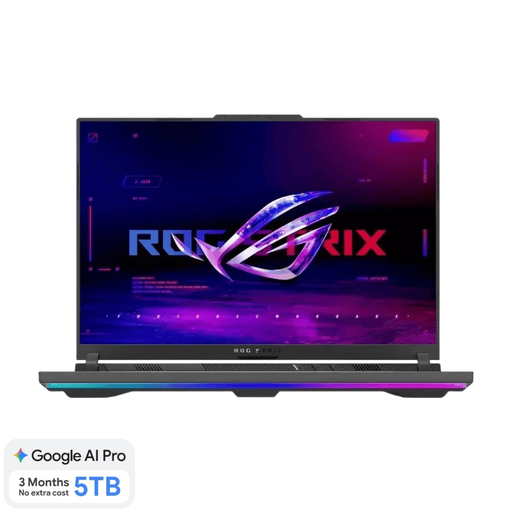 Image unavailable
ASUS ROG Strix G16 G614FR-S5252W, 16-inch
This 16-inch model could suit anyone looking for a larger built-in screen for local editing work.
The product name lists a Ryzen 9 9955HX, RTX 5070 Ti, 16 GB DDR5 memory and a 1 TB SSD. The product description states that the power adapter must be purchased separately.
Joybuy
 Image unavailable
ASUS ProArt P16 H7607BA-SE181X, 16-inch
This 16-inch model is worth considering if you want a larger built-in screen for editing.
The product name lists 128 GB RAM, a 1 TB SSD and Windows 11 Pro.
Joybuy
 Image unavailable
HP OmniBook Ultra Next Gen AI 16-bk0002nd, 16-inch
This 16-inch laptop could suit anyone who wants to use a larger built-in screen for editing on the go.
The product name lists 64 GB RAM, a 2 TB SSD and a 3K 120 Hz OLED touchscreen.
Joybuy
 Image unavailable
Apple MacBook Pro 14-inch M5 Pro, 24 GB, 1 TB
This compact Mac configuration could suit editing on the go and a workflow using Final Cut Pro for Mac.
This model lists 24 GB memory and a 1 TB SSD. Apple specifies hardware acceleration for H.264, HEVC and ProRes on the 14-inch MacBook Pro with M5 Pro; check whether your files use these codecs.
Joybuy
Frequently asked questions
Do I definitely need 32 GB of memory for this film?
Not simply because you’re editing a canal film. Adobe recommends 16 GB for HD media and 32 GB or more for 4K media in Premiere Elements; also check your own software, version and source footage.
How can I keep locally stored footage manageable while editing?
Adobe recommends fast SSD storage for media and cache. With demanding or high-resolution footage, you can use proxies in Premiere for editing and keep the originals for the final export. Also keep a separate copy of irreplaceable recordings.
What if my laptop stops working sooner than I could reasonably expect?
According to ACM ConsuWijzer, a product must be fit for purpose under normal use, and the seller is responsible for providing an appropriate solution if it isn’t. The manufacturer’s warranty and your statutory rights are not the same thing.
Can I show recognisable passers-by in my canal film if I publish it?
First check which privacy rules apply to your publication. The Dutch Data Protection Authority explains that recognisable people are personal data, and that private images kept for personal use or shared with a very limited circle are treated differently from images published publicly or for business purposes. If the GDPR applies, you need a valid legal basis; consent is one example, but it isn’t automatically the only option.


