
Vandaag of morgen in huis

Kwaliteit gegarandeerd

Welkomstaanbiedingen ontgrendelen: GRATIS bezorging | Tot 80% korting | Gratis 30 dagen JoyPlus-proefperiode
Download de app
A laptop cable lock can help secure a laptop, monitor or other device to a fixed object in an office, school or flexible workspace. However, not every laptop anti-theft lock is suitable for every laptop. The most common buying mistakes usually come down to an incompatible connection, an awkward locking mechanism or a cable that turns out to be too short in practice.
A Kensington laptop lock won’t automatically fit every laptop. First check which security slot your device has:
A product described as “universal” may support several slot types, but always check your laptop’s specifications. A laptop lock with a key or combination lock that doesn’t fit properly won’t provide useful protection.
A cable lock is designed to secure a device to a solid, fixed object. A thin table edge, loose monitor arm or lightweight piece of furniture could still be taken. Even a 1.8-metre cable will only give you enough reach if the anchor point is in a sensible position.
The cable makes it harder to take the laptop, but it doesn’t guarantee that it won’t be stolen. So use the lock as part of a broader approach, alongside a fixed workstation, access control and a practical setup.
Keys can go missing. With a combination lock, you might forget the code or change it by accident. That may not matter much for a single home-working setup. In an office, school or government organisation, managing keys or codes is more important.
Pay attention to the shape of the lock head, too. On an ultra-thin laptop, a wide connector could make it tilt or block a port. A slim lock head is more practical in this case.
Look for the slot type in your laptop’s manual, technical specifications or casing. Check for terms such as NanoSaver, standard Kensington slot or wedge slot. A notebook security lock is only suitable if the lock head matches the slot.
For organisations with a range of devices, a universal laptop lock with multiple connection options can save time. According to its product description, the Kensington Universal 3-in-1 Keyed Laptop Lock fits standard, nano and wedge-shaped security slots. Still, check that it fits each individual device.
The selected models typically have a cable of around 1.8 metres. That’s useful for a desk, table or fixed post, but measure the distance first if you’re securing devices at several workstations. A thicker cable may take up more space and be less flexible. A thinner cable is easier to carry, but its construction and how it’s secured are just as important.
For example:
These measurements come from the product information. On their own, they don’t tell you how a lock will perform in every real-world situation.
A laptop lock with a key is useful if an organisation wants to issue or manage keys centrally. The Kensington EQ comes with two keys and uses a 5 mm key system, according to its product description.
A combination lock means you don’t have to carry a key. The Kensington combination models use a resettable code; the Dell 461-AAEU specifies four digits and 10,000 possible combinations. According to the manufacturer, the Register & Retrieve programme can help if you forget your code. This is a brand claim, so don’t treat it as a general guarantee for every situation.
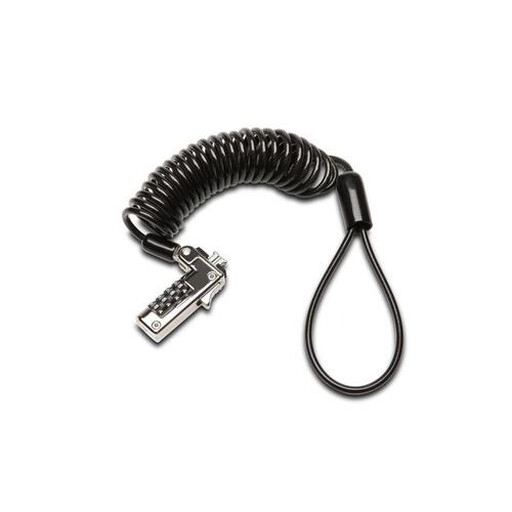
Why it suits this use: This combination lock is designed for notebooks with a standard slot and works without a key. The cable is 1.8 metres long and, according to the product description, it’s easy to use.
You don’t have to keep track of a key. Just check beforehand that your notebook has a standard security slot.
Combination lock, 1.8-metre cable and compatibility with notebooks with a standard slot.
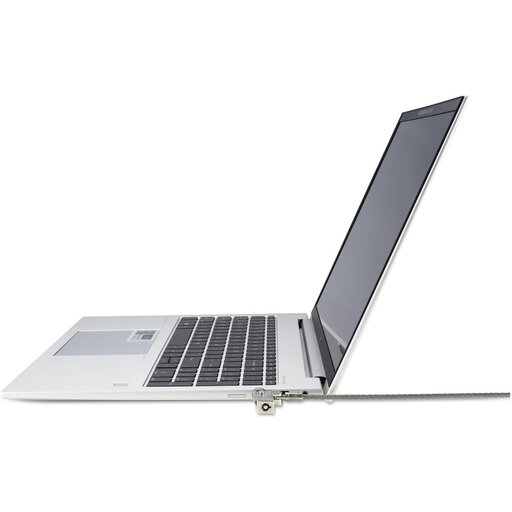
Why it suits this use: A practical choice for slim laptops with a NanoSaver slot, especially if access to ports and a stable position on the desk are important.
The slim NanoSaver 2.0 lock head is designed to leave ports unobstructed and let the laptop sit flat. Check your slot model before buying.
1.83-metre stainless steel cable, two keys included and a lock head for NanoSaver 2.0.
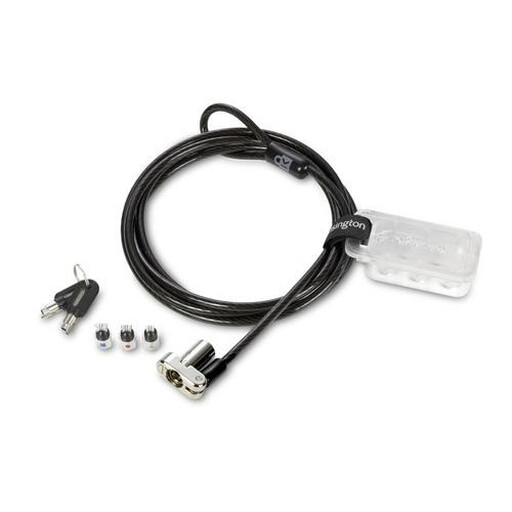
Why it suits this use: For IT managers, schools and offices with different laptop models, a lock head that fits three slot types reduces the number of different cable locks required.
The 3-in-1 connection means you’re not limited to just one slot type. Check compatibility for each device and use a suitable fixed anchor point.
Compatible with standard, nano and wedge-shaped slots; features a keyed lock and a 1.8-metre cable.
We’ve put together a complete, up-to-date list of products that meet these strict selection criteria and current European safety regulations.
A cable lock only works properly when it’s secured carefully:
Don’t bend the cable sharply or use the lock to lift or carry anything. Regularly check the cable and lock head for visible damage. In schools and offices, it’s a good idea to decide in advance who will manage the keys or which code procedure will apply.
No. Kensington is a brand, and it makes different types of lock, including standard and NanoSaver. Check the slot on your laptop and compare it with the specifications of the model you’re considering.
It depends on how you’ll use it. A combination lock means you don’t have to manage keys, but forgetting the code can make it difficult to unlock. A keyed model is often a better fit for organisations that issue and keep a central record of keys.
Its lifespan depends on how it’s used, stored and cared for. Keep the lock dry, avoid sharp bends and use it only as intended. Don’t continue using a damaged cable or lock head. According to the product information, the models mentioned are covered by at least the statutory two-year guarantee in the European Union; additional rights may apply under national law.
