
Burst photographer comparing sharpness
You assess lots of almost identical shots and want to view large previews side by side with ease. Adobe describes this comparison view for Lightroom Classic.


First decide whether you want to compare burst photos on your laptop screen or an external display, then check whether your photo software can show enlarged images side by side. Adobe describes this comparison view in Lightroom Classic and suggests an SSD for catalogues, photos and previews as one way to improve performance. For selecting photos alone, extra graphics hardware is not automatically a deciding factor; more demanding editing may have different requirements.
You assess lots of almost identical shots and want to view large previews side by side with ease. Adobe describes this comparison view for Lightroom Classic.
You’re weighing up the space available on the built-in laptop screen against a compact laptop connected to an external display on your desk. Check the exact model’s screen option and ports.
You select burst photos as well as carrying out more demanding edits. In that case, memory, storage and other hardware capabilities may matter more than if you mainly compare frames.
Choose this if: you usually want to assess two shots side by side without an external display. Lenovo says the Yoga Pro 9i configuration reviewed has a 16-inch screen.
Bear in mind: a larger screen is no substitute for enlarged previews; also check the exact screen option and keyboard layout.
Choose this if: you already have a suitable external display at home and want to take your laptop with you too. Apple lists external display connections for the MacBook Air with M5.
Bear in mind: the external display and any card reader are part of your setup; check that the connections are compatible with your devices.
Choose this if: you carry out demanding edits as well as selecting photos, and will make use of the extra capabilities of a higher-spec configuration.
Bear in mind: the specifications of the ASUS ProArt P16 reviewed do not prove that this hardware is necessary just for selecting burst photos; the power adapter is not included with this version.
| Consideration | What should you check? | Who does this matter most to? |
|---|---|---|
| Sharpness between frames | Check whether your software can show enlarged images side by side, and decide whether you’ll use the laptop screen or an external display for this. | If I want to spot small differences in sharpness between almost identical frames, a useful comparison view will help. Around 36% of consumers put comparing sharpness first. |
| Quick browsing | Check your photo software’s requirements and the memory and SSD configuration; also see how previews are created. | When I want to browse a large set without repeatedly waiting for enlarged previews, I consider both the software settings and the laptop configuration. Around 29% of consumers focus most on browsing speed. |
| Home screen setup | Check the screen size and ports on the exact model, and whether they’re compatible with your existing monitor. | If I mainly work at my desk, I want to know whether the built-in screen is enough or whether my existing monitor would suit my setup better. Around 21% of consumers prioritise their home workspace. |
| Importing and storage | Compare the connections you need for your camera or card reader, and the SSD space available for your catalogue, previews and photo files. | When I want to import and store photos locally, I check that the ports and storage suit my equipment and files. Around 14% of consumers prioritise importing and storage. |
Small previews don’t provide the same basis for comparing fine details between almost identical shots.
View details at a suitable magnification and, if your software supports it, use a view that lets you assess images side by side.
Adobe says Lightroom Classic can build previews as you work if only minimal or embedded previews were created initially. This can affect performance.
First check your import and preview settings, and where your catalogue and images are stored. Then compare laptop configurations.
More advanced hardware is a separate consideration if you also carry out demanding edits alongside selecting photos.
Choose a higher-spec configuration based on those additional tasks, and check which accessories are included with the exact model.
The ASUS ProArt P16 version reviewed from this retailer does not include a power adapter; bear this in mind when choosing this model.
The MacBook Air with M5 is worth considering if you want to pair a compact laptop with an external display. Apple lists two Thunderbolt 4 ports.
The Yoga Pro 9i Gen 11 version reviewed is an example of a laptop with a large built-in screen. The details given apply to item number 83SF003UMH.
The ProArt P16 version reviewed is worth considering if selecting burst photos is part of more demanding creative work.
The EliteBook Ultra G1i range is a compact business option to compare if you use an external display or accessories at home.
These Joybuy products have a built-in 16-inch screen and are designed for working directly on the laptop. Check which configuration suits your photo selection and editing needs for each model.
 No image available
The built-in 16-inch screen suits anyone who wants to assess frames on their laptop screen.
The product title lists an Ultra 9 285H processor, RTX 5060, 16 GB of memory and a 1 TB SSD.
The power adapter must be purchased separately for this model.
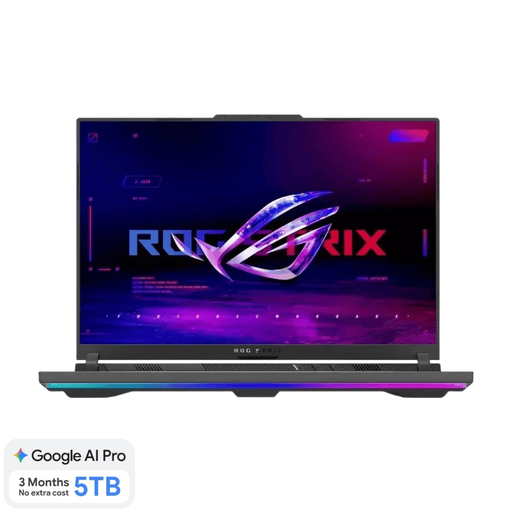 No image available
The built-in 16-inch screen is an option if you want to compare frames on your laptop.
The product title lists a Ryzen 9 9955HX processor, RTX 5070 Ti, 16 GB of memory and a 1 TB SSD.
The power adapter must be purchased separately for this model.
 No image available
The 16-inch screen gives you a built-in display for comparing images on your laptop.
The product title lists an i7-14700HX processor, RTX 5070, 32 GB of memory, a 1 TB SSD and an IPS screen with a resolution of 2560 × 1600.
The product title lists a UK keyboard layout.
 No image available
The built-in 16-inch OLED touchscreen suits anyone who wants to assess images on their laptop screen.
The product title lists 128 GB of memory, a 2 TB SSD and a resolution of 2880 × 1800.
The product title lists Windows 11 Pro and a QWERTY keyboard.
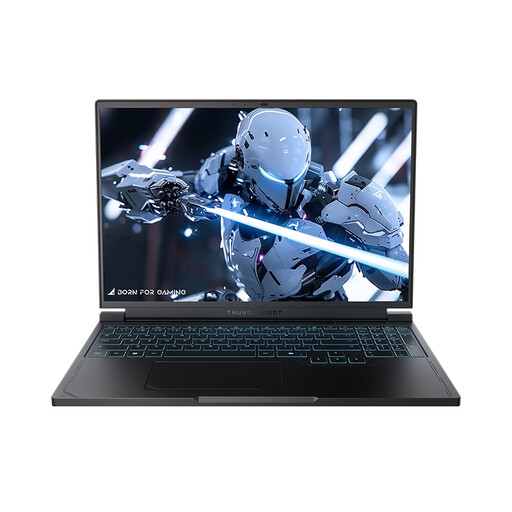 No image available
The built-in 16-inch screen is useful if you want to work without an external display.
The product title lists a QHD+ screen, a Ryzen 7 7745HX processor and 16 GB of memory; the product description lists a 1 TB SSD.
If you use Lightroom Classic, Adobe says you can show two photos side by side in the comparison view. Assess the details at a suitable magnification; small overview images don’t provide the same basis for comparison.
Not necessarily. Adobe says Lightroom Classic can create previews as you work if only minimal or embedded previews were created during import, which can affect performance. So check your import and preview settings before blaming the laptop for the slowdown.
No, an extended warranty isn’t compulsory. According to the Dutch government, consumer purchases are covered by a legal guarantee; contact the seller if there’s a problem. Consider an extended warranty based on the additional rights it actually provides.
For a distance purchase from a business, the seller must tell you about the cooling-off period, which is usually 14 days, according to the Dutch government. Check the terms of your specific purchase, and don’t confuse your legal right with a voluntary returns period.