If you mainly review building plans as PDFs, prioritise a clear screen, suitable PDF software and a practical home-working setup; you don’t automatically need a high-powered workstation. If you also use AutoCAD or Revit, compare the exact laptop configuration with the requirements for your software version. These programmes have different requirements from PDF viewing, as the information from Adobe, Bluebeam and Autodesk shows.
Who is this guide for?
PDF plan reviewer
You read and annotate drawings at home, but don’t edit CAD or BIM models. Focus on how clearly you can see details, your PDF software and your workspace setup. Adobe offers Acrobat Reader for macOS; Bluebeam lists separate requirements for Revu 21.
CAD drawing editor
You open or edit drawing files in AutoCAD. Compare the full laptop configuration with the requirements for your software version; Autodesk publishes specific requirements for AutoCAD 2026.
BIM model reviewer
You open Revit models locally. Model size, memory and Windows compatibility all play a different role than they do when you’re only viewing PDF plans. Autodesk lists separate configurations for Revit 2027.
What should you look for when choosing?
| What to consider |
What should you check? |
Who is this important for? |
| PDF details and annotations |
Check the screen size and resolution, the connection for an external monitor if you need one, and whether your PDF software is compatible. |
If I mainly open, zoom in on and annotate drawings, I want to be able to assess the details without paying for processing power I won’t use. Around 36% of consumers put PDF plan readability first. |
| Local CAD or BIM work |
Note the software version, operating system and file type, then compare the memory, graphics card and storage with the software provider’s requirements. |
If I work locally on CAD drawings or BIM models, I want a configuration that suits my software and model size. Around 29% of consumers give local CAD or BIM work their highest priority. |
| Home-working setup |
Check whether you can connect an external monitor, keyboard and mouse, and whether your workspace has enough room for them. |
If I’m reviewing plans for long periods at a fixed workspace, I want to consider more than just the laptop screen: the rest of the setup matters too. Around 21% of consumers put their home-working setup first. |
| Software and configuration |
Check the full model code, operating system, included accessories and whether you’re buying as a private individual or a business. |
If I want to confirm software compatibility and the exact configuration first, I also check what’s included and which terms apply to my purchase. Around 14% of consumers say this is their main buying priority. |
Buying pitfalls
-
Treating a laptop for PDFs as if you were editing demanding 3D models
PDF viewing, AutoCAD and Revit have different software requirements. A configuration for working on models locally may be unnecessary if you only view and annotate plans.
First, work out which files you’ll open locally and which programme and version you’ll use. Only then compare the laptop with the relevant requirements.
Choosing extra memory or graphics hardware that your software doesn’t require could mean spending more than you need to.
-
Assuming a workstation range has one fixed configuration
Specifications can vary between configurations. A model name alone won’t tell you which graphics card, screen option or accessories you’ll actually get.
Check the full model code and the components included with the exact configuration you want to order. For the HP ZBook configuration mentioned, HP states that the adapter isn’t included.
If an adapter is missing or the configuration differs, you may need to source an extra component separately.
-
Relying on the built-in screen alone for your home-working setup
Choosing a laptop based on screen size alone won’t tell you whether you can set up a separate screen and keyboard at home. Arboportaal explains that rules on separating the screen and keyboard apply to employees who work with display screens for more than 2 hours a day.
Check in advance how an external monitor and separate input devices will fit into your workspace. If you’re an employee, discuss your setup with your employer.
A separate monitor, keyboard, mouse or suitable connection may require extra space and equipment.
-
Assuming consumer terms automatically apply to a business purchase
As Ondernemersplein explains, consumer cancellation rights don’t automatically apply when you buy as a business.
Before ordering, check whose name the purchase will be made in and which terms apply to the transaction.
Brands to compare for laptops for building plans
Dell
The Dell Pro Max 16 MC16250 is an example of a Windows workstation configuration for more demanding local modelling work.
- For the configuration mentioned, Dell lists Windows 11 Pro, 32 GB RAM and an NVIDIA RTX PRO 1000 with 8 GB of video memory.
- These are manufacturer specifications, not independent performance test results. Dell notes that configuration choices can change the specification; these features aren’t necessarily needed for PDF viewing alone.
HP
The HP ZBook X G1i E3HX9EA#ABH is a specific Windows workstation configuration to compare with CAD or BIM requirements.
- For this configuration, HP lists Windows 11 Pro, 32 GB RAM, a 16-inch screen with a resolution of 1920 × 1200 pixels, and an NVIDIA RTX PRO 1000 with 8 GB.
- HP states that the adapter isn’t included with this configuration. Check what’s included with the specific configuration you’re considering.
Lenovo
The ThinkPad P16s Gen 2 shows how screen and graphics card options can vary within a mobile workstation range.
- For this generation, Lenovo describes several 16-inch screen options and a separate NVIDIA RTX card as an option.
- The optional card doesn’t mean every configuration has the same GPU. Check the specifications for the exact configuration.
Apple
A MacBook Pro may suit you if you review building plans using software that’s compatible with macOS.
- Apple offers a 16-inch MacBook Pro with M5 Pro or M5 Max and lists, among other features, an HDMI connection.
- Check your software version before choosing: Acrobat Reader is available for macOS, while the cited requirements for Revu 21 and Revit 2027 are based on Windows.
Joybuy laptops for building plans
Explore these Joybuy laptops as potential options for reviewing building plans at home. Check that the specifications of each configuration suit your software and workspace.
 No image available
Thunderobot 16 gaming laptop, i7-14700HX, RTX 5070
An option to compare if you’re looking for a laptop with a 16-inch screen for viewing plans.
The product name lists a resolution of 2560 × 1600, a 240 Hz IPS screen, 32 GB RAM and a 1 TB SSD. It also lists an i7-14700HX, RTX 5070 and UK RGB keyboard.
View at Joybuy
 No image available
ASUS Vivobook S16 S3607QA-SH109W
Compare this configuration if you’re looking for a 16-inch laptop for viewing plans and want to check software compatibility too.
The product name lists a WUXGA OLED screen, a Snapdragon X processor, 16 GB LPDDR5X, a 512 GB SSD and Windows 11 Home. For Revit 2027, Autodesk lists 16 GB RAM for the entry-level configuration and 32 GB or more for the balanced configuration.
View at Joybuy
 No image available
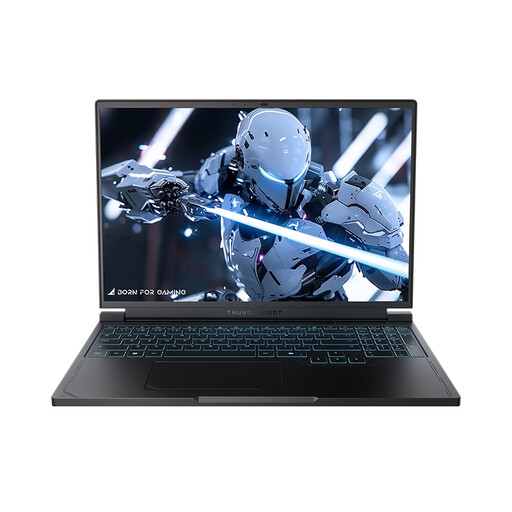
Thunderobot Radiant S16
This configuration is worth considering if you’re looking for a 16-inch screen for viewing plans.
The product name lists a 240 Hz QHD+ screen, an AMD Ryzen 7 7745HX, 16 GB DDR5 RAM, a 1 TB SSD and an NVIDIA GeForce RTX 5060. For Revit 2027, Autodesk lists 32 GB or more for the balanced configuration.
View at Joybuy
 No image available
ASUS ROG Strix G18 G814PM-S9012W
A large built-in screen may be useful if you want to view plans on your laptop; also check the setup and connections you’ll need.
The product information lists an 18-inch screen with a resolution of 2560 × 1600 pixels, an AMD Ryzen 9 8940HX, an RTX 5060, 16 GB RAM, a 1 TB SSD and Windows 11 Home. The adapter isn’t included, according to the product information. For Revit 2027, Autodesk lists 32 GB or more for the balanced configuration.
View at Joybuy
 No image available
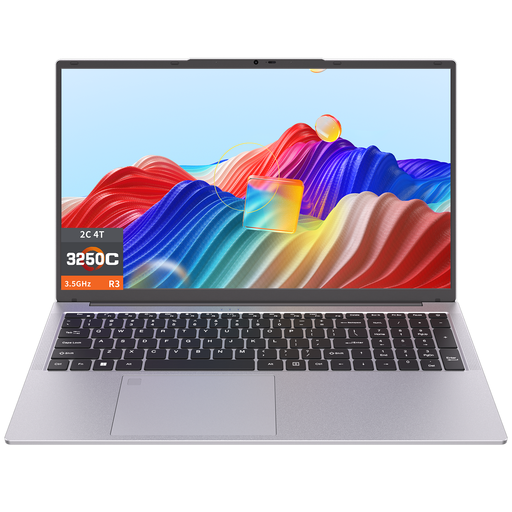
Auusda T173A
Compare this laptop if you want a large built-in screen for viewing plans. If you use CAD or BIM software, assess the memory configuration separately.
The product name lists a 17.3-inch screen, a 3250C processor, 8 GB DDR4 RAM and a 512 GB SSD. For Revit 2027, Autodesk lists 16 GB RAM for the entry-level configuration.
View at Joybuy
Frequently asked questions
Do I need a professional graphics card to read building plans as PDFs?
Not simply because they’re building plans. First check which PDF software you use and whether you work with large sets of drawings. Only compare the requirements for AutoCAD or Revit if you use those programmes locally.
How should I set up a laptop for reviewing plans at home for long periods?
Check whether you can connect an external monitor, keyboard and mouse, and whether the setup will fit in your workspace. Arboportaal explains that rules on separating the screen and keyboard apply to employees who work with display screens for more than 2 hours a day; employers also have a duty of care for home-working setups.
What should I check before installing drawing software?
Check the exact software version and operating system before choosing a laptop. The cited requirements for Bluebeam Revu 21 and Autodesk Revit 2027 are based on Windows; Autodesk publishes separate requirements for AutoCAD 2026 on Mac.
What returns and warranty rules apply when buying a laptop in the Netherlands?
For an online consumer purchase, there is generally a statutory 14-day cancellation period starting the day after delivery, subject to legal exceptions; Ondernemersplein explains these rules. This consumer cancellation period doesn’t automatically apply to business purchases. Rijksoverheid describes the statutory guarantee as the right to a product that works as it should, rather than a fixed two-year period.


