
PDF plan reader
You mainly view or annotate building plans and want to read the details clearly without paying for 3D capabilities you won’t use. Bluebeam sets out the system requirements for Revu 21; check that they meet your needs.


Simply viewing or annotating PDF building plans doesn’t automatically mean you need a laptop with a dedicated professional graphics card. Start by considering screen clarity, the connections you need and the requirements of your PDF software. If you also use Revit models, check the exact configuration against the requirements for your software version and files. More memory or graphics power may be relevant, but neither alone determines whether a laptop is suitable.
You mainly view or annotate building plans and want to read the details clearly without paying for 3D capabilities you won’t use. Bluebeam sets out the system requirements for Revu 21; check that they meet your needs.
You regularly connect to a monitor and input devices that other people use too. Connecting everything and setting up your workspace again are therefore important factors in your choice.
Alongside plans, you also open or edit Revit models. Check the exact laptop configuration against the requirements for your version of Revit and your models. Autodesk publishes system requirements specific to each version, including Revit 2026.
| What to consider | What to look for | Who is this important for? |
|---|---|---|
| Reading plan details | Compare screen size, resolution and anti-glare finish. Also consider whether you’ll view plans on the laptop screen or an external monitor. | If I read plans on the laptop screen, I want to see details and toolbars clearly and comfortably. Around 31% of consumers say readability is their top buying priority. |
| Connecting at your desk | Check which monitor cable, dock, keyboard and power supply are available, then compare them with the ports and charging options on the exact model. The Lenovo ThinkPad P16s configuration 21BT0096MH lists two Thunderbolt 4 ports, HDMI and USB-A; check the connections for each configuration. | If I work at different desks, I want to use the available peripherals without unnecessary hassle. Around 31% of consumers say connecting to a shared workspace is their top priority. |
| Revit as well as PDFs | Check the software version, RAM and GPU in the complete configuration. For Revit 2026, Autodesk lists 16 GB RAM for the entry-level configuration and 32 GB or more for the ‘Value’ configuration; requirements vary by model. | If I open or edit BIM models, I want to choose a configuration that suits my software and model files. Around 23% of consumers prioritise BIM compatibility. |
| Configuration and weight | Compare the specifications and service terms for the exact product number. More memory or a dedicated GPU alone doesn’t prove that a laptop is suitable for a particular model. | If I mainly view PDF plans or often carry my laptop around, I don’t want to pay for capacity or carry extra weight that my work doesn’t require. Around 15% of consumers put cost and weight first. |
Annotating PDFs and opening or editing Revit models locally have different system requirements. A configuration that suits one task won’t necessarily suit the other.
Before you compare laptops, note the file format, software version and whether you’ll only view plans or also edit models.
A more powerful configuration could mean unnecessary expense, while a less powerful one may fall short if you use Revit later.
If a laptop doesn’t have the right connection for your monitor or dock, you may need a different workspace setup or extra equipment. Connections vary by configuration.
Compare the connections available at the shared desk with those on the exact product number, and consider how you’ll set up the workspace again.
Depending on the equipment at the desk, you may need an adapter, dock or external input device.
Configurations within the same product range can differ in memory and graphics card. Dell also notes that choosing components for the Pro Max 16 Plus can change other specifications.
Before you buy, check the full product number and selected configuration, including RAM, GPU, screen and service options.
ThinkPad P16s configurations come with a range of specifications, making them worth comparing for plan work and more demanding applications.
HP positions ZBook for professional 2D, 3D and architectural workflows; the ZBook 8 range includes a variety of configurations.
Dell positions Pro Max and Precision for use with advanced applications. These ranges may be worth considering if you also work with models.
These Joybuy products range from configurations for plan work to laptops with dedicated graphics. Check that the exact configuration suits your software and files, and connects to the equipment at the shared desk.
 No image available
This configuration may be worth considering if you’re thinking about more graphics-intensive modelling as well as viewing PDF plans. Check the requirements of your software and files.
15.3-inch WUXGA IPS screen with anti-glare finish and 16:10 aspect ratio; 16 GB RAM; RTX 5070; 512 GB SSD; USB-C with DisplayPort, HDMI 2.1 and Ethernet.
 No image available
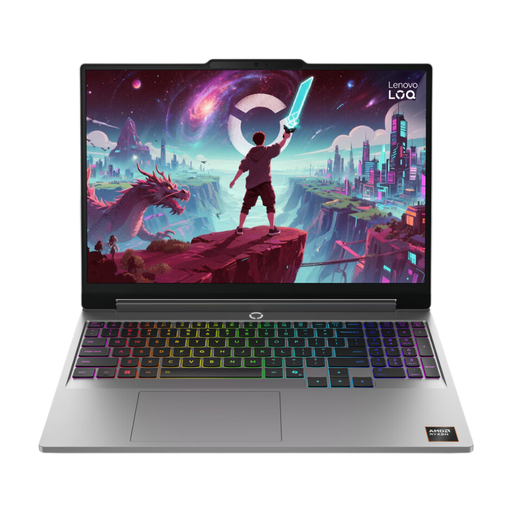
The 16-inch configuration may suit you if you view plans on the laptop screen and are also considering model work. Check that the configuration meets the needs of your software.
16-inch OLED screen with 2560 × 1600 resolution; 16 GB RAM; RTX 5060; 1 TB SSD; 1.85 kg; Thunderbolt 4 with DisplayPort and HDMI 2.1. The product description states that the charger must be purchased separately.
 No image available
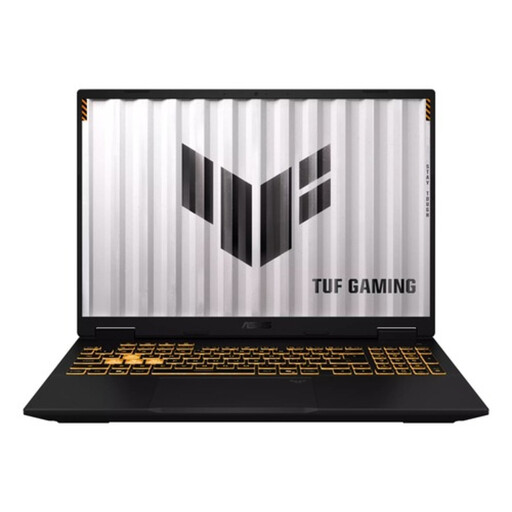
This configuration may be worth considering if you want to work with models as well as view PDF plans. Check the requirements of the programmes you use.
16-inch WUXGA IPS screen with anti-glare finish and 16:10 aspect ratio; 16 GB RAM; RTX 5060; 1 TB SSD; USB-C with DisplayPort, HDMI 2.1 and stated weight of 2.20 kg.
No image available
This configuration combines plan viewing with dedicated graphics. Check for yourself that the laptop works with your software and shared workspace.
16-inch WUXGA IPS screen with anti-glare finish and 16:10 aspect ratio; 16 GB RAM; RTX 5060; USB-C and HDMI 2.1; stated weight of 2.20 kg.
 No image available
This configuration with integrated Intel Arc graphics is worth considering for plan work. Check the software requirements if you also use BIM models.
16-inch OLED screen with 2880 × 1800 resolution; 32 GB memory; 1 TB SSD; approximately 1.5 kg; Thunderbolt 4, USB-A and HDMI.
Not simply because a file contains a building plan. Bluebeam lists system requirements for using PDFs with Revu 21, while Autodesk has separate graphics recommendations for Revit 2026. So first decide whether you’ll view PDFs or also open or edit Revit models.
Check which connections and input devices are available, and set up the workspace again when needed. Arboportaal says that employees who use a screen for more than 2 hours a day must be able to use a separate monitor or keyboard when working on a laptop.
For a personal purchase, your statutory guarantee is separate from any manufacturer’s warranty. According to the Dutch government, the Netherlands has no fixed statutory guarantee period, and you must be able to contact the seller if a fault develops. For a business purchase, check separately which contractual terms apply; consumer rights don’t automatically apply.
The Dutch workplace guidelines mentioned don’t set a standard RAM or GPU specification for every laptop. The figures for Revu 21 and Revit 2026 are system requirements or recommendations specific to those applications, set by their software makers. They aren’t Dutch statutory laptop standards.