
Building a simple website
You create pages in an editor and check them in your browser. MDN Web Docs lists a text editor as a basic tool, so start by considering what you actually need for the way you work.


You don’t automatically need a powerful laptop to build a small website using a text editor and browser: MDN Web Docs lists these as basic tools. If you use local development software or several programmes at once, check the system requirements and operating system compatibility. For a permanent workspace, screen space and ports matter too.
You create pages in an editor and check them in your browser. MDN Web Docs lists a text editor as a basic tool, so start by considering what you actually need for the way you work.
As well as an editor and browser, you may use a local development environment. Check the requirements of the software you need, and take into account the programmes you have open at the same time.
You regularly work at the same desk for longer periods and want to view code and example pages comfortably, perhaps with an external monitor. Arboportaal sets out separate rules for workplace layouts for employees who spend more than two hours a day working with a screen.
A good fit if: you want to use local development programmes and choose between a compact model and a larger built-in screen.
Consider: to run Docker Desktop on Windows, check the required Windows version and backend. Simply stating that a laptop runs Windows doesn’t tell you whether it meets those requirements.
A good fit if: you want to use macOS and the available ports suit your accessories and any external monitor.
Consider: check whether your existing accessories connect directly or need an adapter.
A good fit if: you mainly work in a browser, or have checked that the specific device supports the local tools you need.
Consider: Google says Linux isn’t available on every Chromebook and may be blocked on managed work or school devices.
| What to consider | What should you check? | Who should pay particular attention? |
|---|---|---|
| Local tools and multitasking | Make a note of your editor, browser and any local server or containers. Then compare your laptop’s configuration with the software requirements from Microsoft, Docker or any other programmes you need. | If I want to use an editor, browser and local development tools at the same time, I’ll prioritise the configuration I need. Around 36% of consumers put support for local tools and multitasking first. |
| Workspace at your desk | Compare the screen size and ports with the space on your desk, your monitor and your peripherals. Arboportaal sets out rules on screens and keyboards for employees who spend more than two hours a day working with a screen. | If you work at a permanent workstation for long periods, screen space and ports may matter more than portability. Around 29% of consumers prioritise workspace. |
| Software compatibility | List the programmes you need and check they support the operating system. If you’re considering a Chromebook, also check that the specific device supports Linux and whether Google’s management restrictions apply. | If I rely on specific development tools, I want to know before buying that they’ll work on the system I choose. Around 21% of consumers put compatibility first. |
| Total purchase and running costs | Check what’s included in the box, which adapters you need and the warranty terms for the exact model. ACM ConsuWijzer distinguishes between statutory guarantees and additional cover. | If you want to keep your total spend down, include any essential accessories and check what extra cover offers. Around 14% of consumers prioritise additional costs. |
For the HP OmniBook 5 16-bm0650ndx examined, HP said the recommended USB-C adapter is sold separately. This may affect which accessories you can connect straight away.
Before comparing offers, check what’s included with the exact model and which adapter you’ll need.
Buying an adapter separately can add to your costs and take extra time to arrange.
Google describes Linux support for Chromebooks, but availability depends on the device and may be restricted on managed work or school devices.
If you want to develop locally, check that Linux and the tools you need are available on the specific model.
Lenovo lists different configurations within the IdeaPad Slim 5 range, while ASUS gives different model codes and operating system options for the Vivobook 15 X1504.
Compare the full model or product number and the specifications of the version you’re actually considering.
ACM ConsuWijzer distinguishes between the statutory guarantee and additional cover from a retailer or manufacturer.
First check what your statutory rights mean, then compare whether paid additional cover offers anything extra.
The IdeaPad Slim 5 Gen 10 (14-inch AMD) is a compact Windows option; Lenovo offers several configurations in this range.
The HP OmniBook 5 16-bm0650ndx is a Windows model worth comparing if you’re looking for a larger built-in screen and HDMI.
The 13-inch MacBook Air with M5 is a compact macOS option if your software and accessories are compatible with the system.
The Vivobook 15 X1504 range shows why it’s important to check the full model code when choosing a Windows laptop.
This selection features Windows laptops for building a website at home, with different screen sizes and configurations. Check that the software you need suits the way you work.
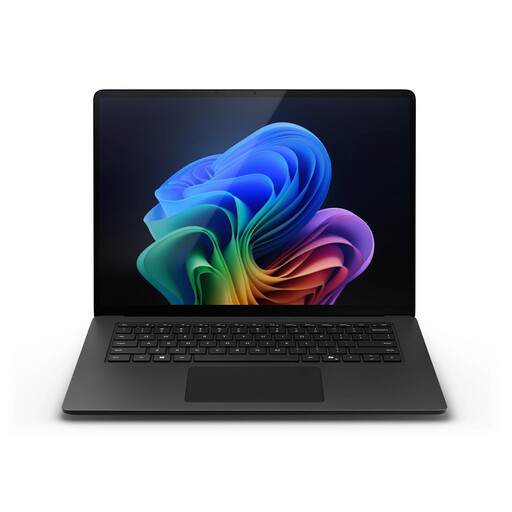 Image unavailable
An option for anyone who wants a built-in 15-inch screen at a permanent workstation.
Configuration: Snapdragon X Elite, 16 GB memory and 512 GB storage.
 Image unavailable
The 13.8-inch version offers a more compact screen in this product selection.
Configuration: Snapdragon X Elite, 16 GB memory and 512 GB storage.
Image unavailable
A 13.8-inch version to compare if you’re looking for a more compact built-in screen.
Configuration: Snapdragon X Plus, 16 GB memory and 512 GB storage.
 Image unavailable
This 18-inch model is a large-format option for a permanent workstation; compare its dimensions with the space on your desk.
Specifications: 18-inch UHD+ Mini LED screen with 120 Hz, Intel Core Ultra 9 285HX, 64 GB DDR5, 6 TB SSD and NVIDIA GeForce RTX 5090 24 GB.
 Image unavailable
A 15.6-inch option to compare for use at a permanent home workstation.
Specifications: FHD screen, Intel Core i5-13420H, 16 GB DDR5 and 512 GB SSD.
Not necessarily if you’re only editing and viewing pages: MDN Web Docs lists a text editor as a basic tool. If you also use local development software, check its requirements. Microsoft’s recommendation of 1 GB RAM for Visual Studio Code applies to the editor, not necessarily your entire working environment.
You can if the specific Chromebook supports the Linux development environment you need. Google describes using code editors and command-line tools in this environment, among other things. Linux may be blocked on managed work or school devices.
Check that you can position and connect your laptop, monitor and keyboard appropriately. For employees who spend more than two hours a day working with a screen, Arboportaal describes requirements stating that the screen and keyboard must not be attached to each other. This isn’t a general buying requirement for everyone building a website at home.
For distance purchases, a 14-day cooling-off period applies in many cases. Rijksoverheid lists some exceptions, so check whether the specific purchase is covered by the rules.
No. According to ACM ConsuWijzer, when you buy as a consumer in the Netherlands, you also have statutory rights to a product that, under normal use, meets what you could reasonably expect. This doesn’t mean that every laptop has a fixed statutory warranty period of two years.