What should you look for when choosing?
Start by choosing your screen set-up, then check the ports on the exact configuration. A Windows laptop with HDMI and USB-C/Thunderbolt may suit screens with those connections. According to Apple, the MacBook Air with M5 supports two external displays alongside its built-in screen, but you’ll need suitable connections or adapters.
Windows with multiple video outputs
A good fit if: you want to connect two external monitors and the specific configuration explicitly supports them. Lenovo documents support for up to three external displays alongside the built-in screen on the ThinkPad E14 Gen 7 Intel series.
Keep in mind: support can depend on resolution, configuration and dock, so check that your laptop and monitors will work together.
MacBook Air with M5
A good fit if: you want to use macOS and can connect your monitors through suitable Thunderbolt or DisplayPort connections. Apple specifies support for two external displays at the same time as the built-in screen.
Keep in mind: the configuration reviewed has Thunderbolt 4 ports and no listed built-in HDMI port. Check which cables or adapters you’ll need.
Windows with one external HDMI monitor
A good fit if: by two screens, you mean the laptop screen plus one external monitor. The ASUS Vivobook 14 X1404 specifications list HDMI.
Keep in mind: ASUS lists different USB-C features for X1404 sub-models, so don’t assume USB-C supports video output just because the port is there.
| What to consider |
What should you check? |
Who is this important for? |
| The right number of working screens |
Decide whether you mean one or two external monitors, then check how many screens the exact configuration supports at the same time, including the resolution and any cables or dock you’ll need. |
If I want to spread code, my browser and development tools across several screens, I need to know that they’ll all work at the same time. Around 36% of consumers prioritise their screen set-up above all else. |
| Room for development work |
Compare the memory and storage of the exact configuration with the editor, browser and projects you use; check whether it can be upgraded if that matters to you. |
If you use a browser, editor and local projects at the same time, you’ll want a configuration that suits that workload. Around 29% of consumers put development workload first. |
| Working away from a fixed desk |
Consider the built-in screen, weight, ports and the testing conditions for any stated battery life. |
If I often work without an external monitor, the built-in screen needs to suit the way I work. Portability is the top priority for around 21% of consumers. |
| Total cost of your set-up |
Work out which cables, adapters or dock you still need for the laptop and your existing monitors. |
Consumers weighing up the laptop and the connections they need look at the total set-up. For around 14% of consumers, the overall purchase cost comes first. |
Laptop options at Joybuy
These laptops are options to consider for browser and development work with an external monitor. Before buying, check whether the video outputs on the exact configuration support your preferred screen set-up.
 No image available
Auusda T161N, 16 GB DDR4, 1 TB SSD
An option to consider if you’re looking for a 16-inch screen and connections for an external monitor; check that it works with your screen.
The product description lists an Intel Core i3-1000NG4 processor, 16 GB DDR4 memory, a 1 TB SSD, USB-C and mini-HDMI.
View at Joybuy
 No image available
Auusda T156A, 16 GB DDR4, 512 GB SSD
Consider this configuration for browser and editor work; check which port is suitable for your external monitor.
The description lists a 15.6-inch Full HD IPS screen, an AMD 3050e processor, 16 GB DDR4 memory, a 512 GB SSD and USB-C.
View at Joybuy
 No image available
MSI Modern 14 F1MG-867NL, 16 GB DDR4, 512 GB SSD
A 14-inch option for a workspace where HDMI or USB-C with DisplayPort may come in handy; check that the connection works with your screen.
The description lists an Intel Core 7 150U, 16 GB DDR4 memory, a 512 GB NVMe SSD and a weight of 1.40 kg.
View at Joybuy
 No image available
MSI Venture 16 AI A2HMG-068NL, 32 GB DDR5, 512 GB SSD
Consider this configuration if you’re looking for a 16-inch screen and several types of video output; check that it works with your monitors.
The description lists an Intel Core Ultra 7 255H, 32 GB DDR5 memory, a 512 GB SSD, a 1920 × 1200 screen with a 144 Hz refresh rate, HDMI 2.1 and USB-C with DisplayPort. The stated weight is approximately 1.9 kg. The configuration is supplied without a power adapter, so you’ll need a compatible one.
View at Joybuy
 No image available
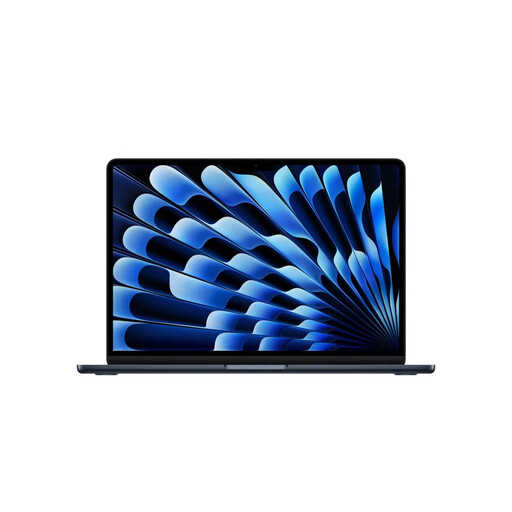
Apple MacBook Air 13-inch M5, 24 GB, 1 TB
A macOS option if you check the display support and connections you’ll need for your monitors in advance.
The product title lists 24 GB memory and 1 TB storage. The description mentions two Thunderbolt 4 ports and a weight of 1.23 kg. Apple specifies that the MacBook Air with M5 supports two external displays alongside the built-in screen; monitors without a suitable connection may require an adapter.
View at Joybuy
Frequently asked questions
When I say two screens, do I mean one or two external monitors?
Count the built-in laptop screen: a laptop plus one monitor is a different set-up from a laptop plus two monitors. For the latter, check how many external displays the exact configuration supports at the same time; the number of ports alone doesn’t always tell you.
How do I set up two detected screens as an extended workspace in Windows?
Connect the screens, then arrange them via Settings > System > Display. Microsoft Support also explains how to detect a screen that isn’t recognised; this setting can’t make up for missing hardware support.
Can I develop a browser extension using web technologies?
Yes. Google Chrome for Developers describes HTML, CSS and JavaScript as technologies for Chrome extensions, and lists manifest.json as a required file. The editor and other project software you use will also affect which laptop configuration is right for you.
What if the laptop breaks sooner than I could reasonably expect with normal use?
For a purchase by a consumer in the Netherlands, statutory rights apply alongside any manufacturer’s or retailer’s warranty. According to ACM ConsuWijzer, the retailer must put a faulty product right free of charge under the relevant conditions; don’t assume there’s one fixed statutory warranty period for every laptop.
Do I have a cooling-off period if I buy a laptop online?
For distance purchases from a business, a 14-day cooling-off period applies in many cases. The Dutch government explains the exceptions and, among other things, distinguishes online purchases from a private individual; check the terms that apply to your purchase.


