If you’ll be using your laptop screen alongside one external monitor, focus on comfortable writing and a connection that works with your monitor; you don’t necessarily need support for two external monitors. If you want to use two separate monitors alongside your laptop, check the display support and ports on the exact configuration, and make sure your cables or dock are compatible. Your workspace setup also matters during long writing sessions.
Who is this option for?
Writer using one external monitor
You want to see your synopsis and source material side by side, using your laptop screen as a second display. In that case, compatibility with your existing monitor and a comfortable place to write matter more than support for multiple external displays. Microsoft Support explains how to arrange multiple displays in Windows.
Writer using two separate monitors
You want to use two external displays at a permanent workstation. Check the display support and ports on the exact laptop configuration; Apple and Lenovo provide model-specific information about external displays and connections.
Writer who moves between workspaces
You write at a desk and on the go, weighing screen size and connections against portability. Arboportaal also offers guidance on setting up an adjustable workstation when using a laptop.
What should you look for in a laptop for writing a book synopsis?
Laptop screen plus one external monitor
Best for: You want to put your synopsis on one screen and notes or sources on the other, for example.
Consider: Check the laptop’s video output and your monitor’s video input. The position of the laptop screen also matters during long writing sessions.
Laptop with two external monitors
Best for: You want to use two separate external displays alongside or instead of the built-in screen.
Consider: Apple states that the MacBook Air with M5 supports up to two external displays at the same time as its built-in screen. Lenovo lists support for multiple independent displays on the ThinkPad E14 Gen 7 Intel, although port specifications may vary by configuration.
Larger built-in screen plus one monitor
Best for: You want more screen space on your laptop even when you’re not using an external monitor.
Consider: The HP ProBook 4 G1i configuration reviewed has a 16-inch screen and HDMI alongside USB-C ports; these ports alone don’t confirm support for a two-monitor setup.
| What to consider |
What should you look for? |
Who is this important for? |
| Connecting one monitor |
Check your monitor’s video input, the video output on the exact laptop configuration, and the settings for an extended desktop. |
If you want to use your laptop screen alongside one external monitor to view text and sources side by side, finding a compatible connection should be your first priority. Around 40% of consumers prioritise this setup. |
| Two external monitors |
Check how many displays the exact configuration supports simultaneously, and confirm the ports, resolutions and cable or dock requirements. |
If you want to use two separate monitors, the complete setup needs to work with your laptop configuration. Around 30% of consumers prioritise this display support. |
| Comfort during long writing sessions |
Assess the keyboard and screen size; for extended use, consider the position of your screen, keyboard and mouse. |
If you write for long stretches, you’ll want to arrange your workspace so your screen and input devices are comfortable to use. Around 20% of consumers put writing comfort first. |
| Portability |
Compare the screen size with the connections you need in the places where you write. |
If you regularly move between workspaces, you’ll want the size and connections to suit the way you work. Around 10% of consumers give portability top priority. |
Buying pitfalls to avoid
-
Confusing ‘two screens’ with two external monitors
If you’re counting your laptop screen, you only need one external monitor to use two screens. That’s different from needing support for two separate external monitors.
Sketch out the setup you want, then check the display limit and connections for the exact configuration.
-
Assuming the same model name always means the same ports and keyboard layout
For the ThinkPad E14 Gen 7 Intel, Lenovo lists port specifications that can vary by processor configuration. The Dutch configuration reviewed has an English (EU) keyboard.
Before buying, check the full configuration number, keyboard layout and video specifications.
-
Assuming a charger, cable and dock are included
The MacBook Air configuration mentioned was listed as not including a charger. The required port types also don’t guarantee that an existing monitor will connect without an additional adapter or cable.
Check what’s in the box and compare the connections at both ends of the video connection you need.
-
Assuming the manufacturer’s warranty covers all your legal rights
ACM ConsuWijzer explains that your legal rights against the seller apply alongside any manufacturer’s or seller’s warranty.
Keep your proof of purchase and don’t assess a fault solely on the basis of the stated manufacturer’s warranty.
Brands to consider
Apple
The MacBook Air with M5 is a macOS option for anyone who wants to use the built-in screen with one or two external displays.
- Apple states that it supports up to two external displays at the same time as the built-in screen, and has two Thunderbolt 4 ports.
- Check which cable or adapter is compatible with your existing monitor’s connections.
Lenovo
The ThinkPad E14 Gen 7 Intel is a Windows option for anyone considering monitor outputs and the precise laptop configuration.
- Lenovo lists HDMI, USB-C and Thunderbolt in the product specifications.
- Port requirements may vary by configuration. The Dutch configuration reviewed has an English (EU) keyboard; check that the layout suits your writing.
HP
The ProBook 4 G1i 16-inch configuration reviewed is a Windows option for anyone considering a larger built-in screen alongside a monitor.
- For this configuration, HP lists HDMI and two USB-C ports.
- This list of ports alone doesn’t confirm that you can use two external monitors at the same time.
Joybuy products for writing across multiple screens
These Joybuy products are suited to writing on a laptop with one external monitor. There’s also a MacBook Air option whose product information states that it supports two external displays. Check that the complete connection and configuration will work with your setup.
 No image available
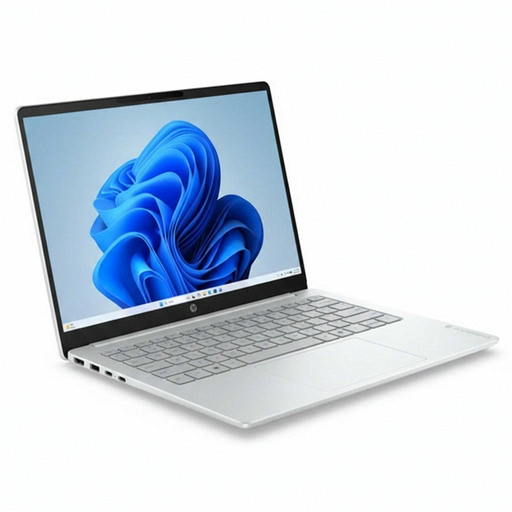
HP OmniBook 5 Flip 14-fp0075nd C5VM5EA#ABH
Suited to a setup using the laptop screen and one external monitor; check that the connection works with your monitor.
A USB-C charger of at least 45 W is required and isn’t included.
View at Joybuy
 No image available
HP OmniBook 3 AI PC 14-ht0013nd
Suited to a setup with an external monitor alongside the laptop screen; check the video connection your monitor requires.
Intel Core 3 304, 8 GB RAM, 512 GB SSD and Windows 11 Home.
View at Joybuy
 No image available
Auusda T156A laptop
Suited to a setup with one external monitor; before buying, check that the connections will work with the display you want to use.
15.6-inch FHD IPS screen, 16 GB DDR4 RAM and 512 GB SSD.
View at Joybuy
 No image available
MSI Modern 14 F1MG-867NL
Suited to a setup with one external display; check that the connection you need works with your monitor and laptop configuration.
14-inch Full HD IPS-level anti-glare screen, Intel Core 7 150U, 16 GB DDR4 and 512 GB SSD.
Listed weight: 1.40 kg.
View at Joybuy
 No image available
Apple MacBook Air 15-inch M5, 16 GB, 512 GB
Suited to a setup with two external monitors; check that the ports and cables work with your displays.
15-inch configuration with M5, 16 GB memory and 512 GB storage.
View at Joybuy
Frequently asked questions
Does my laptop need to support two external monitors if I want to write across two screens?
No, not if you mean your laptop screen and one external monitor. For two separate external monitors, check the display support and connections on the exact configuration; Apple and Lenovo publish model-specific information about this.
How do I put my synopsis and notes on separate screens in Windows?
Connect the monitor using a compatible connection, then use the Windows display settings to detect it if necessary and arrange the screens. If you have display issues, also check the resolution settings for that screen.
Are there Dutch workplace regulations for writing on a laptop for long periods?
For employees who work at a screen for more than 2 hours a day, Arboportaal describes regulations stating that the screen and keyboard must not be attached to each other, and that a separate screen or keyboard must be available when using a laptop. This is a conditional requirement for that working situation, not a general buying requirement for every writer.
Am I always entitled to just two years of legal cover for a laptop in the Netherlands?
No. According to ACM ConsuWijzer, your legal guarantee depends on what you could reasonably expect from the product; a limited manufacturer’s warranty doesn’t replace your rights against the seller.
Can I return a laptop bought online if I’m not happy with the screen setup?
For an online consumer purchase, ACM ConsuWijzer says you’ll generally have a statutory cooling-off period of up to 14 days after delivery. Check the applicable exceptions and returns policy before buying.


