What should you look for when buying?
Before choosing a laptop for your board game scorekeeping app, work out which programmes will run at the same time, how much window space you need and whether your development tools will work with the configuration you choose.
| What to consider |
What should you check? |
Who is this important for? |
| Running programmes at the same time |
Check the memory, storage and processor of the exact configuration, and note which programmes you’ll have open at the same time. |
If I use my editor, debugger, browser and scorekeeping app at the same time, I want to choose a complete configuration to suit the way I work. Around 36% of consumers prioritise the programmes they use simultaneously. |
| Screen space |
Compare both the screen size and resolution of the exact configuration, and consider whether you’ll also use an external screen. |
If I want to arrange my code, debugger and scorekeeping app on one screen, I look at the available screen space. Around 29% of consumers prioritise built-in screen space. |
| Portability |
Check the size and stated weight of the configuration, as well as its charging options. |
If I work on my project in different places, I may be happy with a smaller built-in screen if it makes the laptop easier to carry. Around 21% of consumers prioritise portability. |
| Compatibility |
Check support for your operating system, editor, runtime, extensions and any hardware connections. |
If my project depends on specific development tools or drivers, I check that they work with the operating system and architecture before buying. Around 14% of consumers say tool compatibility is their top priority. |
Microsoft recommends 1 GB RAM for Visual Studio Code itself; this figure doesn’t tell you how much memory you’ll need for the complete combination of browser, app, debugger and other tools. For Windows on Arm, Microsoft says that x86 and x64 apps can be emulated, but kernel drivers must be native Arm64. So check your own development setup rather than assuming everything will be compatible.
Joybuy laptops for this use
This Joybuy selection features Windows laptops with built-in screens ranging from 16 to 18.4 inches. For each model, also check the processor, configuration, development tool compatibility and any power adapter requirements.
 No image available
ASUS ROG Zephyrus G16 GU605CM-QR026W
The 16-inch screen suits a setup where you want to arrange your code, debugger and scorekeeping app on the laptop screen.
The listed configuration has a 2560 × 1600 screen resolution, 16 GB RAM, an Intel Core Ultra 9 285H processor, a 1 TB SSD and Windows 11 Home. The product name also mentions an NVIDIA GeForce RTX 5060.
View on Joybuy
 No image available
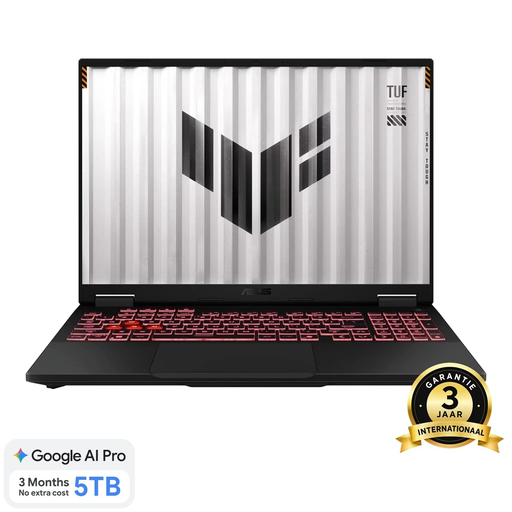
ASUS TUF Gaming A18 FA808UM-S8132W
The built-in 18-inch screen is worth considering if you want plenty of screen space while working on your scorekeeping app.
The configuration lists a 1920 × 1200-pixel WUXGA screen with a 16:10 aspect ratio, an AMD Ryzen 7 260 processor, 16 GB DDR5, a 512 GB SSD and Windows 11 Home. The product name also mentions a QWERTY keyboard.
View on Joybuy
 No image available
ASUS Vivobook 18 M1807HA-S16512W
The 18.4-inch screen could suit a fixed workspace where you want to view your code and test windows on one built-in screen.
The configuration lists a 1920 × 1200-pixel WUXGA screen with a 16:10 aspect ratio, an AMD Ryzen 7 260 processor, 16 GB DDR5, a 512 GB SSD and Windows 11 Home.
According to the product information, a compatible 45–65 W USB-C Power Delivery charger is required and isn’t included.
View on Joybuy
 No image available
ASUS Vivobook S16 S3607QA-SH109W
The 16-inch screen gives you a built-in space for arranging windows for your development work.
The configuration lists a WUXGA OLED screen, a Snapdragon X processor, 16 GB LPDDR5X, a 512 GB SSD and Windows 11 Home. Check that your specific development tools and dependencies are compatible with this configuration. Microsoft says Windows 11 on Arm can emulate x86 and x64 apps, but kernel drivers must be native Arm64.
View on Joybuy
 No image available
ASUS Zenbook A16, 16-inch WUXGA
The built-in 16-inch screen is an option to compare if you want to arrange your code and other development windows on the laptop.
The product name lists 16 GB RAM, a 512 GB SSD and Windows 11 Home.
View on Joybuy
Frequently asked questions
Is the recommended 1 GB RAM for Visual Studio Code enough for your scorekeeping app project?
No, that figure applies to Visual Studio Code itself. Microsoft’s recommendation doesn’t say how much memory your browser, app, debugger and other development tools will need together; check the requirements for each of those separately.
Should you rule out Windows on Arm for building a scorekeeping app?
Not necessarily: Microsoft says Windows 11 on Arm can emulate x86 and x64 apps. However, check the specific development tools your project depends on, as kernel drivers must be native Arm64.
What should you check during the initial setup?
Check that the operating system supports your editor and runtime, and that the required power adapter is included. ASUS says the adapter is missing from the reviewed Vivobook 16 X1607CA configuration and that a 65 W adapter is required.
What can you do if your laptop develops a fault after you buy it?
According to the Dutch government, if there’s a problem with a consumer purchase, you should contact the seller to find a solution. An additional warranty is most relevant if its terms give you extra rights.
Do online purchases in the Netherlands come with a cooling-off period?
For a qualifying distance purchase, the Dutch government generally states a 14-day cooling-off period. Check whether your specific purchase is covered by this rule; buying online from a private individual isn’t covered by the same distance-selling rules.


