
Portrait editor with an eye for greys
You assess subtle differences between shadows, skin tones and highlights on screen. Adobe describes screen calibration and colour profiles as elements of colour management.


Choose a laptop with a screen that lets you assess greys comfortably, then check that the exact configuration meets the requirements of your editing software and files. A more compact model is practical if you take your laptop with you often; a larger screen gives you more workspace, but in itself says nothing about how your finished print will look.
You assess subtle differences between shadows, skin tones and highlights on screen. Adobe describes screen calibration and colour profiles as elements of colour management.
You want to match the screen, memory and storage to the way you use your laptop, without automatically opting for a top-of-the-range professional configuration. Adobe distinguishes between the minimum and recommended amount of memory for Photoshop; Lenovo Netherlands lists the memory for a specific IdeaPad configuration.
You edit in your room and possibly on the go, weighing screen space against size and ports. Apple Netherlands lists 13.6-inch and 15.3-inch screen options for the MacBook Air M5, as well as two Thunderbolt 4 ports.
Start with how your portraits look on screen and the requirements of your editing software. Then choose a screen size, storage and ports to suit where and how you work.
| What to consider | What should you check? | Who is this for? |
|---|---|---|
| Assessing greys | Check the exact screen specification and set it up consistently for critical print work. | If you want to assess subtle tonal differences in portraits and match the screen display to your output, this should be your first priority. Around 33% of consumers prioritise tonal assessment. |
| Using editing software | Compare the configuration with the requirements of your software and version, including memory, storage and operating system. | If you edit large files or use several photo programmes at once, you’ll want to know whether the configuration you choose is up to the task. Around 27% of consumers give editing performance top priority. |
| Matching the configuration to your needs | Compare complete configurations and check which screen, memory and storage options you’re choosing. | As a student, you want a practical combination for the way you use your laptop, without paying for features you don’t need. Around 20% of consumers prioritise a suitable configuration. |
| Portability and workspace | Compare the screen size, weight and ports of the exact configuration with how you’ll use it day to day. | If you take your laptop between your room and university, a more compact screen may be more convenient; if you mainly work in your room, you may prefer more built-in workspace. Around 13% of consumers choose mainly for portability. |
| Photo library and backups | Check the SSD capacity, the ports you need and how you’ll back up your original files and any catalogue. | If you store lots of portraits, you’ll want space for your files and a plan for keeping both the originals and editing information safe. Around 7% of consumers prioritise storage and archiving. |
Screen options vary, and a screen label on its own doesn’t tell you what a print will look like. Adobe describes calibration as part of colour management.
Check the exact screen specification and, for critical print work, use consistent screen settings and a suitable output profile.
A product range may include different screens, memory options and storage variants. Only the full specification tells you which configuration you’re looking at.
Compare the full model number and the configuration on offer. Also check whether your existing peripherals will connect directly.
If a port you need is missing, you may need a suitable adapter; if your storage needs differ, another configuration may be a better fit.
According to Adobe, the catalogue contains editing information and references to files, among other things; the original photos remain separate files.
If you use Lightroom Classic, make a backup plan for both the catalogue and your original portraits.
Keeping a separate copy of your photo files may require extra storage space.
The MacBook Air M5 is an option if you’re choosing between a more compact 13.6-inch screen and the extra workspace of a 15.3-inch screen.
IdeaPad configurations are worth comparing if you’re considering a Windows laptop with 16 GB of memory and a 512 GB SSD.
The Zenbook S 14 UX5406 is an option if you’re considering a compact Windows model with an OLED screen.
HP OmniBook and ProBook configurations offer different options to compare for screen size and other features.
The Dell 14 Plus DB14250 is worth comparing if you’re looking for a portable Windows configuration.
This selection includes compact models for study and portrait editing, as well as models with a larger built-in screen for more workspace.
 No image available
The 14-inch size is a good fit if you’re considering a compact laptop for study and portrait editing.
1920 × 1200 IPS screen, 8 GB RAM and 512 GB SSD. The description states that no charger is included.
 No image available
The 16-inch screen gives you more built-in space for a portrait and editing panels.
WUXGA OLED screen, 16 GB LPDDR5X, 512 GB SSD, Snapdragon X processor and Windows 11 Home.
 No image available
The 15.6-inch screen is an option if you want more workspace on the laptop itself.
FHD IPS screen, 16 GB DDR4 RAM, 512 GB SSD and 3050E processor.
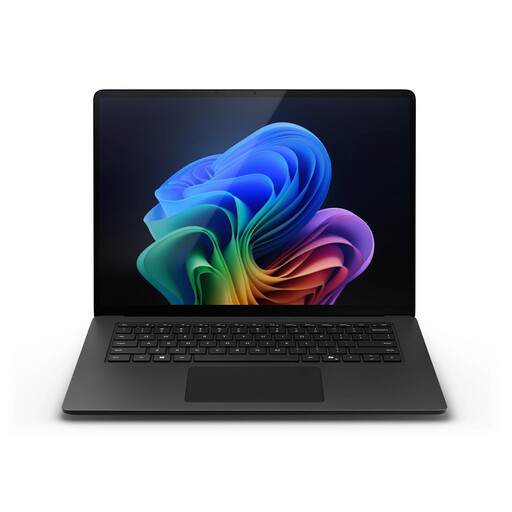 No image available
The more compact screen suits anyone who wants to take their laptop with them; it offers less room for a photo and editing panels than a larger screen.
2304 × 1536 screen resolution, 16 GB RAM, 512 GB SSD and Snapdragon X Plus processor. The description lists a 3:2 touchscreen, up to 120 Hz and USB4 ports.
 No image available
The 16-inch screen is worth considering if you want more built-in workspace for editing in a student room.
1920 × 1200 screen resolution, 16 GB RAM and 512 GB SSD. The description lists an anti-glare screen and 100% sRGB colour gamut.
No, the available selection criteria don’t make OLED a must-have. Compare the features of the exact screen configuration and set it up consistently for critical print work; an OLED label alone doesn’t tell you what your print will look like.
Adobe lists 8 GB as the minimum for Photoshop on desktop, and 16 GB or more as recommended. Check the requirements for the version you use too: the minimum isn’t the same as the recommended configuration.
If you use Lightroom Classic, make a backup plan for both the original photo files and the catalogue. According to Adobe, the catalogue stores editing information and file locations, among other things, while the photos remain separate.
When you buy online from a business, you generally have a statutory 14-day cooling-off period from delivery, according to ACM ConsuWijzer. Check the applicable exceptions and returns policy, and handle the product carefully while you’re assessing it.
No. According to the Dutch government, the Netherlands has no fixed statutory warranty period: a product must last for the period you can reasonably expect it to. If there’s a fault, contact the seller; any manufacturer’s warranty is in addition to this.