
Reviewing photos at a small desk
You select and view bird photos in a student room and want a laptop that fits your workspace. The Consumentenbond recommends 512 GB or more for large files such as photos and videos.


A compact laptop is practical for selecting and viewing photos at a small desk. If you also edit photos locally on a regular basis, pay attention to memory, storage and screen quality. The Consumentenbond recommends 512 GB or more for large files such as photos and videos, while Adobe recommends 12 GB RAM or more for good performance in Lightroom Classic. Compare the exact screen specification and ports: a stated colour gamut does not prove colour accuracy, and extra SSD space is no substitute for a back-up.
You select and view bird photos in a student room and want a laptop that fits your workspace. The Consumentenbond recommends 512 GB or more for large files such as photos and videos.
You take your laptop to university or other places, and want to review details at home. Compare the size and screen of the exact model, as Apple and ASUS publish specifications for compact models measuring around 13 to 14 inches.
You regularly import and edit photos, so your needs differ from those of someone who only views images. Adobe recommends 12 GB RAM or more for performance in Lightroom Classic. You should also consider your local storage and a separate back-up.
First decide whether you’ll mainly be selecting photos or editing them locally too. Then compare the screen and how well the laptop fits your workspace, and check that its storage and accessories meet your needs.
| What to consider | What should you check? | Who is this important for? |
|---|---|---|
| Screen quality | Compare the screen size, resolution, panel type and finish of the exact model. Calibrate the screen if colour assessment is important. | If I want to review details and colour at a small desk, I want to know how photos will look on the built-in screen. Around 31% of consumers say screen quality is their main concern when buying. |
| Portability and workspace | Check the dimensions and weight of the exact model, and whether the screen size is suitable for working without an external monitor. | I want to take my laptop with me regularly and still have enough room on my desk at home. Around 25% of consumers focus mainly on portability and the space a laptop takes up. |
| Local photo workflow | Check the software you use, the memory and SSD configuration, and how you’ll back up your original files separately. Adobe recommends 12 GB RAM or more for performance in Lightroom Classic. | If I regularly import or edit photos, I want enough memory and storage for my files. Around 25% of consumers prioritise their local photo workflow. |
| Accessories included with the laptop | Check whether a power adapter is included and whether the ports work with your camera, card reader and any back-up device. | I want to know before choosing whether I’ll need an extra charger or card reader for my workflow. Around 19% of consumers focus mainly on included accessories and ports. |
A screen specification alone doesn’t tell you how accurately colours will appear on your particular device.
Compare the screen variant for the full model number, and calibrate the screen if colour assessment is important. Adobe recommends calibrating your monitor before doing colour work in Lightroom Classic.
A laptop with enough storage won’t automatically protect your photo files from being lost. According to Adobe, a back-up from Lightroom Classic contains only the catalogue file.
Plan a separate back-up for your original photos and exports.
Models in the same product range can differ in screen, memory, storage and included accessories. For example, ASUS states that the power adapter is not included with the ASUS model reviewed.
Before buying, check the full model number, the configuration you’ve chosen and what’s in the box.
A compact MacBook Air model can be a useful reference if you’re looking for macOS for a small workspace.
The Zenbook 14 OLED model listed is a Windows option to consider if you’re looking for a compact laptop with an OLED screen.
The Swift Go 14 OLED NX.KTSEH.007 is a compact Windows model with local storage.
The Yoga Slim 7 Gen 10 83JYCTO1WWNL2 is a 14-inch Windows model that lets you weigh up screen, storage and size together.
The OmniBook 7 14-fr0672nd is a compact Windows laptop with an OLED screen.
This Joybuy selection includes laptops from 13 to 14.2 inches, with a range of memory and storage configurations for viewing and storing photos locally. Check the screen quality, ports and required accessories for each model.
 No image available
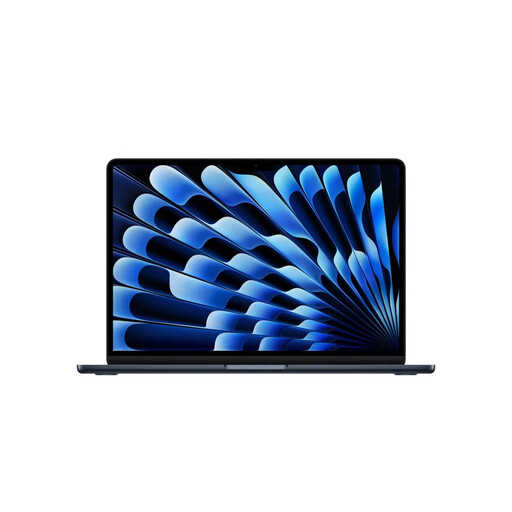
The 13.6-inch model is a good fit if you’re looking for a compact laptop for a small workspace.
The product information lists an M5 chip, a Liquid Retina screen, 24 GB memory and a 1 TB SSD. The screen is glossy and may reflect light depending on your surroundings.
 No image available
This compact model is an option if you want to view and store photos locally in a small workspace.
The product information lists a 13.6-inch Liquid Retina screen, 16 GB memory and a 512 GB SSD. The screen is glossy and may reflect light depending on your surroundings.
 No image available
The 14.2-inch model could suit you if you want to review details on the built-in screen and need local storage.
The product information lists a 3024 × 1964-pixel screen, 24 GB memory and a 1 TB SSD. These specifications are not an independent measure of colour accuracy.
 No image available
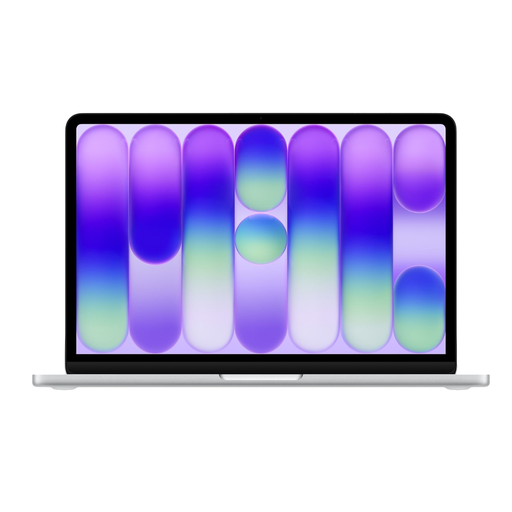
The 13-inch size works well for a small workspace and storing a photo collection locally.
The product information lists a 2408 × 1506-pixel screen, 8 GB memory and 512 GB storage. If you use Lightroom Classic, bear in mind that Adobe recommends 12 GB RAM or more for performance. A power adapter is not included; the product information specifies a suitable USB-C adapter of at least 20 W.
 No image available
This 14-inch model is a compact option for viewing and storing photos locally.
The product information lists a WUXGA OLED screen with a 16:10 aspect ratio, 16 GB memory and a 512 GB SSD. A power adapter is not included; the product information specifies a suitable 65 W USB-C Power Delivery charger.
Not necessarily. First decide whether you’ll mainly view and select photos or regularly import, edit and export them too. Adobe recommends 12 GB RAM or more for performance in Lightroom Classic; the right configuration also depends on your software and files.
Check the screen variant for the exact model and calibrate the screen if colour assessment is important. Adobe recommends calibrating your monitor before doing colour work in Lightroom Classic; an OLED label or stated colour gamut alone doesn’t prove colour accuracy.
No. According to Adobe, a back-up from Lightroom Classic contains only the catalogue file. You should also make a separate back-up of your photos and exported files.
According to ACM ConsuWijzer, you have a statutory warranty in addition to any manufacturer’s or seller’s guarantee if a product doesn’t meet what you could reasonably expect; this doesn’t simply have one fixed duration. Online purchases generally come with a 14-day cooling-off period from delivery, subject to exceptions that you should check before buying.