What should you look for?
Start by thinking about how you want to view scans and references. Then compare the exact configuration, ports and any other equipment you need for your workspace.
| What to consider |
What should you check? |
Who is this most important for? |
| Comparing scans and references clearly |
Try a representative scan alongside your usual references and notes. Check the screen size, resolution and readability at your usual zoom level. |
I want to keep map details legible while also seeing catalogue details and notes; around 36% of consumers put this first. |
| Keeping several sources open |
Check the RAM for the full model code and, where possible, try your usual combination of viewer, tabs and notes. |
I often switch between scans, browser windows and notes, and want to keep my work open and close at hand; around 29% of consumers give this their highest priority. |
| Portability or a fixed workspace |
Check the size and weight of the exact configuration. If you plan to use an external monitor, check that you have the right video port and cable too. |
I regularly travel to an archive, but sometimes want more room for sources at a fixed workspace; around 21% of consumers put portability first. |
| Saving files and other equipment |
Estimate how many files you’re likely to download and save. Check the SSD and whether a suitable power adapter is included. |
I want to save downloaded scans and know in advance what else I need; around 14% of consumers give storage and additional costs their highest priority. |
Joybuy laptops for scans and references
This selection features 16-inch laptops for comparing scans and references on the built-in screen. Check the specifications that matter for the way you work on each configuration.
 Image unavailable
HP OmniBook X Flip NG AI PC 16-as0050nd D75LQEA#ABH
An option to compare if you want to view scans and references on the built-in screen.
View at Joybuy
 Image unavailable
HP OmniBook 3 16-by0058ndx
This configuration is worth comparing if you’re looking for a 16-inch laptop for scans and multiple sources.
The product name lists AMD Ryzen 5 7520U, 8 GB RAM, a 512 GB SSD, a 2K IPS screen and Windows 11 Home.
View at Joybuy
 Image unavailable
ASUS Zenbook A16 WUXGA
A 16-inch option to compare with other laptops if you want to view scans and references on the built-in screen.
The product name lists WUXGA, 16 GB RAM, a 512 GB SSD and W11H.
View at Joybuy
 Image unavailable
HP OmniBook Ultra Next Gen AI 16-bk0004nd
This configuration is worth comparing if you store lots of files locally and a built-in screen is important to you.
The product name lists 128 GB RAM, a 2 TB SSD, a 3K OLED touchscreen with 120 Hz and Windows 11 Pro.
View at Joybuy
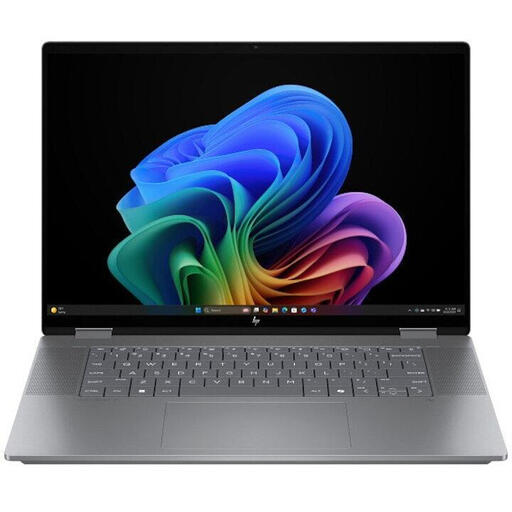 Image unavailable
HP OmniBook X Flip NG AI PC 16-ar0070nd
A 16-inch model to compare if you want to organise scans and multiple references on the built-in screen.
View at Joybuy
Frequently asked questions
Do you need a powerful graphics card to read archive scans?
Not if you’re only reading and comparing documents. Start with screen readability, the exact memory configuration and the storage you need; Consumentenbond recommends 8 GB RAM and 256 GB storage as a starting point for basic everyday use. If you also use specific, demanding software, check its requirements separately.
How do you place several sources side by side on a Windows screen?
You can drag windows to the edge or a corner of the screen to place them side by side or in a grid. Microsoft Support explains this feature for Windows. Try your own scans, browser and notes at your usual zoom level; arranging windows doesn’t make the physical screen any larger.
Can you connect an external monitor?
It depends on the exact laptop, monitor and cable. Apple lists support for external displays for the MacBook Air (15-inch, M5); ASUS lists HDMI for the Vivobook 16 M1605 range, while Lenovo lists HDMI and DisplayPort via USB-C for the IdeaPad Slim 3 14AHP10 range. Check the ports on the configuration you actually want to order.
Can you download and share any archive scan?
No. Availability and reuse depend on the scan and the archive service’s terms. The National Archives describes reuse for scans with a download button and the designation ‘Public domain’ or ‘CC0’. Check the terms of the archive service responsible for the scan you want to use; buying a laptop doesn’t change those rights.
What are your rights when buying a laptop online in the Netherlands?
According to ACM ConsuWijzer, for a standard online purchase of goods you’ll generally have a statutory cooling-off period of up to 14 days after delivery, with some exceptions. You may also be entitled to a statutory guarantee if a product is faulty under the applicable conditions; the retailer must then offer a solution. An additional protection plan is separate from these statutory rights.


