
Scan reader who also takes notes
You want to view archival images and notes clearly, and choose a screen to suit your own workspace. Archieven.nl explains how scans of archival records can be viewed and downloaded.


For archive research, a screen that lets you view scans and notes side by side is useful. If you travel a lot, size and weight matter too. Also check that your software and files work with the operating system, that you can use them offline and that the workshop venue has power sockets.
You want to view archival images and notes clearly, and choose a screen to suit your own workspace. Archieven.nl explains how scans of archival records can be viewed and downloaded.
You’ll be taking your laptop with you and want to know in advance whether the reading room has power sockets, rather than relying solely on the advertised battery life. The National Archives and Westfries Archief give examples of reading rooms with power sockets; check the facilities at your venue.
You need to check that your files and required software work with the operating system you choose, including when you’re offline. Google explains how to access selected files offline and notes that app support can vary between Chromebooks.
A good fit if: your workshop requires Windows software, or you want a laptop for researching in a browser, storing files locally and taking notes.
Bear in mind: a larger screen can make scans easier to read, but it’s less convenient to carry around. Configurations can also vary within the same product range.
A good fit if: you’ve tested the archive website, documents and offline workflow on ChromeOS in advance, and don’t need software that isn’t supported. Google explains how to access selected files offline.
Bear in mind: you’ll need to make files available offline in advance, and not every app works on every Chromebook.
A good fit if: the websites and software you need work on macOS, and you want to use a portable Mac.
Bear in mind: check which port or adapter you’ll need for things such as a USB stick. Apple’s battery life figures for the M5 configuration are based on specific activities and won’t predict how long your laptop will last during archive research.
| What to consider | What to look for when buying | Who is this important for? |
|---|---|---|
| Scans and notes | Compare the screen size, resolution and anti-glare finish of the exact configuration. If possible, try viewing a scan alongside a document for your notes. | If I want to view scans and notes at the same time, I want to know whether they’ll be comfortable to work with at my desk. Around 33% of consumers give top priority to combining scans and notes. |
| Portability and power | Check the weight of the exact model, the conditions used to test its battery life and whether a charger is included. Ask the workshop venue about power sockets. | If you’re taking your laptop with you and want to keep working during the workshop, consider how easy it is to carry and how you’ll power it. Around 25% of consumers prioritise portability and power. |
| Software and offline access | Ask which software and file formats will be used. Open a sample scan in advance and test your workflow without Wi-Fi. | If required software or a file doesn’t work, a suitable screen won’t help; that’s why I test the entire workflow in advance. Around 25% of consumers give software and file compatibility top priority. |
| Purchase and essentials | Compare the exact configuration, the charger included and the connection you’ll need for your files. Check for any scanning or download fees charged by the relevant archive. | If you want to know in advance which configuration and accessories you need, check what’s in the box and how scans are made available. Around 17% of consumers prioritise the purchase and essentials. |
Battery life figures may be based on specific activities, while the availability of power sockets varies between archives.
Check the test conditions and ask the workshop venue about power. Bring a suitable charger if you’re relying on one.
Specifications can vary within a laptop range. For example, Acer states that the Aspire Go 15 configuration NX.JRREH.01A does not include a charger.
Compare the full model number, memory, screen, ports and what’s included in the box.
You may need to buy a separate charger for this Acer configuration.
Google explains how to access selected files offline and notes that app support can vary between Chromebooks.
Before buying, test that the required software, a sample scan and your offline workflow all work on the device you’re considering.
Archieven.nl notes that scans may be available free of charge or for a fee. Protected material is also subject to conditions on sharing and making it publicly available.
Check the archive’s download terms and any charges. Check publication rights separately: the Dutch Government makes clear that a copy for personal use cannot automatically be shared or made publicly available.
Some archive downloads may incur a charge; check with the relevant archive for the material you need.
The Vivobook 14 M1407 is a compact Windows option to consider if you want to read scans and notes on a 14-inch screen.
The Aspire Go 15 NX.JRREH.01A is a Windows configuration with a larger screen, suited to research at a table.
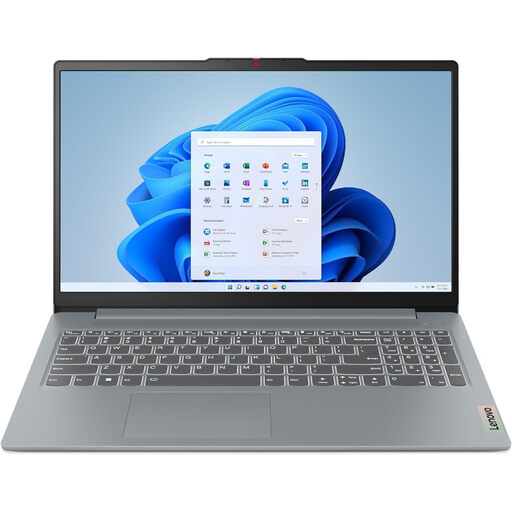
The IdeaPad Slim 3 Gen 8, configuration 82XN008RMH, is a 14-inch Windows laptop you can compare with other options.
A MacBook Air is worth considering if the websites and software you need work with your macOS workflow.
These Windows laptops are suited to archive research, note-taking and carrying files stored locally.
 No image available
The 14-inch screen and anti-glare finish suit anyone who wants to view scans and notes on a compact laptop.
14-inch WUXGA IPS screen with a 16:10 aspect ratio; Ryzen 7 8840HS; 16 GB memory; 1 TB SSD; Windows 11 Home; weight 1.39 kg.
 No image available
The 15.3-inch screen gives you more room to read at a table; bear in mind the larger size when you’re carrying it around.
15.3-inch WUXGA screen with a 16:10 aspect ratio and anti-glare finish; Ryzen 5 8640HS; 16 GB DDR5 memory; 512 GB SSD; Windows 11 Home.
 No image available
This 14-inch configuration is worth comparing if you want to take a laptop to your workshop and are looking for an anti-glare screen.
14-inch Full HD IPS-level screen with anti-glare finish; Intel Core 7 150U; 16 GB DDR4 memory; 512 GB SSD; Windows 11 Home; weight 1.40 kg.
 No image available
The 15.6-inch anti-glare screen is an option to consider for reading at a fixed desk.
15.6-inch Full HD IPS screen; Intel Core 7 150U; 16 GB memory; 512 GB SSD; Windows 11 Home; USB-A and microSD card reader; 45W USB-C adapter and 54Wh battery.
 No image available
This 14-inch configuration is an option for anyone looking for an anti-glare screen and local storage for documents and scans.
14-inch 1920 × 1200 IPS screen with a 16:10 aspect ratio; AMD Ryzen 5 7520U; 8 GB memory; 512 GB SSD; Windows 11 Home; weight approximately 1.42 kg. Supplied without a charger.
Check with the venue where your workshop is taking place. Westfries Archief lists Wi-Fi and power sockets at all workstations; the National Archives says laptop users can choose a table with a power socket. This doesn’t tell you what facilities are available at your workshop venue.
Make the files you need available offline in advance, then test them with the apps you’ll use during the workshop. Google explains how to access selected Drive files offline and notes that app support can vary between Chromebooks.
That depends on the archive and how you want to transfer files. The National Archives asks visitors to bring their own USB stick to use with its book scanners. Check in advance whether your laptop can connect to the stick directly or whether you’ll need a suitable adapter.
Check the download terms and any charges with the archive you’re using. Archieven.nl notes that scans may be available free of charge or for a fee. For protected material, having a copy for personal use doesn’t automatically mean you can share or publish it; the Dutch Government advises you to take copyright into account.