
Researcher with multiple sources open
You switch between archive scans, references and notes, and want to know how much screen space and RAM you’ll need.


Start by checking the archive websites, files and any required software you use, then compare the screen space, RAM and portability of the exact configuration. For light browsing, 8 GB of RAM may be enough. The Consumers’ Association considers 16 GB a practical choice for running several programmes at once, but it isn’t a minimum requirement for every archive website. A larger screen can make it easier to read scans alongside your notes. If you’ll be researching offline, check which files need to be available in advance.
You switch between archive scans, references and notes, and want to know how much screen space and RAM you’ll need.
You spend long periods viewing maps, photographs or documents and want to keep scans readable alongside your notes.
You take your laptop with you and weigh up screen space against size, keyboard and access to files saved in advance.
A good fit if: your required programmes need Windows, or you’re looking for a specific Windows configuration for scans and notes.
Bear in mind: specifications and keyboard layouts vary by configuration, so check the full model number.
A good fit if: your research mainly involves compatible websites and supported apps.
Bear in mind: Google says some apps don’t work offline; also check that your scans are available locally and fit on the device.
A good fit if: your required websites, programmes and files work with macOS.
Bear in mind: check that the screen size and ports on your chosen configuration suit the way you work.
| What you need | What to look for when buying | Who is this important for? |
|---|---|---|
| Switching between sources and notes | Compare the RAM in the exact configuration. The Consumers’ Association considers 8 GB enough for light use and 16 GB a practical choice for running several programmes at once. | If I have scans, source pages and notes open at the same time, I want to switch smoothly between those windows. Around 28% of consumers say this is their main concern when buying. |
| Keeping scans readable alongside notes | Compare screen size, resolution and finish. If possible, try viewing your usual scan and notes side by side. The National Archives displays scans in a viewing window on the page. | When I’m studying details in scans, I want to be able to read my notes alongside them without constantly switching windows. Around 22% of consumers prioritise readability. |
| Compatibility with websites, software and files | Check that your required archive websites, programmes and file formats work with Windows, ChromeOS or macOS. Also check any requirements set by your course. | If my research depends on specific software or file formats, I want to know in advance whether they’ll work on the laptop. Around 22% of consumers say compatibility is their main concern when buying. |
| Taking your laptop with you and working away from your usual workspace | Consider the weight, screen size, keyboard and ports. Also check which charger is included and which files you’ll need to save in advance. | When I take my laptop between home and an archive, I want a size that suits my journey and workspace. Around 17% of consumers prioritise portability. |
| Space for scans stored locally | Compare the storage capacity of the exact configuration with the size of your files. On a Chromebook, also check that the files you need are synced and fit on the device. | If I want to view lots of scans without an internet connection, I need enough free storage for my files. Around 11% of consumers say local storage is their main concern when buying. |
The scan viewer, notes and other windows all need to remain readable in your layout. More powerful specifications won’t automatically fix an awkward screen layout.
Try viewing your usual scan and notes side by side, then compare the screen size and RAM of the full model codes.
Google says some apps don’t work offline. You’ll also need enough storage for files you want to use locally.
Make your research files available offline in advance, check they’ve synced and test the required app without an internet connection.
A larger offline collection may require additional local or external storage.
Configurations can vary. Lenovo lists an English (EU) keyboard for the ThinkPad E14 Gen 7 21T9001TMH. For specific OmniBook 3 offers, HP recommends a USB-C adapter that is sold separately.
Check the full product code, keyboard layout, ports and package contents of the laptop on offer.
The ThinkPad E14 Gen 7 is a compact Windows laptop worth comparing if a matt screen would be useful for your archive work.
The Vivobook 14 M1407 range is worth comparing if a compact screen and ports are important to you.
The Chromebook Plus 514 CB514-6HT-32PZ is a ChromeOS option for research carried out mainly on compatible websites and apps.
The MacBook Air is a macOS option if your required research software and files work with this operating system.
The OmniBook 3 range includes Windows configurations in different screen sizes, letting you weigh portability against workspace.
These laptops have features suited to viewing scans and working with multiple sources. Compare the listed RAM, storage and screen size with the way you work.
 No image available
The listed 16 GB RAM and 512 GB SSD are worth considering if you use multiple sources and store files locally.
Specifications: 16 GB DDR4 RAM; 512 GB SSD; 3050E processor.
The product name doesn’t specify an operating system. Check that the required software and websites work with the configuration on offer.
 No image available
This Windows 11 Pro configuration could suit you if you’re looking for a 15.6-inch screen and 16 GB of RAM for working with multiple sources.
Specifications: 16 GB DDR5 RAM; 512 GB SSD; 15.6-inch FHD screen; Intel Core i5-13420H.
Check that the keyboard layout and ports suit the way you use your laptop.
 No image available
The listed 16-inch screen gives you more built-in viewing space for scans and notes than a compact screen.
Specifications: 16-inch WUXGA screen; 16 GB DDR5 RAM; 512 GB SSD; Intel Core Ultra 5 135H; Windows 11 Pro.
The product name lists a QWERTY keyboard; check that this layout suits you.
 No image available
With its 14-inch screen, this configuration is worth comparing if you take your laptop with you regularly.
Specifications: 14-inch Full HD screen; 16 GB DDR4 RAM; 512 GB SSD; Intel Core 7 150U; Windows 11 Home.
The product name lists an IPS-Level screen and a backlit keyboard.
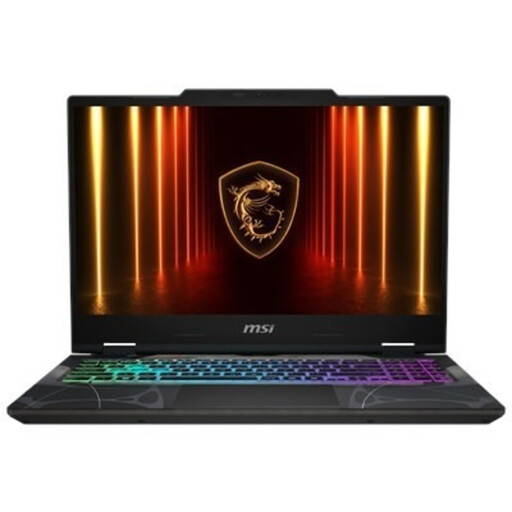 No image available
Compare this configuration with your own needs; the product name lists a 15.6-inch screen and Windows 11 Home.
Specifications: 15.6-inch Full HD screen with 144 Hz; 16 GB DDR5 RAM; 512 GB SSD; AMD Ryzen 9 270; RTX 5070 8 GB GDDR7.
The listed graphics specifications aren’t a necessary selection criterion for every type of archival research.
No, 16 GB isn’t a technical minimum for every archive website. The Consumers’ Association considers 8 GB enough for light use and recommends 16 GB if you want to run several programmes at once. Choose based on the combination of browser tabs, scans and notes you use.
You can use some Google Drive files if you make them available offline in advance and check that they’ve synced. Google warns that some apps don’t work offline, so test your own files and workflow beforehand.
Check the update schedule in the settings of the exact device. Google says that after the final software update, browser and security updates also stop, and support for certain apps may end.
No. The National Archives permits free reuse of scans that have a download button and are labelled ‘Public Domain’ or ‘CC0’. For other local archives, check their own information about rights and use; these terms don’t automatically apply to their collections.