
3D animator with limited desk space
If you use Blender, compare the GPU, VRAM and RAM in the exact configuration with your software’s requirements. Blender distinguishes between minimum and recommended specifications.


Start with your animation software and workflow. For 3D work, GPU support and memory are key considerations, while for 2D work you’ll also want to think about screen layout and connecting a drawing tablet. Then compare the exact laptop configuration with the space available for your full setup, and check which accessories you’ll need to buy separately.
If you use Blender, compare the GPU, VRAM and RAM in the exact configuration with your software’s requirements. Blender distinguishes between minimum and recommended specifications.
Consider the screen layout and make sure there’s enough memory for your software and files. A dedicated GPU isn’t automatically necessary if your workflow doesn’t require one.
Check whether a compatible pen or external drawing tablet suits your workflow. A touchscreen alone doesn’t confirm that a particular pen is supported or included.
First decide which software and input method you’ll use. Then compare the configuration and the total space the laptop, power supply and input devices will take up on your desk.
| What to consider | What should you check? | Who is this important for? |
|---|---|---|
| Suitability for 3D | Compare the exact GPU, VRAM and RAM with the requirements of your software and projects. For Windows, Blender lists 8 GB RAM and 2 GB VRAM as the minimum; its recommended specifications are 32 GB RAM and 8 GB VRAM. | If I create Blender projects, I want to know whether the configuration I choose is suitable for my 3D work. Around 33% of consumers prioritise suitability for 3D projects. |
| Screen space for 2D | Check the screen size and resolution of the exact configuration, and consider whether your timeline and tools will fit comfortably without an additional monitor. | If I mainly work with 2D animation, I want to be able to arrange my timeline and tools clearly on the built-in screen. Around 27% of consumers prioritise this 2D workspace. |
| Total desk space | Measure the space available for the laptop, power supply and input devices. Also check the ports if you want to connect an additional screen or tablet. | At a small desk, I need room for my whole setup, not just the laptop. Around 20% of consumers prioritise a minimal desk footprint. |
| Pen or drawing tablet | Check pen support for the exact configuration, what’s included in the box and whether your drawing tablet is compatible with the available ports. | If I want to draw directly, I want to know in advance whether my pen or tablet will work with my setup. Around 20% of consumers prioritise drawing with a pen or tablet. |
A GPU model name doesn’t tell you whether the complete laptop configuration is right for your Blender projects. Blender distinguishes between minimum requirements and recommended RAM and VRAM specifications.
Compare the exact configuration with the requirements of your Blender version and workflow, including the available memory.
A touchscreen alone doesn’t prove that a particular pen will work or be included. An external drawing tablet may be a better fit for the way you want to work.
Before buying, check pen compatibility, what’s included in the box and whether there’s room for your chosen input method.
A compatible pen or external drawing tablet may need to be purchased separately.
The Dutch Government distinguishes between your statutory rights if a product has a problem and an additional warranty from a manufacturer or retailer. The retailer is your point of contact if a product doesn’t meet expectations.
Check what additional cover a warranty plan offers before paying for it.
An extended warranty costs extra and doesn’t automatically replace the rights you already have.
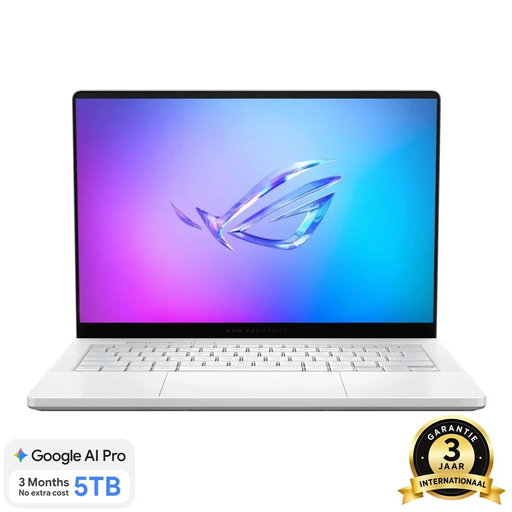
The Dutch ASUS store lists a 14-inch screen and a dedicated GeForce RTX 4060 Laptop GPU for the ROG Zephyrus G14 GA403UV-QS026W. This makes this configuration worth comparing for GPU-intensive 3D animation.
HP lists 32 GB RAM, a 1 TB SSD and a 14-inch OLED touchscreen for the OmniBook X Flip 14-kc0621ndx. It’s a compact option to compare for 2D work and touchscreen use.
Lenovo describes the Yoga Pro 7 Gen 10 range as having a compact 14.5-inch 3K OLED screen. This is worth considering if you’re weighing screen space against size in a small workspace.
Apple lists 14-inch MacBook Pro configurations with M5 Pro and unified memory. These may be worth considering if your animation workflow is suited to macOS.
This selection includes compact laptops with a dedicated GPU for 3D work, as well as laptops for 2D creative work and touch input. Compare each configuration with your software requirements and the setup you want.
 No image available
A compact configuration with a dedicated RTX 5060 Laptop GPU to consider for 3D work. Blender recommends 32 GB RAM; this configuration has 16 GB RAM, which is onboard and can’t be upgraded by the user.
According to the product name: Ryzen 9 270, 16 GB RAM, 1 TB SSD and QWERTY keyboard.
 No image available
The touchscreen and 360-degree hinge may be useful for 2D work. Check separately whether the pen you want to use is compatible.
The USB-C charger and stylus aren’t included. The memory is onboard and can’t be upgraded.
 No image available
The touchscreen and tablet mode are features to consider if you’re comparing touch input for creative tasks. Check which pen suits your workflow.
According to the product name: Intel Core 5 120U, 8 GB RAM, 512 GB SSD and 14-inch 2K touchscreen. The stylus and USB-C charger aren’t included; the memory is onboard and can’t be upgraded.
 No image available
A compact 14-inch option for colour-focused 2D work. Compare the screen features and 16 GB RAM with your own software and files.
According to the product name: Snapdragon X, 16 GB RAM, 512 GB SSD and WUXGA OLED screen. The screen isn’t touch-sensitive, the memory can’t be upgraded and the required 65W USB-C charger isn’t included.
No, that isn’t a general requirement. First, check the software and features you use. Blender lists GPU and VRAM requirements for Blender on Windows. A minimum specification isn’t the same as a recommended specification.
Leave space for the input devices you use, as well as your laptop. Blender recommends a three-button mouse for optimal use, and pen tablets or pen displays for certain tasks. Check the dimensions and connections for your setup in advance.
No, a touchscreen specification alone doesn’t confirm pen compatibility. HP lists a touchscreen for the OmniBook X Flip 14-kc0621ndx, but check separately which pen works with the configuration you’re buying and whether it’s included.
According to the Dutch Government, many eligible online consumer purchases come with a 14-day cooling-off period. The Netherlands has no fixed statutory warranty period; the retailer is your point of contact if a product doesn’t meet expectations. Check the terms and exceptions that apply to your purchase.