
Colour-critical landscape editor
If you edit exposure brackets for outputs such as prints, you’ll want to assess colours consistently and calibrate the monitor for your intended output.


Choose a monitor based on the output you want to assess. For colour-critical prints, the relevant colour space and calibration are important considerations, while a shared digital workspace also calls for adjustability and suitable connections. Merging exposures doesn’t in itself require an HDR display: HDR viewing and output are separate choices, and ambient light continues to affect how you use the monitor.
If you edit exposure brackets for outputs such as prints, you’ll want to assess colours consistently and calibrate the monitor for your intended output.
If you also want to assess and output a merged photo for HDR displays, you’ll need to consider HDR viewing and settings in your editing software as well as merging. Adobe describes these as separate steps.
If you work with different users or laptops, it’s worth considering adjustability, reflections and connections that suit the computer being used.
Start with the output you want to assess. Colour-critical prints call for different priorities from digital office work, where ergonomics and the ability to connect different users’ devices also matter.
| Consideration | What to look for when buying | Who is this important for? |
|---|---|---|
| Colour for your intended output | Compare coverage of the colour space you need, and check the calibration method and whether you’ll need a sensor or software. | If I want to assess colours consistently for my intended output, I look beyond the colour-space percentage alone. Around 31% of consumers put colour consistency first. |
| Tonal range and HDR output | Decide on your output format first, then check display support and the HDR workflow in the software you use. | When I want to assess highlights and shadows in merged exposures, I need to know whether I’m outputting in SDR or HDR. Around 25% of consumers put tonal and HDR assessment first. |
| Workspace lighting and adjustability | Check the monitor’s adjustability and screen finish, and consider its position in relation to windows and blinds. | If several people use the monitor, I want to be able to adjust its position and minimise distracting reflections in the workspace. Around 25% of consumers put usability in a shared workspace first. |
| Connecting and switching devices | Check your laptop’s video output, the USB-C power delivery you need, and the cables and software required. | When I switch between computers, I want to connect them without finding that the power delivery or connection isn’t suitable for my laptop. Around 19% of consumers put suitable connections and switching first. |
Choosing an HDR label as your deciding factor may be unnecessary if you don’t plan to output for HDR displays. Adobe describes merging to HDR separately from editing and exporting for HDR displays.
Decide on your intended output first, then consider whether HDR viewing matters for your workflow.
A stated colour-space coverage figure doesn’t, on its own, tell you how a monitor is set up during use.
Compare the stated coverage with the colour space for your output, and check how the model is calibrated.
A matte finish won’t prevent reflections caused by the monitor’s position or office lighting.
Consider the screen position, windows, blinds and adjustability alongside the monitor itself.
The models reviewed list different maximum USB-C power outputs. The port also needs to be suitable for your laptop and the video connection you need.
Check the exact monitor variant, your laptop’s video output and its power requirements.
The PhotoVue SW272U is a 27-inch 4K model for photography workflows, with Adobe RGB, P3 and sRGB coverage as stated by BenQ.
The ColorEdge CS2740 is a 4K model for colour-managed image editing, with wide Adobe RGB coverage according to the manufacturer.
The UltraFine 27UP850K-W is a 4K model for image editing and office use.
The UltraSharp U2725QE is a 4K model with an emphasis on connectivity and adjustability.
The ProArt PA279CRV is a 27-inch 4K model with wide P3 and Adobe RGB coverage as stated by ASUS.
This Joybuy selection includes monitors for colour-focused image editing and shared office work, with models in 4K and QHD. Check that each model’s connections, calibration and display specifications suit your output and workspace.
 Image unavailable
An option to consider if you want to combine colour-focused image editing with HDR viewing.
 Image unavailable
An option for a shared workspace where colour validation and controlling multiple computers are important.
 Image unavailable
An option for a laptop workspace where 4K viewing and USB-C connectivity matter.
 Image unavailable
An option for detailed image editing and a setup where you want to switch between computers.
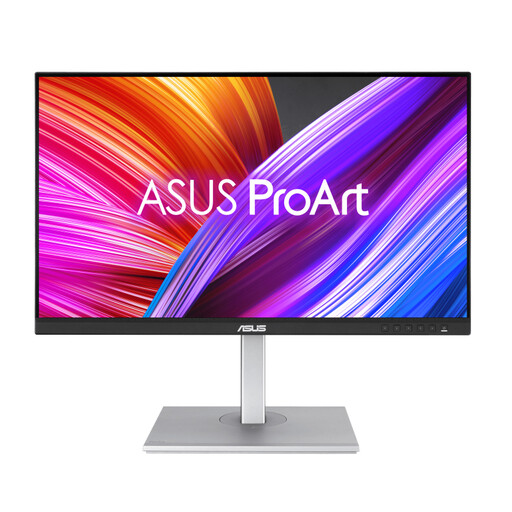 Image unavailable
An option for assessing the colour of digital output, with a different resolution from the 4K models in this selection.
No, not for merging alone. Adobe describes merging to HDR separately from editing and exporting for HDR displays. Choose based on the output you actually want to assess.
Adjust the screen position for the user and check for reflections in the actual light conditions at the workspace. Arboportaal also recommends suitable lighting, blinds and positioning in relation to windows; a monitor specification alone won’t address these factors.
Check which sensor, software and cables you need for your monitor and computer. LG states that LG Calibration Studio software isn’t included with the 27UP850K-W; the components you need depend on your setup.
According to the Rijksoverheid, you’re entitled to a product that meets reasonable expectations, but there’s no fixed statutory warranty period in the Netherlands. A manufacturer’s or extended warranty is in addition to those rights; if a product is faulty, the retailer is your first point of contact. If you’re buying on behalf of a business, ask which terms apply to the business purchase.
For employees and applicable screen-based work, Arboportaal outlines employers’ obligations concerning safe screen use and workspace setup. These include adjustability, preventing reflections and adequate lighting. This isn’t a general minimum specification for every private monitor buyer.