
Designer with one spare socket
You don’t yet have a suitable monitor and want to know in advance how many separately powered devices your workstation will need.


If you don’t yet have a suitable monitor and want to choose your computer and screen together, start with an all-in-one. If you already have a monitor, consider a mini PC; a tower is best if expandability matters and you have room for the case. Whichever you choose, count the power supplies for your entire workstation and check the connections and software requirements for the exact model.
You don’t yet have a suitable monitor and want to know in advance how many separately powered devices your workstation will need.
You want to keep using your monitor, so you’re checking first that the computer and screen have compatible connections.
As well as browser-based design, you may use Photoshop and want to compare your software’s requirements with those of the exact model. The Figma Help Centre describes Figma as primarily browser-based; Adobe lists separate system requirements for Photoshop.
A good fit if: you don’t yet have a suitable monitor and want to choose your computer and screen together.
The trade-off: you choose the screen as part of the computer, leaving you less flexibility to replace just the screen later.
A good fit if: you already have a suitable monitor or want to choose your computer and screen separately.
The trade-off: remember to factor in the monitor’s power supply too. The computer’s compact size doesn’t determine how many sockets your whole workstation needs.
A good fit if: you want room to expand and have space for a case and a separate monitor.
The trade-off: check the options for each configuration; a tower won’t solve a shortage of sockets by itself.
| What to consider | What should you check? | Who should pay particular attention? |
|---|---|---|
| Sockets | Count the power supplies for your computer, monitor and essential peripherals. Don’t judge by the size of the computer alone. | If I have few spare sockets, I want to plan the whole setup in advance. Around 36% of consumers prioritise the number of plugs they’ll need. |
| Software requirements | Make a note of the programmes and versions you use. For Figma, check your browser and WebGL; for Photoshop 27.x on Windows, Adobe recommends 16 GB RAM or more. | If you edit images as well as design landing pages, you’ll want to know what your software requires. Around 29% of consumers give software requirements top priority. |
| Monitor | Check that your computer’s display outputs are compatible with your monitor and whether the screen needs its own power supply. | If I want to keep my existing monitor, I need to know whether I can connect it to the computer. Around 21% of consumers prioritise keeping or choosing their screen. |
| Expandability | Check the memory, storage and expansion options for the exact configuration, and allow space for the case and cables. | If you want to upgrade components later, factor in the space you’ll need before placing the computer on your desk. Around 14% of consumers put expandability first. |
A Mac mini doesn’t have a built-in display, so a separate monitor may need its own power supply too.
Count the power supplies for your whole workstation and check the monitor connections in advance.
Depending on what you already have, you may also need a separate monitor and compatible cables.
The HP 24-cr0050nd is listed with 8 GB RAM; Adobe recommends 16 GB or more for Photoshop 27.x on Windows. This difference applies to that model and doesn’t automatically tell you anything about other HP models or using Figma solely in a browser.
Compare the memory in the exact model with the current requirements of the programmes you actually use.
A commercial manufacturer’s or seller’s warranty is separate from your statutory rights if a product is faulty.
Read any additional warranty terms separately. For your statutory rights if a product is faulty, contact the seller. ACM ConsuWijzer explains the difference.
HP offers both all-in-ones and towers. Check the exact model if a built-in screen or expandability will determine your choice.
The Mac mini is an option if you want to use an external screen; the iMac combines the computer and screen.
The ThinkCentre neo 50t Gen 5 is an example of a tower for anyone choosing a separate screen and looking at expansion options.
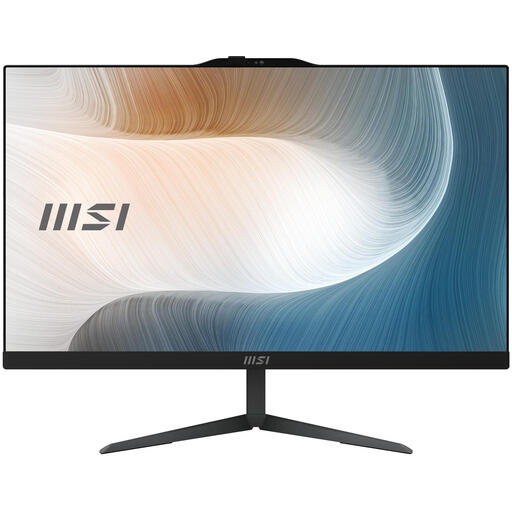
The Modern AM242 1M is an all-in-one range worth comparing if you’re looking for a built-in screen and an adjustable screen position.
These product picks are all-in-ones with a built-in screen. Check the CE marking and product information for the specific device and power supply; Ondernemersplein explains the requirements that apply to electrical appliances.
 No image available
The built-in 27-inch monitor could be a good fit if you don’t yet have a suitable screen; remember to count the power supplies for your other devices too.
Intel Core Ultra 5 125H, 27-inch screen with 2560 × 1440 pixels, 16 GB DDR5-SDRAM and 1 TB SSD.
For Photoshop 27.x on Windows, Adobe recommends 16 GB RAM or more; check the other system requirements too.
 No image available
The built-in 27-inch monitor could be a good fit if you want to choose your computer and screen together; remember to allow for the power supplies needed by the rest of your workstation.
Intel Core Ultra 7 155H, 27-inch screen with 2560 × 1440 pixels, 32 GB DDR5-SDRAM, 1 TB SSD and Windows 11 Pro.
For Photoshop 27.x on Windows, Adobe recommends 16 GB RAM or more; check the other system requirements too.
 No image available
The built-in screen could be a good fit if you don’t want to choose a separate monitor; remember to plan for the power supplies of any other devices you need.
27-inch QHD screen with 120 Hz, Intel Core Ultra 7 255H, 16 GB LPDDR5X, 1 TB SSD and Windows 11 Home.
For Photoshop 27.x on Windows, Adobe recommends 16 GB RAM or more; check the other system requirements too.
 No image available
The all-in-one design combines the computer and screen; check that this model is suitable for the software you use.
The product description states that the power adapter must be purchased separately.
For Photoshop 27.x on Windows, Adobe recommends 16 GB RAM or more. Check this model’s memory configuration before choosing it for that software.
 No image available
The built-in 23.8-inch screen could be a good fit if you want to choose your computer and monitor together.
Intel Core 5 120U, 23.8-inch screen with 1920 × 1080 pixels, 8 GB DDR5-SDRAM, 512 GB SSD and Windows 11 Pro.
For Photoshop 27.x on Windows, Adobe recommends 16 GB RAM or more. The product description states that the power adapter must be purchased separately.
No, the system requirements are different. The Figma Help Centre describes Figma as primarily browser-based and mentions WebGL; for Photoshop 27.x on Windows, Adobe recommends 16 GB RAM or more. Check the requirements for your operating system and software version.
Don’t assume this is a safe solution. Brandweer Nederland warns against connecting extension leads to each other because of the risk of overloading and fire. First count the devices you need and assess the available electrical supply.
Before buying, check that your monitor cables and peripherals are compatible and that there’s room for the case and cables. If you use Figma in a browser, it’s also worth checking whether your browser supports WebGL.
For a standard online consumer purchase in the Netherlands, you generally have a statutory 14-day cooling-off period after delivery, with some exceptions. ACM ConsuWijzer explains this right. Your statutory rights if a product is faulty are separate from any manufacturer’s warranty; contact the seller about these rights.
For electrical appliances covered by the applicable EU product rules, the manufacturer must apply a CE marking when the appliance meets the requirements. Ondernemersplein explains these rules; check the marking and product information for the specific device and power supply.