
Folder organiser with narrow tabs
You want to keep names or codes legible within the space available, so you start by comparing label sizes and compatible supplies. Brother Netherlands and DYMO describe different sizes for tapes and folder labels.


For occasional labels made on the spot, a standalone keyboard-operated tape label maker fits the way you work. For larger batches, a computer-connected printer that uses label rolls may be more practical. First check that the supplies are compatible with the exact model and will be legible on the available folder space. Brother Netherlands and DYMO describe different types of tape and rolls, which are not necessarily interchangeable.
You want to keep names or codes legible within the space available, so you start by comparing label sizes and compatible supplies. Brother Netherlands and DYMO describe different sizes for tapes and folder labels.
You occasionally need to create a new label by the storage cabinet and would find direct controls more useful than a dedicated computer workstation. Brother Netherlands describes models with a built-in keyboard and screen.
You want to create larger batches or repeat layouts, so you compare computer-connected roll printers with tape label makers that offer additional connectivity. Brother Netherlands and DYMO describe both types of workflow.
Start by checking the space available on the folder and where labels will be made. Then decide how many labels you want to print at once or reproduce, and which supplies the printer uses.
| What to consider | What should you check? | Who is this important for? |
|---|---|---|
| Legibility and fit | Measure the usable label area and try the longest name or code you typically use. Compare the measurements with the tape or labels for your chosen model. | If I use labels on narrow tabs or folder spines, I want the text to fit within the space available. Around 31% of consumers prioritise legibility and fit when making this choice. |
| Labelling on the spot | Decide where the printer will be kept and whether the user will have access to a keyboard, compatible phone or computer. | If I want to label a folder occasionally by the cabinet, I don’t want to rely on a computer elsewhere. Around 25% of consumers prioritise being able to create labels on the spot. |
| Repeating a batch or design | Count how many different and identical labels you need, and check that your computer or phone is compatible with the way the printer is operated. | If I need to create a larger batch or repeat a layout, I want to be able to enter it efficiently or print it again. Around 25% of consumers prioritise handling batches or reusable designs. |
| Compatible supplies | Make a note of the exact model and check which type of tape or roll it uses. Compare the supplies with what you expect to use the printer for. | If I need new labels regularly, I want to know which supplies the printer uses and what I’ll need to keep buying. Around 19% of consumers prioritise the choice of supplies and ongoing costs. |
P-touch models use TZe tape, Brother QL printers use DK rolls, and DYMO says the LabelWriter 550 works exclusively with DYMO labels. Supplies that fit one printer will not necessarily work with another.
Make a note of the exact printer model and check that the supplies are compatible before ordering tapes or rolls. Brother Netherlands and DYMO describe these different supply types.
Having to buy a replacement cassette or roll because it is incompatible can mean extra work.
The Brother QL-800 is designed to connect to a PC or Mac, while the Brother PT-D210VP has its own keyboard. A computer-based workflow requires a suitable workstation if labels are updated on the spot.
Choose how to operate the printer based on where and by whom the folders will actually be labelled. Brother Netherlands describes how these models connect and operate.
Allow for the computer workstation you’ll need and the extra step of entering labels there.
A clear label does not, by itself, determine who can view a file. The Dutch Data Protection Authority says organisations must protect personal data appropriately; the measures needed depend on the circumstances.
Where appropriate, limit the text that is visible and assess separately who has access to the folders. The Dutch Data Protection Authority gives physical access security as one possible example, not a measure that must be applied to every folder.
Brother offers both standalone P-touch tape label makers and computer-connected QL printers that use DK rolls.
The LetraTag 200B is an app-operated tape label maker; the LabelWriter 550 uses rolls, and DYMO folder labels are available in a specific size.
LabelWorks is another option for tape labels. Epson lists 12, 18 and 24 mm tapes, among others, for the LW-C610.
This Joybuy selection includes mobile or standalone tape label makers, as well as computer-connected printers for folder labels. Check which tape or roll each model needs and how it is operated.
 No image available
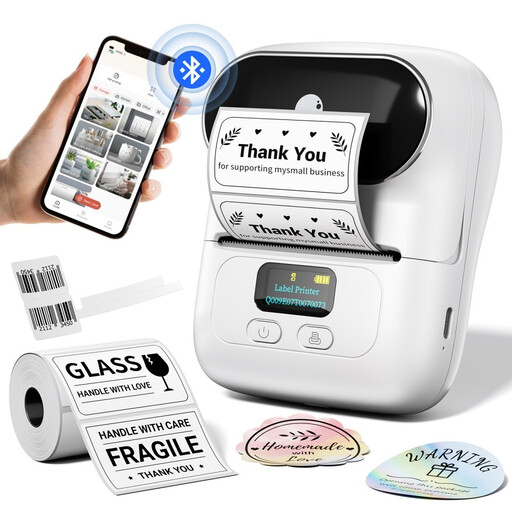
The product description mentions folder labels and batch printing. Mobile operation is handy when you don’t have a dedicated computer workstation.
The description lists label widths of 20–50 mm and operation via the Print Master app on an iOS or Android device.
 No image available
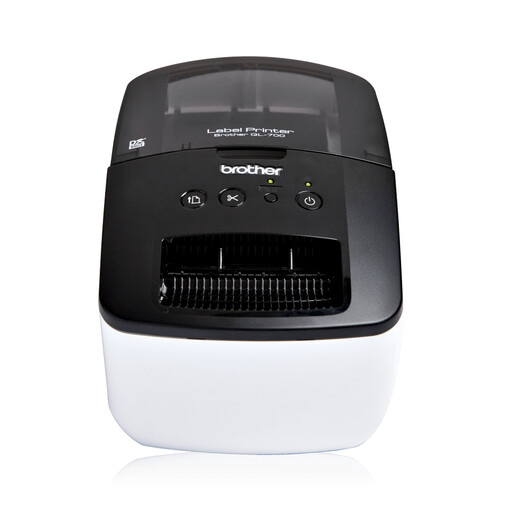
A computer-connected option for folder labels and batches. The product description mentions a USB connection and automatic cutter.
The description lists DK label supplies, labels up to 62 mm wide, 300 × 300 DPI and a print speed of 150 mm/s. USB is the connection specified.
 No image available
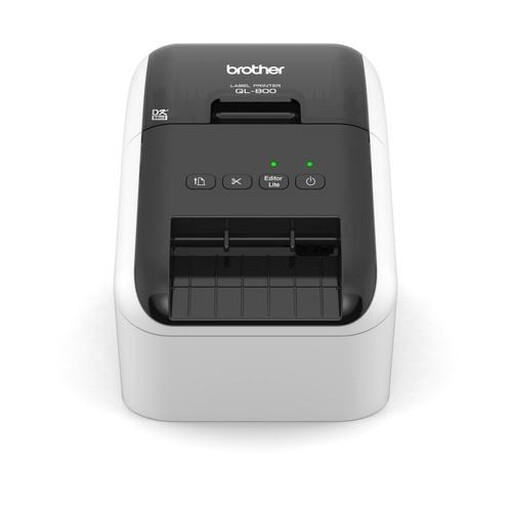
This computer-connected printer is an option for folder labels and batches if a USB workflow suits your workstation.
The description lists DK supplies, labels up to 62 mm wide, USB, an automatic cutter and black-and-red printing. It also specifies 300 × 600 DPI and 148 mm/s.
 No image available
Worth considering if you want to create individual folder labels and reuse designs. Brother states that it can store 99 label designs.
The product description lists thermal transfer printing, TZe tapes, Bluetooth, USB and 180 × 360 DPI. Brother describes operation via smartphone or PC; check which tape is compatible with this model.
 No image available
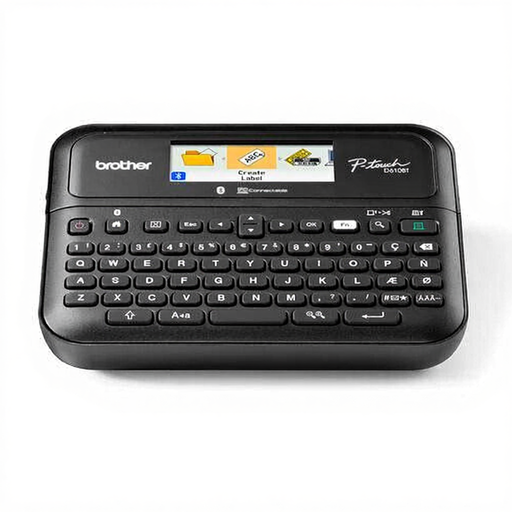
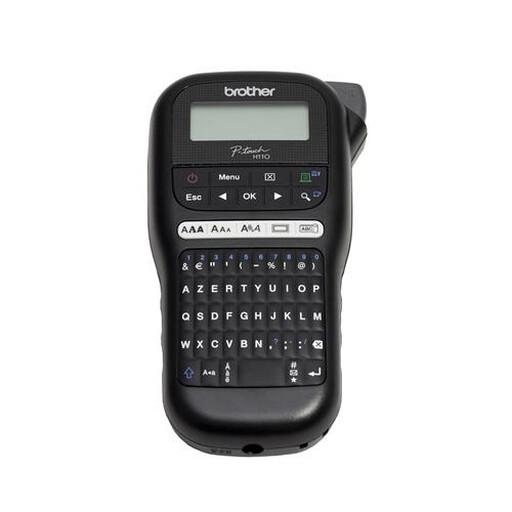
The keyboard is an option if you want to enter a folder label on the spot without connecting to a separate computer.
The product description lists a QWERTY keyboard, LCD screen and TZe tapes in 3.5, 6, 9 and 12 mm sizes. Please note: this is the Italian version.
First measure the usable tab or folder spine, then check the dimensions of the supplies supported by the exact printer. Brother Netherlands lists tape up to 12 mm wide for the PT-D210VP; DYMO specifies a size of 14 × 87 mm for a LabelWriter folder label featured in its information. Try a long name first if needed.
The Brother QL-800 connects to a computer via USB and uses DK supplies. Choose supplies that are compatible with the model and, if labels aren’t feeding properly or the print quality is poor, consult the manufacturer’s model-specific maintenance instructions.
As well as the printer, compare the compatible tape or rolls and check who is contractually the buyer. Ondernemersplein describes consumer rights for non-business customers; don’t assume that this guidance automatically applies to a purchase made by an organisation. Check the terms and conditions that apply to your purchase.
If the community centre processes personal data, it must protect it appropriately according to the risks, as advised by the Dutch Data Protection Authority. What information is appropriate to put on a folder depends, among other things, on its contents and who can see it. Where suitable, consider using a less revealing code instead of a full name, and assess access to the folders separately.