
Staff member labelling shelves on the spot
Wants to create short text labels for cupboards and enter them without a separate design device. Brother lists keyboard input for the PT-D210VP.


For short shelf labels that you enter on the spot, a standalone keyboard model is a good fit if its supported tape width suits the shelf edge and the text. For regularly used office labels, a model with PC design software may be more suitable; an app-based model is an option if using a phone or tablet fits your school’s workflow. With any model, check the tape system and whether the tape is suitable for the shelf surface.
Wants to create short text labels for cupboards and enter them without a separate design device. Brother lists keyboard input for the PT-D210VP.
Also creates labels for folders or storage boxes and wants to design them on a computer. Brother lists PC design via USB for the PT-D410VP.
Wants to create labels on a phone or tablet, if that suits the school office’s workflow. DYMO describes app-based operation for the LetraTag 200B.
First decide where you want to design your labels. Then compare the label width, compatible tape system and suitability for the shelf.
| What to consider | What should you check? | Who is this important for? |
|---|---|---|
| Entering short labels on the spot | Check whether the model has a keyboard and whether its supported tape width suits the text and shelf edge. | If I want to enter short text labels quickly at the cupboard without reaching for a phone or computer each time, ease of use on the spot matters most. Around 40% of consumers prioritise creating short labels directly. |
| Repeating a layout | Check the USB connection, the design software available and the widths supported by the model. | If I want to use the same layout for shelves, folders or boxes, I need to be able to design labels on a computer. Around 30% of consumers prioritise designing consistent office labels. |
| Tape and shelf surface | Compare the tape system and width with the exact printer model; also check whether the tape is suitable for the shelf surface. | If I want to avoid using tape that doesn’t suit the printer or shelf, I check both before making a larger batch of labels. Around 20% of consumers prioritise choosing compatible label material. |
| Designing on a mobile device | Check the app, compatible phone or tablet, Bluetooth and the corresponding tape system. | If I want to design labels on a phone or tablet in the school office, that way of working needs to be permitted and practical. Around 10% of consumers prioritise designing on a mobile device. |
A brand may use different tape systems. DYMO lists LetraTag tape for the LetraTag 200B and D1 tape for models including the LabelManager 160.
Before buying, check the full model name, tape system and supported width. If you choose the wrong cassette, you may still need to buy the right tape.
The models reviewed use different label widths. Labels measuring 20–50 mm, as specified by the manufacturer for the Phomemo M110, may be too wide for a narrow shelf edge.
Measure the available space, then choose your printer and label size. Test the placement before making a larger batch of labels.
An app-based model depends on a compatible mobile device and the app. DYMO also highlights device permissions as something to check if you have connection problems with the LetraTag 200B.
Check in advance whether a suitable phone or tablet and the app can be used in the school office.
P-touch models offer keyboard input, while some models also provide PC design via USB.
LetraTag is designed for mobile label creation; LabelManager models include those using the separate D1 tape system.
The M110 is a thermal printer for wider labels rather than narrow tape labels.
Joybuy’s selection of label printers for shelf and office labels.
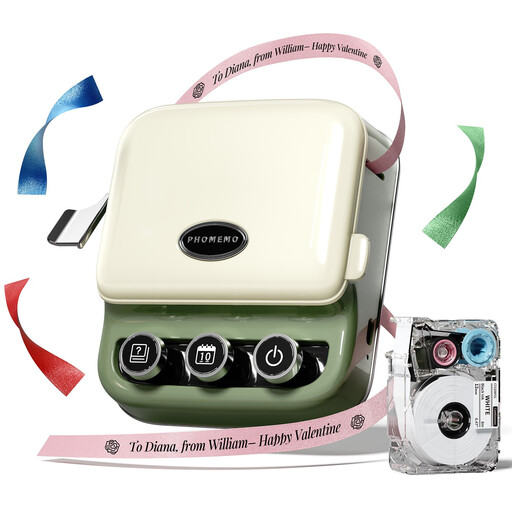 No image available
An option for creating labels on a mobile device; check first that an app-based workflow suits your school office.
The product description lists Bluetooth operation via the Print Master app and one roll of label tape. Gift ribbon is available separately.
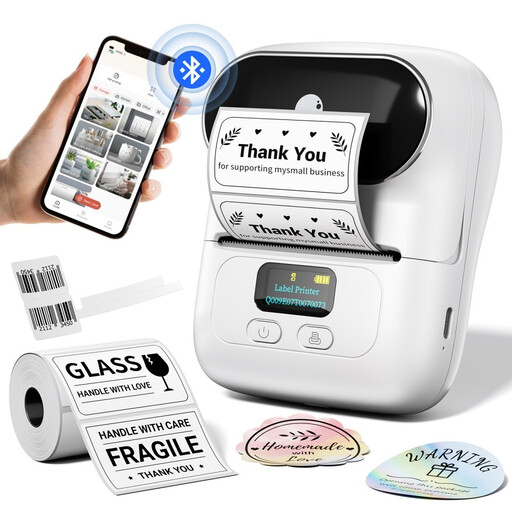 No image available
Consider this model if you want to use wider, pre-cut labels; measure the shelf space first.
The product information lists label widths of 20–50 mm and Bluetooth operation via the Print Master app on an iOS or Android device.
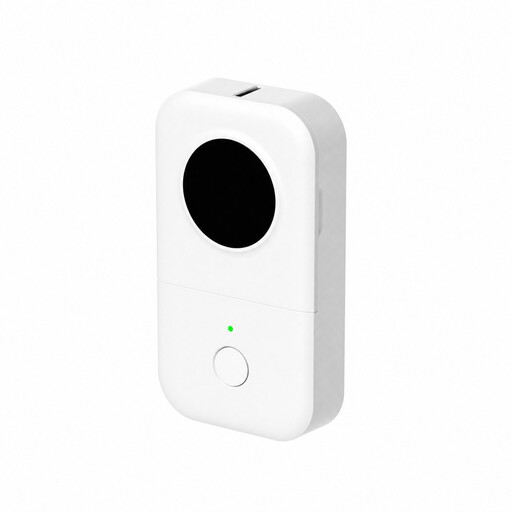 No image available
A mobile option for office labels if designing on a phone or tablet suits your school’s workflow.
The product title lists a label width of 0.59 inch. According to the product information, you design and print via Bluetooth and an app.
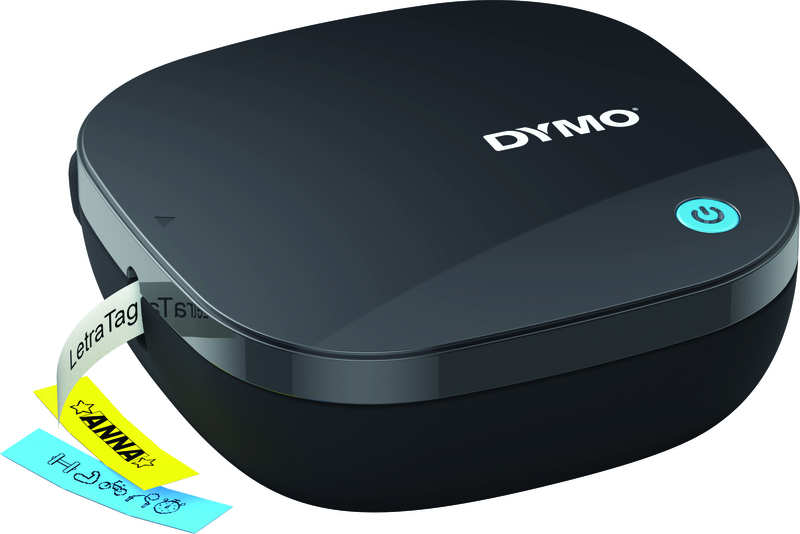 No image available
Suitable for a mobile workflow if a compatible phone or tablet is available and permitted for use in the school office.
The product information lists the LetraTag Connect app, Bluetooth and labels up to 1.2 cm wide. One roll of white paper labels is included; four AA batteries are not included.
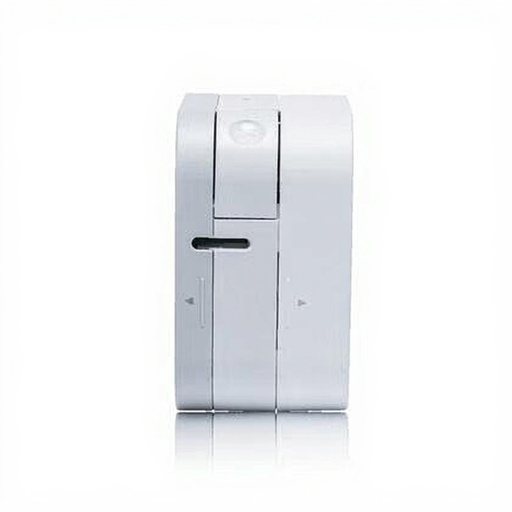 No image available
A mobile tape label printer to consider if you want to design labels on a smartphone or tablet.
The product information lists Bluetooth and TZe tapes in widths of 3.5, 6, 9 and 12 mm.
No. A model with a standalone keyboard can create labels without a computer. The Brother PT-D210VP is one example; the PT-D410VP also offers USB for designing on a PC. Choose that extra option if you need it.
Check the shelf surface and type of tape before making your labels. DYMO describes D1 tape for clean, flat surfaces; Brother also offers extra-strong adhesive TZe tape for rough or uneven surfaces. Always check that the tape is compatible with the exact printer model.
It depends on the model: the LetraTag 200B uses LetraTag tape, while DYMO lists D1 tape for models including the LabelManager 160. Check the model name and tape system before buying replacement cassettes.
Check that Bluetooth is switched on and that the LetraTag Connect app has the necessary device permissions. According to DYMO, you don’t need to pair the LetraTag 200B manually with your mobile device first.
It depends on the purpose and circumstances of displaying them. The Dutch Data Protection Authority states that, under the GDPR, schools must be able to show what technical and organisational measures they take to protect pupils’ personal data. So consider whether names are needed on a label and who will be able to see them.