
Staff member labelling narrow folder spines
You mainly make individual spine or tab labels and want to match the tape width to the space available. Brother UK lists several supported TZe tape widths for the PT-D610BTVP.


Choose the label width to suit the space available on your folder, then decide whether you’ll be printing individual labels or batches of the same design. Tape printers suit narrow folder spines and may offer a keyboard or mobile controls. Desktop printers that use rolls are an option for wider labels and a permanent computer workstation. If your folders contain pupil records, also consider whether the label text will be visible to others.
You mainly make individual spine or tab labels and want to match the tape width to the space available. Brother UK lists several supported TZe tape widths for the PT-D610BTVP.
You work at a permanent computer workstation and want to use the same label design for several folders. Brother explains how to print multiple copies using P-touch Editor.
You may be labelling folders containing personal data, so you’ll want to consider both the legibility of the text and who can see it. The Dutch Data Protection Authority emphasises that schools must manage security and access to pupil records properly.
First, measure the available space on the folder. Then choose a material type and control method to suit your everyday labelling needs.
| Consideration | What to look for | Who is this important for? |
|---|---|---|
| Width and legibility | Measure the folder spine or tab and compare it with the supported width. Brother UK lists TZe tape up to 24 mm for the PT-D610BTVP; for the QL-800, Brother lists rolls up to 62 mm. These are maximum widths for the models, not recommended widths for every folder. | If I’m mainly labelling narrow spines, I want to know how much space there is for legible text. Around 40% of consumers say that fit on the folder is their main priority. |
| Printing multiple labels | Decide whether you’ll type directly on the printer, create designs on a computer or use a mobile device. The PT-D610BTVP has a keyboard; the QL-800 uses USB, and the DYMO LetraTag 200B works with the LetraTag Connect app. | If I’m labelling lots of folders in the same way, I want the workflow and connection to suit my needs. Around 30% of consumers say that printing multiple labels is their main priority. |
| Pupil data | Agree with the school what information is necessary on the outside of the folder and who can see the labels, folders and any design files. The Dutch Data Protection Authority highlights the importance of managing access to pupil records properly. | If I’m labelling folders containing pupil data, I want to avoid displaying unnecessary information to people who don’t need access to the records. Around 30% of consumers say that handling pupil data carefully is their main priority. |
A printer’s maximum width doesn’t tell you how much space you have on your folder’s spine or tab.
Measure the area you want to label and check the width of the specific material before choosing a printer or supplies.
P-touch TZe tape, Brother QL DK rolls and DYMO LetraTag labels are designed for different printer ranges.
Make a note of the full model number and check which material it uses before ordering refills.
The compatible supplies also determine how you can use a printer. For example, the DYMO LabelWriter 550 series manual says that these models use only genuine DYMO LW labels; this doesn’t automatically apply to other DYMO ranges.
Check which material your chosen model needs and whether it’s available in the size you want.
A visible label can show personal data to anyone who can see the folder.
Choose the label text and storage location in line with the school’s policy and access arrangements. The Dutch Data Protection Authority emphasises that schools must manage access to pupil records properly.
Brother offers P-touch models that use TZe tape and QL models that use DK rolls; these are different consumables systems.
The LetraTag 200B is an app-controlled option; the LabelWriter 550 series is a separate range for label rolls.
The LabelWorks LW-C410 and LW-C610 are tape options worth comparing if you need different widths.
This selection includes mobile label makers for folder and office labels, as well as Brother models for roll labels. For each printer, check your folder size, the connection you need and the compatible supplies.
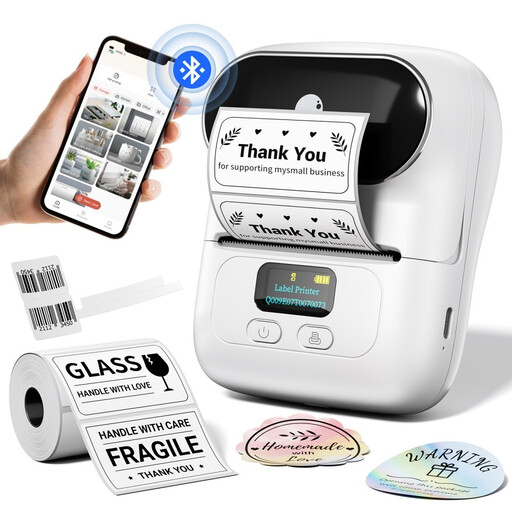 No image available
An option for folder labels if you want to create and print designs from a mobile device.
The product information lists Bluetooth, the Print Master app, batch printing and label widths of 20–50 mm. The printer is described as portable and rechargeable; you’ll need a mobile device with the app to use it.
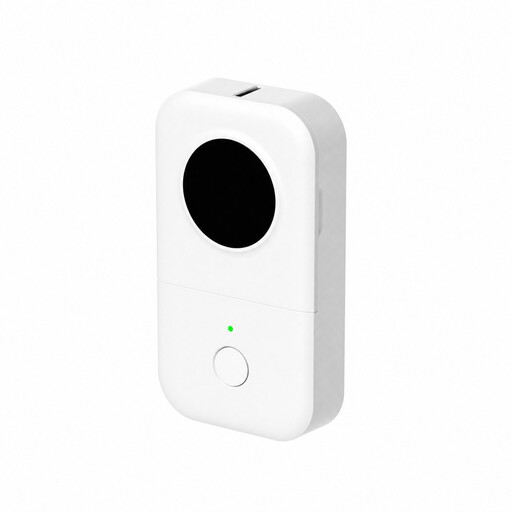 No image available
A compact, app-controlled option for labelling files and office supplies.
The product information lists Bluetooth, control via a phone or tablet and a label width of 0.59 inch. The described setup requires a mobile device and an app.
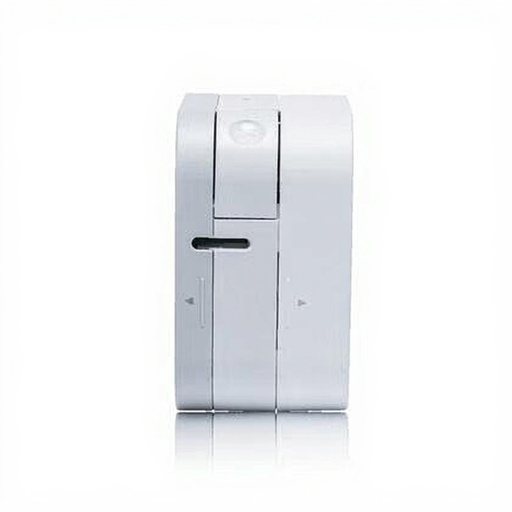 No image available
An option for individual folder labels using TZe tape and a mobile device.
The product information lists Bluetooth and TZe tape widths of 3.5, 6, 9 and 12 mm. The printer runs on AAA batteries; check which width will fit your folder.
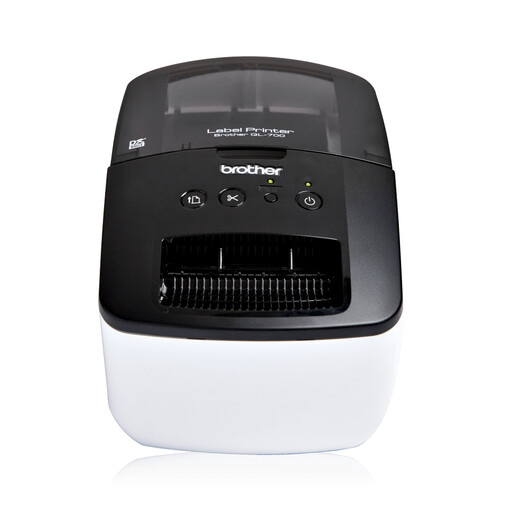 No image available
A desktop option if you want to make labels for archive folders from a permanent computer workstation.
The product information lists USB, DK supplies and an automatic cutter. It connects via USB; check which DK material is suitable for your preferred label size.
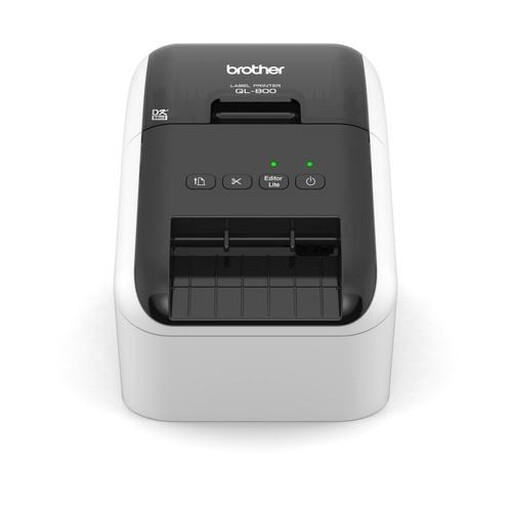 No image available
A desktop option for a permanent computer workstation and roll labels for folders.
The product information lists USB, DK supplies and a maximum label width of 62 mm. Measure your folder before choosing a roll; the maximum width won’t suit every folder.
First, measure the space available on the folder. Brother UK lists TZe tape up to 24 mm for the PT-D610BTVP; Brother lists rolls up to 62 mm for the QL-800. These maximum widths don’t tell you what will fit your folder.
Yes. You can use a model with a keyboard, such as the Brother PT-D610BTVP, or a label maker that works with a mobile app. The Brother QL-800 uses USB; according to DYMO, the LetraTag 200B works with the LetraTag Connect app on a smartphone or tablet.
Choose supplies designed for your printer range: TZe tape for the P-touch models mentioned, DK rolls for the Brother QL-800 and LetraTag labels for the LetraTag 200B. Check the full model number and the label size you want before ordering supplies.
Yes. Consider what information needs to appear on a visible label and who can see the folder. The Dutch Data Protection Authority emphasises that schools must handle pupil records carefully and manage access properly. Make sure your label choice complies with the school’s privacy policy and suits the situation.