First, choose a layout that gives you easy access to coding symbols and your editor and operating system shortcuts. You don’t need a physically split keyboard to use side-by-side editors. Then compare the navigation keys, hand position, typing noise and how much practice an unfamiliar layout will take.
Who is this relevant for?
Coder who often switches between editors
You write code alongside tests or output and want symbols, navigation keys and shortcuts close at hand. Visual Studio Code explains how to open editors side by side; the relevant shortcuts also depend on your selected keyboard layout.
Coder looking to adjust their hand position
You type for long periods and prefer an adjustable hand position to a familiar keyboard layout. Arboportaal notes that working at a screen can involve repetitive hand movements and static strain. Your workstation setup and taking regular breaks also matter.
Coder in a shared workspace
You may prefer a familiar layout, manageable typing noise or the option to switch between devices over extensive physical adjustability. Check that the connection and layout suit the devices and people using the keyboard.
What should you consider when choosing?
Conventional layout
Choose this if: you want to keep physical navigation keys or need a familiar setup, for example in a shared workspace.
Trade-off: check the keyboard variant and symbols. A full-size layout takes up more space than a TKL model.
Physically split and adjustable
Choose this if: you want to adjust your hand position and are happy to learn a different key layout.
Trade-off: a columnar layout and functions on an Fn layer may take some getting used to. A keyboard is no substitute for breaks or a suitable workstation setup.
Compact and customisable
Choose this if: you want to assign symbols and editor commands yourself and can work with fewer physical keys.
Trade-off: more functions are assigned to layers, so setting up and learning your layout takes extra effort.
| Consideration |
What to look for |
Who it matters most to |
| Coding symbols and navigation |
Check the exact ANSI or ISO variant, the position of the symbols you need, physical arrow keys and shortcuts in your editor. |
If I often switch between code, tests and output while programming, I want quick access to symbols and navigation. Around 36% of consumers prioritise coding symbols and navigation. |
| Hand position |
Check whether the halves can be adjusted independently, what tenting is included and whether you can try out the layout. |
When typing for long periods, I want to be able to assess whether a different hand position suits my workspace. Around 29% of consumers prioritise an adjustable hand position. |
| Familiar controls |
Compare the keyboard layout, connections, any reliance on an app and typing noise. Manufacturer descriptions are not independent sound measurements. |
In a shared workspace, I want a layout users recognise and a connection that works with the devices in use. Around 21% of consumers make familiar controls their top priority. |
| Custom key layers |
Check how to set up and save layers, and whether you need additional software on your work computer. |
If I want to customise symbols and editor commands, I also need to be prepared to learn how to use those layers. Around 14% of consumers prioritise custom key layers. |
Common buying mistakes
-
Confusing side-by-side editors with a physically split keyboard
The layout of editors in your programming environment and the physical design of your keyboard are separate choices. You don’t necessarily need a physically split keyboard to use editors side by side.
Try the editor command on your current layout first. Choose a physical split only if it suits your preferred hand position and keyboard setup.
-
Assuming all QWERTY or ISO variants are interchangeable
The keyboard variant can affect where coding symbols are positioned. Visual Studio Code notes that shortcuts correspond to the current keyboard layout.
Before buying, check the full variant name and the symbols printed on the keys that you use. Also compare these with the layout selected in your operating system.
-
Confusing a manufacturer’s warranty with your full statutory rights
A manufacturer’s commercial warranty is separate from the seller’s statutory responsibility for faulty goods.
ACM ConsuWijzer advises you to contact the seller if a product is faulty. Keep your proof of purchase and check the terms of any additional manufacturer’s warranty.
Brands to consider
Keychron
Worth considering if you’re looking for a conventional TKL setup with remappable keys. The example reviewed is the K8 Pro ISO collection.
- Keychron says the K8 Pro has an 80% layout, Bluetooth for up to three devices and hot-swappable switches. You can remap keys using Keychron Launcher.
- The ISO variants listed don’t specify a Dutch layout. Check the exact variant and symbols before buying.
Kinesis
Worth considering if a physical split and adjustability matter more to you than a conventional keyboard layout. The example reviewed is the wired Advantage360.
- Kinesis describes it as having separate halves, tenting and on-keyboard programming.
- The columnar layout and Fn functions may take some getting used to.
Logitech
Worth considering if you want a familiar wireless workstation setup and switch between devices. The example reviewed is the MX Keys S.
- Logitech lists programmable keys and switching between up to three devices.
- Smart Actions use Logi Options+. Claims about accuracy and comfort come from the manufacturer; they aren’t based on an independent comparison with split models.
ZSA
Worth considering if you want to customise a very compact, physically split keyboard. The example reviewed is the Voyager.
- ZSA says the Voyager has 52 keys, hot-swappable low-profile switches and the Oryx layout editor.
- With fewer physical keys, usability depends more on the layers you set up yourself.
CHERRY
Worth considering if you want a wired, conventional full-size layout with scissor switches. The example reviewed is the KC 6000 SLIM.
- CHERRY lists USB-A, Windows support and a full-size layout.
- The model isn’t physically split and, according to CHERRY, doesn’t have N-key rollover. Check the exact country variant and the symbols you need.
Joybuy products for a conventional TKL layout
These models have a conventional TKL layout. Check the listed keyboard variant and connection to see whether they suit the coding symbols you use and your workspace.
 No image available
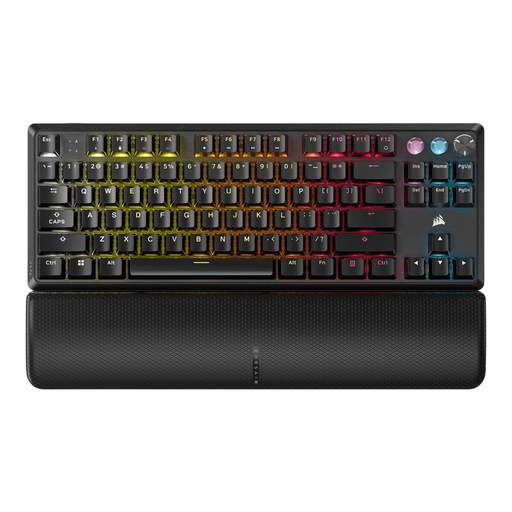
Corsair K70 PRO TKL Magnetic-Mechanical, US QWERTY, MGX v2
Suited to anyone looking for a compact TKL setup and wanting to assign keys to their own editor commands.
The product name specifies US QWERTY and MGX v2. The product description mentions programmable keys and macros via Corsair iCUE. Check that the US layout suits the coding symbols you use.
View at Joybuy
 No image available
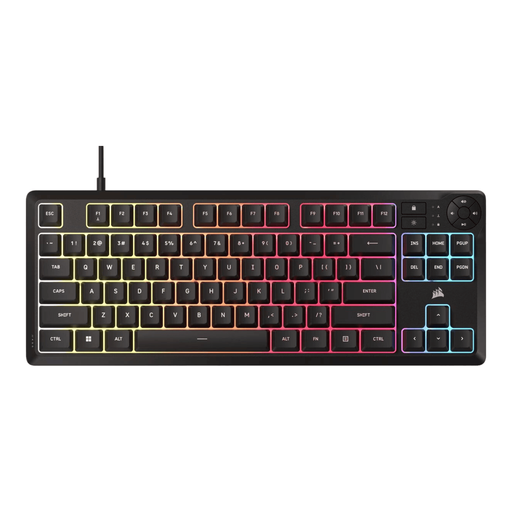
Corsair K55 CORE TKL, US QWERTY
Suited to anyone looking for a TKL layout and customisable keys for editor commands.
The product name specifies US QWERTY. The product description mentions membrane keys, quiet operation and key remapping via Corsair iCUE. Check the layout of the coding symbols you need.
View at Joybuy
 No image available
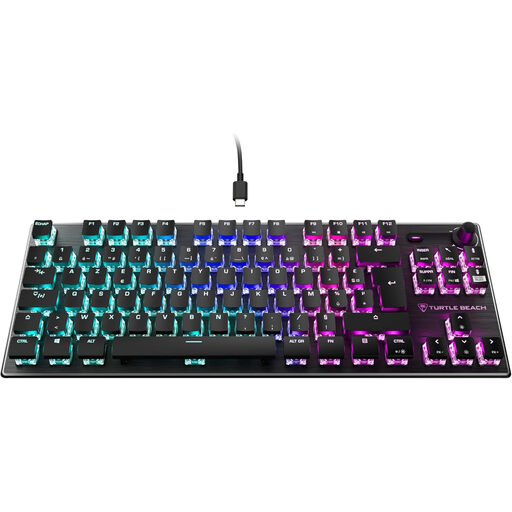
Turtle Beach Vulcan, linear TITAN switch, AZERTY, TKL
Suited to anyone looking for a wired TKL setup with macros who needs an AZERTY layout.
The product name specifies linear TITAN switches, a wired connection and AZERTY. The product description mentions software for setting up macros. Check that the layout matches your system settings.
View at Joybuy
 No image available
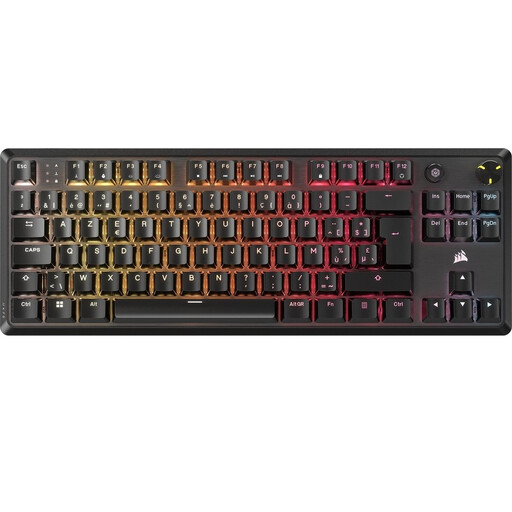
Corsair K70 CORE TKL, BE AZERTY, MLX Red
Suited to anyone looking for a compact TKL layout and wanting to customise keys or macros to suit their needs.
The product name specifies BE AZERTY and MLX Red. The product description mentions onboard profiles and macros. Check that BE AZERTY suits the symbols you use when programming.
View at Joybuy
 No image available
Razer DeathStalker V2 Pro Tenkeyless, US layout
Suited to anyone looking for a TKL setup with programmable keys and the option to switch between devices.
The product name specifies a US layout. The product description mentions optical switches, Bluetooth 5.0, a detachable USB-C cable and connection to up to three devices. Check that the layout suits your coding symbols.
View at Joybuy
Frequently asked questions
Does your keyboard need to be physically split to work with two editors?
No. Using editors side by side doesn’t require a physically split keyboard. Visual Studio Code can open editors side by side; check the relevant command or shortcut for your keyboard layout.
What should you do if symbols or editor shortcuts don’t work as expected?
First, check the physical keyboard variant and the layout selected in your operating system. Then check your editor’s shortcut settings: Visual Studio Code notes that the shortcuts displayed can change with the current keyboard layout.
Is a split keyboard on its own enough for long periods of screen work?
No. Your choice of keyboard alone doesn’t determine how your whole workstation is set up. Arboportaal highlights repetitive actions and static strain as factors to consider when working at a screen. Adjust your setup to suit your working conditions and take breaks from screen work.
What warranty and cooling-off period apply to an online purchase in the Netherlands?
For consumer purchases, the seller remains responsible for faulty goods. ACM ConsuWijzer explains that when you buy online from a business, you generally have up to 14 days after delivery to change your mind. Before buying, check which exceptions and returns terms apply to your order.


