
Columnist who edits frequently
Writes drafts and compares text panes or windows. Wants to navigate quickly and use custom editor shortcuts; Microsoft Support describes snapping windows as a Windows feature.


First, choose a keyboard layout and connection that suit your computer and text editor; using a two-pane editor does not in itself mean you need a physical split keyboard. If you write for long stretches, compare a familiar straight layout with a fixed or adjustable split model. Check that you can comfortably reach your editor’s navigation and shortcut keys.
Writes drafts and compares text panes or windows. Wants to navigate quickly and use custom editor shortcuts; Microsoft Support describes snapping windows as a Windows feature.
Wants to adjust hand position and their workspace during long writing sessions, without viewing an ergonomic keyboard as a treatment for discomfort.
For example, switches between a desktop and laptop and wants to check the layout, connection and any configuration software for each device.
Start with the physical key layout and your editor’s shortcuts. Then decide whether you’d prefer a straight, fixed-split or adjustable-split keyboard for long writing sessions.
A good fit if: you want a familiar layout for writing and editing. Logitech describes the K120 as a wired USB model.
Bear in mind: the two sides of the keyboard cannot be positioned separately. Also check that the navigation and function keys suit your editor.
A good fit if: you want to try a different hand position while keeping the keyboard in one piece. Logitech describes the ERGO K860 as having a curved, split keyboard frame; CHERRY describes the KC 4500 ERGO as a wired model with a curved key field.
Bear in mind: the two halves cannot be positioned separately, and you may need time to get used to the shape.
A good fit if: you want to choose the distance and angle between your hands. R-Go Tools and Kinesis describe models with separately positionable halves.
Bear in mind: you’ll need to position the halves and get used to the layout; a split editor does not mean you need this physical keyboard shape.
| Consideration | What to look for | Who it matters to |
|---|---|---|
| Navigation and editing | Check that the navigation keys and shortcuts are within reach and work with your editor. Microsoft Support describes snapping windows as a software feature. | When comparing text, I want to move quickly between panes and editing tools, so navigation for editing comes first; around 36% of consumers make this their top priority. |
| Hand position | Compare a straight shape with a fixed or adjustable split model, and consider positioning and getting used to the layout. A keyboard does not guarantee treatment or prevention of discomfort. | During long writing sessions, I want to adjust my hand position without seeing a keyboard as a solution to discomfort; around 29% of consumers prioritise hand position. |
| Key layout | Check the key markings on the exact model and the keyboard language setting. For example, R-Go Tools explicitly lists a QWERTY-US version. | When writing in Dutch, I want the physical key markings to match the keyboard language setting; around 21% of consumers prioritise the layout. |
| Connection and devices | Check which USB, Bluetooth or receiver connection your computer supports and whether the model can switch between devices. Logitech and R-Go Tools describe features that vary by model. | When switching between a laptop and desktop, I want the connection to work with both; around 14% of consumers prioritise switching between devices. |
Arranging windows side by side is a software feature. A physical split keyboard changes the position of your hands, not how your editor displays text panes.
First, check navigation in your editor and operating system. Only choose a physical split model if you also want that keyboard shape.
Models can differ in key layout and connection. The model name alone does not always tell you which key markings you’ll get.
Before buying, check the full model name, physical layout and connection.
A keyboard shape does not guarantee a cure or prevent discomfort. Long periods of screen work also call for attention to breaks and the rest of your workspace.
Consider your workspace as a whole, and seek appropriate professional workplace advice if you experience discomfort.
Offers both straight wired and wireless keyboards, as well as a fixed-split model.
The Split Break is worth considering if you want to position the two keyboard halves separately.
The KC 4500 ERGO is a wired alternative with a curved key field and palm rest.
The Freestyle2 is a two-piece option if you want to choose the position of the halves yourself.
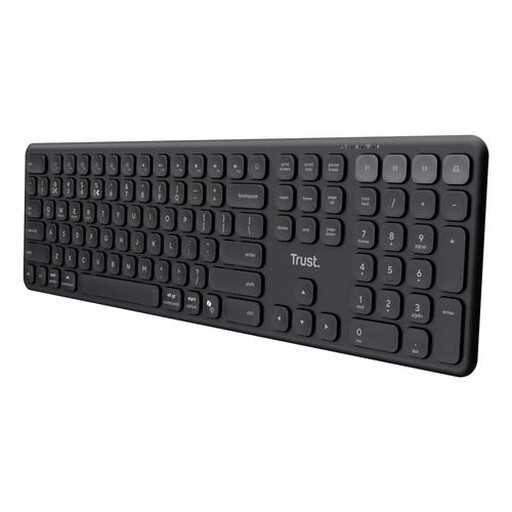
These models are straight keyboards for writing and editing. For each version, check that the layout and connection suit your computer and the way you work.
 No image available
A wired option for a fixed writing space and editing tasks where you want dedicated navigation keys.
Full-size with numeric keypad, QWERTY layout and plug-and-play USB connection.
 No image available
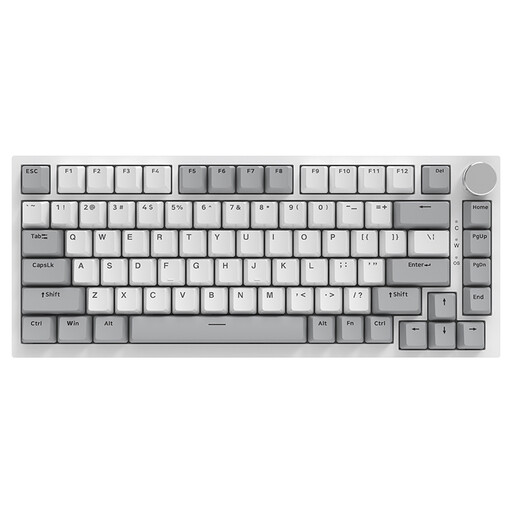
Could suit a multi-device setup if the keyboard’s connections are compatible with your devices.
Full-size with numeric keypad and scissor keys. The product description lists connections to up to four devices via USB receiver and Bluetooth, and compatibility with Windows, macOS, iOS and Android.
 No image available
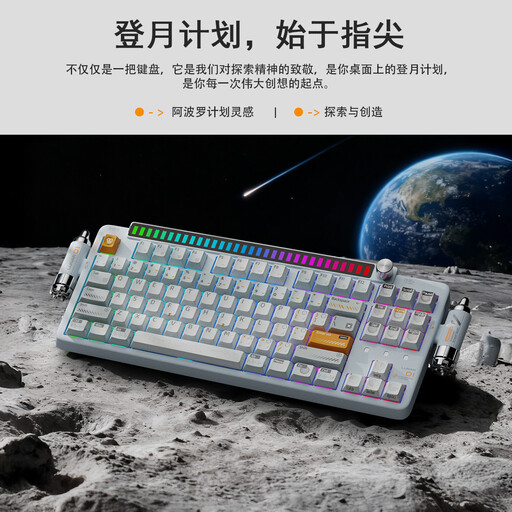
A more compact wired layout to consider if desk space is limited and you want to use QWERTY-US.
75% layout; the product description lists compatibility with Windows and macOS. Check that the key layout matches your computer’s language setting.
 No image available
An option for writing at a fixed desk or using a wireless connection, depending on the connection you need.
80% layout and QWERTY-US. The product description lists wired and wireless use, a 4000mAh rechargeable battery and a programmable knob.
 No image available
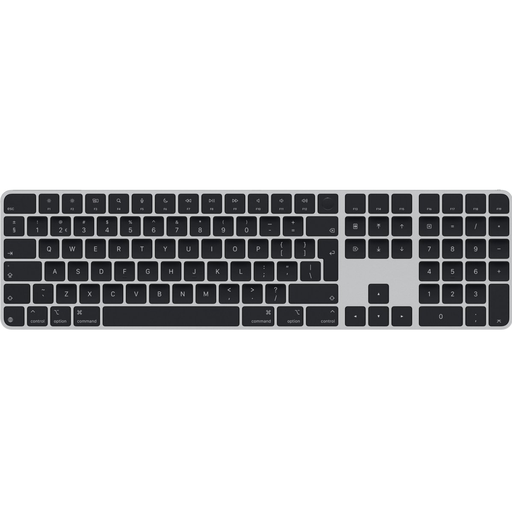
Could suit editing tasks where document navigation and arrow keys come in handy; check that the connection is compatible with your computer.
The product title lists USB and Bluetooth. The product description mentions document navigation and arrow keys.
No, using a split editor is not in itself a reason to choose a physical split keyboard. In Windows, you can arrange windows side by side using window management; Microsoft Support describes using the Windows logo key with an arrow key, among other options. Shortcuts for panes within a text editor depend on the editor.
You can use a wired model with a USB connection if your computer has the required port; Logitech describes the K120 as plug-and-play. For a wireless model, check whether the version you choose uses Bluetooth or a USB receiver, and whether your computer supports that connection.
As well as considering your keyboard shape, pay attention to your workspace, vary your tasks and take breaks. Arboportaal provides workplace advice on this; an ergonomic keyboard does not guarantee treatment or prevention of discomfort.
For online purchases from a business, you generally have 14 days to change your mind in the Netherlands, subject to legal exceptions. You are also entitled to a product that is fit for purpose. According to the Dutch government, there is no fixed term for the statutory guarantee in the Netherlands; contact the seller if the product is faulty.
For employees who work with a screen for more than two hours a day, Arboportaal describes regulations requiring the screen and keyboard not to be attached to each other. With a laptop, it must be possible to use a separate screen or keyboard. This is not a general product requirement for every writer using a computer at home.