
Collecting workshop details
You take information from several sources and want to move easily between windows while entering data. Microsoft Support explains features and keyboard shortcuts for navigating between windows in Windows.


For putting together a workshop overview, a full-size keyboard with a number pad is practical if you enter lots of figures. A compact model may be a better fit if you have limited desk space or work in different locations. You switch between windows using your operating system’s features, not a dedicated keyboard button for switching devices. Also consider the keyboard layout, connection and your workspace setup.
You take information from several sources and want to move easily between windows while entering data. Microsoft Support explains features and keyboard shortcuts for navigating between windows in Windows.
You regularly spend a long time putting the overview together and want a keyboard that suits your workspace. Arboportaal recommends changing your posture and taking microbreaks during screen work.
You use more than one device or location and are looking for a manageable keyboard with a suitable connection. Check that its connection and layout are compatible with the devices you use.
First decide whether you switch between windows on one computer or between different devices. Then choose a layout and connection that suit your data-entry tasks and available space. Microsoft Support lists Alt+Tab as a way to switch between windows in Windows.
| Consideration | What to look for | Who it matters more to |
|---|---|---|
| Navigating between windows | Check that keyboard shortcuts are easy to reach with your operating system and chosen layout. | If I often switch between source windows while entering data, I want to be able to do so without any fuss. Around 36% of consumers prioritise navigating between windows. |
| Entering workshop details | Look for a number pad if you enter lots of figures, and check the key layout for symbols. | If my overview includes lots of phone numbers, postcodes or other figures, the layout matters. Around 29% of consumers prioritise data entry. |
| Posture and space | Compare the dimensions with your workspace and check that there is enough room alongside the keyboard. | If I work at a screen for long periods, I want a keyboard that suits my workspace; breaks and changing position are still important. Around 21% of consumers prioritise posture. |
| Connection and devices | Check whether your computer supports USB or Bluetooth, and whether you need to switch between devices. | If I use different devices as well as browser windows, I consider the connection and how easy it is to switch between devices. Around 14% of consumers prioritise switching devices. |
An Easy-Switch button switches between connected devices. Windows has its own feature for switching between windows.
First decide whether you want to switch between windows on one computer or between different devices.
The navigation and number keys included vary by layout. This can matter if you enter a lot of data.
Compare the product layout with the numbers, symbols and navigation keys you use frequently. You may need a separate number pad if the layout you choose is not suitable.
A keyboard alone is no substitute for a properly set-up workspace, changing position or taking breaks. A product claim does not prove that it will have a particular effect on your health.
Consider the keyboard as part of your workspace. If you start experiencing discomfort, seek appropriate professional advice.
Logitech offers various types of keyboard, from the wired K120 with a number pad to compact Bluetooth models such as the Pebble Keys 2 K380s.
The wired STREAM KEYBOARD is an option for a fixed workspace and has scissor keys.
The Compact Break range includes compact keyboards with a break indicator, in both wired and wireless versions.
This Joybuy selection includes keyboards with number pads and compact layouts, as well as wired and multi-device options. For each version, check that the key layout and connection suit your devices and data-entry tasks.
 No image available
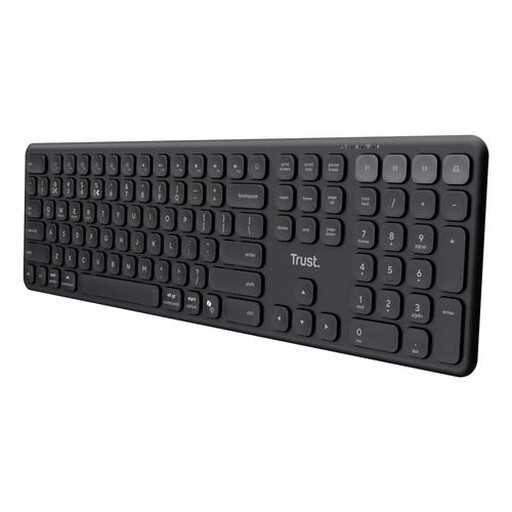
Suited to a fixed workspace where you enter lots of figures.
Full-size; QWERTY layout; plug and play.
 No image available
An option if you want a full-size layout and use with multiple devices.
Number pad; scissor keys; US QWERTY.
 No image available
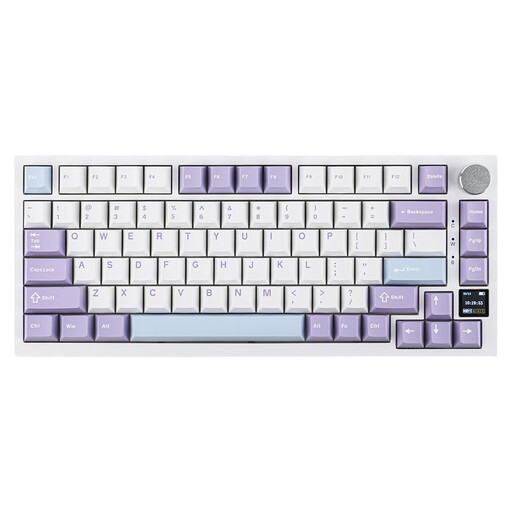
A compact layout to consider if you want to use less desk space.
Mechanical; 75%; US QWERTY; wired, Bluetooth or 2.4 GHz.
 No image available
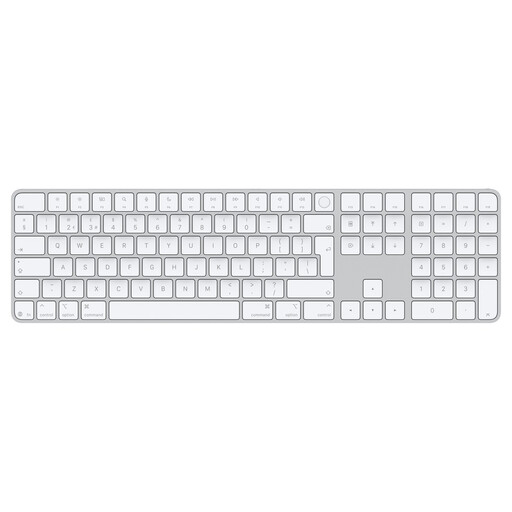
Suited to entering lots of figures if you use a Mac model with Apple silicon.
Dutch layout; designed for Mac models with Apple silicon.
 No image available
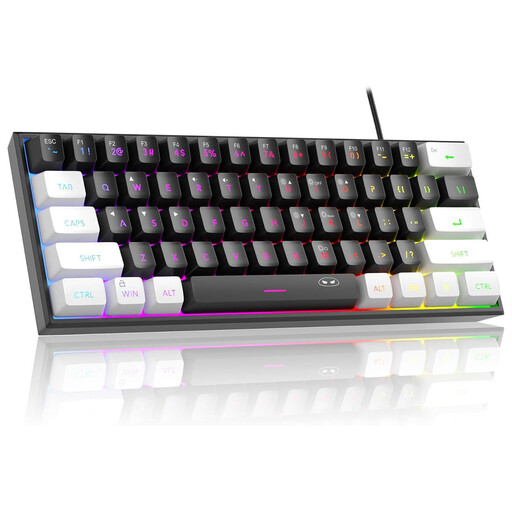
A compact option for a smaller workspace if you do not need a number pad.
60% layout; 61 keys; US QWERTY; wired. This layout does not have a number pad.
No. In Windows, you can use Alt+Tab to switch between windows. Check which keyboard shortcuts apply to your operating system and browser; a button for switching between connected devices serves a different purpose.
Check that your computer supports the required USB connection or Bluetooth. Logitech lists USB for the K120 and describes the MX Keys S Combo as using Bluetooth or a Logi Bolt receiver; check which connection applies to the exact version.
Set up your workspace appropriately, change your posture and take breaks. Arboportaal recommends varying your activities and taking microbreaks; a break indicator can remind you, but it does not replace these measures.
If a product is faulty, the seller is responsible for providing an appropriate solution, according to the Dutch government. If you buy a similar new electrical appliance, you can hand in the old one at the shop under the take-back scheme. For employees who spend more than two hours a day working at a screen, Arboportaal describes workplace requirements, including the option of using a separate keyboard or screen with a laptop.