What should you consider when choosing?
Start with the layout and key combinations you use every day. Then weigh up the space available for your mouse, the typing feel you want and how the keyboard connects to your computer.
The percentages below show the main purchasing priorities for consumers looking for a keyboard to design UI at home. Needs vary depending on your workspace and how you use it.
| What to consider |
What should you check? |
Who might prioritise this? |
| Hand position |
Compare a flat and a split layout, and see how each fits beside your mouse. Assess your whole setup. |
I want to try out how a different position for my hands and forearms works at my desk. Around 27% of consumers say hand position is their main purchasing priority. |
| Shortcuts and layout |
Compare your usual key combinations with the physical keys, including modifiers, arrow keys and function keys. Also check that the configuration software works on your computer. |
I want easy access to my frequently used design shortcuts and special characters without having to search for them. Around 27% of consumers prioritise accessible shortcuts and a suitable layout. |
| Desk space |
Check the dimensions and decide whether you need a number pad and separate navigation keys. |
I want to leave enough room for my mouse and pointing tasks, even if that means giving up some keys. Around 20% of consumers name desk space as their top priority. |
| Noise and feel |
Check the exact switch version; switch names are not a measurement of noise level. |
I want to choose a feel that suits my workspace and preferences, without assuming that every version sounds equally quiet. Around 13% of consumers prioritise noise or typing feel. |
| Connectivity and devices |
Check the connection, available ports and compatibility of the exact version. If you use a wireless model, also consider charging or battery management. |
I want to know whether the keyboard connects to my computer or lets me switch between multiple devices. Around 13% of consumers make connectivity or switching between devices their main priority. |
Keyboards at Joybuy
This selection includes compact mechanical keyboards and models with larger layouts, with wired or wireless features as specified for each version.
 No image available
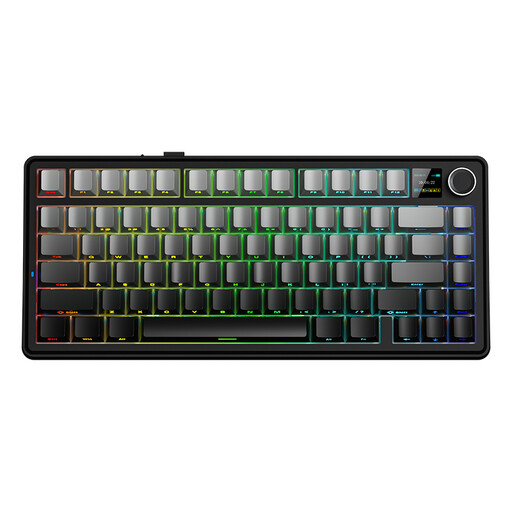
AULA F75 MAX, 75%, US QWERTY
The 75% layout may suit you if you’re looking for a compact mechanical keyboard.
The product name lists a US QWERTY layout and tri-mode connectivity: wired, Bluetooth and 2.4G. Check that the key legends and connection suit your computer.
View at Joybuy
 No image available
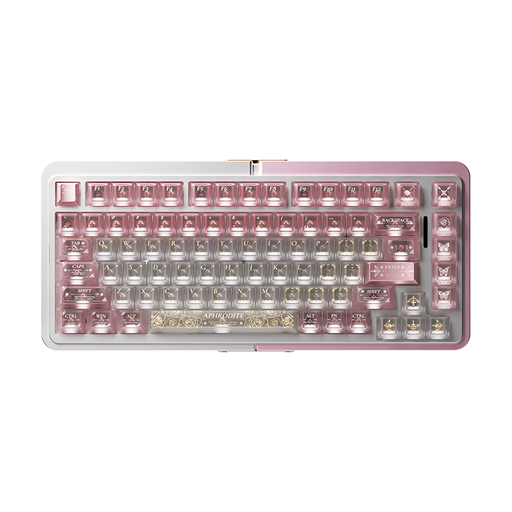
Royalaxe E75 Custom, 75%
This model may suit you if you’re looking for a compact mechanical layout and want a wired connection.
The product name lists Hall Effect, TTC Magnetic HE switches, wired mode, hot-swap and Rapid Trigger.
View at Joybuy
 No image available
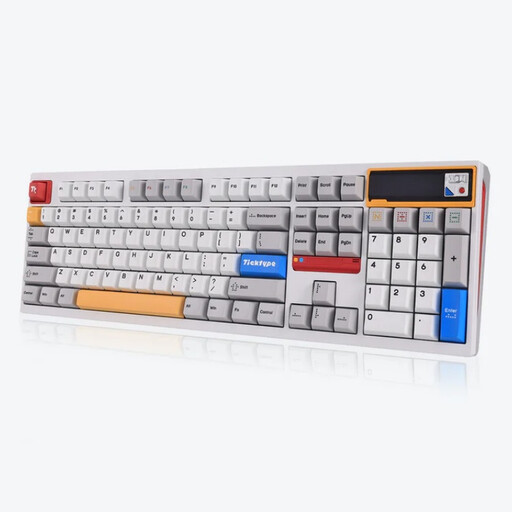
Ticktype DP104, 108 keys, US
The 108-key layout may suit you if you’re looking for a full-size keyboard with a number pad.
The product name lists tri-mode wireless connectivity, hot-swap and Silent Tactile switches. The stated layout is US; check that it matches your preference.
View at Joybuy
 No image available
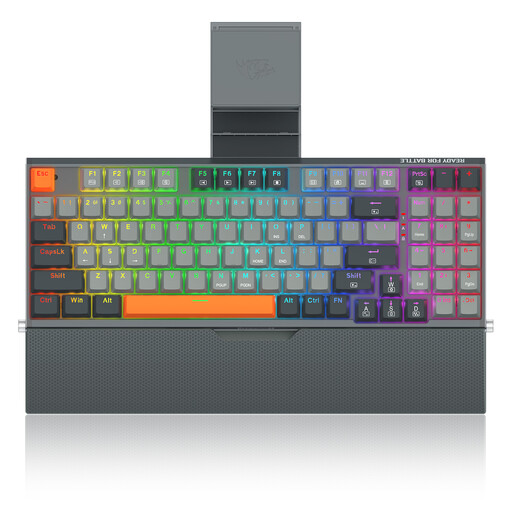
REDRAGON, wired, 94 keys
The 94-key layout may suit you if you’re looking for a mechanical keyboard that sits between compact and full-size.
The product name lists a metal case and wrist rest. Check the layout and whether the wired connection suits your workspace.
View at Joybuy
 No image available
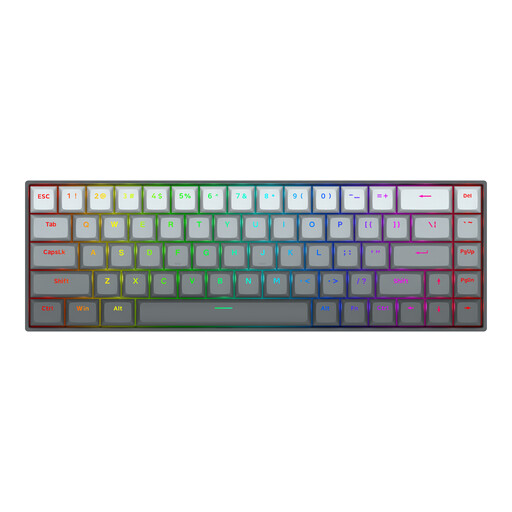
Redragon M68, 68 keys, US
The compact 68-key layout may suit you if you want to save desk space.
The product name lists magnetic switches and Rapid Trigger. The layout is US; check that the key legends and connection suit the way you use it.
View at Joybuy
Frequently asked questions
How can I check that my shortcuts will still work on a new keyboard?
Compare the physical modifier and special keys with the combinations you actually use. The Figma Help Center explains the differences between Mac and Windows keys; in Windows, you can set the input layout. Not every action in Figma can be carried out using the keyboard alone.
How should I use a keyboard when designing for long periods?
Set up your keyboard to suit your whole workstation, and vary your posture and tasks. Arboportaal recommends microbreaks when working with screens, among other things; this doesn’t mean that any one keyboard will prevent discomfort.
What if I don’t like the keyboard or it develops a fault?
When you buy online from a business, you’re often entitled to a 14-day cooling-off period, according to the Dutch government. Faulty products are also covered by statutory consumer guarantees; the Netherlands has no fixed statutory guarantee period, and the seller must provide an appropriate solution. Check the terms that apply to your purchase.
Do Dutch workplace health and safety regulations require a particular ergonomic keyboard?
Arboportaal’s guidance doesn’t specify a particular brand or switch type. However, for employees who work with screens for more than 2 hours a day, Arboportaal states that the screen and keyboard must not be attached to each other. This isn’t a general purchasing requirement for every individual user.


