
Comparing on one computer
You keep two timetables side by side on screens connected to the same computer and want to type without switching between devices unnecessarily. Microsoft Support explains how to arrange screens in Windows.


If you’re using two screens with one computer, a suitable standard keyboard is usually all you need. Choose one based on its connection, number-entry features and the space available on your desk; a multi-device function won’t arrange your windows. If you’re using two separate computers, switching between devices can be useful, provided both computers support the keyboard’s connection. Microsoft Support explains how to arrange screens in Windows, while CHERRY and Trust’s specifications show which keyboard features suit different setups.
You keep two timetables side by side on screens connected to the same computer and want to type without switching between devices unnecessarily. Microsoft Support explains how to arrange screens in Windows.
You switch between separate systems while comparing information and want one keyboard that can connect to both. Trust describes Bluetooth and a 2.4 GHz receiver connection for the Vaiya.
You regularly enter times or other data and are weighing up a numeric keypad against having more room for your mouse. CHERRY specifies a numeric keypad on the KC 6000 SLIM, while R-Go Tools describes the Compact Break as compact.
First, work out whether both screens are connected to one computer. You arrange the screens in the operating system, while the keyboard determines how you type.
Choose this if: you have both timetables open on the same computer and enter information there.
Bear in mind: extra device channels won’t arrange your screens, and a full-size wired keyboard takes up more desk space.
Choose this if: you actually type on both computers and the keyboard can connect to each of them.
Bear in mind: you’ll need to switch to the right device channel and may also need to switch your mouse separately.
Choose this if: you want to keep your mouse close to the keyboard and have little space to spare.
Bear in mind: check that the compact version has the number and function keys you need.
| Consideration | What to look for | Who is this important to? |
|---|---|---|
| Computer setup | Check how many computers the screens are connected to; set the screen order separately in the operating system. | When I compare two timetables on one computer, I want to type without switching devices unnecessarily. Around 36% of consumers say this setup is their main priority. |
| Switching between devices | Check how both computers connect and how to switch between keyboard channels; also decide how you’ll use your mouse. | When I enter information on two separate computers, I want to use one keyboard to switch to the right system. Around 29% of consumers prioritise this need. |
| Workspace | Compare the dimensions and the keys available; wired and wireless options vary by model. | If my desk is cramped or I use my mouse a lot, I want enough room for my hands and mouse. Around 21% of consumers prioritise workspace and extended use. |
| Keys and typing | Check the physical keyboard layout and the selected input layout; consider whether you need a numeric keypad and how the typing sound is described. | When I enter times, I want the right keys and a comfortable typing experience. Around 14% of consumers prioritise key layout and quieter number entry. |
A multi-device keyboard switches between devices; you arrange two screens on the computer they’re connected to.
First, work out how many computers the screens are connected to. If there’s only one computer, you don’t need to select different device channels to work across the screens.
The physical keys and the software-selected input layout are separate things. As a result, a key may produce a different character from the one you expect.
Check the keyboard’s regional layout and the selected layout in Windows before entering lots of times. Microsoft Support explains how to add or select a layout.
A compact keyboard can free up space beside it, while a full-size model may include a numeric keypad. These preferences can conflict.
Work out how many numbers you enter and check the keys on the exact model before choosing a compact keyboard.
CHERRY describes the KC 6000 SLIM as a full-size wired keyboard for a fixed workstation.
Trust describes the Vaiya as a keyboard for people who switch between multiple devices.
According to the manufacturer, the Compact Break range is designed for workspaces where having room beside the keyboard matters.
Logitech describes the MX Keys S as a wireless model with backlighting and customisable keys.
Rapoo describes the 9010M as a keyboard and mouse set for anyone looking for both input devices.
This selection includes keyboards for using two screens with one computer, working with limited desk space and switching between devices.
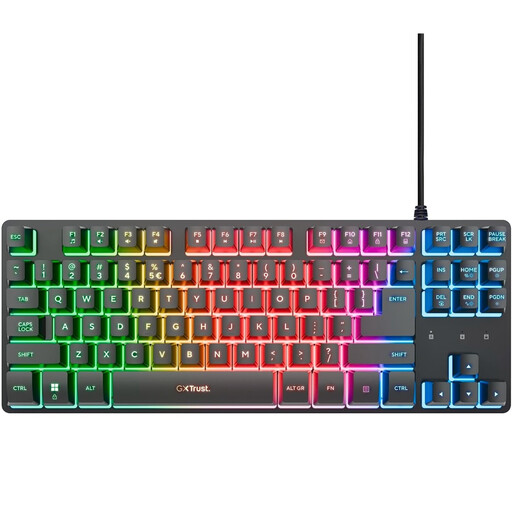 Image unavailable
The compact TKL layout may suit you if you want more room for your mouse and don’t need a numeric keypad.
Wired via USB; the product information lists plug-and-play use with a PC or laptop. The keyboard has no numeric keypad and uses a US-QWERTY layout; the product name mentions PC/PS5.
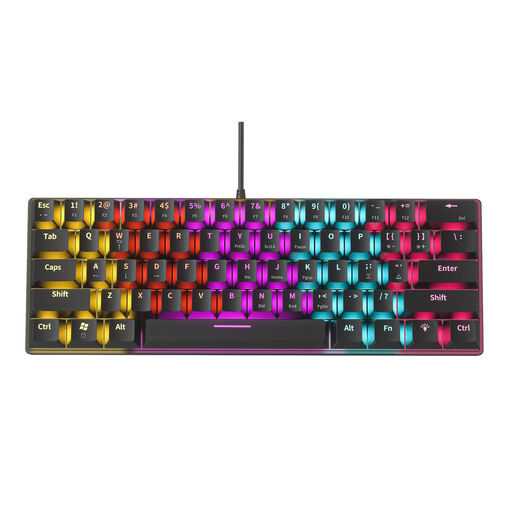 Image unavailable
The compact size may suit you if you want to save workspace; check that the available keys meet your needs.
The product name lists 61 keys and 12 RGB lighting effects. The product information specifies a USB connection and use for office work; according to the same information, the blue mechanical switches have an audible click.
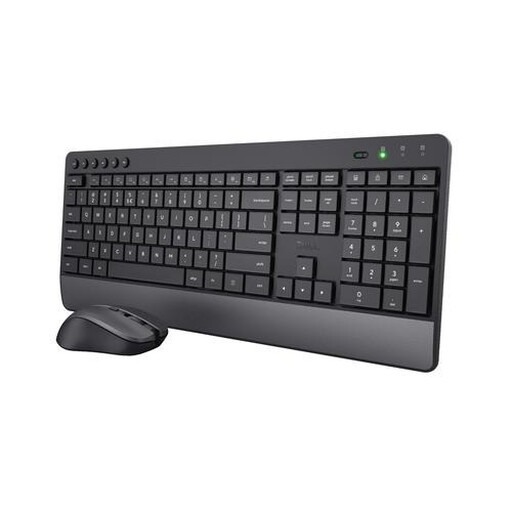 Image unavailable
This set may suit you if you regularly enter numbers and are looking for both a keyboard and a mouse.
The product information lists a full-size keyboard with a numeric keypad, quiet keys and a 2.4 GHz receiver. The set also includes a mouse and has a US-QWERTY layout.
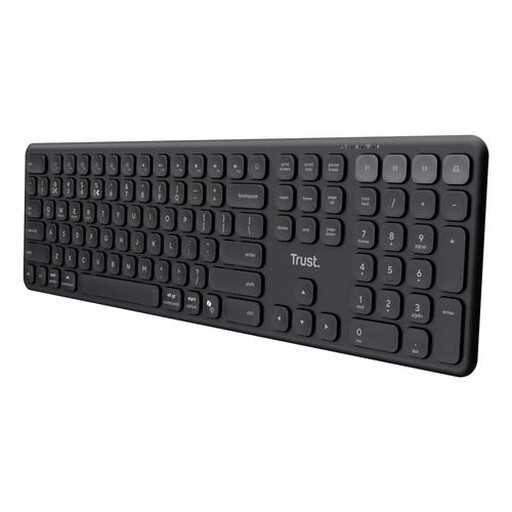 Image unavailable
This model may suit you if you switch between separate computers and can connect to both using the supported connections.
Trust lists connections to up to four devices via Bluetooth channels and a receiver. The product information specifies a numeric keypad and scissor keys; the layout is US-QWERTY.
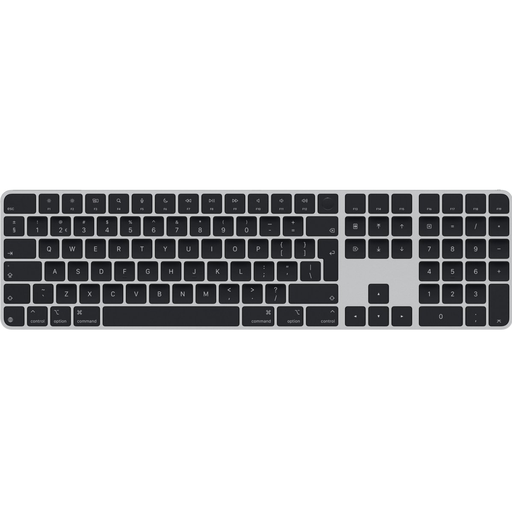 Image unavailable
This model may suit you if you want a numeric keypad and the Dutch keyboard layout matters to you.
The product information lists a numeric keypad, Bluetooth and a rechargeable battery. The layout is labelled QWERTY Dutch.
No, not if both screens are connected to one computer. In that case, set the screen order on that computer; device channels only matter if you want to type on separate computers.
In Windows, you can drag detected displays into their physical positions in the display settings. Microsoft Support explains how to do this; afterwards, check that the pointer moves naturally between the screens.
Check both the physical keyboard layout and the selected input layout in Windows. Microsoft Support explains how to add or select a keyboard layout.
For employees who work with display screens for more than 2 hours a day, Arboportaal sets out requirements for workstation setup: the screen and keyboard must not be attached to each other. When using a laptop, it must be possible to use a separate screen or keyboard. This is a conditional workplace rule, not a requirement to choose a particular keyboard model.
For distance purchases, you’re often entitled to a 14-day cooling-off period. The Dutch government’s website explains these consumer rights; check the terms of your specific purchase and any legal exceptions.