
UI designer who relies on shortcuts
Uses design software across two screens and wants the physical layout and any key remapping to suit their workflow. The Figma Help Center recommends matching the layout set in Figma to the system layout.


For two-screen UI design on one computer, start by choosing a keyboard layout and shortcuts that work with your operating system and design software. Using two monitors doesn’t, in itself, mean you need a multi-device keyboard. Choose a compact model if you want to leave room for your mouse, a split design if you want to adjust the position of the keyboard sections, and a model with device switching only if you move between computers. The Figma Help Center recommends updating the keyboard layout set in Figma whenever you change your system layout. Also check the exact model variant and connection type.
Uses design software across two screens and wants the physical layout and any key remapping to suit their workflow. The Figma Help Center recommends matching the layout set in Figma to the system layout.
Wants to consider hand position and workstation set-up when doing a lot of typing, without seeing a keyboard as a solution to aches and pains. Arboportaal explains that display-screen work also involves the way your workstation is set up.
Wants to keep room for a mouse and weigh up whether a number pad is essential. BakkerElkhuizen and CHERRY describe models with different combinations of size and keys.
First, distinguish between using two screens with one computer and switching between multiple computers. Then decide which trade-off matters most for your work.
| What to consider | What to look for | Who is this important for? |
|---|---|---|
| Layout and shortcuts | Compare the physical layout with your system settings and the keys you use in Figma. | I want the keys and shortcuts to work with my computer and design software. Around 33% of consumers make layout and shortcuts their top priority. |
| Hand position | Consider where the keyboard sections sit alongside your mouse and the rest of your workstation; Arboportaal describes static strain as a factor in display-screen work. | During long periods of designing and typing, I want to be able to adjust my hand position, without expecting a keyboard alone to prevent discomfort. Around 25% of consumers prioritise hand position. |
| Desk space and number pad | Check the dimensions and whether the keyboard has a number pad; think about which keys you actually use. | I want enough room for my mouse, but I don’t want to miss a number pad if I use one regularly. Around 25% of consumers make desk space their top priority. |
| Switching between computers | Work out how many computers you use, then compare the available connections, such as Bluetooth, a receiver or a cable. | As well as two screens, I use more than one computer and want to switch between them. Around 17% of consumers make device switching their top priority. |
If you use both screens with the same computer, you don’t automatically need a keyboard that switches between devices. Microsoft Support explains that arranging multiple displays is a setting on the computer.
Work out how many computers you use before factoring in device-switching features.
The physical layout and the layout set in Figma may differ, so shortcuts might not work as expected. The Figma Help Center recommends updating the layout in Figma whenever you change your system layout.
Check the exact keyboard variant against your system and Figma settings, including the shortcuts for your operating system.
Keychron lists hot-swap support for the K3 Pro only on the RGB Backlight Hot-Swappable version. The model name alone doesn’t tell you whether it has this feature.
Check the full variant name and the specifications of the version you want to buy.
An adjustable keyboard set-up doesn’t replace assessing your whole workstation and taking breaks from display-screen work. Arboportaal treats display-screen work as part of the wider workstation set-up.
Consider your keyboard, mouse position, screens and changes in activity together. Don’t take comfort claims as a guarantee of health benefits.
The MX Keys S is an option if you’re looking for customisable keys and the ability to switch between devices.
The KW 9200 MINI is a compact option with several connection choices.
The K3 Pro is a compact mechanical model for anyone who wants to customise their keys.
The wired R-Go Split Break has two sections that can be positioned separately.
According to the manufacturer, the UltraBoard 960 V2 Compact Standard combines a narrower design with a number pad.
These Joybuy product picks reflect different keyboard layouts and the trade-offs between compact size, connections and the keys you use.
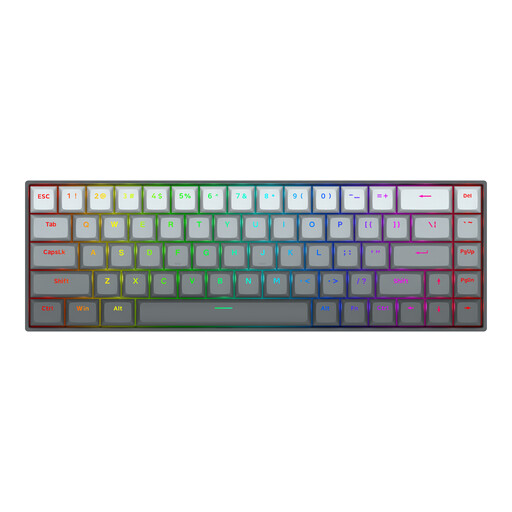 Image unavailable
The compact design may suit you if you want to leave room on your desk; check that the US layout matches your system settings.
68 keys; magnetic switches; US Layout.
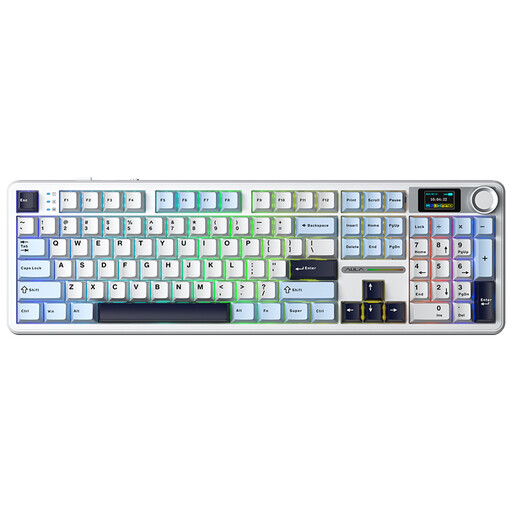 Image unavailable
The listed connection options are useful to consider when comparing how a keyboard connects to your computer; check which one suits your set-up.
Tri-mode: Bluetooth, 2.4 GHz and USB-C; LCD screen and rotary knob.
The title lists hot-swappable, pre-lubed linear Reaper switches.
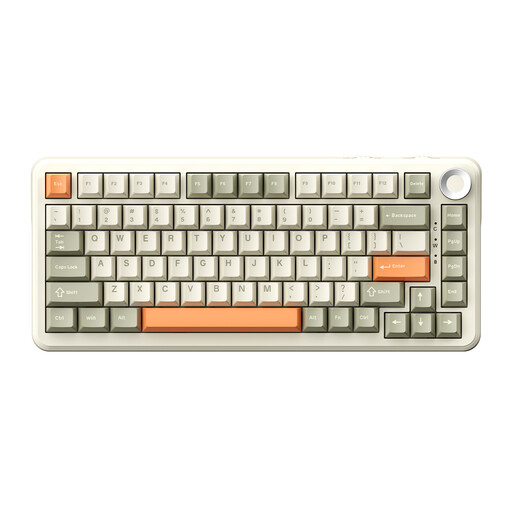 Image unavailable
The 75% layout may suit you if you prefer a more compact keyboard; check beforehand that the US layout works with your system.
75% layout; tri-mode connection; US Layout QWERTY.
The title lists an 8000 mAh battery and hot-swappable switches.
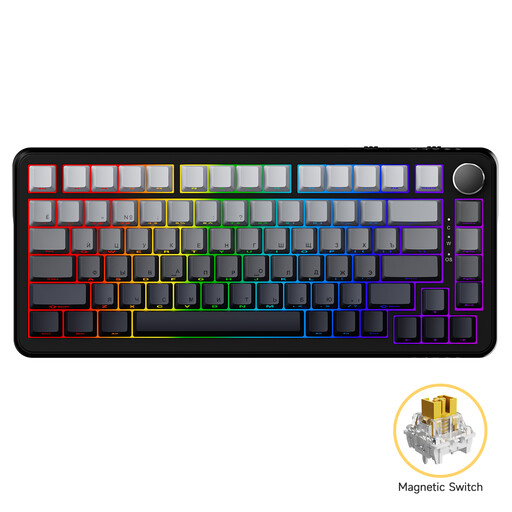 Image unavailable
A wired connection is worth considering if you need a particular type of connection; check that it works with the computer you use for design.
Wired; magnetic switches; 82 keys.
The title lists an adjustable actuation point and RGB lighting.
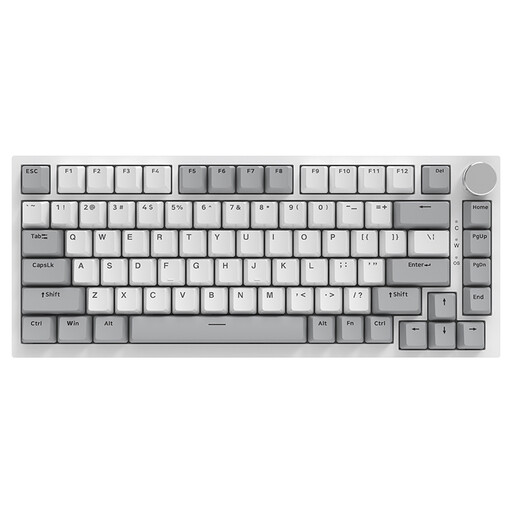 Image unavailable
The 75% layout may suit you if you’re looking for a more compact keyboard; compare the QWERTY US layout with your system settings.
Wired; 75% layout; 83 keys; QWERTY US.
The title lists hot-swappable linear switches and compatibility with PC/Win/Mac.
No, not just because you have two monitors. If both screens are connected to one computer, you arrange them on that computer; keyboard device-switching features are designed for separate devices.
Check the keyboard layout set in Figma and its shortcut overview. The Figma Help Center recommends updating the Figma layout if you change your system layout; also check the shortcuts for your operating system.
According to the Dutch Arboportaal, for employees who work at a display screen for more than 2 hours a day, the screen and keyboard must not be attached to each other; laptop users must be able to use a separate screen or keyboard. This is a conditional workstation rule, not a requirement for every buyer to choose a particular keyboard model.
Dutch government information describes CE marking and an EU declaration of conformity for electrical and electronic equipment. Rules for radio equipment are also relevant to devices with Bluetooth or a radio-frequency module. Check the product documentation for the exact version; a mention on a sales page does not, by itself, confirm the documentation for that model.
ACM ConsuWijzer states that online consumer purchases generally come with a statutory 14-day cooling-off period after delivery, with some exceptions. Statutory warranty also applies if a product doesn’t perform as you could reasonably expect under normal use; in the Netherlands, there is no single fixed warranty period for every keyboard.