
Developer testing without a mouse
You’re developing the hire portal and want to check its controls and visible focus using the keyboard. Look for a familiar layout and the keys you need to navigate.


Choose a keyboard with a layout and navigation keys you can rely on when writing code and testing how the portal works. A programmable key or a particular keyboard model does not make the portal itself accessible: test visitor actions and visible keyboard focus separately. Also choose a keyboard that suits your needs, whether that means long typing sessions, customisable keys or working in a shared space.
You’re developing the hire portal and want to check its controls and visible focus using the keyboard. Look for a familiar layout and the keys you need to navigate.
You write a lot of code, form copy or documentation, and want to find a layout and key feel that suit your workspace. A split keyboard is an option to try, not a proven solution for discomfort.
You work alongside others, so you need to consider typing noise and the connection required. Compare the key feel and check that the connection works with your computer.
Choose this if: a familiar layout and easy-to-reach keys matter more to you than saving desk space.
Trade-off: check the physical layout and connection. A full-size keyboard takes up more room than a compact model.
Choose this if: you want to save desk space and find a layout you can customise for your own development work.
Trade-off: a more compact layout may omit keys or put their functions on secondary key layers. Check the specific model and layout.
Choose this if: you want to adjust the position of the two keyboard halves.
Trade-off: try the setup for yourself and check that the wireless connection and ANSI US layout of the model described suit you.
For each model, compare the physical key layout with your selected input language, and try the programming characters and navigation keys you use when building and testing.
| What to consider | What to look for when buying | Who may find this important? |
|---|---|---|
| Familiar layout and testing controls | Compare the physical layout with your selected input language, and try programming characters, Tab, Shift+Tab, Enter and your usual navigation keys. | When I’m writing code and repeatedly testing focus paths without a mouse, I want the characters and navigation keys to fit the way I work. Around 33% of consumers prioritise layout and testing controls. |
| Long typing sessions | Compare a low-profile keyboard with a split setup in your own workspace, and try positioning the two halves for yourself. | During long sessions of coding and documentation, I want a key feel and setup that work comfortably for me. Around 27% of consumers make extended typing their top priority. |
| Customisable keys | Check that the required software works with your operating system and that essential navigation keys remain available. | If I want to customise recurring development tasks, I check whether the model’s features suit the way I work. Around 20% of consumers prioritise customisability. |
| Noise and connection | Compare typing noise and check that your computer supports the required USB receiver or Bluetooth connection and power supply. | In a shared workspace, I want to be considerate of noise and connect without any hassle. Around 20% of consumers put a quiet workspace at the top of their list when buying. |
A custom macro or programmable key can tailor your own workflow, but it doesn’t show whether visitors can carry out every portal action using a keyboard. The W3C Web Accessibility Initiative sets out keyboard operability and visible focus as requirements for web content, so test these in the portal itself.
A personal macro won’t automatically change what a visitor can access in the portal without a mouse, or where the focus is visible.
Assess the keyboard for your own work, then test visitor actions separately in the portal.
A model name doesn’t always confirm which key legends, connection or switches come with the version you’ve chosen.
Check the specifications of the exact version, including its layout, connection and switches.
Descriptions such as ‘quiet’ or ‘comfortable’ don’t tell you exactly how a keyboard will feel or sound in your workspace.
Compare the typing feel and sound for yourself if you can. Choose a split model based on a layout that works for you, not on a promise that it will prevent discomfort.
The MX Keys S is aimed at people looking for a full-size, low-profile wireless keyboard and the ability to switch between devices.
The Q3 Max ISO is designed for people looking for a compact, customisable mechanical keyboard.
The STREAM KEYBOARD is a wired, low-profile office option for a shared workspace.
The Ody II is a wireless office keyboard supplied with a receiver.
The Split Break is worth considering if you want to position the two keyboard halves separately.
These product choices are intended for typing, programming and keyboard testing. For each model, check that the layout and connection suit your computer and the way you work.
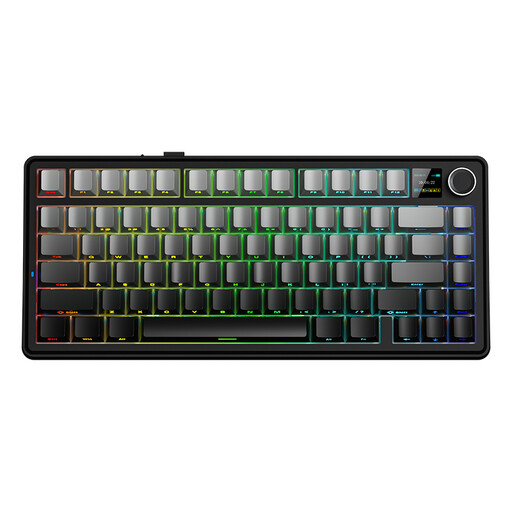 No image available
The compact 75% layout may suit you if desk space is limited and you want to use the listed key layout.
US QWERTY layout; wired, Bluetooth or 2.4 GHz according to the product name.
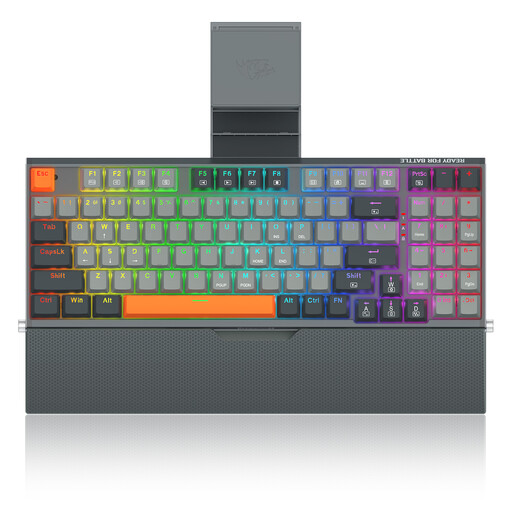 No image available
A wired model may suit you if you don’t want a wireless connection and are looking for a 94-key layout.
Wired, mechanical, 94 keys; the product name also mentions a phone stand and wrist rest.
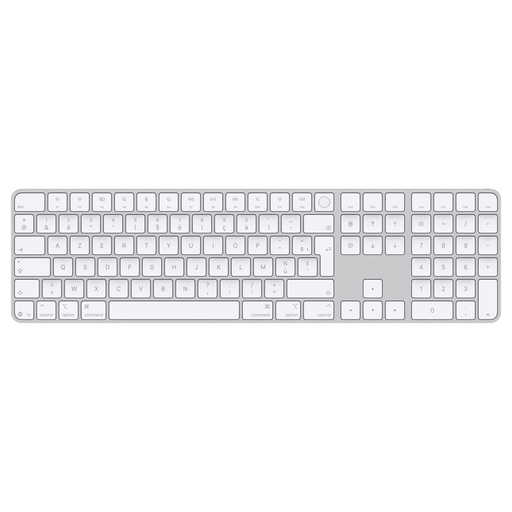 No image available
The version with a numeric keypad may suit you if you regularly enter numbers as well as code.
The product name mentions Touch ID and a numeric keypad.
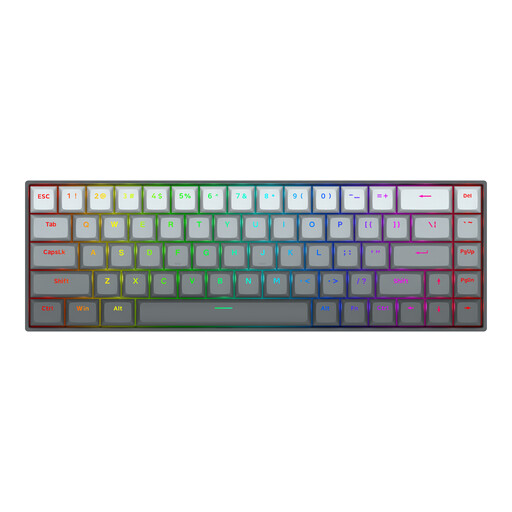 No image available
The compact layout may suit you if you have limited desk space and the US layout works for your input needs.
68 keys, mechanical, magnetic switches and US layout according to the product name.
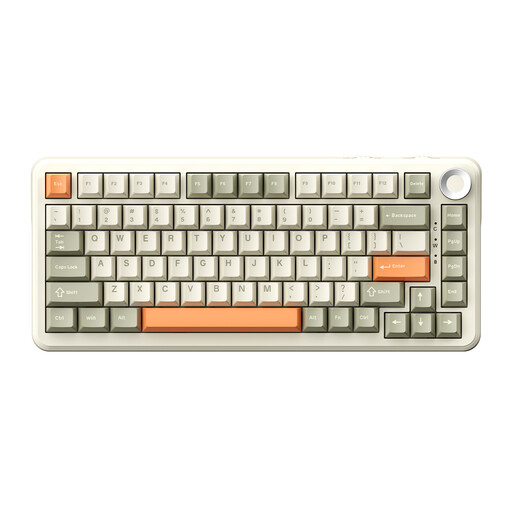 No image available
The 75% layout may suit you if you’re looking for a compact keyboard and use the listed US QWERTY layout.
Wired, Bluetooth or 2.4 GHz according to the product name; US QWERTY layout.
No. The W3C Web Accessibility Initiative sets out testable criteria for web content, not a certification for the keyboard you use to build the site. Test in the portal itself whether visitors can carry out actions using the keyboard and whether the focus is visible.
Compare the physical key layout with your computer’s selected input language. Trust lists an incorrect input language as one possible cause when a keyboard types different characters from the ones you expect.
That depends on the service and the organisation. The Dutch government states that accessibility requirements came into force on 28 June 2025. Ondernemersplein sets out conditions for when they apply, including services provided to consumers, as well as an exemption for small businesses. The government information also refers to factors such as staff numbers and annual turnover. Without details of the offering, contracts and organisation, it isn’t possible to determine whether this requirement applies to this specific portal. Keyboard operability remains a relevant design and testing consideration even when no legal obligation has been established.
For a consumer purchase in the Netherlands, the seller remains responsible for the statutory guarantee covering faulty goods. ACM ConsuWijzer states that, with normal use, the seller must resolve the problem free of charge, for example through repair, replacement or a refund. A manufacturer’s warranty does not replace these statutory rights.