What should you look for when buying?
First, check whether your data-entry application accepts the field navigation or shortcuts you want to use. Then compare the physical layout and connection. If you do a lot of typing, consider the keyboard’s shape and how much space you have at your workstation too.
| What to consider |
What should you check? |
Who is this important for? |
| Entering data in fields |
Test field navigation and a frequently used action in your own form. Check whether you’re allowed to use any configuration software on your work computer. |
If I often switch between custom fields, I want to know whether my form actually recognises the shortcut I want to use. Around 40% of consumers give repeated field entry top priority. |
| Typing for long periods |
Compare a straight and a split design at your workstation. Make sure there is room for your arms and mouse, and consider whether you can get used to a different layout. |
When entering long passages of text, I want to choose a design that suits my workstation and posture, without overlooking the need to vary my tasks. Around 30% of consumers prioritise typing comfort and posture. |
| Figures and layout |
Work out how often you enter figures and check the exact physical country or ANSI layout. Compare it with your computer’s input layout. |
If I enter lots of dates and numbers, I want a layout where the characters are where I expect them to be; a numeric keypad may also be a factor. Around 20% of consumers prioritise entering figures and having a familiar keyboard layout. |
| Connection and management |
Check that the connection is compatible with your computer and that the features you need work without additional software. |
For a fixed workstation, I want to connect a keyboard without extra configuration if possible. Around 10% of consumers prioritise easy connection and management. |
Keyboards for data entry on Joybuy
These keyboard options are suited to entering figures, working at a fixed workstation or setting up recurring actions. If you’re considering a compact or mechanical model, check its physical layout before choosing.
 No image available
Wired full-size QWERTY keyboard with numeric keypad
Suited to a fixed workstation and regular number entry.
Full-size QWERTY layout with numeric keypad; wired and plug-and-play according to the product description.
Joybuy
 No image available
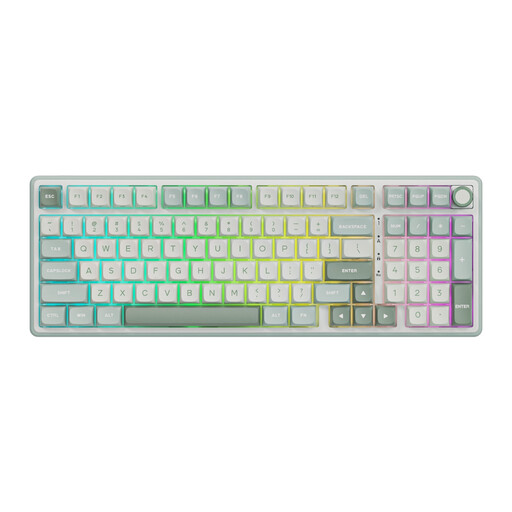
RK ROYAL KLUDGE R98 Pro wired mechanical keyboard
An option to consider if you want to set up recurring actions and also enter figures.
The product information lists key remapping and macros via an online driver, as well as a numeric keypad.
Joybuy
 No image available
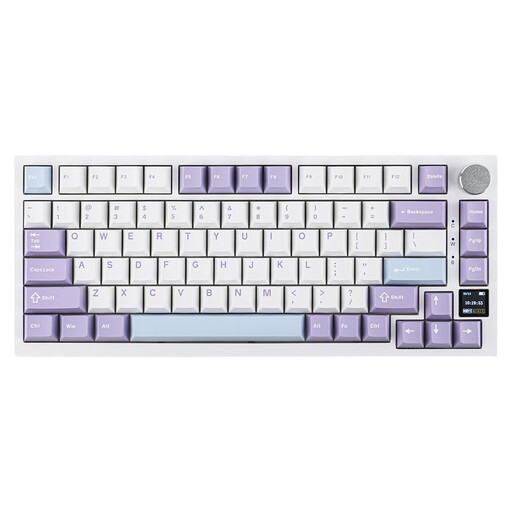
Ajazz AK820 Pro 75% Tri-Mode mechanical keyboard
Suited to anyone looking for a more compact setup with arrow and function keys.
The product information lists an 82-key layout, US QWERTY and Bluetooth, 2.4 GHz or USB-C. Check that the physical layout suits your input needs.
Joybuy
 No image available
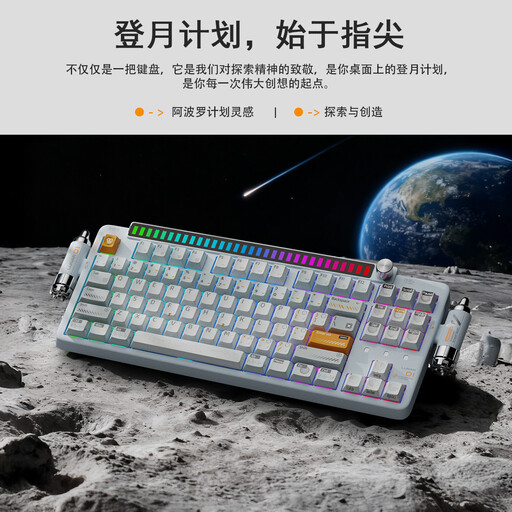
KEYSME Lunar 01 80% Tri-Mode mechanical keyboard
An option to consider if you want a configurable knob and different connection options.
The product information lists a US QWERTY layout, a programmable knob and three connection modes. Check that the layout and configuration suit your computer.
Joybuy
 No image available
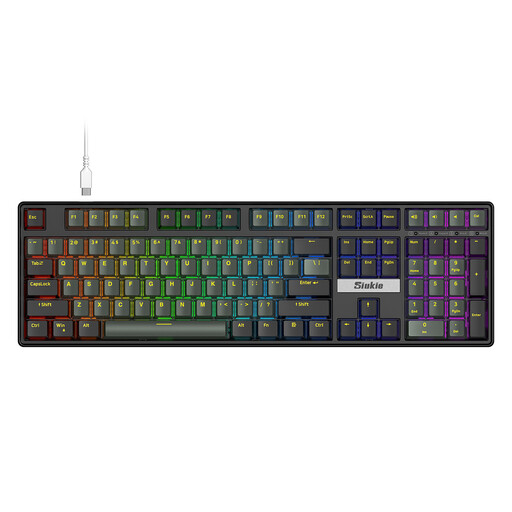
Siukie CR108 108Keys wired mechanical keyboard
Suited to anyone considering a wired mechanical keyboard for text work and entering figures.
The product information lists 108 keys, a numeric keypad and a wired USB connection.
Joybuy
Frequently asked questions
Do I need programmable keys to fill in custom fields?
Not necessarily. First, check the shortcuts and field navigation in your own application. If you’re allowed to install software on Windows, PowerToys can remap keys or shortcuts; that doesn’t automatically mean you can use it to open a specific field directly.
Why don’t punctuation marks sometimes match the keys?
The active input layout in Windows may differ from the physical layout of your keyboard. Compare your computer’s setting with the exact keyboard variant before assuming there’s a fault.
Is a split keyboard enough to create a good workstation?
No. The Dutch Arboportaal advises alternating screen work with other tasks that do not require a screen. A split design is no substitute for varying your tasks or setting up your workstation appropriately.
What rules apply to employees doing prolonged screen work in the Netherlands?
According to the Dutch Arboportaal, screen work must be alternated at set intervals with other tasks or a break. If an employee works with a screen for more than 2 hours a day, the screen and keyboard must not be attached to each other. These requirements apply to the relevant working situation and do not specify a particular keyboard model.
What return and warranty rights apply to an online purchase in the Netherlands?
According to ACM ConsuWijzer, most standard online consumer purchases come with a statutory 14-day cooling-off period after delivery, although there are exceptions. The Dutch government states that there is no fixed statutory warranty period in the Netherlands: if a product is faulty, the seller is your point of contact for the statutory guarantee.


