
Log analyst with one work computer
You use two screens with one computer and want to move quickly between terminal windows and logs. Focus on the layout, navigation keys and space for your mouse.


If you’re using two screens with one computer, you don’t need a special keyboard. Focus instead on the layout, navigation keys and space for your mouse. If you work across multiple computers, decide whether you only want to switch keyboard input or switch both video signals too. For the latter, you’ll need a suitable dual-display KVM. If you want programmable features, check that the configuration software works with your operating system.
You use two screens with one computer and want to move quickly between terminal windows and logs. Focus on the layout, navigation keys and space for your mouse.
You switch between computers while investigating logs. Decide whether you want to switch keyboard input only, or switch the mouse and both video signals too.
You type for long stretches and compare a compact keyboard with a split design, based on your preferred hand position, mouse space and familiar keys.
First, decide whether you’ll be using one computer or switching between computers. Then choose a layout, connection and set of keys to suit your daily terminal work.
| What to consider | What to look for | Who is this important for? |
|---|---|---|
| Layout and navigation | Check the Home, End, Page Up, Page Down and arrow keys, as well as the physical key positions for frequently used commands. | If you need to move quickly through logs, familiar keys and characters in the right places are important. Around 33% of consumers make layout and navigation their top priority. |
| Working posture | Compare the keyboard’s width, the space available for your mouse and whether a split layout suits your hand position. | For long typing sessions, you may want to try out the distance between the keyboard, your hands and the mouse to find what feels comfortable. Around 27% of consumers put working posture top of their list. |
| Switching between computers | Count computers and screens separately. Decide whether you want to share just the keyboard and mouse, or the video signals too. | If you work across multiple computers, you’ll want to know whether the keyboard switches input only or switches the screens too. Around 20% of consumers prioritise switching between computers. |
| Quiet, straightforward typing | Check the key mechanism, whether the connection is wired or wireless, and whether shortcuts work without extra software. | For a fixed workstation, a simple connection and quiet typing may matter more than switching between devices. Around 20% of consumers make quiet, straightforward use their top priority. |
A key that switches between connected devices won’t automatically switch the monitors too.
First, work out which computer is connected to which screen, and which devices you want to switch between.
If you also need to switch two video signals between computers, you may need a separate KVM and suitable connecting cables.
Compact and TKL layouts don’t necessarily omit the same keys. The characters also vary depending on the physical layout.
Check the navigation keys, number pad and positions of the keys you use for commands on the exact variant you’re considering.
Basic input and custom key functions may have different levels of support.
Check the keyboard and its configuration software separately for the operating system you use at work.
Being able to adjust the distance between the keyboard halves isn’t the same as having an accessory to change the tilt angle.
Check which accessories are included with the version you choose, and what you’ll need for your setup.
You may need separate accessories to achieve your preferred tilt angle.
The K8 Pro ISO is an option if you’re looking for a TKL layout with navigation keys and customisable keys or macros.
The wired STREAM KEYBOARD is designed for a fixed workstation; there’s also a separate TKL version.
The MX Keys S is designed for typing and switching between connected devices.
The Freestyle2 is a split option if you want to be able to adjust the distance between the keyboard halves.
The Compact Break is a compact option with a break indicator.
This selection includes compact layouts for a workstation with one computer, as well as a model with device switching for anyone who types across multiple devices.
 No image available
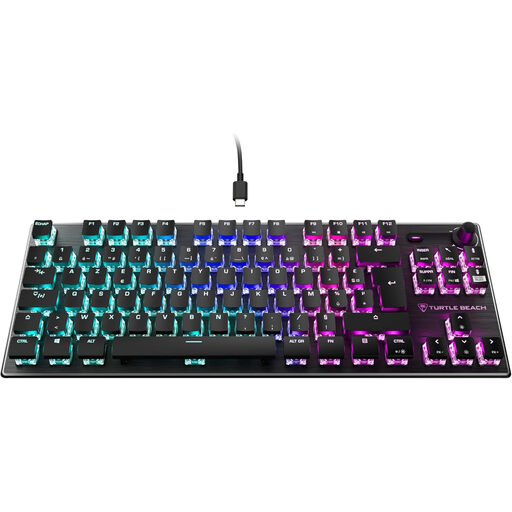
A TKL option to compare if you want to use navigation keys while working with logs, without choosing a full-size layout.
The product title lists AZERTY and linear TITAN switches. Check that the key positions suit your commands.
 No image available
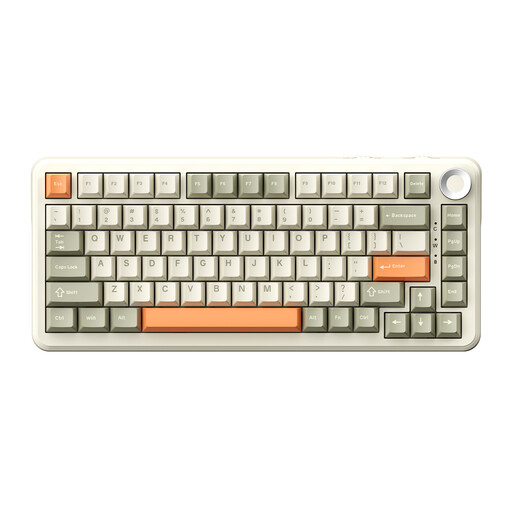
A compact option to compare if you need to keep space free for a mouse on your desk and are looking for a wireless keyboard.
The product title lists a 75% layout, tri-mode connection, Flying Fish switches and US QWERTY. Check that the physical layout suits the way you use it.
 No image available
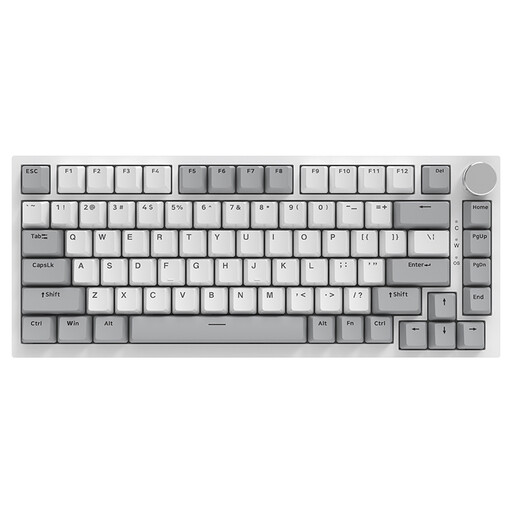
A compact wired option to compare for a fixed workstation where you don’t need to switch between wireless devices.
The product title lists a 75% layout, US QWERTY and hot-swappable linear switches. Check the key positions for your commands.
 No image available
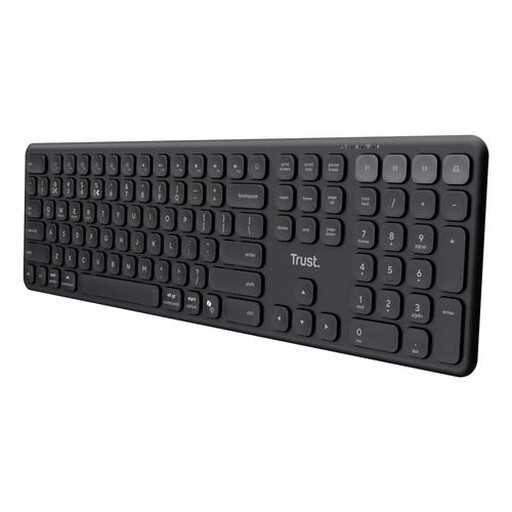
An option to compare if you want to switch between devices and are looking for a full-size layout with a number pad.
The product title lists a wireless keyboard with scissor keys and US QWERTY. A full-size layout takes up more space than a compact one.
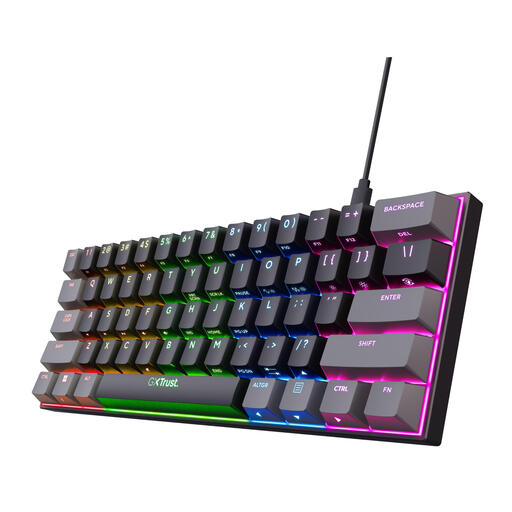 No image available
A very compact option to compare if you want to keep the amount of desk space taken up by your keyboard to a minimum.
The product title lists a 60% layout, US QWERTY and Outemu Red switches. If you use the arrow and navigation keys frequently, check whether using an Fn layer suits you.
No. If both screens are connected to the same computer, your choice mainly depends on how you type and navigate. If two computers need to share the same two screens, look for a dual-display KVM with connections that suit your equipment.
It depends on the keyboard and its configuration software. Keychron lists Linux support for the Launcher web app with the K8 Pro. Logitech lists Linux as a compatible operating system for the MX Keys S, but says Logi Options+ is supported on Windows and macOS only.
Position your keyboard and mouse to suit your workstation and a comfortable working posture. Arboportaal sets out specific workstation requirements for employees who spend more than two hours a day working with screens, including that the screen and keyboard must not be attached to each other. This isn’t a general buying threshold for every reader.
When you buy from a business online as a consumer, you generally have 14 days to change your mind. Check the terms that apply to your purchase. If a product is faulty, you have statutory rights and should contact the seller. The Dutch government states that there is no fixed statutory two-year guarantee period for this.
Check the required product information and CE marking for the specific version. The Netherlands Enterprise Agency describes CE marking as a manufacturer’s declaration of conformity, not an independent safety certification. The applicable requirements depend on the product.