
Testing beside a bright window
You want to be able to read the key legends and screen content while testing. The position of your screen in relation to the window may also be a factor.


First, choose a layout that lets you reliably enter the characters and keyboard shortcuts required for your test steps. Then decide whether programmable keys, a different working posture or wireless use matters most to you. Keyboard backlighting won’t eliminate glare on your screen.
You want to be able to read the key legends and screen content while testing. The position of your screen in relation to the window may also be a factor.
You regularly repeat the same input and navigation steps, so you want to assess the physical layout and any programmable keys.
You’re mainly concerned with the position of your hands and wrists, and with taking breaks from screen work.
Start with the keyboard layout and your screen set-up, then consider extra features such as backlighting or programmable keys. Arboportaal advises positioning your screen-based workstation so that your line of sight is parallel to the window.
| What to consider | What should you check? | Who should give this extra consideration? |
|---|---|---|
| Readability in bright daylight | Check the key legends in the light conditions at your workstation, and first check your screen position and window blinds. | If I work beside a bright window, I want to be able to read the keys and screen content without relying solely on keyboard backlighting. Around 33% of consumers prioritise readability by the window. |
| Characters and repeated steps | Compare the physical layout with the language layout set on your computer, and check the characters, navigation keys and shortcuts you need. | For repeated input, I want the characters and navigation keys to suit my test steps. Around 25% of consumers prioritise layout and repeated keystrokes. |
| Hand and wrist position | Consider whether you can position the keyboard, mouse and arms comfortably at your workstation; also allow time to get used to a split layout. | During longer sessions, I want to be able to adjust the position of my hands and wrists to suit my workstation. Around 25% of consumers prioritise working posture. |
| Connecting to devices | Check the available USB ports, Bluetooth support, operating system and how many devices you want to use. | If I switch between test devices, I want to know whether the connection will work with them. Around 17% of consumers prioritise device connectivity. |
Keyboard backlighting won’t change the position of the window or automatically get rid of distracting glare on your screen.
Assess your workstation in the daylight you usually work in, and consider your screen set-up and window blinds too.
Physical key variations and the layout set on your computer can affect which characters you enter during test steps.
Check the full physical layout and the language layout on your computer before making a choice.
Alongside F99 versions with several connectivity options, AULA also lists an ISO-ES version that is wired only.
Check the exact version, layout, connection and included components on the product page.
If a product is faulty, the seller remains your point of contact for a solution, according to the Government of the Netherlands. An extended warranty is separate from this.
Check exactly what additional rights a paid extended warranty provides.
The KC 1000 is a wired office keyboard for a fixed workstation, with cursor and numeric keys.
The MX Keys S is worth considering if you want adjustable backlighting and the ability to switch between devices; the K120 is a simpler wired alternative.
The Split Break is designed for anyone who wants to position the two keyboard sections separately.
The K3 Version 3 is a compact mechanical model for anyone who wants to customise key functions.
According to AULA, the F99 series has a compact layout while retaining many keys, including a numeric keypad.
This selection includes compact and full-size keyboards for typing, navigation and use with multiple devices. Check that each model’s layout suits your test steps.
 No image available
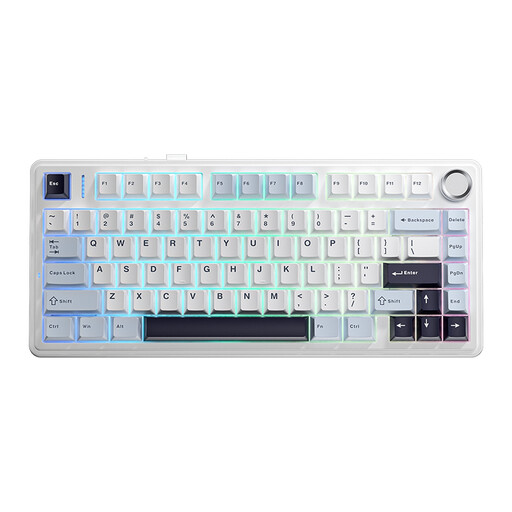
For anyone looking for a compact layout for repeated test steps; check in advance that the keys and functions you need suit the way you work.
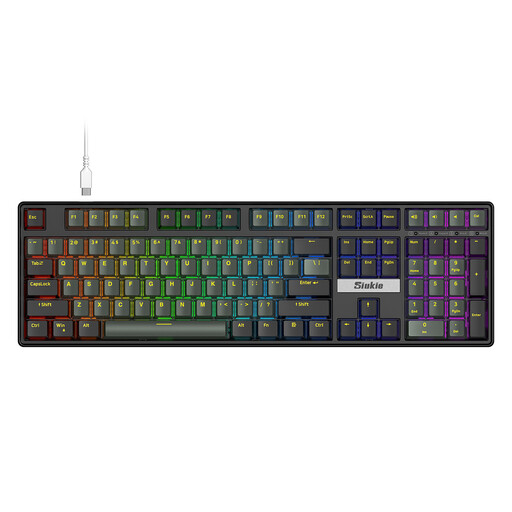
The product name lists a 75% layout, QWERTY US, three connectivity options, RGB lighting and PBT keycaps. The usage information advises against direct sunlight.
 No image available
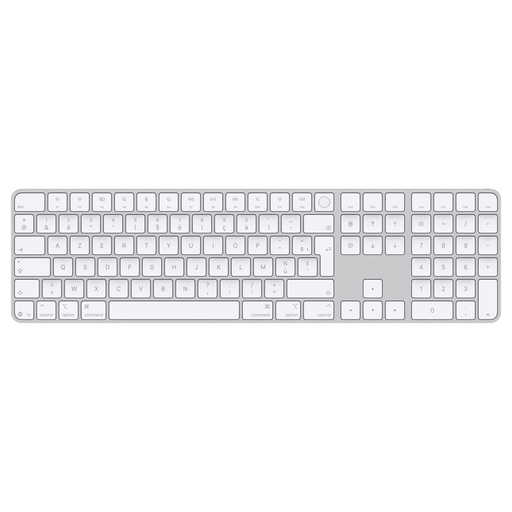
Worth considering if your testing involves a lot of numeric input and navigation keys.
The product name lists Touch ID and a numeric keypad. The product description focuses on use with a Mac, so check that it’s compatible with your system.
 No image available
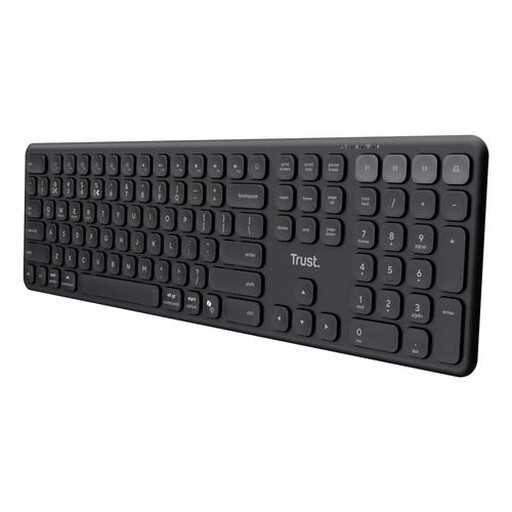
Worth considering if you’re looking for a full-size layout with a numeric keypad and want to switch between test devices.
The product name lists a numeric keypad, scissor keys and QWERTY US. The product description mentions connecting to up to four devices via a USB receiver and Bluetooth.
 No image available
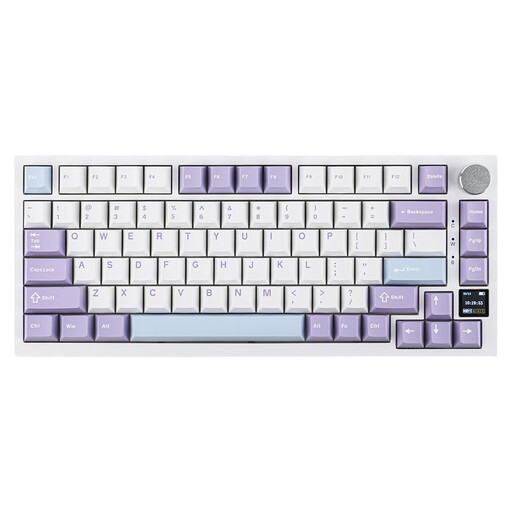
A compact option to compare if you’re looking for a keyboard with several connectivity options; check that the layout supports your test steps.
The product name lists wired, Bluetooth and 2.4G connectivity, a TFT display and RGB lighting. The stated compatibility includes Windows and macOS.
 No image available
A wired full-size option to consider if you have a fixed testing workstation and do a lot of numeric input.
The product name lists 108 keys, detachable switches and a wired connection. The product description mentions a numeric keypad.
Not necessarily: keyboard backlighting won’t fix glare on your screen. Logitech lists adjustable backlighting for the MX Keys S; Arboportaal also advises positioning your line of sight parallel to the window.
Check the connection and compare the physical key layout with the layout set on your computer. According to the manufacturer, the CHERRY KC 1000 requires USB-A, so make sure you have an available port.
For employees who work at a screen for more than two hours a day, Arboportaal states that the screen and keyboard must not be attached to each other. Whether this requirement applies to you depends on your working situation.
For a consumer purchase in the Netherlands, the seller is your point of contact for a solution if a product is faulty, according to the Government of the Netherlands. A manufacturer’s warranty doesn’t replace your statutory rights.
For many distance purchases made by consumers, there is a 14-day cooling-off period; the Government of the Netherlands lists some exceptions. Check which terms apply to your purchase.