
Builder who navigates without sight
You use a screen reader and want to move predictably between fields, results and page sections. Koninklijke Visio describes NVDA as software that lets you use a Windows PC with a keyboard and speech output.


When building a music lesson directory with a screen reader, a familiar keyboard with easy-to-reach navigation keys is often a better fit than a model focused mainly on extra features. Choose a numeric keypad if it suits your screen reader layout and data-entry tasks, programmable keys if you can test them with your assistive technology, or large, high-contrast key labels if you also read the keys visually.
You use a screen reader and want to move predictably between fields, results and page sections. Koninklijke Visio describes NVDA as software that lets you use a Windows PC with a keyboard and speech output.
You regularly enter names, times, prices or contact details and want to move quickly between text fields and numbers. Test the keys and data-entry tasks you need with your own screen reader.
You combine speech support with some remaining sight and want to be able to read the key labels. This may be particularly relevant if you use ZoomText or Fusion; Optelec describes its ZoomText keyboard as having high-contrast key labels and shortcut keys for that software.
A good fit if: you use NVDA on Windows, want a familiar layout and enter lots of lesson details.
Bear in mind: a numeric keypad takes up space and doesn’t automatically provide programmable shortcuts. Check that the screen reader keys you need are easy to reach.
A good fit if: you often switch between devices or want to set up shortcuts for tasks you do repeatedly.
Bear in mind: programmable features don’t prove that the setup software is accessible; test the settings with your screen reader.
A good fit if: you use your sight as well as speech output to find letters and symbols, for example with ZoomText or Fusion.
Bear in mind: Optelec’s ZoomText and Fusion shortcuts aren’t automatically NVDA shortcuts. Large-print keys may offer little benefit if you type without using your sight.
| What to consider | What should you check? | Who is this important for? |
|---|---|---|
| Screen reader controls | Check that Insert, or Caps Lock if set as your NVDA key, and the navigation and function keys are easy to reach. Also check your screen reader’s desktop or laptop layout. | When I move between input fields and page sections, I want to use the commands I’m familiar with. Around 36% of consumers in this buying context prioritise predictable screen reader controls. |
| Repeated data entry | Test your input fields with the keyboard and screen reader; check whether you need a numeric keypad and what any programmable keys do. | When entering lots of lesson listings, I want to enter numbers and text efficiently without extra features getting in the way of my assistive technology. Around 29% of consumers put repeated data entry at the top of their list of concerns when buying. |
| Readable key labels | Check that the letters and symbols are easy to distinguish, and which keys are designed for particular magnification or speech software. | When I use my sight as well as speech, I want to be able to find keys and symbols. Around 21% of consumers give readable key labels top priority. |
| Multiple devices | Check the connection and test your screen reader commands on each device; keyboard shortcuts can differ between Windows and Mac. | When I maintain the directory on different devices, I want to switch between them without losing access to my usual controls. Around 14% of consumers prioritise use with multiple devices. |
What the keys do also depends on the screen reader layout you choose. A numeric keypad can also play a part in controlling a screen reader.
Try entering numbers and using your usual screen reader commands in the same setup before choosing a layout.
High-contrast key labels can help if you look at the keys to find them, but the special keys on the Optelec ZoomText model we reviewed are designed for ZoomText and Fusion, not automatically for NVDA.
Decide whether you use the labels visually, then check separately whether the special keys work with your software.
A matching product name alone doesn’t confirm that all the features, layout and connections meet your needs.
Check the product details and current availability on the product page before choosing a version.
The K120 is a wired option with a standard layout; the MX Keys S offers a different approach, with programmable keys and the ability to switch between devices.
The KC 1000 is a straightforward office keyboard to include in your comparison.
The ZoomText large-print keyboard is designed for people who use visible key labels and, where appropriate, control ZoomText or Fusion.
These keyboard options are suited to entering lesson details and navigating from a fixed or flexible workspace. Check that the layout and screen reader controls work for the way you use your keyboard.
 No image available
An option to consider if you want a full-size keyboard with a numeric keypad for entering lesson details.
The product name specifies a QWERTY layout, black finish and plug-and-play setup. Check that the layout works with your screen reader commands.
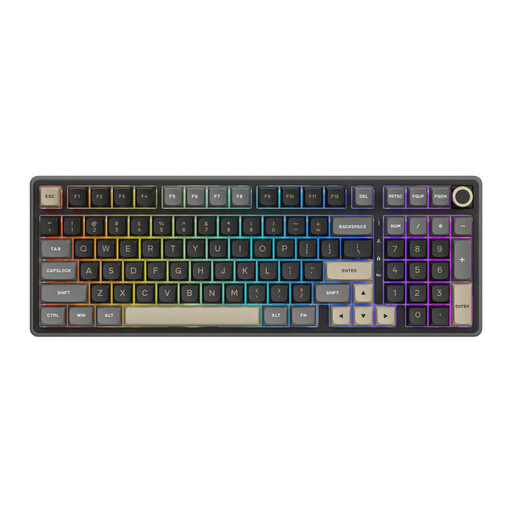 No image available
Consider this wired version if you’re looking at a mechanical keyboard with a numeric keypad and volume knob.
The product name specifies replaceable switches and beige switches. Check that the key layout works comfortably with your screen reader.
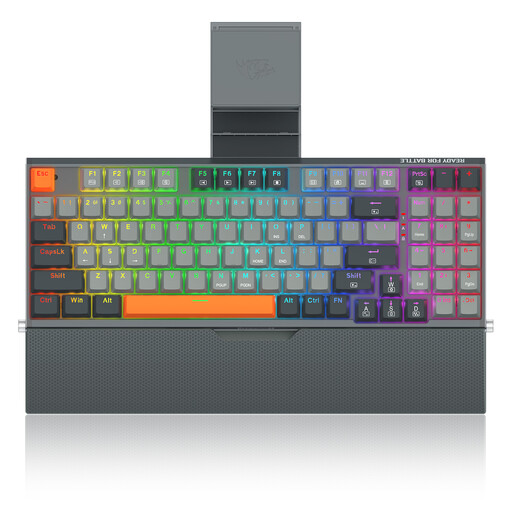 No image available
A wired option to consider if you’re looking for a mechanical keyboard with a wrist rest for a fixed workspace.
The product name specifies a metal case, phone stand and detachable wrist rest. Check that the 94-key layout includes the navigation keys you need.
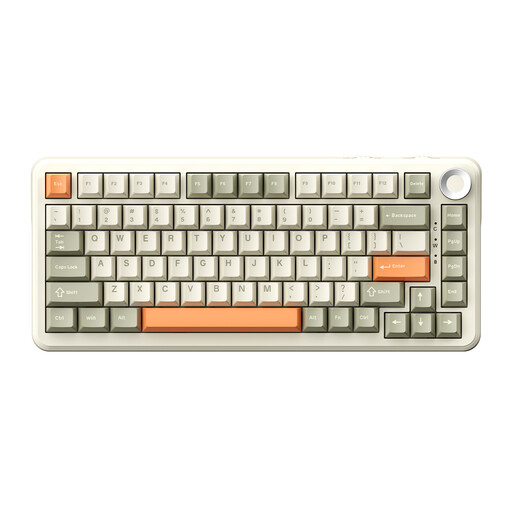 No image available
Consider this compact version if you’re looking at a smaller layout and more than one connection option.
The product name specifies tri-mode connectivity, a US QWERTY layout and hot-swappable switches. Check that the compact layout includes the navigation and function keys you use with your screen reader.
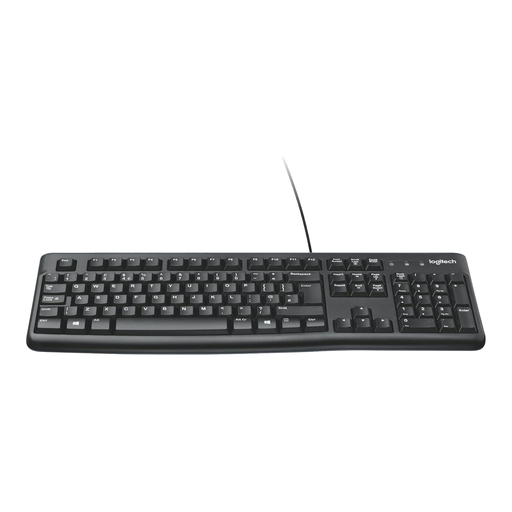 No image available
A standard keyboard to consider if a wired connection and numeric keypad suit your data-entry tasks.
Logitech specifies a USB connection for the K120; the product information describes a full-size keyboard with a numeric keypad. Check the language layout offered and that your screen reader commands are easy to reach.
No, a numeric keypad isn’t essential for every NVDA layout. Koninklijke Visio describes commands for the desktop and laptop layouts and says Insert is the default NVDA key, with Caps Lock available as an alternative. Choose the layout that lets you use the commands you need comfortably.
No, programmable keys don’t determine whether the website itself can be used with a keyboard. Test search, filters and forms separately with your screen reader; W3C describes keyboard operation as a feature of web content.
Check the connection and layout of the exact version, then try the screen reader commands you use every day. Logitech describes the K120 as a USB keyboard that works without software installation. Optelec says its special ZoomText and Fusion features require the relevant software.
In the Netherlands, ACM ConsuWijzer says you’re entitled to a legal guarantee if a product doesn’t do what you could reasonably expect it to do. The seller must put a valid fault right; this doesn’t mean that every keyboard has a fixed legal lifespan of two years.
That depends on what the website does and which organisation provides the service. The Authority for Consumers & Markets refers to rules for e-commerce services where consumers can enter into an agreement online, for example by buying or booking something. It states that the rules apply to organisations with 10 or more employees or an annual turnover of more than € 2 million. The word ‘directory’ alone doesn’t determine whether the rules apply; assess the specific booking function and organisation. This isn’t a requirement for buying the keyboard.