Start by considering how much space you need beside the keyboard for precise mouse work. A compact model could be a good fit if you rarely use the extra keys on a larger keyboard. A wave-shaped model or a keyboard with two separate halves offers a different hand position, but neither design replaces setting up your workspace properly and alternating your posture.
Who is this relevant to?
Route planner who uses the mouse a lot
You often add and move route points, and want to keep space beside the keyboard for precise mouse work. Arboportaal specifically highlights mouse work and frequent movement as factors to consider; a compact keyboard may make a smaller set-up possible.
User looking to adjust their hand position
You also type route descriptions and want to see whether a wave-shaped design or separately positioned halves will suit your workspace. These are design features of specific models, not proof of a health benefit.
Planner who switches between keyboards and devices
You switch between a route planner, notes or computers, and want to check in advance that the keys and connections will work with your set-up. Logitech and Keychron describe these features for specific models.
What should you look for when choosing?
Compact keyboard without a fixed number pad
A good fit if: you often place route points with the mouse and rarely use the number pad.
Bear in mind: check the position of the arrow, function and other keys you use in your route planner.
Fixed wave-shaped or curved keyboard
A good fit if: you want to try a different hand position and prefer a single-piece keyboard.
Bear in mind: the shape and wrist rest vary by model and are no guarantee that discomfort will disappear. Also measure the space available beside your mouse.
Keyboard with two separate halves
A good fit if: you want to choose the distance and angle of your hands independently.
Bear in mind: two halves need space and take some getting used to; the black US QWERTY version of the R-Go Split Break reviewed here is wired.
Compact mechanical keyboard with customisable keys
A good fit if: you want to assign keys or macros deliberately and first check that your route planner supports the actions you have in mind.
Bear in mind: customisable keys don’t add features to your route planner. Check the physical layout and the exact variant too.
| What to consider |
What should you check? |
Who should pay particular attention? |
| Space for mouse work |
Measure the available width when sitting and standing; consider where the mouse will go and whether you need a number pad. |
When I place lots of route points precisely with the mouse, I want to keep enough clear space beside the keyboard. Around 33% of consumers put mouse space first. |
| Hand position |
Assess the distance between your hands and the position of your keyboard and mouse at both desk heights. |
When I type route descriptions sitting and standing, I want to see whether a fixed wave shape or separate halves suit my hand position. Around 27% of consumers prioritise hand position. |
| Keys and shortcuts |
Make a note of the arrow, function and shortcut keys you use; check the layout and software support for the exact variant. |
I want to use my route planner without searching for missing or relocated keys, so I check the shortcuts I use. Around 27% of consumers focus mainly on key controls. |
| Connectivity and switching between devices |
Check Bluetooth, available ports, any receiver, software compatibility and whether there’s room for a cable when adjusting the desk. |
If I switch between my computer and another device, I want to know which connections and switching options my set-up supports. Around 13% of consumers prioritise switching between devices. |
Common purchasing mistakes
-
Choosing a compact layout without checking the keys you use in your route planner
A 75% layout or programmable keys don’t tell you which actions your route planner supports or where the keys are physically located.
Compare the key actions you actually use with the layout and software of the exact variant.
-
Assuming an ergonomic shape can replace a properly set-up workspace
A wave shape or two separate halves don’t, by themselves, determine your posture during prolonged screen and mouse work.
Also consider where your mouse is and the desk height, and vary your posture and tasks.
-
Assuming different versions in the same product range are identical
R-Go describes wired and wireless versions of the Split Break; Keychron specifies hot-swap only for the RGB hot-swap version of the K3 Max.
Before buying, check the full specification, physical layout and connection type.
Brands to compare
Logitech
Wave Keys is a fixed, wave-shaped wireless model; MX Keys Mini is a compact alternative if space beside your mouse matters.
- For Wave Keys, Logitech lists Bluetooth, Logi Bolt, customisable keys and a wrist rest. For MX Keys Mini, Logitech describes a smaller size and the ability to switch between devices.
- These model specifications don’t prove that a model prevents discomfort or works with every route planner. Check the keys and connections you need.
R-Go Tools
The R-Go Split Break is worth considering if you want to compare keyboards with two separately positioned halves.
- R-Go describes movable halves and a break indicator that works with R-Go Break software.
- The black US QWERTY version reviewed here is wired. The manual covers both wired and wireless versions, so check the exact variant.
CHERRY
The KC 4500 ERGO is a fixed, curved option with a USB cable, alongside wireless and split models.
- CHERRY specifies a USB-A connection, a 1.8 m cable and a length of 456 mm for the KC 4500 ERGO.
- The ergonomic benefits CHERRY attributes to this model have not been independently established for this situation. Check the space for your mouse and the cable route.
Keychron
The K3 Max is a compact 75% mechanical model for anyone who wants to customise keys or macros deliberately.
- Keychron lists Keychron Launcher and wired, Bluetooth and 2.4GHz connections.
- Keychron specifies hot-swap only for the RGB hot-swap version. Also check the physical layout and whether your route planner supports the key actions you want.
Joybuy products
This Joybuy selection focuses on compact keyboards that may leave space beside the keyboard for mouse work. Check that the keys you need for your route planner are easy to reach on each layout.
 No image available
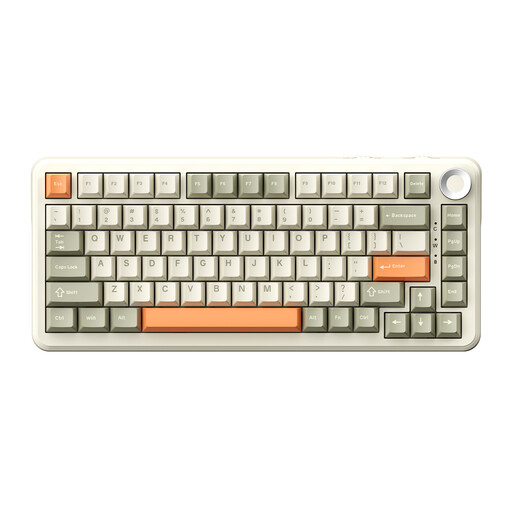
AJAZZ AK820 MAX 75% Wireless Mechanical Keyboard, Tri-Mode, US QWERTY
The compact layout could suit you if you want to keep space beside the keyboard for mouse work; check the positions of the keys you use in your route planner first.
The product name lists Tri-Mode connectivity, a US QWERTY layout, Flying Fish Switches and a volume knob.
Joybuy
 No image available
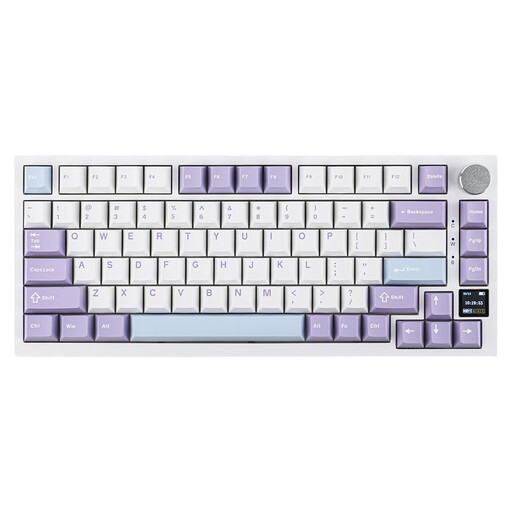
AJAZZ AK820 Pro 75% Mechanical Tri-Mode Keyboard, US QWERTY, Flying Fish Switch Purple
The compact layout could work well for mouse use beside the keyboard; check that the arrow and function key positions suit your route planner.
The product name lists wired, Bluetooth and 2.4G use, hot-swap and a US QWERTY layout.
Joybuy
 No image available
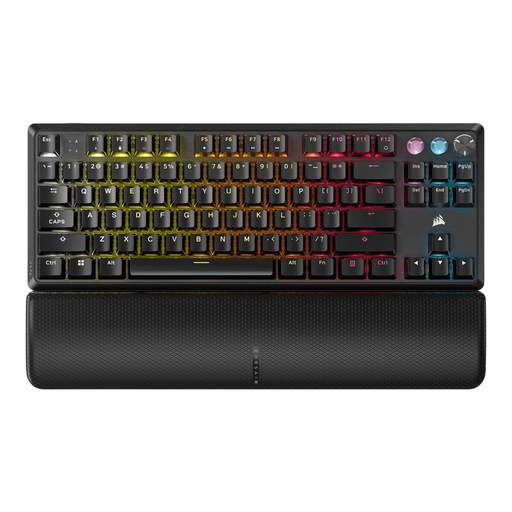
Corsair K70 PRO TKL Magnetic-Mechanical Keyboard, US QWERTY, MGX v2
The TKL layout without a number pad could suit you if you want to keep space free for mouse movement; if you have an adjustable desk, consider the cable route.
The product name lists a US QWERTY layout and MGX v2.
Joybuy
 No image available
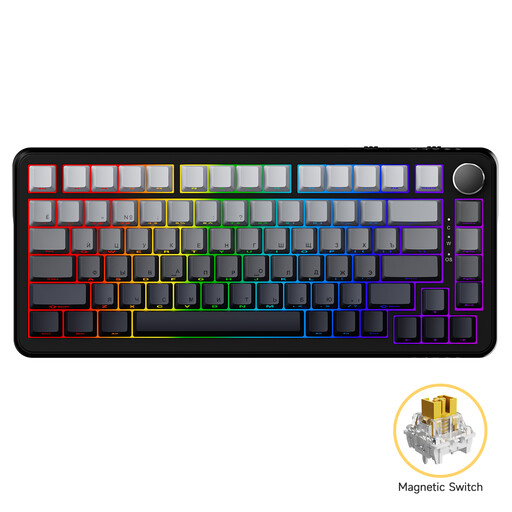
AJAZZ AK820 MAX Magnetic Axis Wired Mechanical Keyboard, 82 keys
The compact layout may help leave space beside the keyboard; check that the keys you use in your route planner are in the right place for you.
The product name lists a wired version and hot-swappable keys. If you have an adjustable desk, consider the cable route.
Joybuy
 No image available
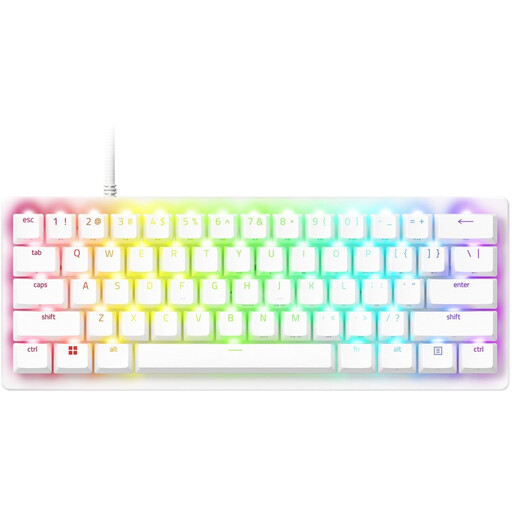
Razer Huntsman V3 Pro Mini Keyboard, White, US Qwerty Layout
A compact layout can leave room for mouse work, but check that the key controls work with your route planner.
The description lists programmable keys and macro recording; modifier keys work as arrow keys. It connects via a wired USB-C connection, so consider the cable route when adjusting your desk.
Joybuy
Frequently asked questions
Is a compact keyboard always the best choice for plotting routes?
No. A compact model can free up space for your mouse, but check that you can comfortably reach the arrow, function and other keys in your route planner. A smaller size alone doesn’t prove that it will be more ergonomic for your workspace.
How should I set up my keyboard if I switch between sitting and standing?
Adjust your workspace to suit your own body measurements, and check the position of your keyboard and mouse in both positions. Also vary your posture and tasks. Arboportaal offers workplace advice, but doesn’t recommend one universal keyboard height.
Does a wireless keyboard need to connect to all my devices?
Only if you actually want to use those devices. Logitech lists Bluetooth and an included Logi Bolt receiver for Wave Keys; the MX Keys Mini manual describes pairing with up to three computers. Before buying, check the ports, operating system and exact variant.
What rules apply to screen work at a sit-stand desk?
For employees who work at a screen for more than 2 hours a day, Arboportaal states that the screen and keyboard must not be attached to one another; laptop users must therefore be able to use a separate screen or keyboard. Arboportaal also states that screen work should be alternated with other work or a break. This is not a general legal requirement for everyone buying a route planner for personal use.
What are my rights if I’m not happy with the keyboard or it develops a fault?
For a standard online consumer purchase, ACM ConsuWijzer says you generally have a cooling-off period of up to 14 days after delivery, with some exceptions. This is separate from your right to a product that is fit for purpose: according to the Dutch government, the seller is your point of contact if there’s a fault. The Netherlands has no fixed general statutory warranty period.


