If you find the keys difficult to read while writing, look for large, high-contrast legends. You can adjust the size of on-screen text separately using your computer or software. If you use ZoomText or Fusion, check that your keyboard, software and Windows version are compatible. If you spend a lot of time typing, it’s also worth considering the layout and key feel at your workstation.
Who is this relevant to?
Writers who find keys difficult to read
If you look at the keyboard while writing, consider large legends and a high-contrast colour combination that makes letters, numbers and symbols easy to recognise. Sensotec Nederland and Optelec Nederland describe large-print versions with contrasting keys.
Editors who use screen magnification
If you work with magnified on-screen text, you may also want to be able to use navigation and magnification commands. Optelec Nederland describes keyboard shortcuts for ZoomText and Fusion, while Microsoft Support explains screen magnification in Windows.
Guide writers who do a lot of typing
For long writing and editing sessions, the layout, key feel and setup of your workstation can all matter. Logitech describes the key shape of the MX Keys S, while Arboportaal offers advice on working with display screens.
What should you look for when choosing?
Assess the readability of the key legends and on-screen text separately: a large-print keyboard won’t enlarge the text in your web editor.
| What to consider |
What should you check? |
Who is this important for? |
| Key readability |
Compare the letters, numbers and symbols on the exact version, and check that it has a QWERTY layout. |
If I look at the keys while typing, I want to be able to recognise the characters clearly. Around 36% of consumers prioritise readable key legends. |
| Using the keyboard with screen magnification |
Test text size and navigation in your own web editor, and check the software and system requirements for any special keys. |
When I edit with magnified on-screen text, I want to be able to use my editor and magnification commands. Around 29% of consumers say that being able to use a keyboard with screen magnification is their top priority. |
| Typing comfort for long writing sessions |
Try the key feel and frequently used editing keys, and set up your workstation to suit your tasks. |
For long writing and editing sessions, I want a layout and key feel that work for me. Around 21% of consumers put typing comfort during extended use first. |
| Connectivity and compatibility |
Check USB or Bluetooth connectivity, the operating system and the exact computer model. |
If I want to use the keyboard with my computer, its connection and version need to suit my workstation. Around 14% of consumers give compatibility top priority. |
Common mistakes when choosing
-
Confusing large key legends with larger on-screen text
A keyboard with large legends won’t change the size of text or controls in your web editor.
Assess the keyboard and screen separately. To enlarge on-screen text, adjust your computer settings or use magnification software.
-
Choosing special shortcut keys without checking the software
The shortcuts on the ZoomText keyboard are designed for ZoomText or Fusion. Optelec lists Windows 8/8.1, 10 and 11 as supported operating systems.
Before buying, check your operating system, the software you use and the editing features you need.
-
Assuming backlit keys have large, high-contrast legends
Backlighting and large key legends are different features. Logitech describes the MX Keys S as backlit, while large-print models specify larger legends.
Compare the legends and backlighting on the exact version in the conditions in which you type.
Brands to consider
ClearKeys
A large-print option for anyone looking for contrasting, easy-to-see key legends.
- Sensotec Nederland lists a wired QWERTY version with black characters on yellow keys, navigation keys and a numeric keypad.
- The version described connects via USB. Check that its layout and connection suit your workstation.
ZoomText
A large-print keyboard with dedicated controls for ZoomText or Fusion users.
- Optelec Nederland lists two contrast options and programmable shortcut keys.
- Check that your software and Windows version are compatible with the dedicated controls. The keyboard doesn’t replace magnification software.
LogicKeyboard
The Large Print range includes versions with large legends, including models for different computer platforms.
- LogicKeyboard lists adjustable backlighting and Bluetooth plus USB on certain TITAN versions.
- Features vary between Mac, Windows and other versions, so check the exact model.
Logitech
The MX Keys S is a standard backlit typing keyboard, not a large-print model.
- Logitech lists customisable backlighting, concave keys and switching between up to three devices.
- Backlighting alone doesn’t tell you whether the legends will be easy for you to read.
Low Vision Design
A large-print option described by a Dutch assistive technology supplier, with white legends on black keys.
- The supplier lists USB connectivity and 1,5 × 1,5 cm keys for this version.
- Check that the stated key layout and contrast suit the way you’ll use it.
Joybuy product pick
A Joybuy keyboard option for typing. Check that the exact version meets your need for readable keys and is compatible with your computer.
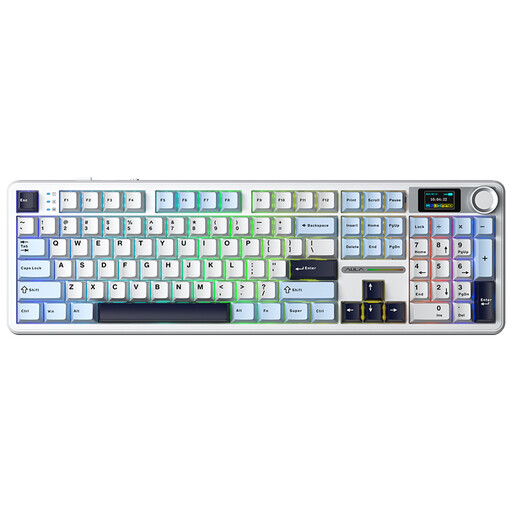 Image unavailable
AULA F108 Pro mechanical gaming keyboard, Light Blue
The listed Bluetooth, 2.4G and USB-C connections may be useful if you need to match the connection to your workstation. Check your computer’s requirements.
The product description mentions a gasket construction and pre-lubed linear Reaper switches, which are said to offer a softer typing feel.
The product name mentions a smart LCD screen with a rotary knob and hot-swappable switches.
View at Joybuy
Frequently asked questions
Does a large-print keyboard enlarge text in your web editor?
No. The large legends are printed on the keys. In Windows, you can enlarge on-screen text and other elements separately; try the settings in your own web editor. Special keys can control magnification software, but only if the software and system requirements are met.
What should you look for in a USB large-print keyboard?
Check that your computer has a suitable USB port and that the physical key layout suits your work. If you spend a lot of time working with a display screen, Arboportaal also advises setting up your workstation to suit your tasks, changing your posture regularly and taking short breaks.
What is the cooling-off period for an online purchase in the Netherlands?
The Dutch government states that many online consumer purchases come with a 14-day cooling-off period. This does not automatically apply to every purchase, so check the terms and any exceptions that apply to the specific purchase.
Are there Dutch rules on separate keyboards for display screen work?
For employees who work with a display screen for more than 2 hours a day, Arboportaal states that the screen and keyboard must not be attached to each other. This is not a general requirement for every private buyer.


