What should you consider when choosing?
Full-size keyboard
A good fit if: you often enter stall numbers, prices or other figures and have room for a keyboard and mouse.
The trade-off: a full-size keyboard takes up more desk space; check that the version really does have a number pad.
Compact keyboard
A good fit if: you mainly enter names and descriptions, or want more room for your mouse.
The trade-off: check that the function and navigation keys are still easy to reach, and whether you’d miss having a number pad.
Split keyboard
A good fit if: you want to position each hand separately during long typing sessions.
The trade-off: an unusual layout may take some getting used to, and on its own it has not been shown to prevent discomfort.
Basic wired keyboard
A good fit if: you work at one fixed computer and don’t need a wireless connection or the ability to switch between devices.
The trade-off: you’ll need a cable and a compatible port; check the layout of the version too.
For this task, the main trade-offs depend on what you enter and how much space you have. The percentages below relate to consumers choosing a keyboard for this task; each row describes one primary purchasing need.
| Factor |
What to look for when buying |
Which consumers it suits |
| Text entry and window navigation |
Check that the navigation and function keys are easy to reach, and look up your operating system’s keyboard shortcuts. Device-switching buttons switch between devices, not between windows on the same computer. |
When I enter names and descriptions while consulting reference sources, I want to move easily between windows. Around 36% of consumers give text entry and window navigation top priority. |
| Hand position during long sessions |
Consider the keyboard shape alongside the position of your mouse and your workstation setup; if possible, try an unusual layout before you buy. |
During long typing sessions, I want to be able to adjust my hand position and the rest of my workstation. Around 29% of consumers give hand position top priority. |
| Entering lots of numbers |
Check that the exact version has an integrated number pad and that there’s room for both your keyboard and mouse. |
If I often enter stall numbers or prices, a number pad is important to me. Around 21% of consumers give number entry top priority. |
| Limited desk space |
Compare the layout with how you use number and navigation keys; a compact model may not have a number pad. |
With limited desk space, I want to leave room for my mouse. Around 14% of consumers give a compact keyboard and room for a mouse top priority. |
Keyboards at Joybuy
These product picks are suited to entering market-stall details, and include keyboards with a number pad as well as more compact options.
 No image available
Full-size wired keyboard with number pad, QWERTY
An option to compare if you enter lots of numbers and work at one fixed computer.
The product name lists a number pad, a QWERTY layout and a wired plug-and-play connection.
View at Joybuy
 No image available
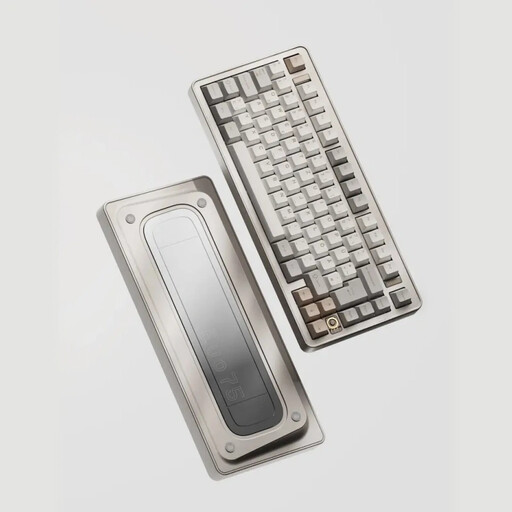
Ticktype EVO75 mechanical keyboard, US layout
A compact option to compare if you want to free up desk space; check whether the US layout suits the way you use your keyboard.
The product name describes a mechanical keyboard with a US layout and three connection modes.
View at Joybuy
 No image available
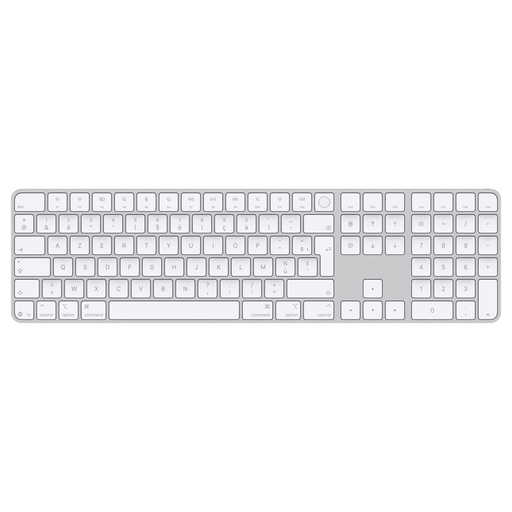
Apple Magic Keyboard with Touch ID and number pad
An option to compare if you’re looking for a number pad and keys for navigating documents.
The product name lists Touch ID and a number pad. Check that the version suits your computer and how you plan to use it.
View at Joybuy
 No image available
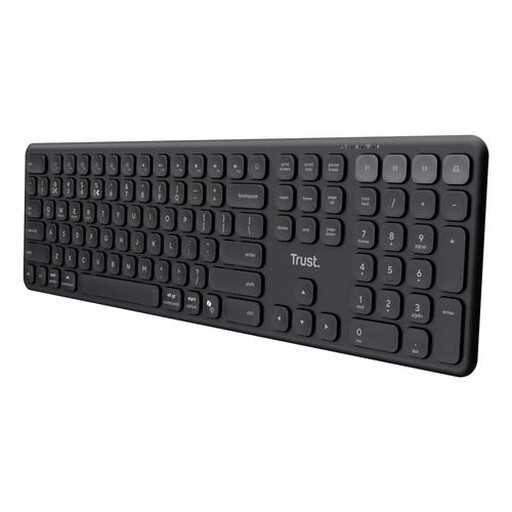
Trust Vaiya wireless keyboard with number pad, US QWERTY
Worth comparing if you want a number pad and plan to use the keyboard with other devices too.
The product name lists a full-size keyboard with scissor keys and a US QWERTY layout. Check that the layout suits you.
View at Joybuy
 No image available
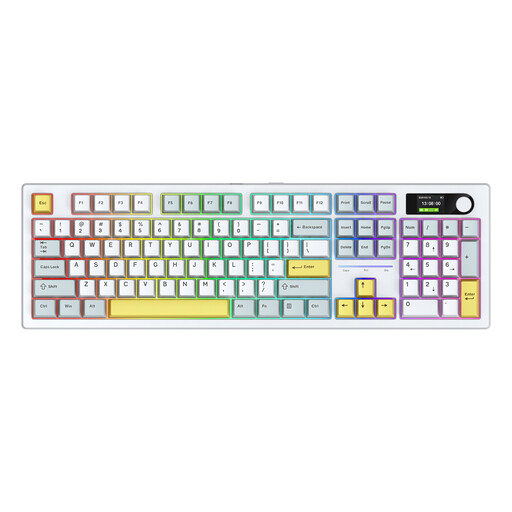
Siukie ACH105 mechanical keyboard, Alice layout, 104 keys
An alternative layout to compare if you want to see whether the key positions suit the way you type.
The product name lists a mechanical keyboard with 104 keys and an Alice layout.
View at Joybuy
Frequently asked questions
Do you need device switching for multiple browser windows?
No, not to switch between windows on one Windows computer: Microsoft Support lists Alt+Tab among the shortcuts for this. Device-switching buttons are designed to switch between separate connected devices. Check the shortcuts for your operating system.
How do you connect a wired or wireless keyboard?
Before buying, check your computer’s port or wireless connection, and the version you’ve chosen. The R-Go Split Break v.2 manual describes separate steps for USB and Bluetooth; these don’t automatically apply to other models.
Is a different keyboard enough to prevent discomfort when typing for long periods?
No, that can’t be concluded from the product specifications mentioned. For screen work, Arboportaal highlights repetitive movements, static strain and workstation setup. Workplace rules for employees are not automatically a buying requirement for every reader.
What if a keyboard bought online doesn’t work properly?
If you use a product normally and it doesn’t meet what you could reasonably expect, ACM ConsuWijzer explains that statutory guarantee rules require the seller to offer a solution. For a standard online consumer purchase, you’ll generally also have a statutory cooling-off period of up to 14 days after delivery, with some exceptions. Check the terms that apply to your purchase.
Is CE a quality mark for a keyboard?
No. According to RVO, CE is a conformity marking, not a quality mark or a guarantee of safety. Check the requirements that apply to the specific version; the CE logo says nothing about typing comfort.


