Choose a keyboard with a layout and key feel that suit the way you write and navigate. Track Changes is managed in Word or Google Docs, not by the keyboard. For a fixed workstation, you could compare a wired standard model with a wireless one that has customisable keys; a split model is another option if you want to try a different hand position. Check the layout, connection and any software requirements for each version.
Who this advice is for
Writers and editors
If you write long documents and work with changes or comments, consider how easy it is to reach the navigation and function keys. Microsoft Support and Google Docs Editors Help explain the editing features available in document software.
Writers who type for long periods
If you type for long stretches, you could compare a standard layout with a split design and see for yourself which key positions suit your hands. A product’s design is no proof that a keyboard prevents discomfort.
Editors who switch between devices
If you write or proofread on several computers or other devices, check the connections supported by each model, its keyboard layout and whether it lets you switch between devices.
What to look for when writing and editing
Wired standard keyboard
A good fit if: you mainly write at one fixed workstation and don’t need to switch between devices wirelessly.
Bear in mind: it has a cable and doesn’t let you switch wirelessly between devices.
Wireless keyboard with customisable keys
A good fit if: you switch between devices or want to assign a frequently used action to a key.
Bear in mind: the software you need, whether you can access it on your work computer and your document programme’s settings.
Split keyboard
A good fit if: you want to compare a different hand position and assess the key placement for yourself.
Bear in mind: the unusual shape may take some getting used to, and it won’t suit every hand in the same way.
| What to consider |
What to check |
Who this matters to |
| Writing and editing |
Test how easy it is to reach Ctrl, Shift and the navigation keys in your programme; check whether key customisation software is needed and permitted. |
When working on long documents, I want to navigate quickly and make edits without triggering unwanted key combinations. Around 36% of consumers prioritise this editing workflow. |
| Hand position when typing for long periods |
Compare key spacing, wrist support and the space available; try a split design if possible. |
When typing for long periods, I want a hand position that suits my hands, without assuming a particular model will prevent discomfort. Around 29% of consumers prioritise hand position. |
| Layout and sound |
Check the physical layout of the version on offer and assess how the keys feel and sound at your workstation. |
At my writing desk, I want familiar positions for letters and punctuation, and a key feel that suits my surroundings. Around 21% of consumers say layout and sound are their main consideration. |
| Connection and switching between devices |
Check the supported devices, connection method and any software requirements for each version. |
If I write or proofread on several devices, I want to be able to switch between them using a connection that works with them. Around 14% of consumers prioritise switching between devices. |
Common buying mistakes
-
Confusing a programmable key with Track Changes
Editing features and document permissions are managed in Word or Google Docs. A programmable key doesn’t add these features on its own.
First, check your document software and permissions. Then see whether customising a key would make a task you perform regularly easier.
Setting up key actions can take time and may require access to keyboard software.
-
Not checking the keyboard layout
Shortcuts and punctuation key positions may differ from examples written for a US keyboard layout. Microsoft Support and Google Docs Editors Help point out that layouts and languages can vary.
Check the layout of the specific version and test the keys you use for punctuation, navigation and editing.
-
Assuming a split keyboard prevents discomfort
A split design offers a different hand position, but product specifications don’t prove that a model prevents discomfort or suits everyone.
Assess the key positions and your workstation setup separately; don’t treat a product description as a medical outcome.
A different key position may take some getting used to.
Brands to compare
Logitech
The MX Keys S is worth comparing if you want to switch wirelessly between devices or customise keys using software.
- Logitech lists device switching, backlighting and Smart Actions via Logi Options+ for this model.
- The manufacturer’s specifications don’t prove that editing will be faster. Check your access to the software and the layout of the version you choose.
CHERRY
The wired STREAM KEYBOARD is worth comparing if you have a fixed writing space and want a standard layout.
- CHERRY lists a low-profile design, SX scissor mechanism, and Office and multimedia keys.
- The description of the keystrokes as whisper-quiet is a manufacturer claim; this model doesn’t offer the wireless device switching available on wireless alternatives.
Kensington
The Pro Fit Ergo Wireless Keyboard K75401WW is worth comparing with a standard layout if you’re considering a split, adjustable keyboard design.
- Kensington lists a split design, wrist support and Bluetooth and 2.4GHz connections. The manufacturer says the product suits average to large hands.
- These product specifications don’t prove that the model prevents discomfort; judge for yourself whether the shape and key positions suit you.
Keyboard options at Joybuy
These picks are aimed at writing with a wired or wireless keyboard, including models with customisable keys or multi-device connectivity. Above all, check that the layout and connection suit your computer and the way you work.
 No image available
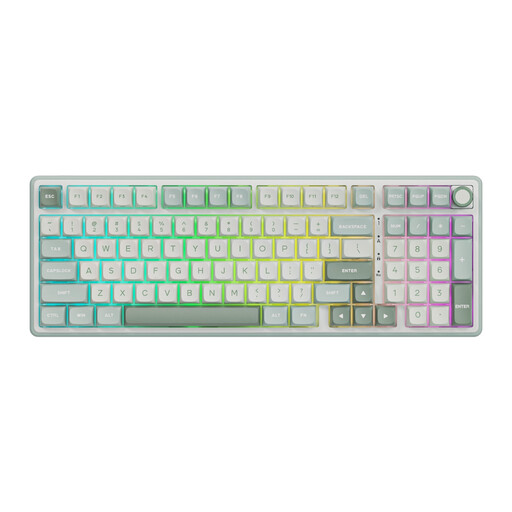
RK ROYAL KLUDGE R98 Pro Wired Mechanical Keyboard
A wired mechanical keyboard worth comparing if you want to set up macros and use a numeric keypad.
The product description lists a 94-key layout, PBT keycaps, hot-swappable switches and a detachable wrist rest. It mentions an online driver for customising keys and macros.
View at Joybuy
 No image available
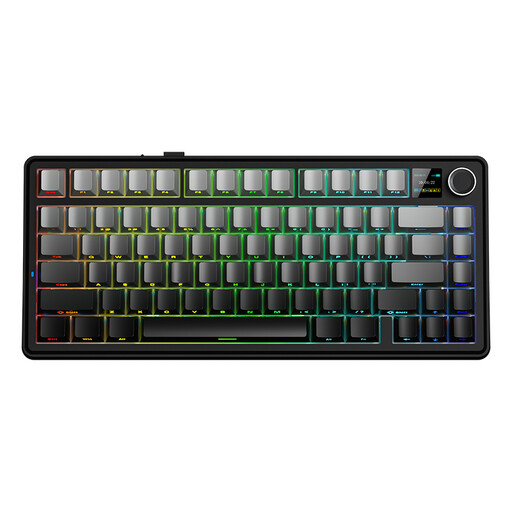
AULA F75 MAX 75% Mechanical Wireless Keyboard
A compact option worth comparing if you want to choose between wired and wireless connections.
The product name lists a 75% layout, QWERTY US layout, and wired, Bluetooth and 2.4GHz connections. Check that the US layout suits the way you type in Dutch.
View at Joybuy
 No image available
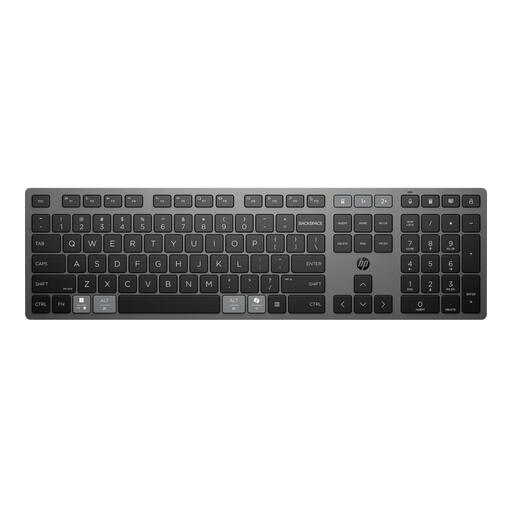
HP 725 Multi-Device Rechargeable Wireless Keyboard
A wireless option worth comparing if you want to customise keys and switch between devices.
The product description lists a full-size layout, programmable keys and connections to two devices via Bluetooth and one via a 2.4GHz dongle.
View at Joybuy
 No image available
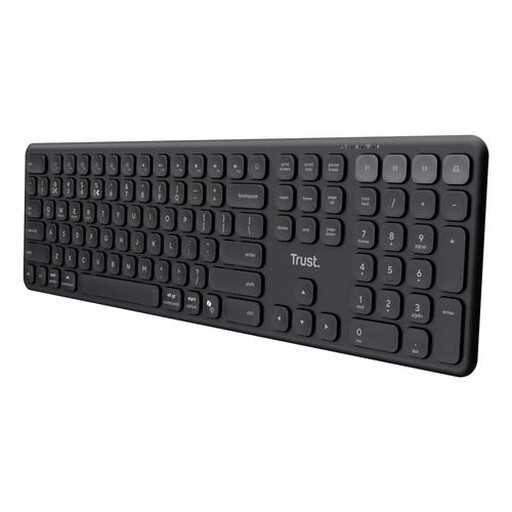
Trust Vaiya Wireless Keyboard Full-Size
A full-size option worth comparing if a low profile and switching between several devices matter to you.
The product description lists low-profile scissor keys and switching between up to four connected devices. The title specifies a QWERTY US layout.
View at Joybuy
 No image available
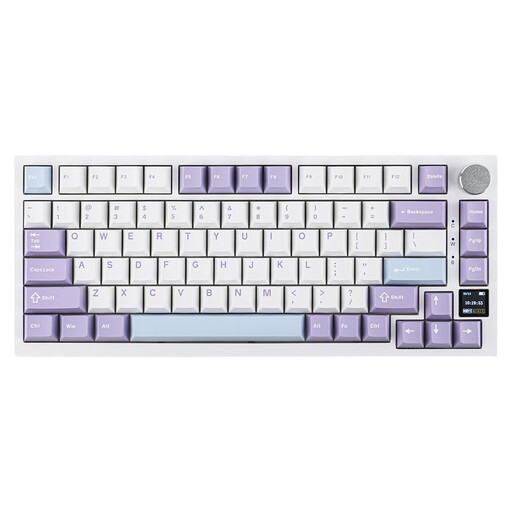
Ajazz AK820 Pro 75% Mechanical Tri-Mode Keyboard
A compact mechanical option worth comparing if you want both wired and wireless connections.
The product name lists a 75% layout with 82 keys, wired, Bluetooth and 2.4GHz connections, and hot-swappable switches. The title specifies a QWERTY US layout.
View at Joybuy
Frequently asked questions
Do I need a special keyboard to track changes?
No, this feature is part of your document software. In Word, turn on Track Changes using the review features; in Google Docs, use Suggesting mode and make sure you have the right document permissions. Choose a keyboard based on its controls, layout and key feel.
Do all keyboard shortcuts work the same way with a Dutch layout, Mac and Windows?
Not necessarily. Microsoft Support notes that the Word shortcuts described are based on a US keyboard layout; Google Docs Editors Help warns that some shortcuts don’t work with all languages or keyboards. Test important combinations in your programme and with your layout.
Can I set up my own editing shortcuts?
That depends on your version of Word and your keyboard software. Microsoft Support explains how to customise keyboard shortcuts for Word on Windows and notes that the steps and options may differ on Mac and in Word for the web. Also check whether a reassigned key combination will lose its previous function.
Which keyboard is right for long writing sessions?
It depends on the hand position and key layout that work for you. A split model is one design to compare, not a guarantee of a particular outcome. Assess the key placement and your overall workstation setup separately.
What workstation rule applies to employees who use a laptop for long periods?
For employees who spend more than 2 hours a day working with a screen, Arboportaal’s workstation guidance states that the screen and keyboard must not be attached to each other. This means laptop users must be able to use a separate screen or keyboard. This is a conditional rule for the workplace, not a general product specification for every buyer.


