
Writer working on long chapters
You type long passages at a screen and want to choose a keyboard layout and workspace that suit the way you write. Arboportaal points out that screen work can involve repetitive hand movements and static strain.


Start with a layout and key feel that are comfortable for long writing sessions, then check that the navigation and function keys suit the way you edit your section outline. A split keyboard offers a different hand position, but may take some getting used to. A compact model saves space, but may omit keys, while customisable features are only useful if the required software and your writing programme support them. A keyboard alone cannot prevent problems caused by prolonged screen work.
You type long passages at a screen and want to choose a keyboard layout and workspace that suit the way you write. Arboportaal points out that screen work can involve repetitive hand movements and static strain.
You switch between your text and section outline, and want navigation or function keys to be easy to use. Customisable actions may be useful if the software and your writing programme support the edits you want to make.
You write at a small desk or use several devices, so size and connectivity are important considerations. Also think about whether you need a number pad or other keys that may be missing from compact layouts.
Choose this if: you want to try a different hand and wrist position during long writing sessions.
Bear in mind: an unfamiliar layout may take some getting used to, and product claims are no guarantee against discomfort.
Choose this if: you want to stick with a familiar layout and use keyboard shortcuts for repeated edits.
Bear in mind: Logitech directs users to Logi Options+ for the Smart Actions on the Logitech MX Keys S. Check that your computer and writing programme support the actions you want to use.
Choose this if: you have limited desk space, take your keyboard with you or write on several devices.
Bear in mind: compact layouts may omit keys or a number pad; CHERRY lists three Bluetooth channels for the KW 7100 MINI BT.
Choose this if: you work on one computer and want a conventional layout with cursor keys and a number pad.
Bear in mind: the CHERRY KC 1000 uses USB-A and takes up more desk space. Check that its port and operating system are compatible with your computer.
First, decide which layout suits your writing posture and section work. Then compare the keys, connection and any software you need with your computer and writing programme.
| What to consider | What should you check? | Who should bear this in mind? |
|---|---|---|
| Comfort during long writing sessions | Try the hand position and key feel, and assess your mouse and screen setup too. | If I write for long stretches, I want to know whether the layout feels comfortable at my desk. Around 40% of consumers prioritise comfort during long writing sessions. |
| Navigation and repeated edits | Check the position of the arrow and function keys, and test the shortcuts you want to use in your writing programme. | If I often switch between my text and section outline, I want to navigate and make edits quickly. Around 30% of consumers prioritise rearranging and navigating their outline. |
| Desk space and switching between devices | Compare the layout and dimensions with your desk, and check the connection with every device you use. | If my desk is small or I write on several devices, the right size and a reliable connection matter. Around 20% of consumers prioritise saving space or switching between devices. |
| Simple connection and familiar layout | Check the port and operating system, and make sure the specific version has the keys you need. | If I always work on the same computer and don’t need wireless features, I want a simple connection and a familiar layout. Around 10% of consumers prioritise simplicity. |
A different layout may offer a different hand position, but varying your work and setting up your workspace properly are important too. Arboportaal describes repetitive hand movements and static strain associated with screen work.
Try the layout and assess your entire workspace. Don’t treat ergonomic product claims as a guarantee of an individual medical outcome.
Compact and full-size models suit different needs. Some of the keys you use to navigate your sections may be missing.
Before buying, compare the layout of the exact model with the keys you use in your writing programme.
If you still need the missing keys, you may need a separate number pad or to use key combinations more often.
The customisable features on the MX Keys S are linked to Logi Options+; Logitech lists Windows and macOS as compatible with this software.
Check your operating system and test whether the action you want works in your writing programme before relying on the feature.
The MX Keys S has a conventional layout with customisable features, while the ERGO K860 has a fixed split key field.
The KW 7100 MINI BT is a compact Bluetooth option, while the KC 1000 is a wired keyboard with a full-size layout.
The Keyra is described as a split, full-size keyboard with quiet keys and multi-device connectivity.
The Compact Break is a compact option with a break indicator.
These Joybuy options include compact and full-size layouts, with wired and wireless versions to suit different workspaces.
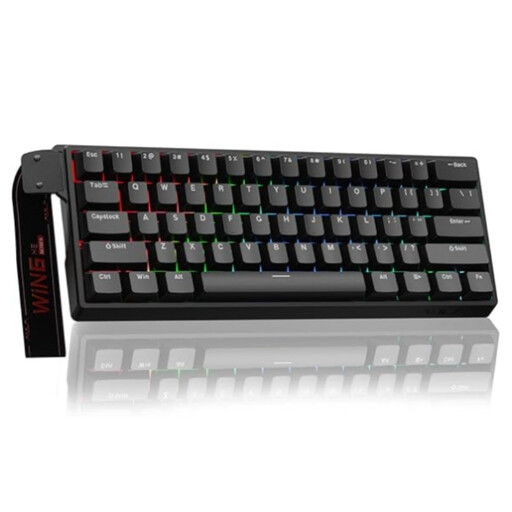 No image available
The compact layout may suit you if you have limited desk space.
60% size with 61 keys, a wired connection and a US QWERTY layout. This model has no number pad.
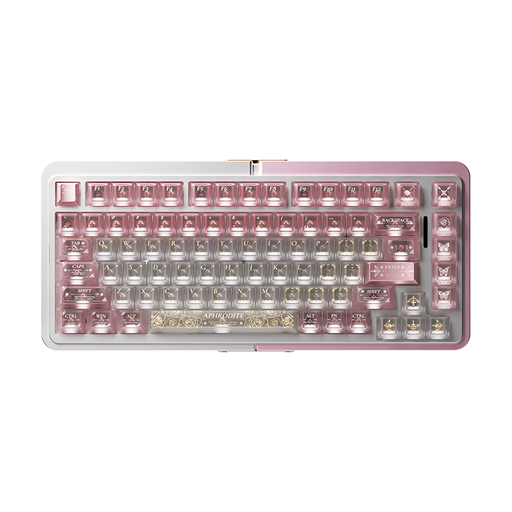 No image available
The 75% layout is an option if you’re looking for a smaller keyboard; check that it suits the way you navigate.
Hall Effect switches and wired mode. The product description mentions a gasket construction and sound-dampening layers.
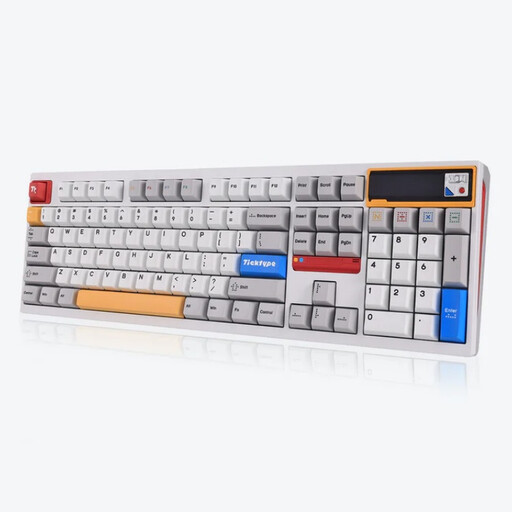 No image available
The full-size layout may suit you if you want to keep the extra keys; check that the connection options work for your needs.
108 keys. The product description lists Bluetooth, 2.4 GHz and USB-C connectivity.
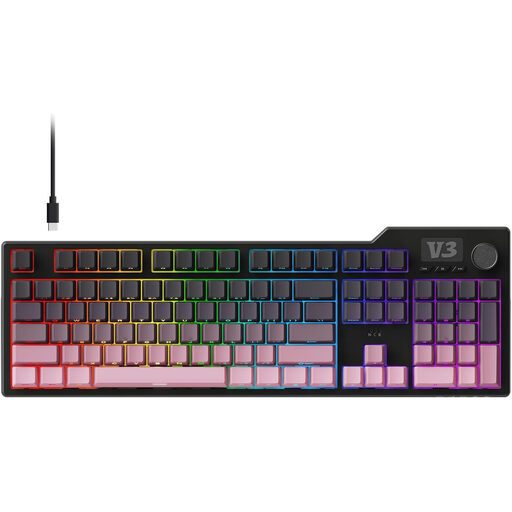 No image available
A full-size layout may suit you if you use the function keys and number pad.
The product description lists a 104-key layout and a wired connection. This version has a QWERTZ layout.
 No image available
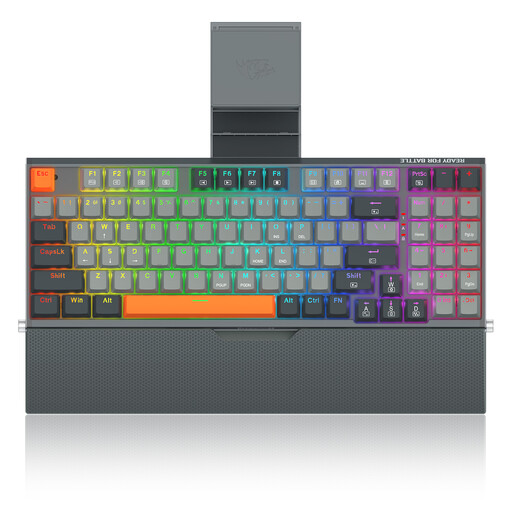
The 94-key layout and included wrist rest are worth considering when comparing the keys and accessories for your workspace.
Wired version with a metal case and phone holder.
You can’t tell from the keyboard’s shape alone. Arboportaal describes repetitive hand movements and static strain associated with screen work; varying your work and setting up your entire workspace properly remain important. Assess a different layout based on your own posture, and don’t use it as a treatment.
For the customisable Smart Actions on the MX Keys S, Logitech recommends Logi Options+, which it lists for Windows and macOS. Also check that your writing programme supports the edit you want to make; standard keyboard navigation is not the same as a custom action.
Before using it, check how the exact model pairs and is powered, and follow the cleaning instructions in the manual. CHERRY lists low-battery status lights for the KW 7100 MINI BT; Trust lists an on/off switch for the Keyra.
When you buy as a consumer, the product must comply with the agreement; the Dutch Government says there is no fixed statutory warranty period. The seller is your point of contact if a product is faulty. For eligible distance purchases, the Dutch Government generally provides a 14-day cooling-off period; check the terms and exceptions for your purchase. The cooling-off period and your rights if a product is faulty are separate matters.
For employees who work at a screen for more than two hours a day, Arboportaal describes requirements concerning the use of a separate screen or keyboard with a laptop. This concerns the setup of a workplace under those conditions; it is not a general requirement for every private individual who writes.