
Writers of long web guides
If you write and edit a lot of text, look for a layout and key feel that suit your everyday writing setup.


Choose a keyboard with a layout and key feel that suit extended writing. Then decide whether you mainly want customisable keys, the ability to switch between devices or a fixed, wired connection. A keyboard can make recurring tasks easier to manage, but you create and manage cross-references and links in your word processor or web editor.
If you write and edit a lot of text, look for a layout and key feel that suit your everyday writing setup.
If you regularly move between sections of a document, sources and links, choose a keyboard that works well with your editor and its keyboard shortcuts.
If you move between devices or locations, weigh up portability and connectivity against a familiar keyboard layout.
| What to consider | What should you check? | Who is this important for? |
|---|---|---|
| References and editor tasks | Test the link and reference features in your own editor and operating system before assigning keys. | If I often insert references, I want to know which tasks my editor supports. Around 36% of consumers prioritise their reference workflow. |
| Extended typing and posture | Consider your hand position, the height of your workspace and how the keys feel to you. | If you write long texts, look for a keyboard that suits your workspace and preferred typing feel. Around 29% of consumers prioritise extended typing and posture. |
| Key feel, sound and layout | Check the exact keyboard layout and the position of punctuation marks and function keys; try the keys if possible. | If I write a lot, I want the key feel and placement to suit my everyday work. Around 21% of consumers mainly choose based on key feel and layout. |
| Switching between devices or workspaces | Check the connections, compatibility with your devices, included accessories and charging method. | If you write on different devices or in different locations, you want to connect easily without losing a familiar layout. Around 14% of consumers prioritise switching between devices or workspaces. |
Your editor determines how links and cross-references are created and updated. Assigning a task to a key doesn’t replace that process.
Test the entire reference workflow in the software you use before configuring your keys.
A compact layout may differ from the one you’re used to. A product range may also include both a standalone keyboard and a keyboard-and-mouse set.
Compare the full model name, physical layout and contents of the version on offer.
A keyboard description doesn’t prove that everyone will find it comfortable to type on. Your overall workspace setup also matters when you spend long periods working at a screen.
Consider the keyboard alongside your screen position, desk and working style. Don’t treat manufacturers’ comfort claims as a proven outcome for you personally.
The MX Keys S is an option for a fixed writing setup where customisable keys and switching between devices are useful.
The STREAM KEYBOARD is a wired option for writing, with an SX scissor mechanism.
The Lyra Compact is designed for compact setups and switching between devices; make sure you’re looking at the standalone keyboard version.
The K3 Pro is a compact mechanical option for anyone who wants to remap keys.
This selection of Joybuy products includes keyboards for writing long texts, with both full-size and more compact layouts.
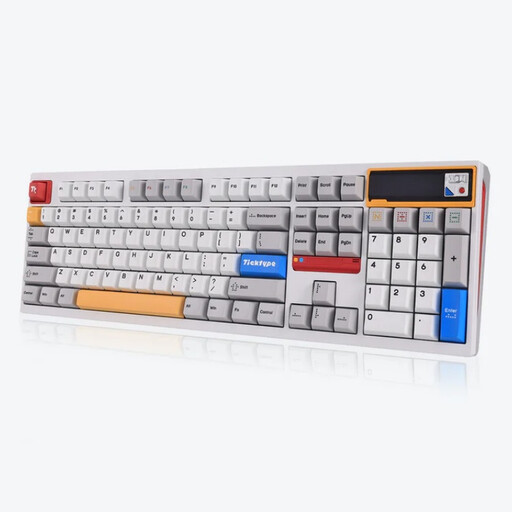 Image unavailable
The full-size layout is worth considering if you want a complete keyboard setup for writing long texts.
The product name lists 108 keys, a hot-swappable version and a US layout. Check that the position of the keys and symbols suits your preferences.
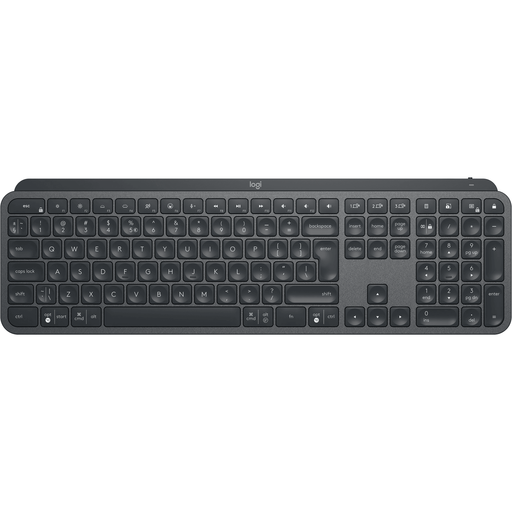 Image unavailable
An option to consider if you want to customise keys for repeated tasks supported by the software you use.
This version is listed as US QWERTY. Key customisation depends on Logi Options+ and its supported features; also check that the layout suits you.
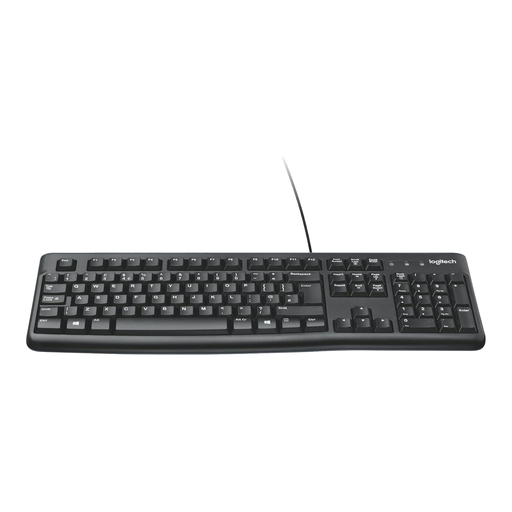 Image unavailable
A wired version may suit a fixed writing setup where you don’t want to use a wireless connection.
Where you can place it depends on the available cable length. Check that the stated US International QWERTY layout suits your preferences.
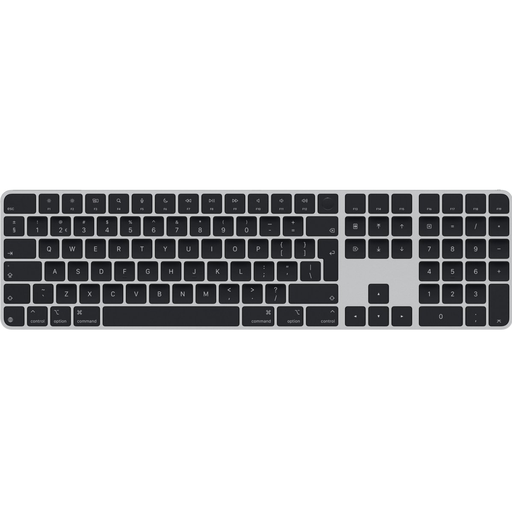 Image unavailable
An option for anyone looking for a Dutch QWERTY layout who uses document navigation while writing.
The product name lists USB and Bluetooth. Check whether this version includes the numeric keypad and navigation keys you need.
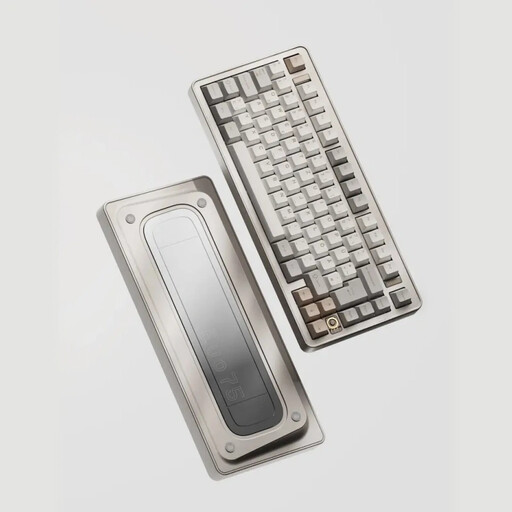 Image unavailable
A compact mechanical option to consider if you want to remap keys and save desk space.
The product name lists a 75% layout, a US layout and VIA compatibility. Check that the key positions and customisation options you need suit the way you work.
No. In Word, cross-references are document fields; in the WordPress block editor, you can create links to an HTML anchor, among other things. A keyboard can help you operate these features, but you set them up in the software you use and check where they lead.
In the WordPress block editor described here, you can link selected text by pressing Ctrl+K, or ⌘+K on a Mac. If you use another editor, check how to do this in that software; checking a link when you add it doesn’t confirm that the destination exists.
Check that your keyboard and operating system are supported by the customisation software. Logitech lists Logi Options+ for device- and app-specific customisation; this doesn’t mean every key action will work in every editor.
In the versions of Word described here, you may sometimes need to update field information manually. Microsoft describes pressing Ctrl+A followed by F9 to update fields; then check the reference destinations in your web publication too.
Arboportaal states that for employees who work at a screen for more than 2 hours a day, the screen and keyboard must not be attached to each other. This means that when using a laptop, it must be possible to use a separate screen or keyboard. This is a workplace regulation, not a general buying requirement for every individual shopper.