
Long-form guide writer
You write and edit lengthy documents, so you’ll want to focus on key feel, layout and a setup that suits you.


Start by considering the keyboard layout, typing feel and computer you use. Then decide whether a split design, customisable keys or switching between devices matters to you. Microsoft Support explains that cross-references are a word-processing feature: a programmable key can help you perform an action, but it won’t create or maintain the references for you.
You write and edit lengthy documents, so you’ll want to focus on key feel, layout and a setup that suits you.
You often move between headings and references. Microsoft Support explains how to use the Navigation pane in Word; navigation and cross-reference features are part of the word processor.
You switch between devices or locations while writing. Check the connection, size and layout you’ll use at each workstation.
When writing and editing a long guide, typing comfort, document navigation, switching workstations and choosing the right keyboard layout are the main factors to consider.
| What to consider | What to look for when buying | Who should prioritise this? |
|---|---|---|
| Typing comfort during long sessions | Compare key feel and spacing. Also consider whether a flat or split design suits your workstation. | I want to write for longer with a design and key feel that suit me; around 33% of consumers put typing comfort first. |
| Navigation and editing | Try the shortcuts in your word processor and check that they work with the keyboard layout. Find out whether customisable keys require additional software. | If I often return to headings and references, I want the controls to suit the way I work; around 27% of consumers give document navigation top priority. |
| Switching between devices | Check which connections your devices support and whether the size suits your different workstations. | I want to write on more than one device without having to change my workflow each time; around 20% of consumers care most about switching between workstations. |
| Layout and simplicity | Check the exact regional version, operating system and connection required. Compare the key legends with your computer’s layout. | I want a familiar layout without features I don’t need; around 20% of consumers put layout and simplicity first. |
Customising a key can help you perform an action, but it’s the word processor that creates a cross-reference to an existing part of the document.
Start by using heading styles and your word processor’s reference feature. Then consider whether customisable keys would suit your workflow.
CHERRY lists several regional versions of the KC 6000 SLIM. Microsoft Support also warns that shortcuts can differ with another keyboard layout.
Check the exact version before buying and compare the key legends with your computer’s layout.
A different keyboard shape is only one part of working at a screen. Arboportaal also recommends varying your tasks, changing posture and taking breaks.
If possible, try the design and also check the position of your screen, desk and keyboard.
Logitech describes the MX Keys S as a model with customisable keys via Logi Options+. The ERGO K860 is a separate option with a curved, split keyboard frame.
CHERRY offers the wired KC 6000 SLIM and compact KW 7100 MINI BT, among other models. They have different layouts and connection types.
The Rapoo E9700M is worth comparing if you want to switch between devices while writing. Rapoo documents Bluetooth and a wireless receiver.
This Joybuy selection includes wired and wireless models, with both full-size and more compact layouts. Check the keyboard layout, connections and any software requirements for each model.
 No image available
An option if you write at one workstation and want a full-size layout with navigation keys.
Plug and play; full-size; numeric keypad; QWERTY layout.
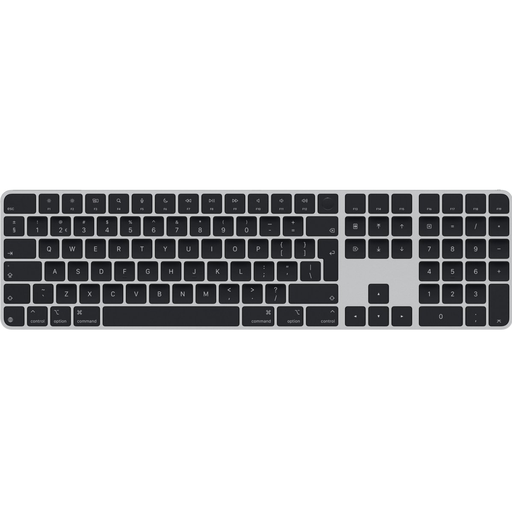 No image available
An option if you want a Dutch QWERTY layout for document work on a compatible Mac.
USB and Bluetooth; the product information limits this version to Mac models with Apple silicon.
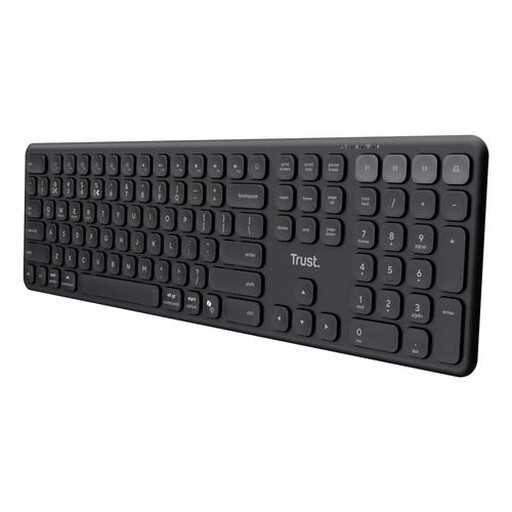 No image available
An option if you switch between devices and want a full-size layout; check that US QWERTY works with your shortcuts.
Multi-device; numeric keypad; scissor keys; US QWERTY.
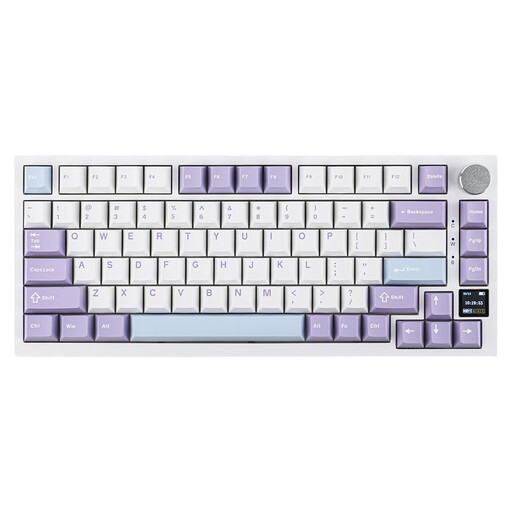 No image available
An option if you want a more compact layout and a choice of connection types.
75% layout; tri-mode; QWERTY US. Check that this layout works with the shortcuts you use.
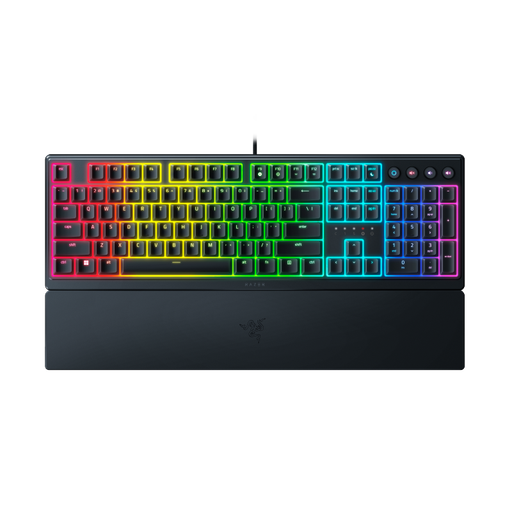 No image available
An option if you want a low-profile design; bear the US layout in mind when using shortcuts.
Low profile; US layout. The product information lists Razer Synapse for full configuration.
No. In Word, you create a cross-reference in the document to an existing item, such as a heading or image. A keyboard can help you use the controls, but it doesn’t replace this document feature. Check the instructions for your word processor and version.
According to Microsoft Support, in Word for Windows you can open the Navigation pane with Ctrl+F. Headings appear there when you’ve applied heading styles. How this works may differ in Word for Mac and Word for the web.
Arboportaal recommends taking breaks from screen work, changing your posture and taking short pauses. For employees who work at a screen for more than two hours a day, Arboportaal also describes workplace requirements; these aren’t general product requirements for every buyer.
It depends on the model. The Rapoo E9700M manual describes pairing via Bluetooth or a 2.4GHz receiver, and switching using Fn key combinations. For another keyboard, consult its manual and check the connections on your devices.
Not automatically. According to the Dutch government, when you buy as a consumer in the Netherlands, you’re entitled to a product that works properly and the seller is your point of contact if something goes wrong. There’s no fixed statutory warranty period in the Netherlands, so check whether any extra cover on offer gives you anything more.