What should you look for when choosing?
First, compare the keys you need to process and correct reviews. Then consider how easy the physical legends are to read, the connection and whether the keyboard depends on specific magnification software.
| What to consider |
What should you check? |
Who is this most relevant for? |
| Readability of key legends |
Check the letters, numbers and punctuation on the exact version in your usual lighting. Also check whether the backlighting can be adjusted or switched off. |
If you look at the keys as you type, you’ll want to recognise letters and symbols quickly; around 27% of consumers rank legibility of the key legends as their top priority. |
| Navigation and editing |
Compare the presence and position of the arrow keys, function keys and numeric keypad with the way you usually work. |
If you often move between fields or correct data, familiar shortcut keys can make a difference; around 33% of consumers prioritise navigation and function keys. |
| Typing feel during longer sessions |
If possible, try the key action and layout. Also consider your desk, screen distance and how often you switch tasks. |
For longer typing sessions, you’ll want a key action and layout that suit you; around 20% of consumers rank typing feel during longer sessions as their top priority. |
| Connection, language layout and software |
Check the physical QWERTY variant and the connection you need. For dedicated shortcut keys, check which magnification software and version are required. |
If you need the keyboard to work with a specific computer or magnification software, check that combination in advance; around 20% of consumers prioritise system and layout compatibility. |
Keyboards at Joybuy
This selection at Joybuy includes keyboards for typing and navigation. For each model, check that the layout, key legends and connection suit the way you index reviews and the computer you use to view enlarged text.
 No image available
Wired QWERTY keyboard with numeric keypad
Could suit you if you use a numeric keypad and dedicated function keys for typing and navigation.
The product description lists backlit keys, plug-and-play operation, arrow keys and function keys. The name specifies a QWERTY layout; check the physical language variant.
View at Joybuy
 No image available
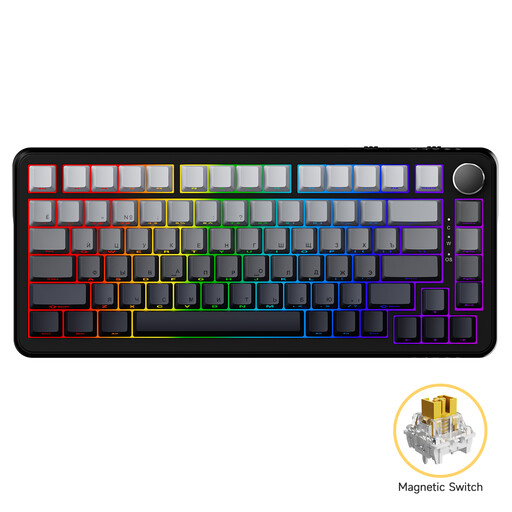
AJAZZ AK820 MAX, 82 keys
Could suit you if you’re considering a compact wired mechanical keyboard; first compare the layout with the navigation keys you use.
The product name lists 82 keys, magnetic switches, RGB lighting and side-engraved keycaps. The product information mentions adjustable actuation points.
View at Joybuy
 No image available
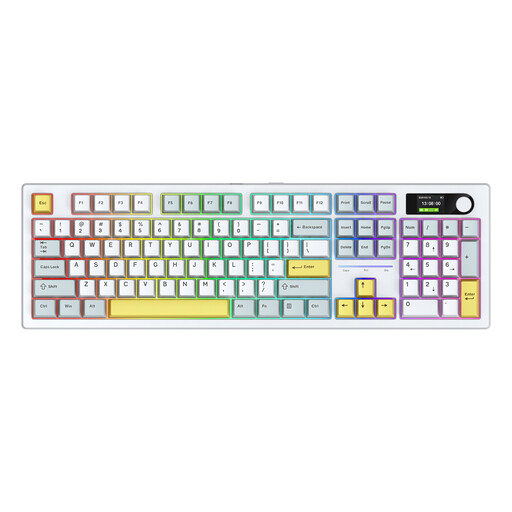
Siukie ACH105, 104 keys, Alice layout, blue and white
Could suit you if you’re looking for a 104-key mechanical layout; check that the Alice layout matches the hand and key positions you’re used to.
The product name lists a colour screen, hot-swappable switches and RGB. The product description mentions USB-C and wireless connection options.
View at Joybuy
 No image available
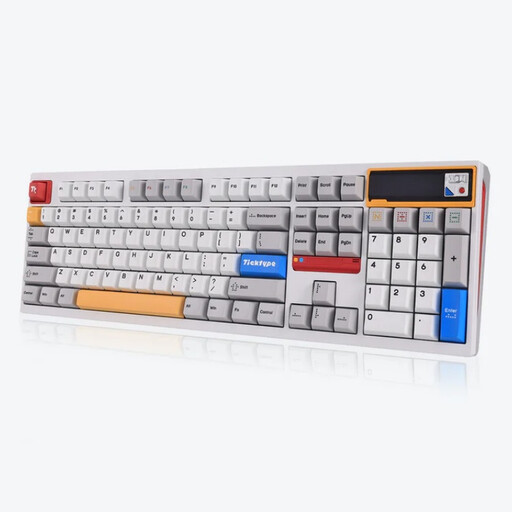
Ticktype DP104, 108 keys, US layout
Could suit you if you’re looking for a full-size keyboard and the US layout matches the key and punctuation positions you’re used to.
The product name lists three connection options: wireless, Bluetooth and wired USB-C. It also mentions a customisable pixel display and RGB lighting.
View at Joybuy
Frequently asked questions
Does a large-print keyboard also enlarge theatre review text?
No. ‘Large-print’ refers to the legends on the physical keys. Adjust the on-screen text separately using your computer’s settings or magnification software; Koninklijke Visio explains the Windows settings you can use.
How do you use Magnifier on a Windows computer with a standard keyboard?
According to Microsoft, press the Windows key and the plus sign to turn Magnifier on, and the Windows key and Esc to turn it off. You don’t need a keyboard with dedicated ZoomText keys to use these shortcuts.
Can you use a Windows large-print keyboard with a Mac without checking first?
Don’t assume it will work: check the version on offer, key positions and connection with your Mac. Koninklijke Visio describes separate options for Mac users, including keyboards and large-print stickers.
What if a keyboard bought online doesn’t suit the way you type?
According to the Rijksoverheid, when you buy from a business at a distance, you’ll often have a 14-day cooling-off period, although there are exceptions. Before buying, check the seller’s information about the cooling-off period and returns.
Who should you contact if the keyboard develops a fault during normal use?
Contact the seller if the product doesn’t meet the terms of the agreement. The Rijksoverheid states that there’s no fixed statutory warranty period in the Netherlands; any manufacturer’s warranty doesn’t replace your statutory rights.
What rules apply to prolonged screen work in the Netherlands?
For employees who work with display screens for more than two hours a day, Arboportaal states, among other things, that the screen and keyboard must not be attached to each other. This is a conditional workplace rule, not a general requirement for individual buyers to choose a particular keyboard.


