What should you look for when choosing?
First, test your usual screen reader and editor commands. Then weigh up hand position, legible key labels and the connection method you prefer.
| What to consider |
What to look for when buying |
Who is this important for? |
| Familiar keys and screen reader shortcuts |
On your own computer, test Tab, Shift+Tab, Enter, Escape, your screen reader modifier key and the function keys you use. Check where the programming symbols are, too. |
I want to use my usual screen reader and navigation commands straight away while building and testing; around 36% of consumers say familiar keys and shortcuts are their main concern. |
| Hand position when typing for long periods |
Check that you can position and use the keyboard halves and thumb keys comfortably. An unfamiliar layout may take some getting used to. |
During long coding and testing sessions, I want to be able to adjust my hand position, even if the layout feels different. Around 29% of consumers prioritise hand position. |
| Legible key labels |
Check whether you can read the letters and symbols yourself. Make sure any dedicated shortcuts work with your version of ZoomText or Fusion. |
If I read key labels as well as using speech, I want to be able to distinguish the keys visually; around 21% of consumers put legible keys first. |
| Simple connection |
Check that the connection is compatible with your computer and that the specific version has the layout you need. For wireless models, also check the connection method required. |
I want to plug in and get started without first setting up a wireless connection. Around 14% of consumers say a simple connection is their main concern. |
Relevant keyboard brands
The models listed are examples of different layouts and use cases; features of a product range should not be taken as a general accessibility claim for the entire brand.
Logitech
The K120 offers a wired, full-size layout; the MX Keys S is a low-profile wireless option for multiple devices.
- Logitech lists USB plug-and-play and a numeric keypad for the K120. For the MX Keys S, Logitech mentions programmable keys and switching between up to three devices.
- If you use a screen reader, check the specific layout and key configuration; these features do not prove that screen reader commands will work better.
CHERRY
The KC 1000 is a full-size wired keyboard with separate cursor and numeric keys.
- CHERRY lists USB plug-and-play, a numeric keypad and four shortcut keys.
- The Dutch product information specifies Windows and USB-A. Check the product code and country layout of the version you choose.
Kinesis
The Advantage360 range has a split layout for anyone who wants to adjust the position of the keyboard halves and the key functions.
- Kinesis describes separately positionable halves, thumb keys and programmability.
- The unusual key layout may take some getting used to, and this model has no numeric keypad. Check how you’ll access frequently used commands before you buy.
Optelec
The ZoomText large-print keyboard is designed for people who read key labels as well as using speech.
- Optelec lists high-contrast symbols and shortcuts for ZoomText and Fusion.
- The software shortcuts are linked to those programmes and are not automatically useful with other screen reader software.
Trust
The Ody II is a wireless keyboard option with a USB receiver.
- Trust lists low-profile keys, an adjustable typing angle and a stowable receiver.
- Check the key layout and the battery and receiver requirements; these features alone do not demonstrate an advantage for screen reader commands.
Keyboards on Joybuy
This Joybuy selection includes wired keyboards with full-size or compact layouts, as well as programmable options. Compare the visible layout and check that you can still access the commands you need.
 No image available
Wired full-size QWERTY keyboard with numeric keypad
An option if you’re looking for a full-size wired layout and separate numeric input.
QWERTY layout, numeric keypad and plug-and-play; the product name specifies black.
View on Joybuy
 No image available
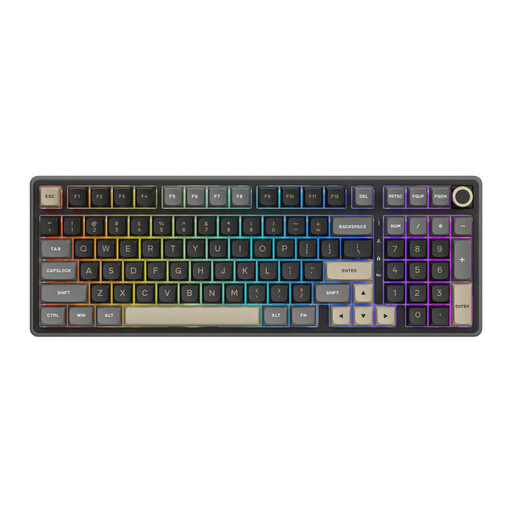
RK ROYAL KLUDGE R98 Pro, Beige Switch
A wired option if you want to customise key functions; first check that your screen reader commands will still be easy to access on the layout you choose.
Mechanical keyboard with numeric keypad and volume knob; the product name specifies hot-swappable keys and PBT keycaps.
View on Joybuy
 No image available
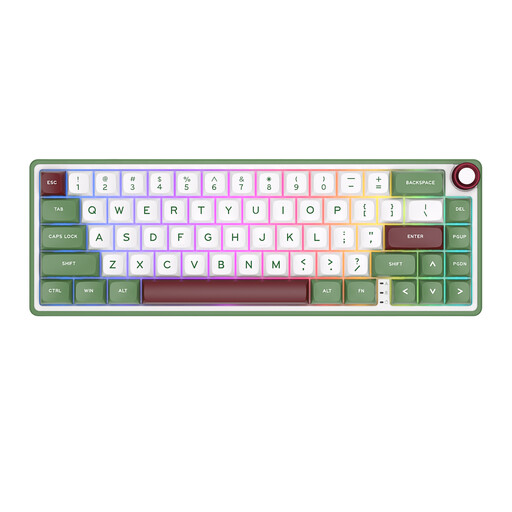
RK ROYAL KLUDGE R65, 66 keys, Chartreuse Switch
A compact option if you’re considering customisable key functions; check that you can still access the screen reader and editor commands you need.
Wired mechanical keyboard with QMK/VIA according to the product name. Functions assigned to the FN layer require you to use that layer.
View on Joybuy
 No image available
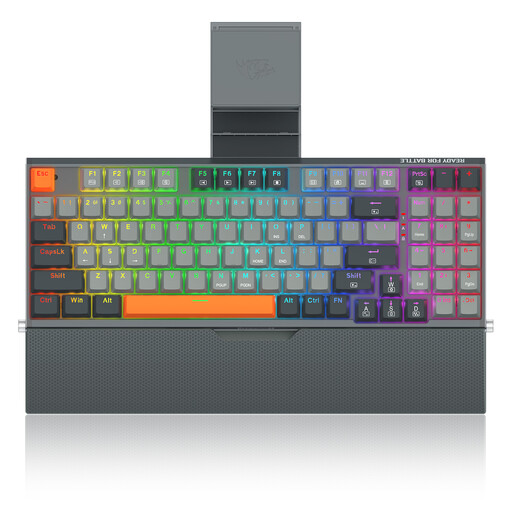
REDRAGON wired mechanical keyboard, 94 keys
A wired option if you’re looking for a 94-key layout.
The product name specifies a metal case, phone stand and wrist rest.
View on Joybuy
 No image available
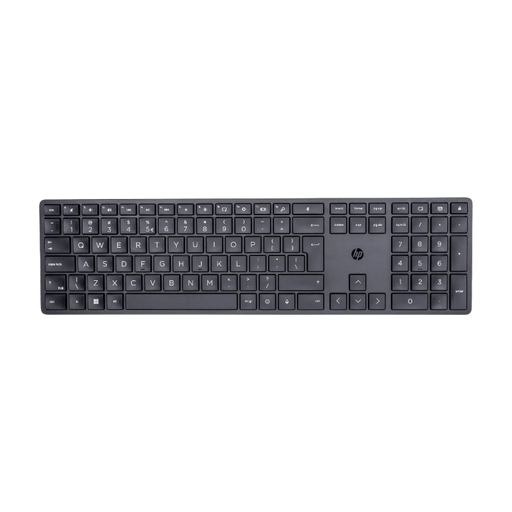
HP 450 programmable wireless keyboard
A wireless option if you want programmable keys and are happy to check the configuration and how easy commands are to access.
According to the product information, the USB receiver is required for wireless connection; you can set up shortcuts with HP Accessory Center.
View on Joybuy
Frequently asked questions
Will a specialist keyboard make my course enrolment form accessible?
No. A keyboard alone won’t make a form accessible. The W3C Web Accessibility Initiative explains how labels and other structure make forms easier to understand and use; you should also test the entire enrolment process with your keyboard and screen reader.
How can I stop programmable keys interfering with my screen reader?
After changing a key or key layer, test your usual screen reader, browser and operating system commands. The W3C Web Accessibility Initiative warns that shortcuts can conflict with assistive technology, browsers and operating systems.
Do I need software for a standard wired keyboard?
For the K120, Logitech describes USB plug-and-play with no download required. Check that your computer has a compatible USB port, though; this doesn’t necessarily apply to the configuration software for other models.
Are Dutch course enrolment websites legally required to be accessible?
That depends on the service and provider. According to the Netherlands Authority for Consumers and Markets (ACM), the rules for e-commerce services may apply to sites where consumers enter into a contract online; the ACM states that the threshold is 10 or more employees or annual turnover of more than € 2 million. The rules for these services have applied since 28 June 2025. Whether a particular course website meets the conditions cannot be determined simply by the fact that it has an enrolment form; the keyboard itself does not determine compliance.
If I buy a keyboard online, what are my rights to change my mind and get a guarantee?
For online consumer purchases, you generally have a statutory 14-day cooling-off period after delivery, with some exceptions. ACM ConsuWijzer explains that the statutory guarantee in the Netherlands does not last exactly two years for every product: what you can reasonably expect from the keyboard is what matters. Contact the seller about any fault.


