Start by deciding what bothers you most when coding: hard-to-read key labels, code characters in unfamiliar positions, or a hand position you’d like to adjust. A large-print keyboard won’t enlarge the text in your editor; you’ll need to change your screen or application settings for that. For each model, check the physical layout, connection and any software requirements.
Who is this relevant for?
If you find keys difficult to read
When putting together a lesson plan, you may need to look up keys, symbols or navigation keys. Compare the legibility of the physical key labels separately from the text magnification on your screen. Sensotec Nederland and Optelec Nederland describe models with large or high-contrast labels.
If you use lots of code characters
Check the exact physical keyboard layout and compare it with the layout set on your computer. Sensotec Nederland lists QWERTY/US-International for the ClearKeys model described, while Perixx offers the PERIBOARD-317 in several language variants.
If you type for long periods
If hand positioning matters to you, check whether an adjustable split keyboard will fit your workspace. Kinesis describes the Freestyle2 as a model with keyboard halves that can be positioned separately.
What should you look for when choosing?
Start by distinguishing between key labels, the position of code characters and hand position. Shortcuts for magnification software are most relevant if you use that software and regularly control its features from the keyboard.
| What to consider |
What should you look for? |
Who is this important for? |
| Key legibility |
Check that the letters, numbers and important symbols on the model you’re considering have enough contrast and are large enough for you. Also check the connection. |
If I have to keep searching for keys while coding, I want the labels to be easy to distinguish. Around 36% of consumers prioritise key legibility. |
| Layout for code characters |
Compare the physical model with your computer settings and check the position of the characters and key combinations you use. |
If I often type brackets, quotation marks or forward slashes, I want to know where they are on the physical layout. Around 29% of consumers prioritise the right layout for coding. |
| Hand position |
Check whether the keyboard halves can be positioned comfortably in your workspace and whether the model has the layout you need. |
When I have a long stretch of typing, I want to be able to adjust the distance and position of my hands. Around 21% of consumers prioritise hand position. |
| Magnification controls |
Check which magnification software and operating system you use, and which features you want to control using keyboard shortcuts. |
If I regularly use magnification features while working, I want to know whether the shortcuts work with my software. Around 14% of consumers consider magnification controls their top priority. |
Common buying mistakes
-
Expecting large keys to enlarge on-screen text
Key labels and the text on your screen are two different things. A large-print keyboard won’t change how text appears in your editor.
First, work out whether you find the physical keys difficult to read, the on-screen text too small, or both. If you want to enlarge on-screen text, adjust your screen or editor settings separately.
-
Going by the QWERTY label alone
The exact language variant affects where the characters you use for programming are positioned. Models are available in different layouts.
Check the full model details and compare the physical keyboard layout with your computer settings and the characters you need.
-
Assuming software features work with every model
Product-specific shortcuts are only useful if they work with the software and operating system you use.
Before buying, check the software requirements, connection and full model details. Choosing the wrong variant could mean arranging an exchange or buying an additional product.
Brands to compare
ClearKeys
The yellow and black model described is designed for people looking for easy-to-identify key labels.
- Sensotec Nederland describes large, high-contrast labels, a QWERTY/US-International layout and a wired USB connection.
- The model described is wired; its key labels won’t enlarge the text on your screen.
Optelec / ZoomText
The ZoomText large-print keyboard is aimed at ZoomText or Fusion users who want to use the corresponding shortcuts.
- Optelec Nederland lists high-contrast labels and shortcuts for ZoomText and Fusion.
- The software support listed applies to Windows 8, 8.1, 10 and 11; check that it’s compatible with your software and setup.
Perixx
The PERIBOARD-317 is worth considering if you’re comparing large key labels and backlighting.
- Perixx describes switchable white backlighting, a wired USB-A connection and several language variants.
- Check the specific layout of the model you choose.
Kinesis
The Freestyle2 is an adjustable split keyboard for anyone who wants to change the position of the keyboard halves.
- Kinesis describes halves that can be positioned separately and different models for PC and Mac.
- This model isn’t described as a large-print keyboard. Check the model and layout for your computer.
Logitech
The MX Keys S is worth considering if customisable keys and actions matter more to you than large-print labels.
- Logitech lists backlighting, customisable keys and Smart Actions through Logi Options+.
- Backlighting isn’t the same as large-print labels; also check that the required software suits the way you use the keyboard.
Joybuy products
This selection is suited to coding with a US QWERTY layout and includes keyboards with different physical layouts and listed features. To enlarge on-screen text, use the separate settings for your screen or application.
 No image available
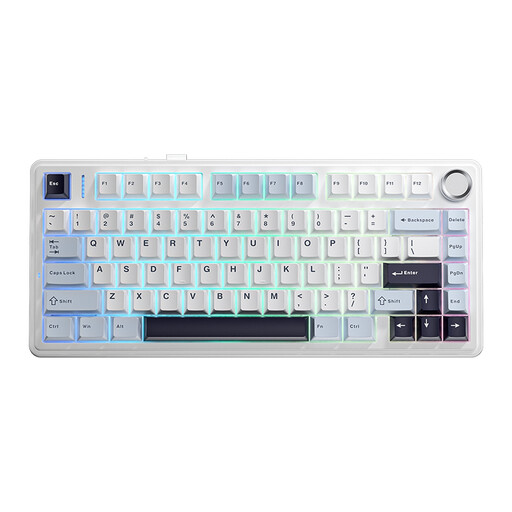
AULA F75 75% wireless mechanical keyboard, US QWERTY
The 75% US QWERTY layout is a good fit if you’re looking for a more compact keyboard that still has function and arrow keys.
Listed features: 3-mode wireless connection, RGB backlighting and PBT keycaps.
View at Joybuy
 No image available
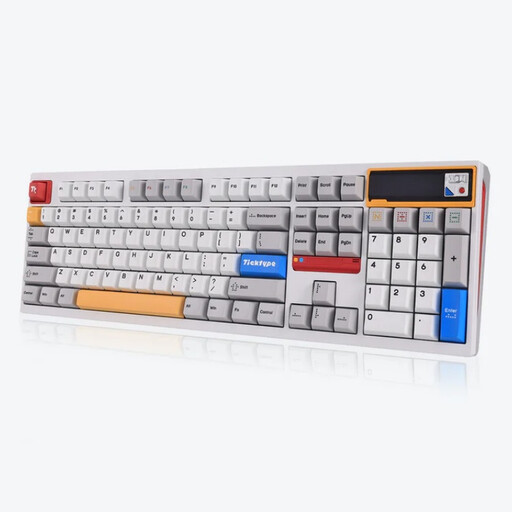
Ticktype DP104 mechanical keyboard, 108 keys, US layout
The full-size 108-key layout is an option if you’re looking for a full-size keyboard.
Listed features: 3-mode wireless connection and hot-swappable keys.
View at Joybuy
 No image available
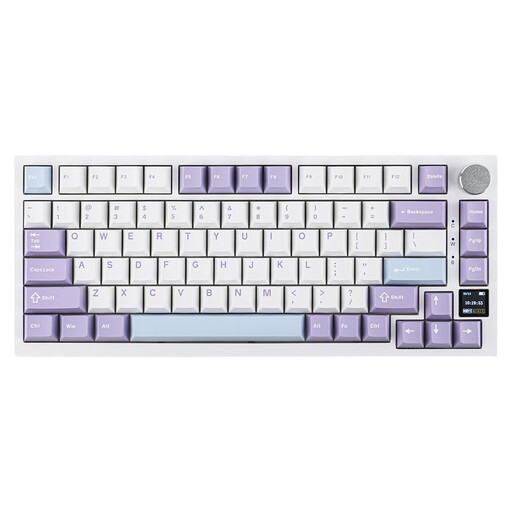
Ajazz AK820 Pro 75% mechanical keyboard, US QWERTY
The 75% US QWERTY layout is worth comparing if you’re looking for a more compact physical layout.
Listed features: wired, Bluetooth or 2.4G connection, a TFT screen and RGB backlighting.
View at Joybuy
 No image available
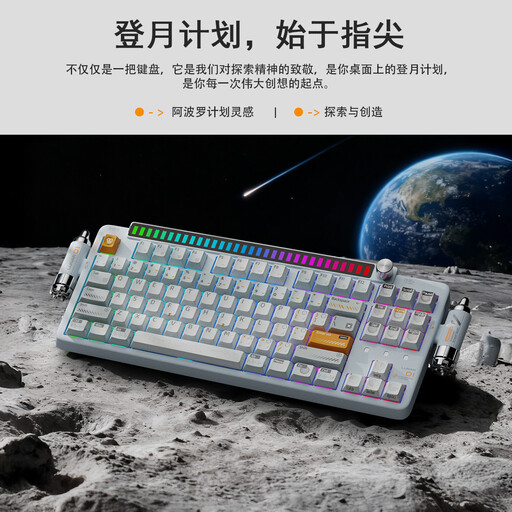
KEYSME Lunar 01 80% mechanical keyboard, US QWERTY
The listed 80% US QWERTY layout offers an alternative if you want to compare a physical layout other than 75%.
Listed features: 3-mode wireless connection, a programmable knob and hot-swappable keys.
View at Joybuy
 No image available
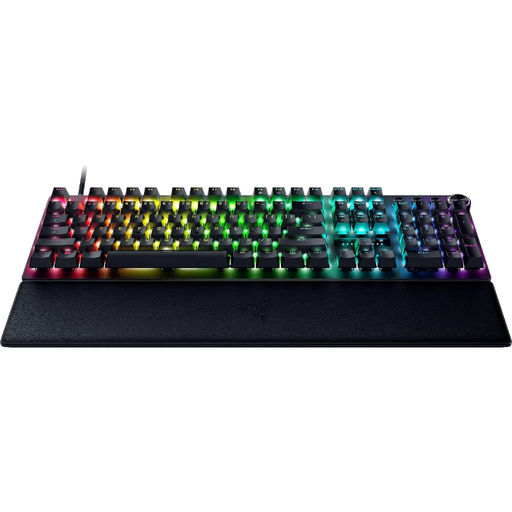
Razer Huntsman V3 Pro, US QWERTY
The product name lists a US QWERTY layout; compare the physical position of the code characters you need with your computer settings.
View at Joybuy
Frequently asked questions
Will a large-print keyboard make the code in my editor bigger?
No. Large key labels won’t change the text on your screen. Microsoft Support describes separate Windows settings for text size; you may also need to adjust the display settings in your editor.
What should you look for in a keyboard layout for coding?
Check the exact physical variant and compare it with your computer’s keyboard settings. Pay particular attention to the position of the code characters and key combinations you use often; the QWERTY label alone doesn’t tell you which language variant you’re choosing.
Do shortcuts for magnification software work on every keyboard?
No. Product-specific shortcuts are only relevant if you use the corresponding software. Optelec lists features for ZoomText and Fusion on its ZoomText large-print keyboard; also check that your software and Windows version are supported.
Can a split keyboard help during long coding sessions?
An adjustable split keyboard lets you position the two halves separately, but this doesn’t guarantee that it will reduce discomfort. Arboportaal highlights repetitive hand movements and static strain when working with screens; consider your workspace too, and vary your tasks.
Is there a separate rule for keyboards and screens during prolonged screen work?
For employees who work with screens for more than 2 hours a day, Arboportaal describes a rule that the screen and keyboard must not be attached to each other. This requirement concerns how screen work is set up; it doesn’t tell you which keyboard is best for your coding tasks.


