
Prolific flashcard creator
You regularly type and edit words and example sentences. Check whether the keys and shortcuts work with your operating system and flashcard software.


If you use two screens with one computer, choose a keyboard with a layout and shortcuts that work with your flashcard software. There’s no need to switch between devices. If you also work on another computer or tablet, a keyboard with multiple connection options could be useful. For long typing sessions, your posture and the space available for your mouse matter too.
You regularly type and edit words and example sentences. Check whether the keys and shortcuts work with your operating system and flashcard software.
You spend a long time working at your screens and want to be able to position your keyboard and mouse comfortably. A keyboard on its own can’t guarantee that it will prevent discomfort.
You have limited desk space or work on more than one device. So distinguish between a compact keyboard and features that let you switch between devices.
Start with the keys and layout your flashcard software needs. Then consider switching between devices: two screens connected to one computer don’t count as two separate devices.
| What to consider | What should you check? | Who is this important for? |
|---|---|---|
| Entering and editing lots of text | Try the key feel and check that the shortcuts or actions you want work with your software and operating system. Logitech says Smart Actions are available for the MX Keys S via Logi Options+; check that the actions you need work with your software. | If you often enter or edit words and example sentences, you’ll want comfortable keys and useful editing controls. Around 33% of consumers prioritise text editing. |
| Posture during long sessions | Assess the position of your hands, forearms and mouse across your whole workspace. Try a wave-shaped or split layout for yourself. | If you type at your screens for long periods, you’ll want to position your keyboard and mouse to suit your workspace. Around 25% of consumers give posture their highest priority. |
| Space for your keyboard and mouse | Compare the keyboard’s dimensions and layout with your available desk space and the keys you need. Check whether you want to keep a number pad. | In a busy workspace, you’ll want to leave room for your mouse, but you may also need to enter numbers. Around 17% of consumers consider available desk space their main concern. |
| Switching between devices | Count computers and tablets, not screens. Check whether Bluetooth, a USB receiver or a cable will work with each device. | If you create flashcards on different devices, switching between them with one keyboard can be useful. If you have one computer with two screens, you don’t need this feature for that reason. Around 17% of consumers prioritise switching between devices. |
| Keys for languages and symbols | Compare the physical layout and selected input language with the accents and symbols you use. Test the shortcuts in your own software. | If you create flashcards in several languages, you’ll want to enter the characters you need and find keys in familiar places. Around 8% of consumers make keyboard layout their top priority. |
Features for switching between devices are designed for separate devices, not extra screens connected to the same computer.
First, work out which computers or tablets you actually type on. Then decide how many connection channels you need.
Screen-based work is also affected by how long you work, how often you switch tasks and how your entire workspace is set up. A product label doesn’t prove that a keyboard prevents or treats discomfort.
Assess the shape in your own setup, adjust your workspace to suit you and break up screen-based work with other tasks. Arboportaal recommends taking breaks from screen-based work.
A smaller layout may place keys differently or leave out a number pad. This can matter if you often use numbers or particular shortcuts.
Check in advance how you enter numbers, accents and shortcuts in your flashcard software. Microsoft Support notes that some shortcuts can vary between applications.
The MX Keys S and Wave Keys offer different features: programmable actions on one model and a wave-shaped layout with a palm rest on the other.
The Lyra is a compact range with device-switching features; Ody II is a separate range that Trust describes as quiet.
The KW 9200 MINI combines a compact layout without a number pad with several listed connection channels.
The Split Break is an option if you want to position the two halves of your keyboard separately.
This selection from Joybuy features mechanical keyboards with a range of compact layouts and connection options. For each model, check that the layout, key feel and features suit your flashcard software and workspace.
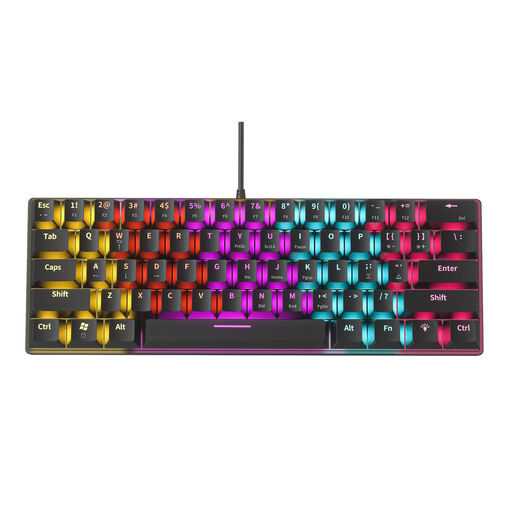 No image available
The compact layout could suit you if you want to free up desk space, but check that you won’t often need the keys it leaves out.
The product description mentions blue mechanical switches with tactile feedback and an audible click.
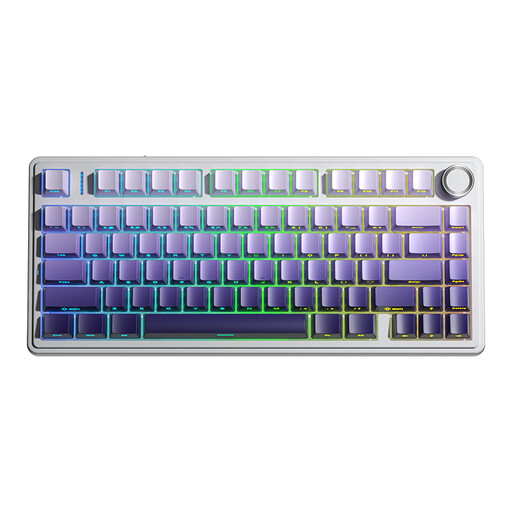 No image available
This model may suit you if you’re looking for a compact layout and programmable macros. Check beforehand that the features you want work with your software.
The product information lists 81 keys, arrow keys and tri-mode connections via cable, Bluetooth or 2.4 GHz. The US layout may not suit you if you need a different physical layout.
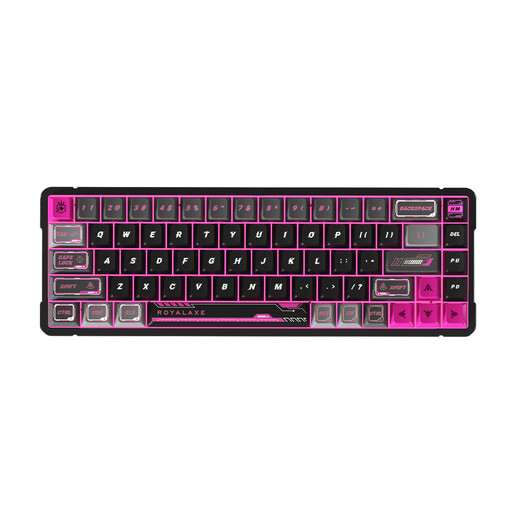 No image available
The 65% layout could suit a workspace where you want a compact keyboard. Check that the US layout meets your typing needs.
The product information lists Hall-effect magnetic switches and a wired connection.
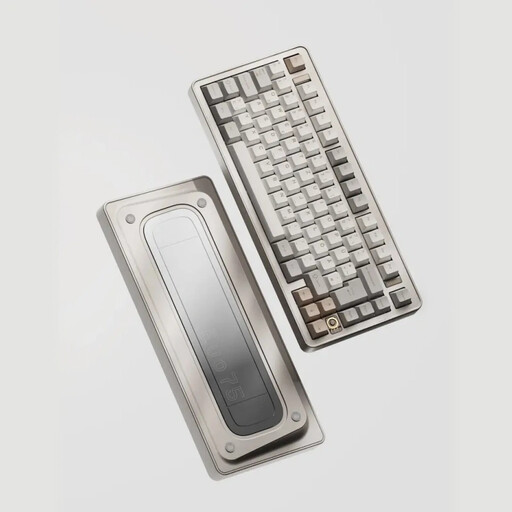 No image available
This model could suit you if you’re looking for a compact layout and customisable keys. Check that the US layout and software features work for you.
The product information lists tri-mode connections, VIA compatibility and hot-swappable switches.
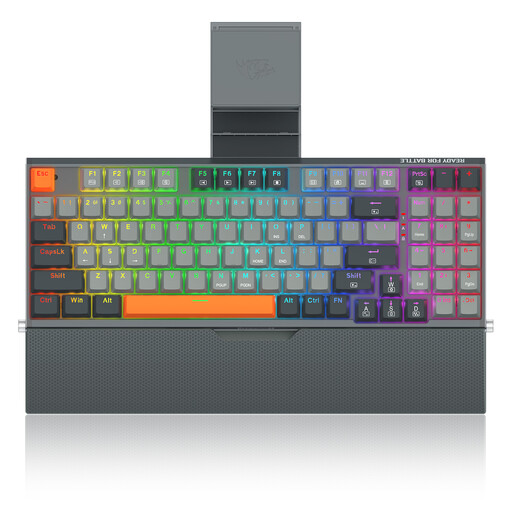 No image available
This model could suit you if you’re looking for a wired keyboard with a wrist rest. Bear in mind the space needed for the keyboard and the included accessories.
The product title mentions a detachable wrist rest and phone holder. The product description mentions mechanical switches.
No, not if both monitors are connected to the same computer. Choose a connection that works with that computer. Switching between devices is only relevant if you also use separate computers or mobile devices. Microsoft Support notes that shortcuts can vary between applications.
For employees who work with screens for more than two hours a day, Arboportaal describes workplace requirements under which the screen and keyboard must not be attached to one another. When using a laptop, you must be able to use a separate screen or keyboard in this situation. Arboportaal also recommends adjusting the workspace to suit the user and breaking up screen-based work with other tasks. These are not general legal requirements for every private buyer when purchasing a product.
Check whether your computer has Bluetooth or the required USB port, and whether the version you’ve chosen offers the connection you want to use. CHERRY lists two Bluetooth channels, a 2.4 GHz channel and a wired channel for the KW 9200 MINI; don’t assume other models have the same connections.
For online purchases from a business, you’ll often have a 14-day cooling-off period, according to the Dutch government. If a product is faulty, you can contact the seller; Dutch statutory consumer rights do not set a fixed legal guarantee period. Check the terms of the specific offer.