
Family-letter transcribers
You mainly enter continuous text from scans or letters and want a layout and key feel that suit your typing habits, without paying for features you rarely use.


Choose a keyboard based on what you do most: entering lots of text, assessing your posture, switching between source images and input fields, or saving space. A compact wired model leaves more room for your mouse, while customisable keys can make repetitive tasks easier if your software supports them. A keyboard won’t link source files on its own; you do that in your archive or family tree software.
You mainly enter continuous text from scans or letters and want a layout and key feel that suit your typing habits, without paying for features you rarely use.
You spend extended periods at a screen and want to assess the keyboard’s shape alongside your workstation. An ergonomic model alone is no guarantee against discomfort.
You switch between a source image, input fields and a record. Whether keyboard shortcuts help depends in part on the features of your software.
| Factor | What should you check? | Who is this important for? |
|---|---|---|
| Entering lots of text | Compare the physical keyboard layout and key shape; check whether the key feel suits your typing habits. | If I type up lots of letters, I want a layout and key feel that work well for the way I type. Around 33% of consumers make text entry their main priority. |
| Hand and wrist position | Assess the keyboard’s shape alongside your chair, desk and posture; don’t expect it to guarantee against discomfort. | For longer typing sessions, I want to see whether the shape suits my hands and workstation. Around 25% of consumers prioritise their posture. |
| Sources and input fields | Check which keyboard shortcuts your own indexing software supports and how to verify a source image and its linked file. | If I often switch between a source image, input fields and a record, I want to know whether my software supports keyboard shortcuts. Around 25% of consumers make navigating sources their main priority. |
| Space and connection | Check the size, whether it has a number pad, and the connection or wireless option you need. | With limited desk space, I want to leave room for my mouse and make sure the keyboard can connect to my computer. Around 17% of consumers prioritise size and connection. |
Customisable keys can help with repetitive actions, but source links are created in your archive or family tree software.
Check the keyboard shortcuts and linking steps in your own software before making programmable keys a deciding factor.
If your software doesn’t have useful shortcuts, setting things up could take extra time.
The CHERRY STREAM KEYBOARD TKL is more compact because it doesn’t have a number pad. That can be inconvenient if you enter lots of dates or inventory numbers.
Decide in advance whether you mainly type up letters or also regularly enter strings of numbers.
If you do need a number pad, you may have to buy one separately.
Arboportaal identifies repetitive hand movements and static strain as factors to consider when working at a screen. The keyboard’s shape alone won’t determine how comfortable your whole workstation feels.
If possible, try the key shape and assess your chair, desk and posture too.
The CHERRY STREAM KEYBOARD TKL is a compact wired keyboard without a number pad.
MX Keys S is designed for text entry and customisable keys; Wave Keys has a wave-shaped design with a palm rest.
The Pro Fit Ergo KB675 EQ TKL combines a curved, compact design with customisable keys and connections for multiple devices.
These keyboards are options to compare for entering family letters and working with source files; check which layout and connection suit your computer.
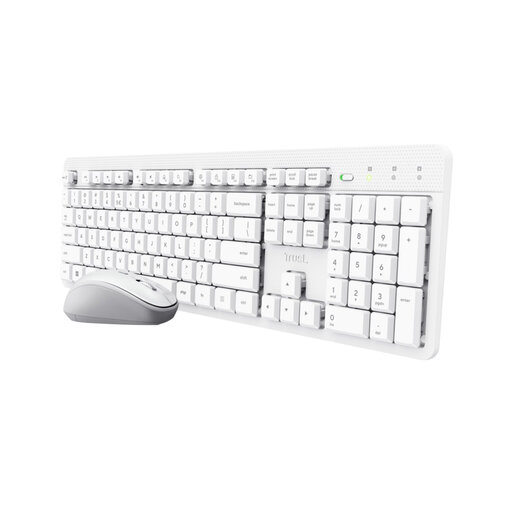 No image available
An option if you’re looking for a keyboard and mouse for text entry at home or in the office.
The product information lists quiet, flat keys, an adjustable typing angle and a wireless USB receiver. The layout is US QWERTY.
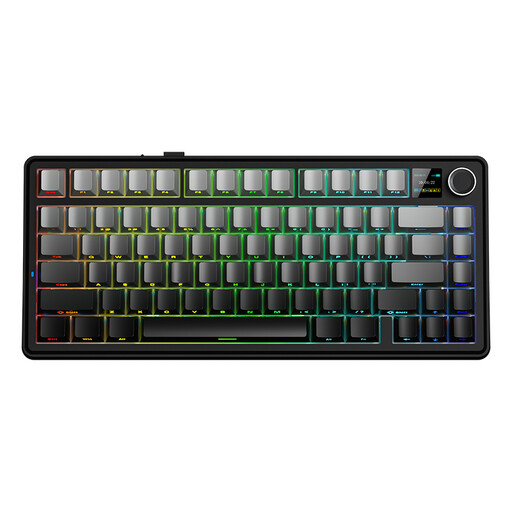 No image available
A compact layout may suit you if you want to leave room for your mouse while still using navigation keys.
The title describes a mechanical keyboard with tri-mode connectivity: wired, Bluetooth and 2.4G. The layout is US QWERTY.
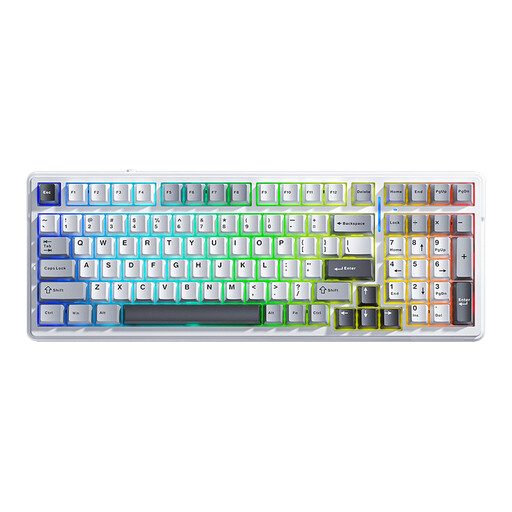 No image available
A 99-key model could be worth considering if you want a larger keyboard for text entry.
The title lists Bluetooth, 2.4G and wired connectivity, hot-swappable keys, RGB lighting and Mac and Windows compatibility. The layout is US QWERTY.
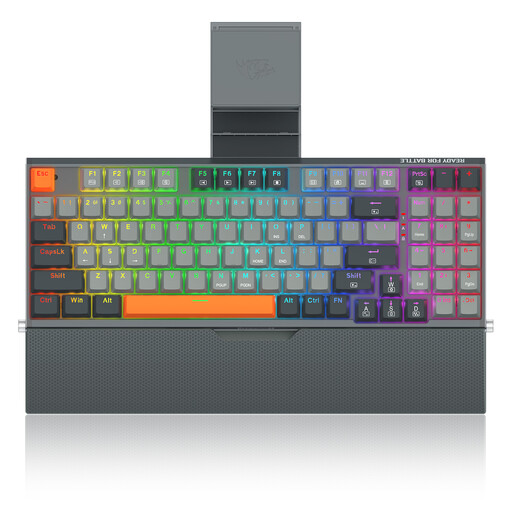 No image available
A wired option to compare if you want a wrist rest alongside your text-entry setup.
The product information lists a metal case, phone holder and detachable wrist rest. The layout is US.
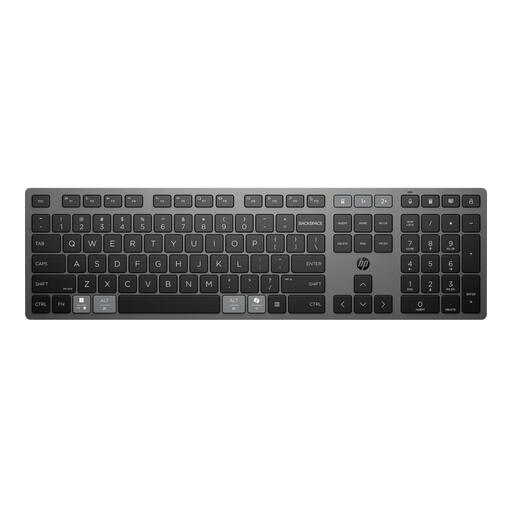 No image available
An option to compare if you want to customise repetitive actions or switch between devices while indexing.
The product information lists programmable keys, connections to up to three devices via Bluetooth and a 2.4 GHz receiver, and USB-C charging.
No, you create and check those links in your archive or family tree software. For example, FamilySearch describes a separate Source Linker for historical records; check how your own software works.
Check the layout of the version you’re buying, the available connection or Bluetooth option, and whether your software supports keyboard shortcuts. Logitech lists Bluetooth and an included Logi Bolt receiver for Wave Keys; Kensington says the KB675 doesn’t support Windows 11 on Arm.
Assess your whole workstation too, and take breaks from extended screen work. Arboportaal identifies repetitive hand movements and static strain as factors to consider; a keyboard can’t replace good posture.
It depends on whether the version has a number pad and how often you enter strings of numbers. The CHERRY STREAM KEYBOARD TKL is more compact because it doesn’t have a number pad, so compare that with the kind of data you enter.
For employees who work at a screen for more than 2 hours a day, Arboportaal says the screen and keyboard must not be attached to each other. This workplace requirement doesn’t automatically apply to everyone using a computer for a personal hobby.