
Newsletter editor who types a lot
You write and edit long passages, and look for a comfortable typing feel, a suitable sound and easily accessible editing keys.


When editing newsletters at home, your choice mainly depends on what you do most while working: typing long passages, saving space or taking your hand and wrist position into account. Then choose a suitable shape, physical key layout and connection. A manufacturer’s claims about comfort or quietness won’t tell you how a keyboard will feel to you.
You write and edit long passages, and look for a comfortable typing feel, a suitable sound and easily accessible editing keys.
You regularly switch between your keyboard and mouse or work with multiple devices. A compact model can free up space, but check which keys are missing.
You also want to consider your keyboard’s position and shape when working at a screen for long periods, without viewing a keyboard as a treatment for any discomfort.
A good fit if: you mainly write and edit long passages and want a familiar layout. A numeric keypad can be useful if you often enter numbers.
Consider: a low profile or scissor mechanism alone won’t tell you how comfortable or quiet the keyboard will be for you.
A good fit if: you have limited desk space or want to position your mouse closer to the keyboard.
Consider: check which keys or numeric keypad are missing, and whether the layout you choose includes the characters you need.
A good fit if: you want to give careful consideration to the position of your hands and forearms and are open to a different shape.
Consider: a split design and integrated wrist rest need space. Claims about comfort don’t prove that discomfort will disappear.
| What to consider | What to check before buying | Who might prioritise this? |
|---|---|---|
| Typing feel and sound | Compare the key construction and check whether the sound suits your workspace. Try the keyboard yourself if possible. | If I write long passages and edit frequently, I want a typing feel and sound that suit my working environment. Around 36% of consumers prioritise typing feel and sound. |
| Hand and wrist position | Look at the shape, dimensions and space for your mouse; also consider how the layout will fit into your workspace. | If I work at a screen for long periods, I want to be able to take my hand and wrist position into account. Around 29% of consumers prioritise hand and wrist position. |
| Desk space and switching between devices | Check the dimensions, any missing keys and how you can switch between devices. | If my desk is small or I switch between devices while editing, I want a keyboard that suits the way I work. Around 21% of consumers prioritise desk space and switching between devices. |
| Connection and layout | Check the connection, operating system and exact physical layout of the model. | If I need specific characters or my computer only has certain ports, I want to be able to check this in advance. Around 14% of consumers prioritise connection and key layout. |
The exact model determines which keys and characters you can use for your newsletter.
Compare the model’s image or specifications with the keys and accents you use often.
When working at a screen, repetitive movements, prolonged static posture and your workstation setup can also play a part.
Choose a shape that you can position and use at your workstation, and also consider your posture and how often you change position.
A compact layout arranges the available space differently from a full-size keyboard.
Before you buy, consider how often you use numbers and navigation keys, and how much space you need for your mouse.
If you enter a lot of numbers later on, you may still need a separate numeric keypad.
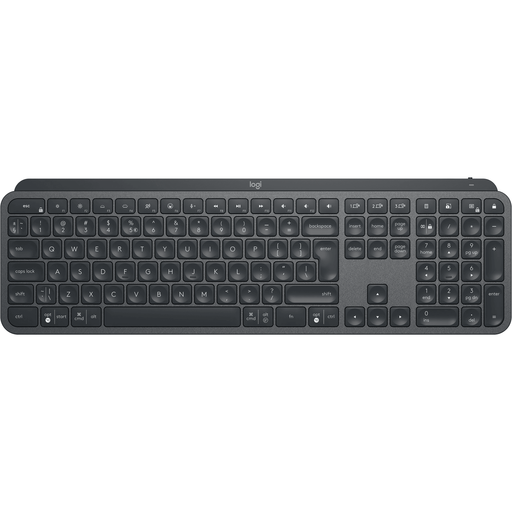
The MX Keys S is a flat, wireless keyboard designed for long writing sessions and working across multiple devices.
The wired KC 6000 SLIM and compact, wireless KW 7100 MINI BT offer different shapes for a permanent or smaller workspace.
The Compact Break is a compact, flat model for anyone who wants to consider the position of their keyboard and mouse on a small work surface.
The Pro Fit Ergo Wireless and the KB150 EQ are different keyboard models, with distinct shapes and features.
The product selection below includes keyboards for writing and working with documents, with both full-size models and more compact layouts.
 No image available
The full-size layout with numeric keypad could suit you if you also enter numbers while editing.
QWERTY layout; full-size; wired; plug and play.
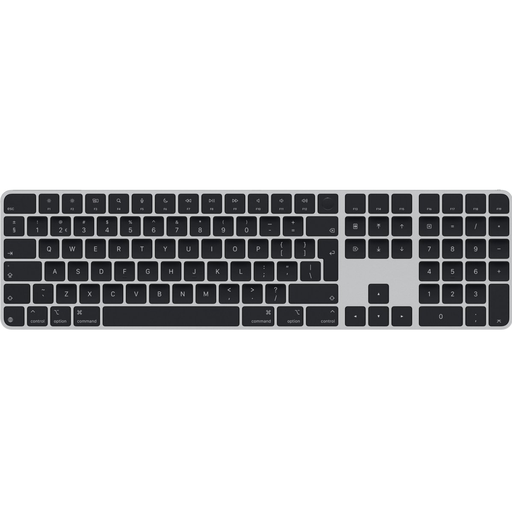 No image available
The Dutch QWERTY model described could suit you if you’re looking for that physical layout. Check that the characters work for the way you write.
Connection: USB and Bluetooth; Dutch QWERTY model.
 No image available
This model could suit you if the Logitech MX Keys for Business and US QWERTY layout work for your needs and the way you enter text.
Model: MX Keys for Business; QWERTY-US layout.
Compare the physical key positions with the characters you use often.
 No image available
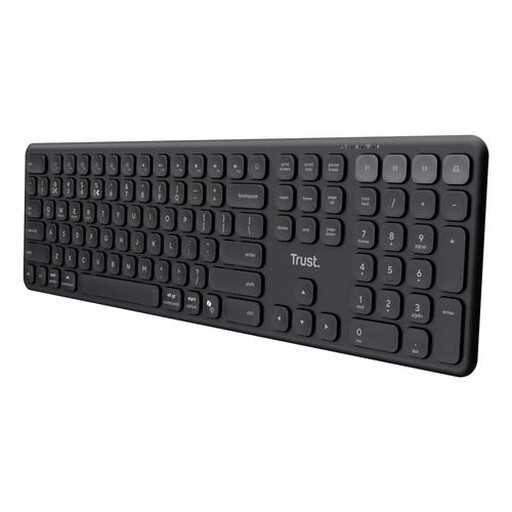
The full-size layout could suit you if you also use the numeric keypad while editing; the product name also mentions use with multiple devices.
Wireless; full-size with numeric keypad; QWERTY-US; scissor mechanism.
Check whether the US layout suits the characters you use often.
 No image available
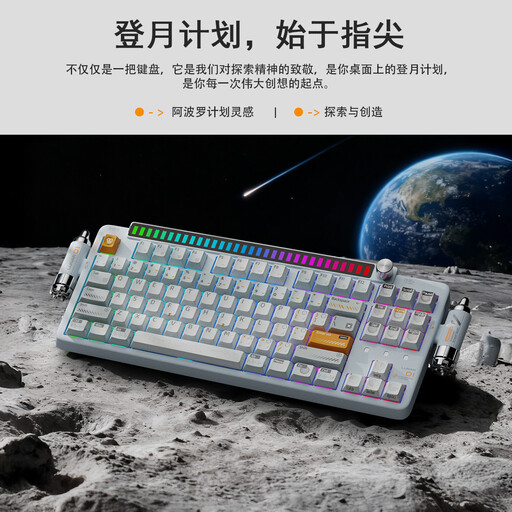
The 80% layout could suit you if you’re looking for a more compact model. Check whether the smaller layout includes the keys you need.
80% layout; mechanical; tri-mode; QWERTY-US.
Compare the physical key positions with the characters you use often.
Check the physical Enter, Shift and Alt-Gr keys on the exact model, and try the characters you use often. The ‘QWERTY’ label alone doesn’t tell you which physical layout you’ll get.
First, check which ports and connections are available. According to CHERRY, the KC 6000 SLIM requires USB-A, while the KW 7100 MINI BT uses Bluetooth. The Kensington KB150 EQ uses a 2.4GHz receiver that plugs into a USB port, according to the manufacturer.
No. Don’t assume this based on the shape of a single product. Arboportaal also lists repetitive movements, static strain and workstation setup as factors to consider when working at a screen.
Not every user is. Arboportaal states that, for employees who work at a screen for more than 2 hours a day, the screen and keyboard must not be attached to one another. When using a laptop, it must be possible to use a separate screen or keyboard; this is not a general buying rule for every private user.
For an online consumer purchase, the cooling-off period runs until 14 days after delivery, according to ACM ConsuWijzer, subject to legal exceptions. This is separate from your rights if a product doesn’t do what you could reasonably expect when used normally. If a product is faulty, contact the seller to find a solution.