
Dialogue editor who navigates frequently
You write text and often jump between fields or branches. Pay attention to the position of punctuation, arrow keys and any keyboard shortcuts.


When writing dialogue at a sit-stand desk, the layout matters most: choose a keyboard that puts the keys you use often, such as navigation keys and punctuation, within easy reach. Then compare compact, split and conventional designs based on hand position, mouse space and the software you need. No keyboard can replace a well-adjusted workstation and regularly changing your posture.
You write text and often jump between fields or branches. Pay attention to the position of punctuation, arrow keys and any keyboard shortcuts.
You switch between sitting and standing, and want to position your keyboard, desk and mouse so your shoulders stay relaxed and your wrists remain straight.
You may be thinking about typing noise or how much room the keyboard takes up beside your mouse. These priorities can point you towards different layouts.
Best for: frequently switching between dialogue fields and wanting to customise key functions.
Trade-off: a compact layout may take some getting used to, and configuration may require software or web access.
Best for: adjusting your hand position during longer writing sessions.
Trade-off: a split design may take some getting used to and won’t correct a poorly set-up workstation.
Best for: combining a familiar layout with customisable keys or actions.
Trade-off: check that the required software is available on your work computer and that the keyboard leaves enough room for your mouse.
Best for: typing straight away via USB, without configuration software.
Trade-off: check that the cable will work with your desk set-up and that you’ll have enough room for your mouse.
| What to consider | What should you check? | Who is this important for? |
|---|---|---|
| Punctuation and navigation | Compare the physical layout with the punctuation and navigation keys you use often. Check which features require configuration software. | If I switch frequently between text and dialogue branches, I want the punctuation and navigation keys I use to be easy to reach. Around 36% of consumers prioritise layout and navigation. |
| Hand and wrist position | Assess your keyboard and mouse together, both sitting and standing. Keep your shoulders relaxed and your wrists in line with your forearms. | When I alternate between sitting and standing, I want to position my hands and wrists comfortably in both working positions. Around 29% of consumers prioritise posture. |
| Typing noise | If possible, compare the feel and sound of the exact version you’re considering. Also check that the layout suits the way you work with text and navigation. | In a shared workspace, I want to consider the noise during long typing sessions without giving up a familiar layout. Around 21% of consumers prioritise quiet typing. |
| Room for your mouse | Check where your mouse sits when the keyboard is directly in front of you. Consider whether you need a number pad and how much desk space you have. | If I switch often between my keyboard and mouse while editing, I want enough room for both on my desk. Around 14% of consumers prioritise mouse space. |
A keyboard can still encourage an awkward arm or wrist position if your desk and mouse aren’t set up correctly. Changing position remains important when you work standing up, too.
Assess the position of your keyboard and mouse both sitting and standing. Adjust your desk and alternate between positions and tasks.
For the Keychron K3 Max, Keychron says hot-swapping is available only on the version specified as RGB hot-swappable. Customisable keys or macros may also require a particular configuration method.
Before buying, check the full model variant, switches and physical layout, and whether you can configure it on your work computer.
A keyboard with a number pad can affect the space available beside your mouse. This matters if you regularly switch between your keyboard and mouse while editing.
Compare the keys you actually need with the space on your desk, and check where your mouse sits when the keyboard is directly in front of you.
The MX Keys S, ERGO K860 and K120 offer different options: customisable features, a fixed split design or a simple wired model.
The K3 Max is a compact mechanical option to consider if customisable keys are important to you.
The Split Break version 2 is worth considering if you want to compare two separately positionable keyboard halves with a straight layout.
The KW 9100 SLIM is a conventional, low-profile option for comparing wireless connectivity and a scissor mechanism.
These Joybuy keyboards may suit writing and editing dialogue at a sit-stand desk. Compare their layouts, customisable features and connections with what you need for your workspace.
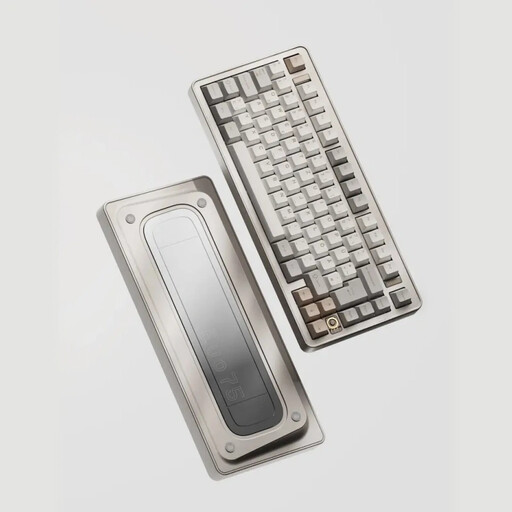 No image available
Suited to anyone looking for a compact layout and customisable keys for navigating dialogue.
75% layout and VIA compatibility; hot-swappable switches and Leaf Spring Mount. The title lists three connection modes and Creamy Rye switches.
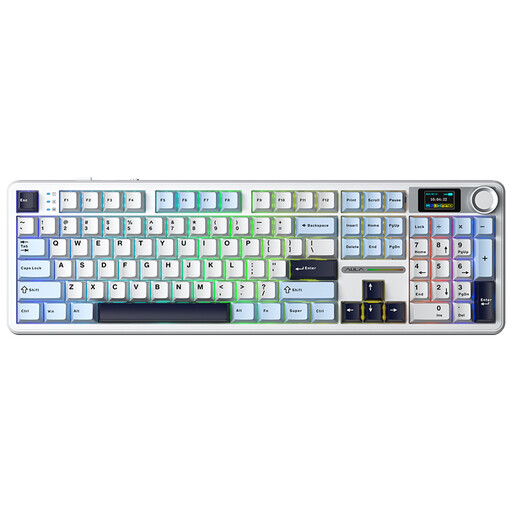 No image available
An option to compare if you’re looking for a mechanical keyboard with different connectivity options.
Tri-mode: Bluetooth, 2.4G and USB-C. The title lists a smart LCD screen, a rotary knob and hot-swappable Reaper Linear switches.
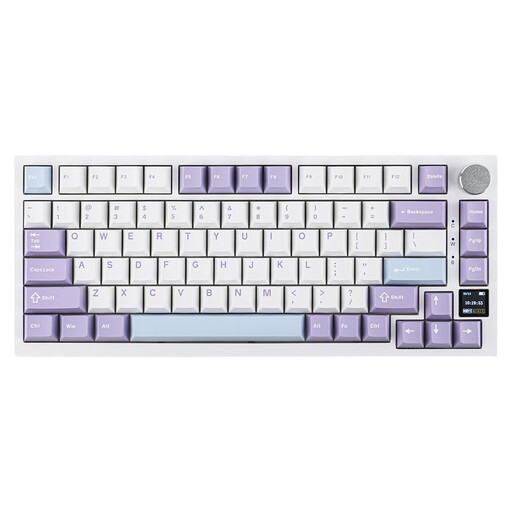 No image available
Suited to anyone who wants to compare a compact layout with a model that has arrow and function keys.
75% layout and US QWERTY layout. The title lists wired, Bluetooth and 2.4G connections, plus a TFT screen and hot-swappable switches.
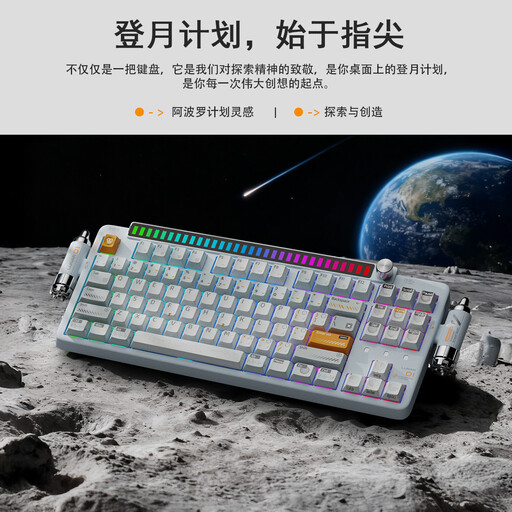 No image available
An option to consider if you’re looking for a compact layout with a programmable rotary knob.
80% layout and US QWERTY layout. The title lists Bluetooth, 2.4G and USB-C, hot-swappable switches and PBT keycaps.
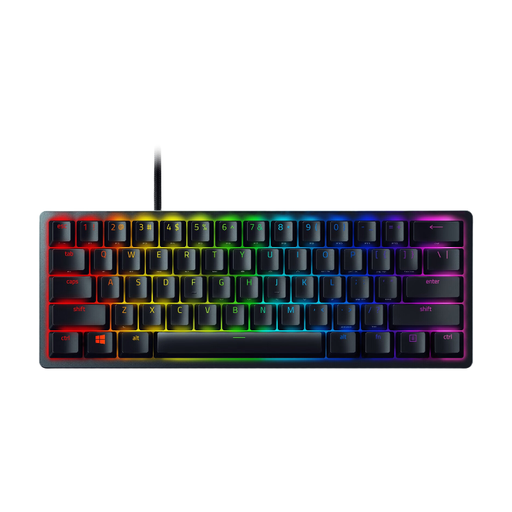 No image available
Suited to anyone who wants to compare a compact wired keyboard with a US QWERTY layout.
The product description lists a 60% size, a detachable USB-C cable and built-in memory for up to five profiles.
Readjust your workstation when you change position. Arboportaal recommends a relaxed posture, with your shoulders, wrists and forearms in a neutral position. The US Occupational Safety and Health Administration recommends assessing your keyboard alongside your mouse and other workstation components. Remember to alternate between positions and tasks, too.
It depends on the model and feature. Logitech describes Smart Actions for the MX Keys S through Logi Options+; Keychron names the Keychron Launcher web app for customising keys and macros on the K3 Max. According to R-Go, the break indicator on the R-Go Split Break works with R-Go Break software. Check which installations or web access are permitted on your work computer.
Arboportaal doesn’t list any specific legal requirements for working while standing. For employees who work at a display screen for more than 2 hours a day, Arboportaal says the screen and keyboard must not be attached to each other. This workplace rule doesn’t require every buyer to choose a particular keyboard model.
For a standard online consumer purchase in the Netherlands, you’ll generally have a 14-day cooling-off period from delivery, although exceptions apply. ACM ConsuWijzer also notes that your statutory guarantee applies alongside any seller’s or manufacturer’s warranty. If a keyboard breaks sooner than you could reasonably expect under normal use, contact the seller about your statutory rights.