What should you look for when choosing?
Start with the space available on your desk and the keys you use in your diagram software. Then consider the connection and how the keys feel.
| What to consider |
What should you check? |
Who should prioritise this? |
| Space for your keyboard and mouse |
Measure the available desk width and compare it with the dimensions of the exact model. |
If your desk is small, you’ll want to use your mouse beside the keyboard without the setup feeling cramped. Around 36% of consumers put mouse space first. |
| Shortcuts within easy reach |
Compare the shortcuts you use most with the physical layout, arrow keys, function keys and any Fn layer. |
If you often edit objects or navigate around a canvas, you’ll want direct access to the keys you need. Around 29% of consumers prioritise shortcuts. |
| Connection and switching between devices |
Check that USB-A, USB-C or Bluetooth works with your devices, and see what’s included with the model you’ve chosen. |
If you switch between a computer and tablet, for example, you’ll want a connection that works with both. Around 21% of consumers prioritise connectivity or switching between devices. |
| Key feel and typing noise |
Check the key mechanism and, for a mechanical model, the switch type selected. Don’t rely on a noise claim that hasn’t been specified. |
If you work alongside other people, the sound and feel of the keys may be deciding factors. Around 14% of consumers put key feel or typing noise first. |
Joybuy keyboards for a compact workspace
This selection includes compact keyboards, from a wired 60% layout to mechanical models in 75% format. Compare the keyboard layout and connection with your shortcuts, devices and available mouse space.
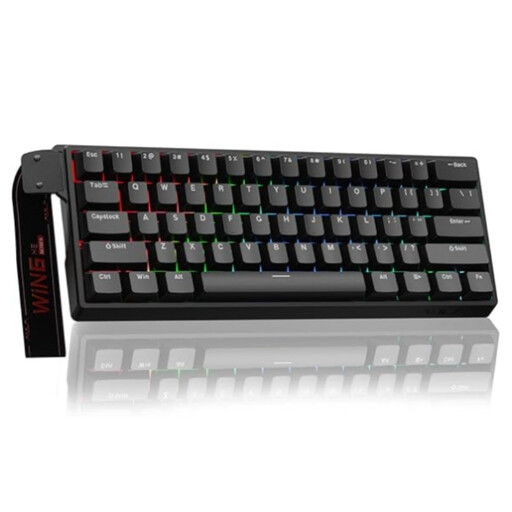 No image available
AULA WIN60HE 60% wired mechanical keyboard
The wired 60% layout is a compact option; check in advance which diagram keys you need direct access to.
The product name lists Hall effect magnetic switches, Rapid Trigger, an 8K polling rate and adjustable actuation of 0.01 mm.
Joybuy
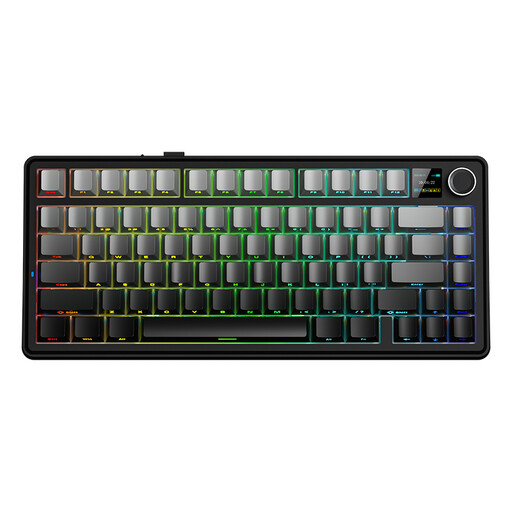 No image available
AULA F75 MAX 75% mechanical keyboard
The product name lists a 75% layout and three connection modes; check that the stated US layout works with your shortcuts.
According to the product name, this model works wired, via Bluetooth or via 2.4 GHz, and has Reaper Switches.
Joybuy
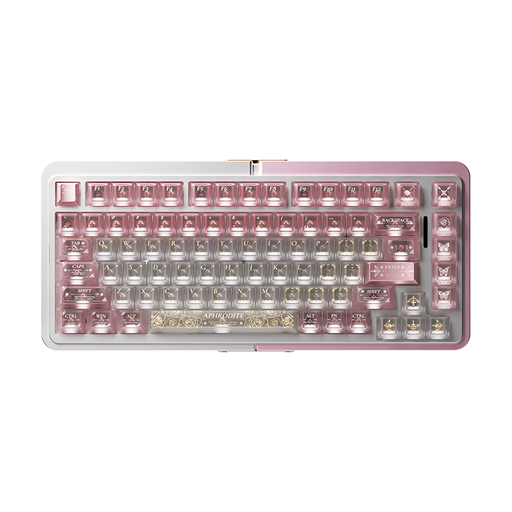 No image available
Royalaxe E75 Custom 75% mechanical keyboard
The 75% layout is a compact option; check that the keys you use in your diagram software are accessible in the way you want.
The product name lists Hall effect magnetic TTC switches, hot-swap and a wired connection.
Joybuy
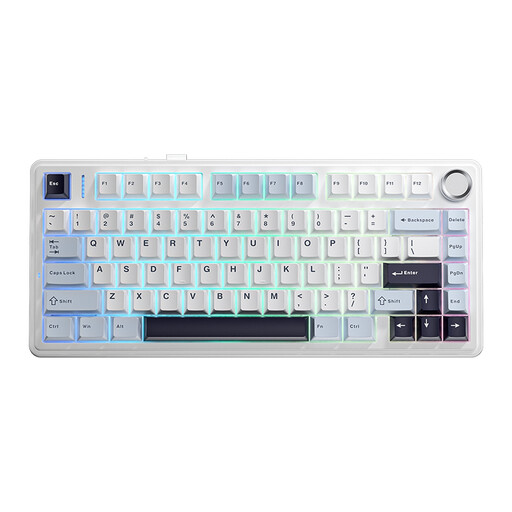 No image available
AULA F75 75% mechanical keyboard
According to the product name, this model has a 75% layout; check the stated US layout against the shortcuts in your software.
The product name lists three modes, RGB lighting and PBT keycaps. The stated connections are USB-C, Bluetooth and 2.4 GHz.
Joybuy
 No image available
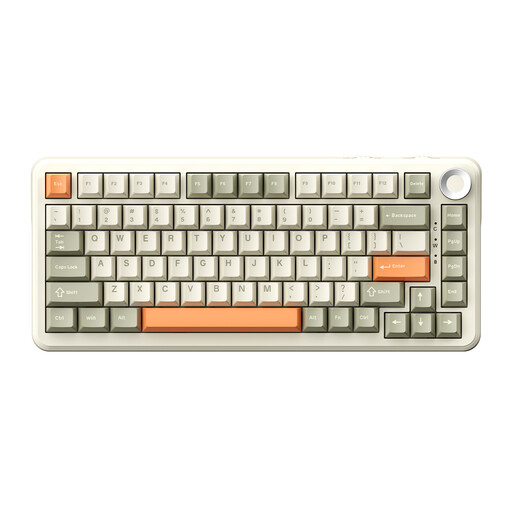
AJAZZ AK820 MAX 75% mechanical keyboard
The product name lists a compact 75% layout; check that the keys and US layout suit the way you work on diagrams.
The product name lists three connection modes, hot-swap, a volume knob and an 8000 mAh battery.
Joybuy
Frequently asked questions
Do I need a numeric keypad for diagrams?
It depends on your programme and how you work. Inkscape 1.4.x notes that keys on the numeric keypad generally work in the same way as their standard counterparts, unless stated otherwise. BakkerElkhuizen lists a numeric keypad on the UltraBoard 950 V2, accessible via NumLock; check your own shortcuts before giving up a dedicated keypad.
How can I check whether my shortcuts will work on a compact keyboard?
Compare the shortcuts for your version of the programme with the physical keyboard layout and any Fn layer. Inkscape warns that some shortcuts aren’t available on certain non-US layouts. Krita documents keys for actions including zooming and rotating; these programme-specific examples don’t automatically apply to other software.
How should I set up my workspace and maintain a wireless keyboard?
Position your keyboard and mouse so you can work comfortably, and check the pairing and charging instructions for the model you’ve chosen. For computer work, Arboportaal also recommends varying your posture and taking short breaks. Keep liquids away from the electronics.
What if the keyboard doesn’t suit me or breaks soon after I buy it?
For a standard online consumer purchase in the Netherlands, you’ll generally have a statutory 14-day cooling-off period after delivery, subject to legal exceptions. A product must also meet what you could reasonably expect. ACM ConsuWijzer states that if a product develops a fault during normal use, the seller is responsible for providing an appropriate solution; there isn’t a fixed statutory warranty period of exactly two years for every keyboard.
What should I look for in a wireless keyboard?
Check the product and conformity information for the exact wireless model. The Dutch Authority for Digital Infrastructure explains the European requirements for radio equipment and the related CE marking for sale in Europe. A CE mark doesn’t tell you whether the keyboard layout or key feel is right for your work.


